# enterprise-peran-akun

> Penjelasan perbedaan izin lima peran akun Enterprise: Admin, Manager, Head Designer, Designer, dan Design Manager.

- **URL**: https://www.coohom.com/id/helpcenter/enterprise-account-roles
- **Locale**: id_ID
- **Updated**: 2026-08-19

## Content

Berikut perbedaan izin untuk lima peran utama: **Admin** , **Manager** , **Head Designer** , **Designer** , dan **Design Manager**.

Untuk pengguna
==============

Pengguna Enterprise

Gambaran umum peran
-------------------

Admin dan Manager
=================

1. **Setiap perusahaan hanya dapat memiliki satu akun Admin** . Seperti pemilik perusahaan, Admin mengelola semua akun dan pengaturan. Admin dapat membuat dan mengelola akun desainer.  


2. **Manager dibuat oleh Admin**. Perannya setara dengan manajer umum, sehingga izinnya sering kali sama dengan Admin. Manager membantu Admin dalam pengelolaan akun, tetapi hanya dapat membuat dan mengelola desainer utama, desainer, dan manajer desain---Manager tidak dapat membuat atau mengelola Admin maupun Manager lain.

3. **Admin dan Manager sama-sama dapat membuat desainer utama, desainer, dan manajer desain**. Desainer hanya bertanggung jawab atas tugas proyek dasar yang terkait desain.
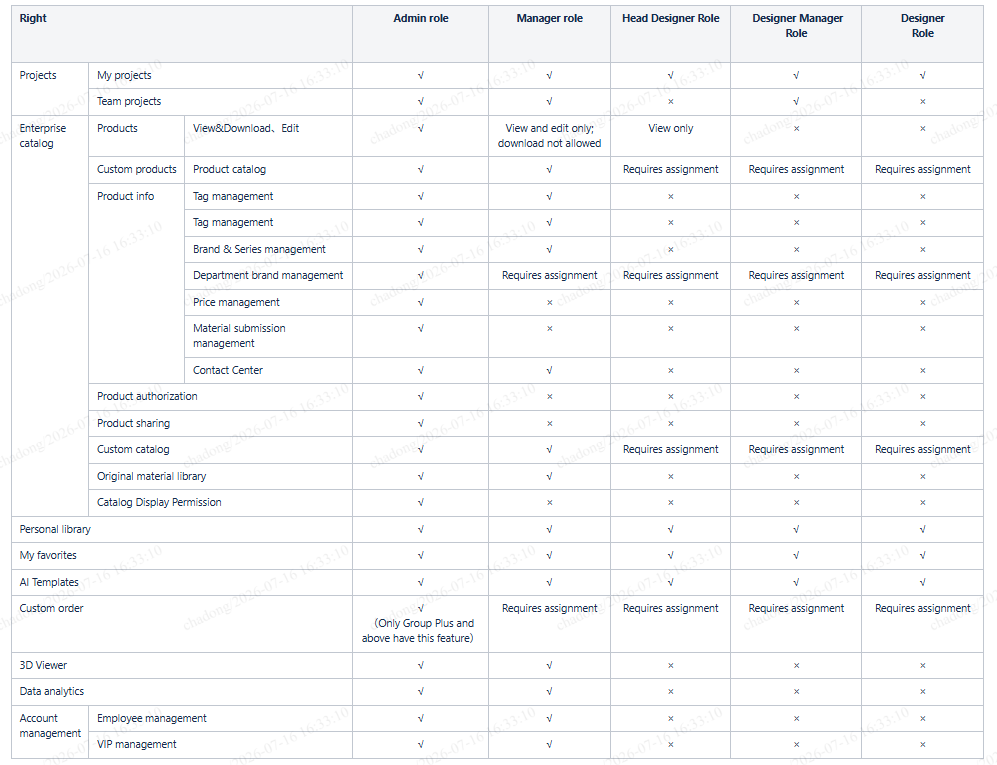
![No instructional markings (red/yellow/blue arrows, boxes, or numbered sequences) were detected in the provided image. The image is a static permission matrix table.

**Module:** Role-Based Access Control (RBAC) Permission Matrix
**Object:** Permission mapping table for various roles (Admin, Manager, Head Designer, etc.) across different functional modules (Projects, Enterprise Catalog, Personal Library, etc.).
**Purpose:** Used to define and verify the access rights and operational capabilities assigned to each user role within the system.](//qhstatic-sg-s3.coohom.com/yuntai/image/png/1784197005261/899018087C5BECD20EAB6A73466D5D05.png)

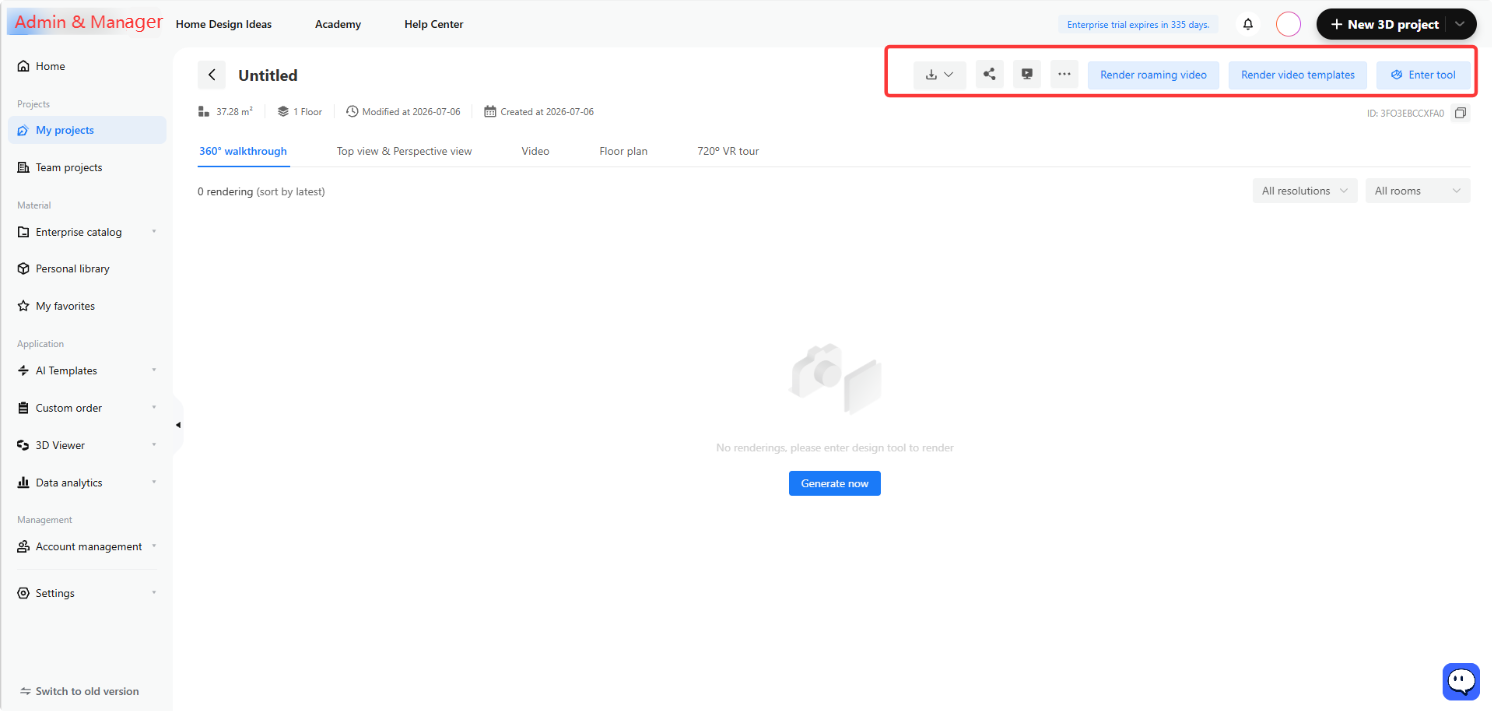
4. **Admin dan Manager** dapat membuat dan mengedit proyek individual.
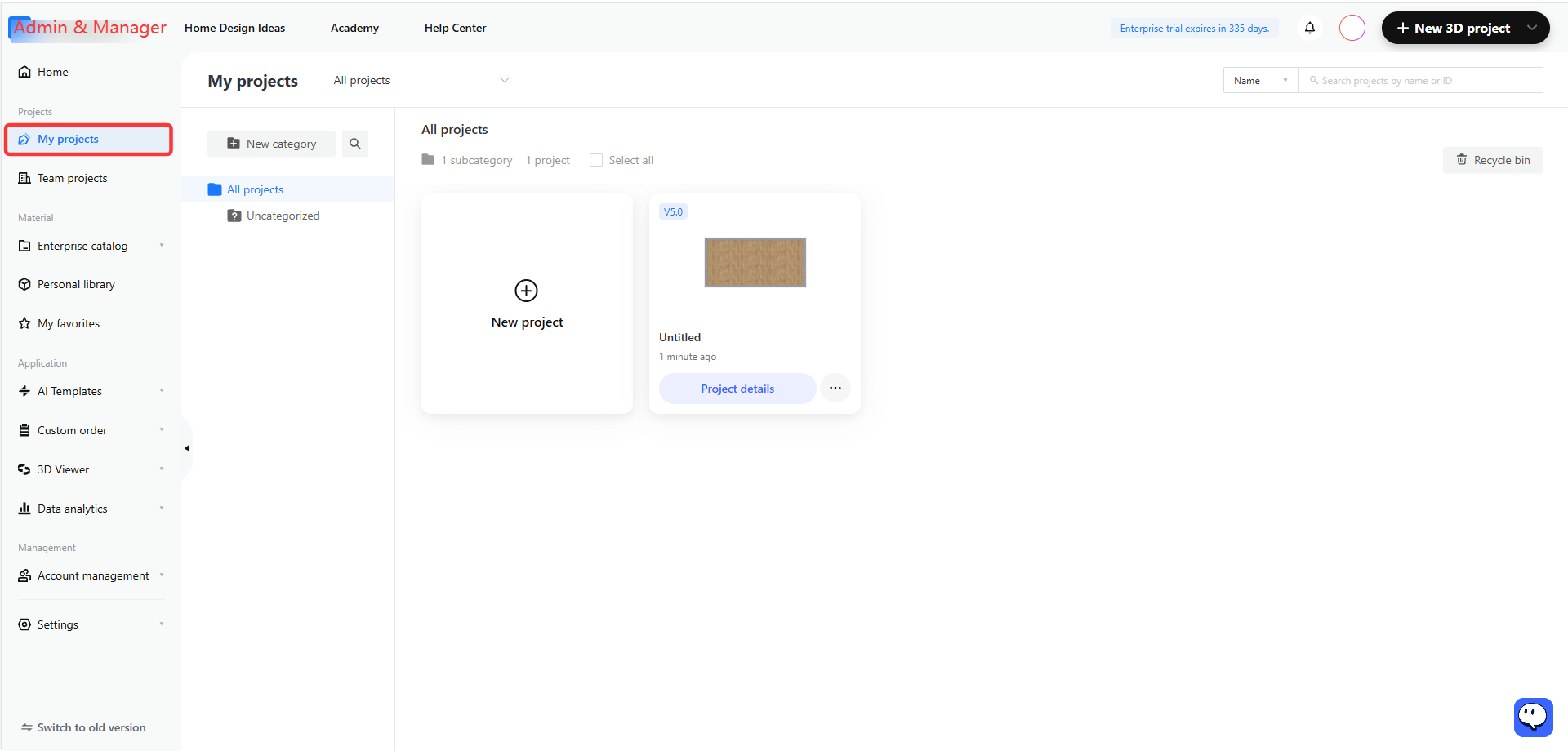
![**Modul:** Bilah Navigasi Samping > Proyek

**Objek target:** Item menu "Proyek Saya"

**Tindakan/Tujuan:** Membuka ruang kerja manajemen proyek pribadi Anda untuk melihat dan mengelola proyek 3D milik Anda sendiri.](//qhstatic-sg-s3.coohom.com/yuntai/image/png/1784197005451/D83320F6C4AB171435C2A4E743B02E7F.png)

![**Module:** Project Details > Top Action Bar

**Targeted Object:** A group of action buttons including the "Download" dropdown, "Share" icon, "Presentation" icon, "More" menu, "Render roaming video" button, "Render video templates" button, and "Enter tool" button.

**Purpose:** Used to perform project-level operations such as exporting files, sharing the project, rendering various video formats, or entering the design tool for further editing.](//qhstatic-sg-s3.coohom.com/yuntai/image/png/1784197006360/CCCD020F51884BE9329777A7B41B2789.png)

* Saat membagikan proyek, mereka dapat memilih tiga opsi: hanya lihat, dapat diduplikasi, atau dapat diedit.
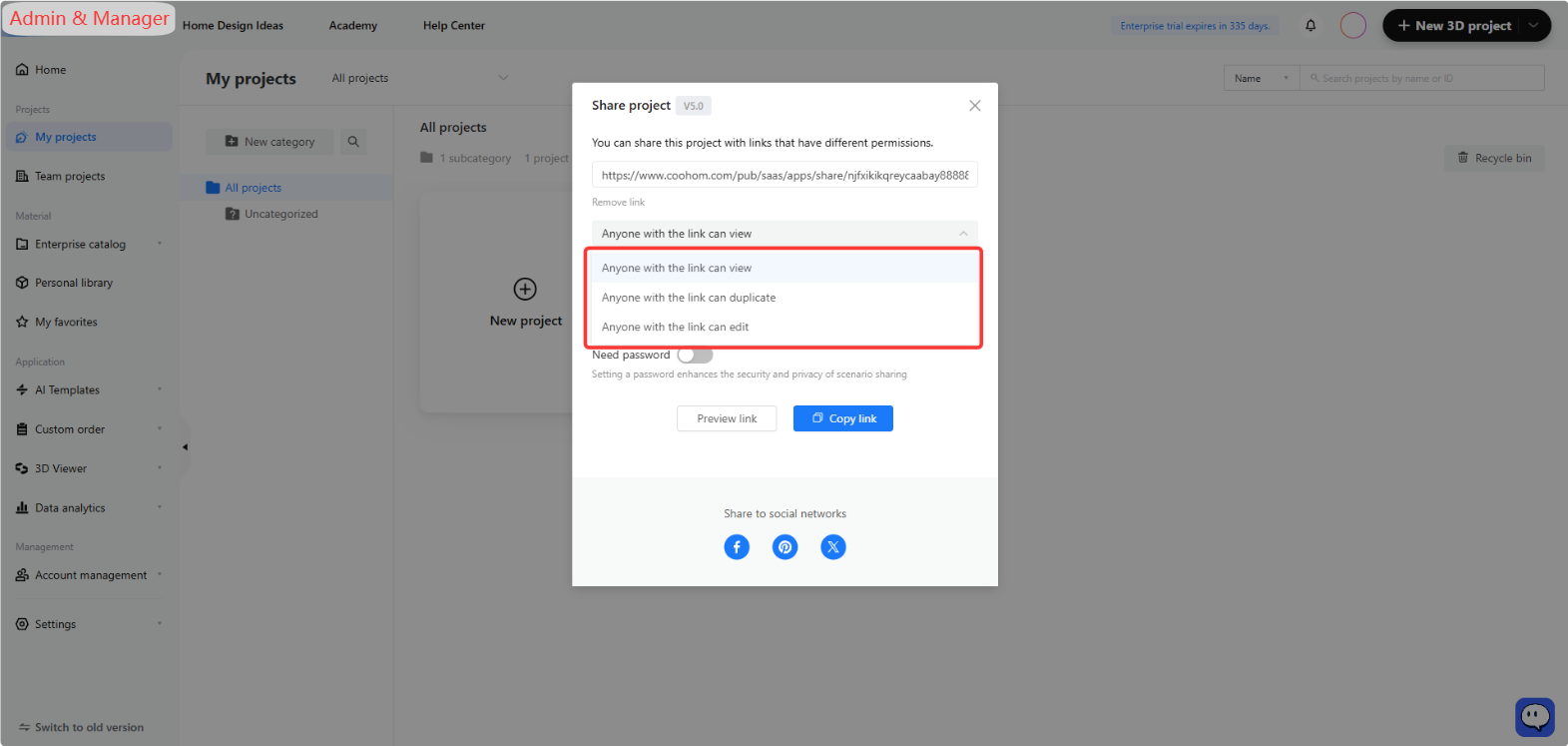
![**Module:** My projects > Share project popup

**Target Object:** Permission settings dropdown list (specifically the options: "Anyone with the link can view", "Anyone with the link can duplicate", and "Anyone with the link can edit").

**Function:** Used to configure the access level and permissions for users who access the project via the shared link.](//qhstatic-sg-s3.coohom.com/yuntai/image/png/1784197005435/7F9E4F7AE3DA2B78708CD67CDEDC55F8.png)

5. Selain itu, mereka dapat melihat dan mengedit **Team Projects**, termasuk menyalin desain pengguna lain dalam akun perusahaan yang sama secara langsung ke daftar proyek mereka sendiri.
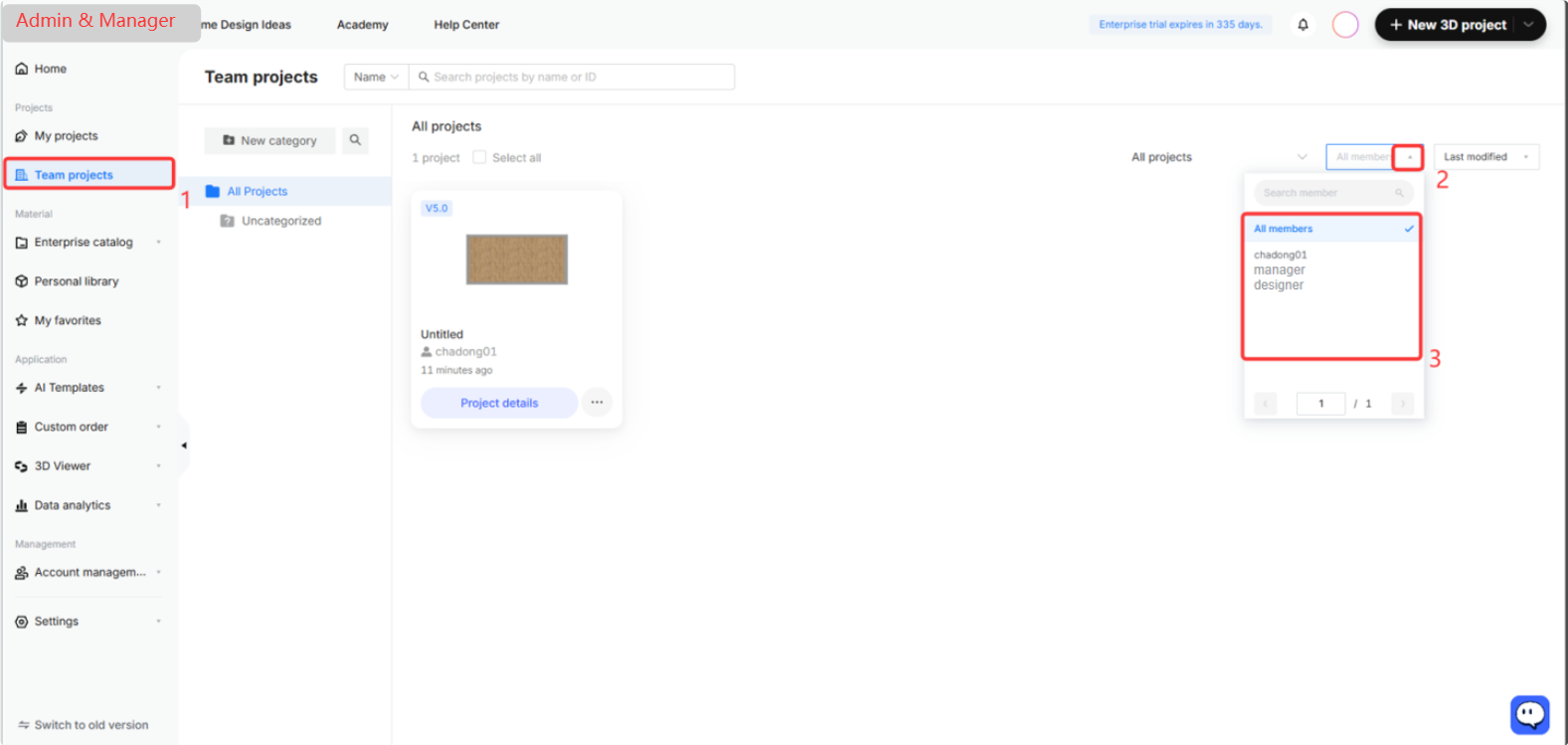
![**Module:** Team projects > Project List

**Workflow Steps:**
1. **"Team projects" menu item:** Click to enter the team project management workspace.
2. **Member filter dropdown:** Click to open the member selection menu.
3. **Member selection list:** Select a specific member (e.g., "All members", "chadong01") to filter and view projects associated with that user.](//qhstatic-sg-s3.coohom.com/yuntai/image/png/1784197005914/CE34B952103814F2B719CEEB205AA9FC.png)

6. **Perpustakaan perusahaan** adalah alat penting lainnya untuk **Admin** dan **Manager** . Tugas di dalamnya mencakup mengunggah model 3D, tekstur, paving, serta membuat bahan yang diperlukan di **Custom Products--- Product Catalog**.
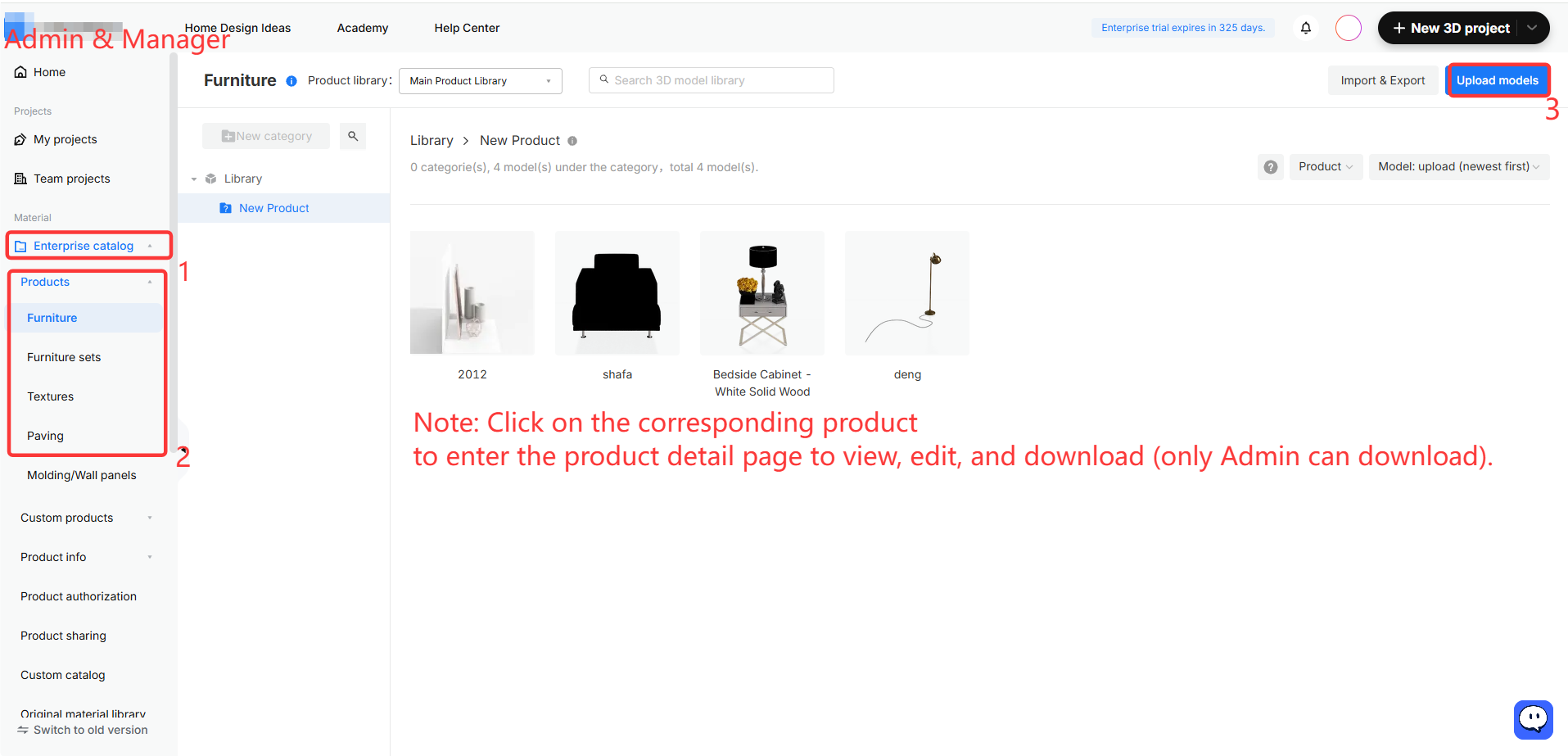
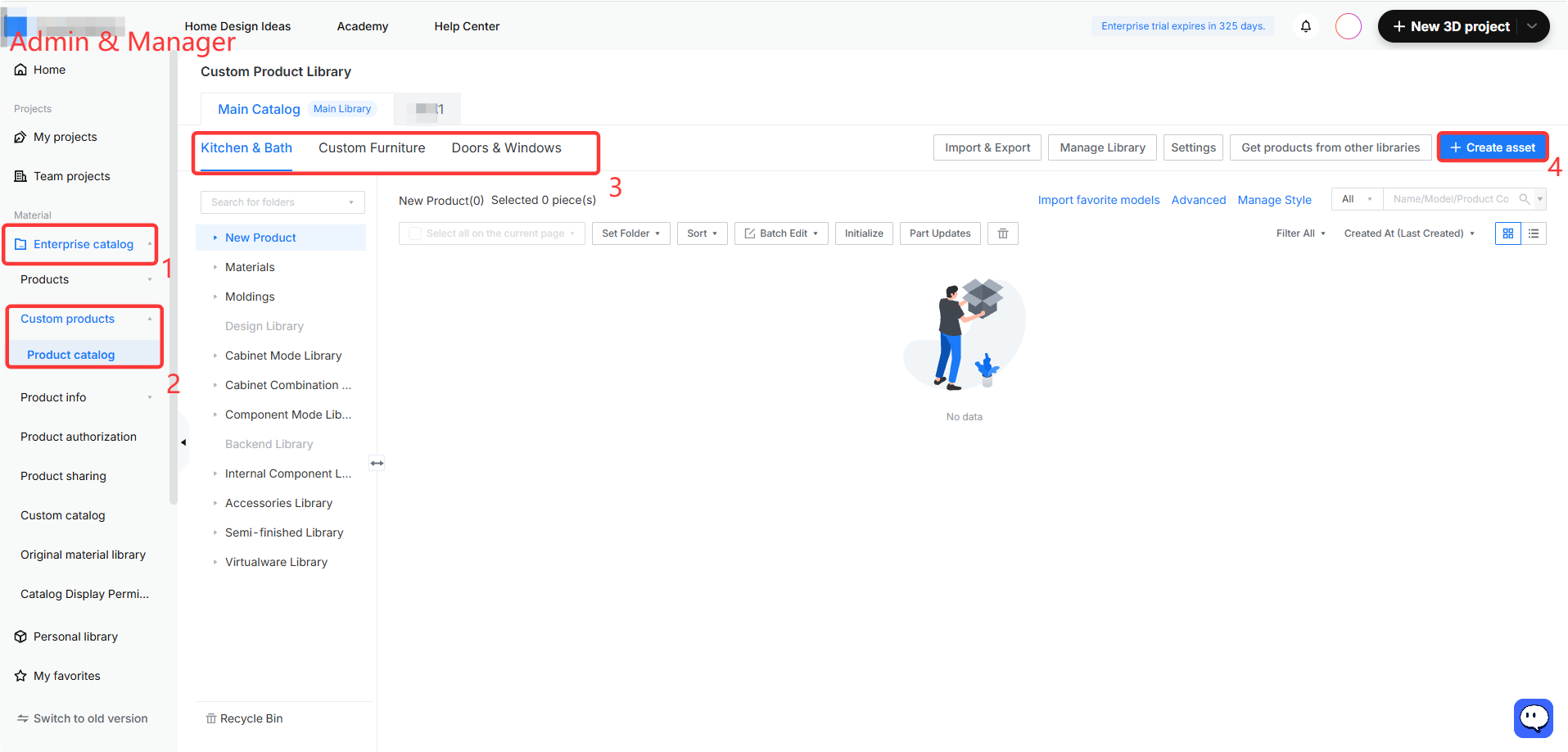
![**Module:** Admin & Manager > Enterprise Catalog

**Workflow Steps:**
1. **'Enterprise catalog' menu item:** Selects the enterprise-level asset management section.
2. **'Products > Furniture' category list:** Navigates to the specific furniture product library to browse available 3D models.
3. **'Upload models' button:** Used to import new 3D model files into the library.](//qhstatic-sg-s3.coohom.com/yuntai/image/png/1784197005820/5218A5FB5B6C7A617CA01F66AFC6C458.png)

![**Module:** Admin & Manager > Custom Product Library

**Workflow Steps:**
1. **'Enterprise catalog' menu item:** Selects the enterprise-level asset management scope.
2. **'Custom products' > 'Product catalog' menu items:** Navigates to the specific catalog management interface for custom products.
3. **Category Tabs ('Kitchen & Bath', 'Custom Furniture', 'Doors & Windows'):** Used to filter and switch between different product categories within the library.
4. **'Create asset' button:** Used to initiate the creation of a new custom product asset.](//qhstatic-sg-s3.coohom.com/yuntai/image/png/1784197005571/5A2B89F2D8B14C6F004B7366B77D84F5.png)

* Mereka juga dapat menggunakan opsi **Info Management** ---**Customized Fields** untuk menambahkan bidang khusus pada produk sesuai berbagai kebutuhan pengelolaan.
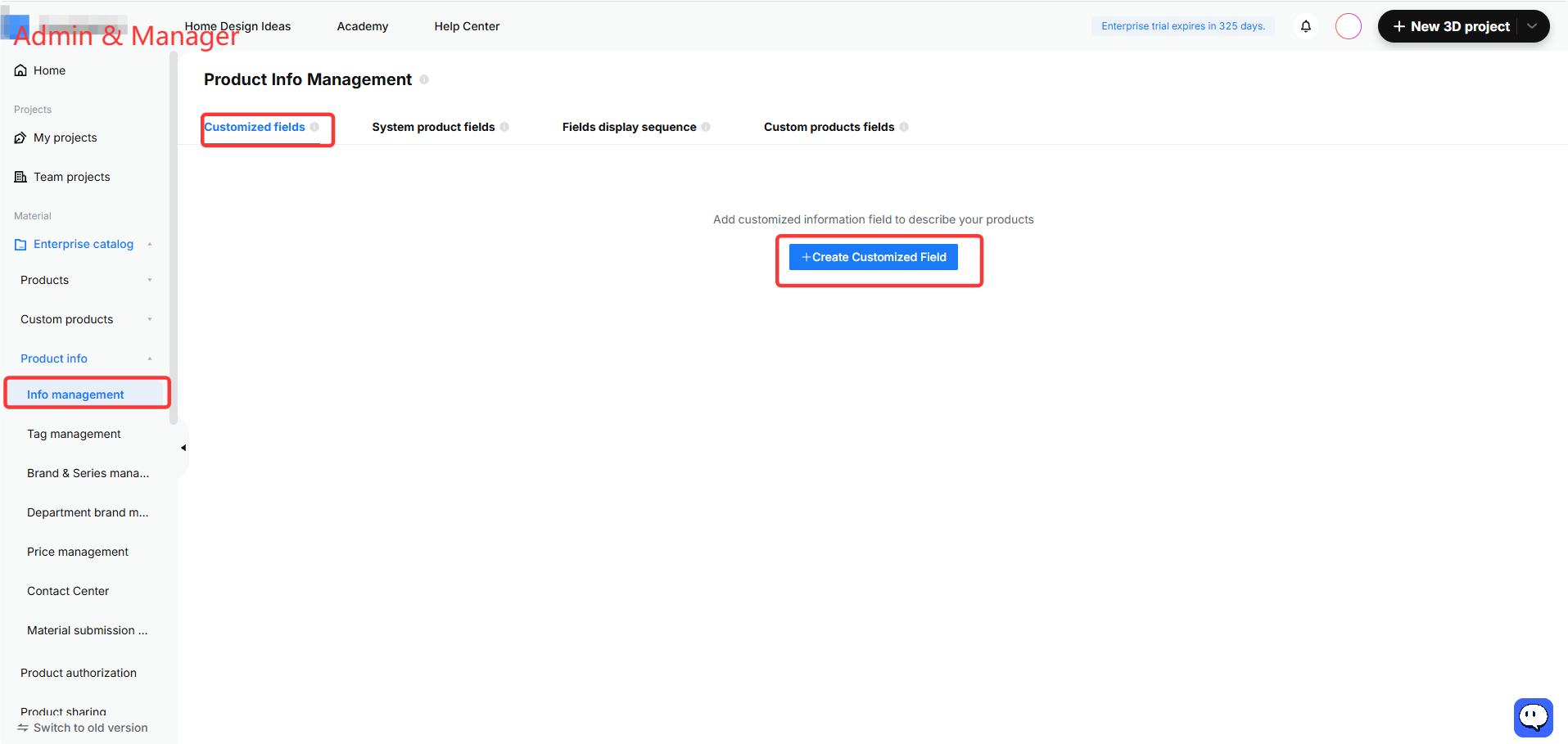
![**Module:** Admin & Manager > Product info > Info management

**Annotated Objects & Workflow:**
1. **"Info management" menu item:** Located in the left sidebar; used to enter the product information management module.
2. **"Customized fields" tab:** Located in the top navigation bar of the Product Info Management page; used to switch to the customized field configuration view.
3. **"+ Create Customized Field" button:** Located in the center of the page; used to add a new customized information field to describe products.](//qhstatic-sg-s3.coohom.com/yuntai/image/png/1784197005725/2C6E4895A1CF19B9A40BA9B2D39385F5.png)

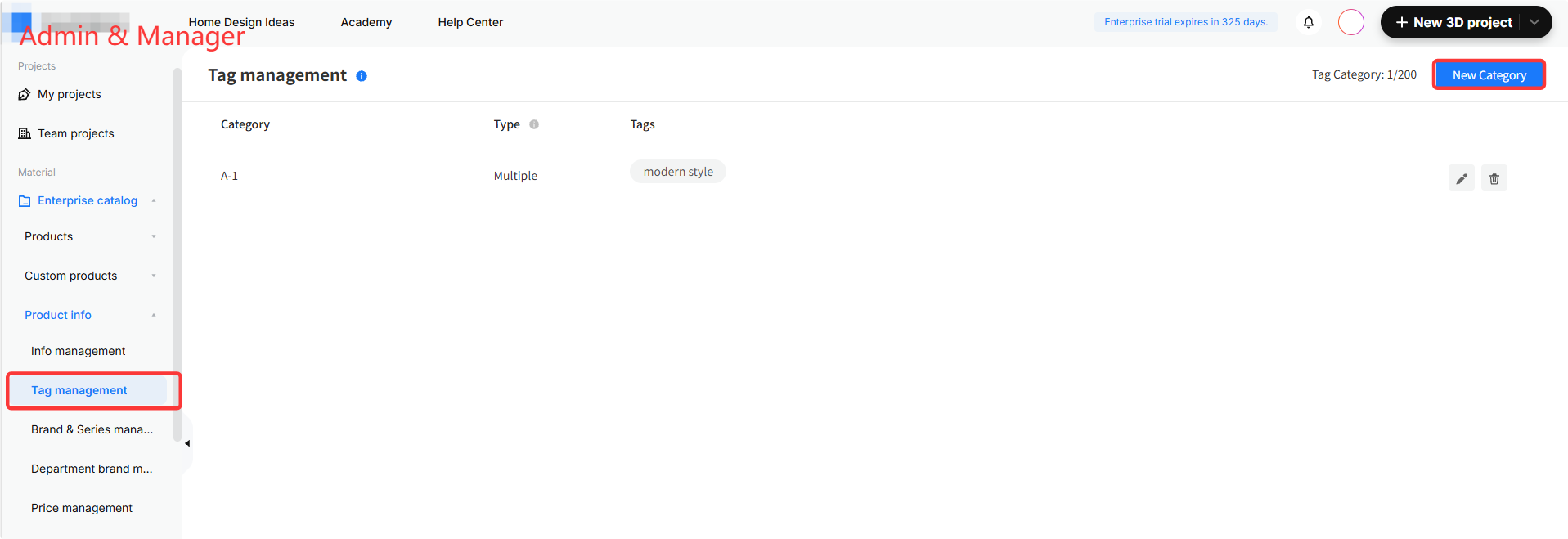
* Mereka juga dapat membuat merek/seri, lalu memberi tag pada produk berdasarkan merek dan atributnya agar lebih mudah dicari di alat desain.
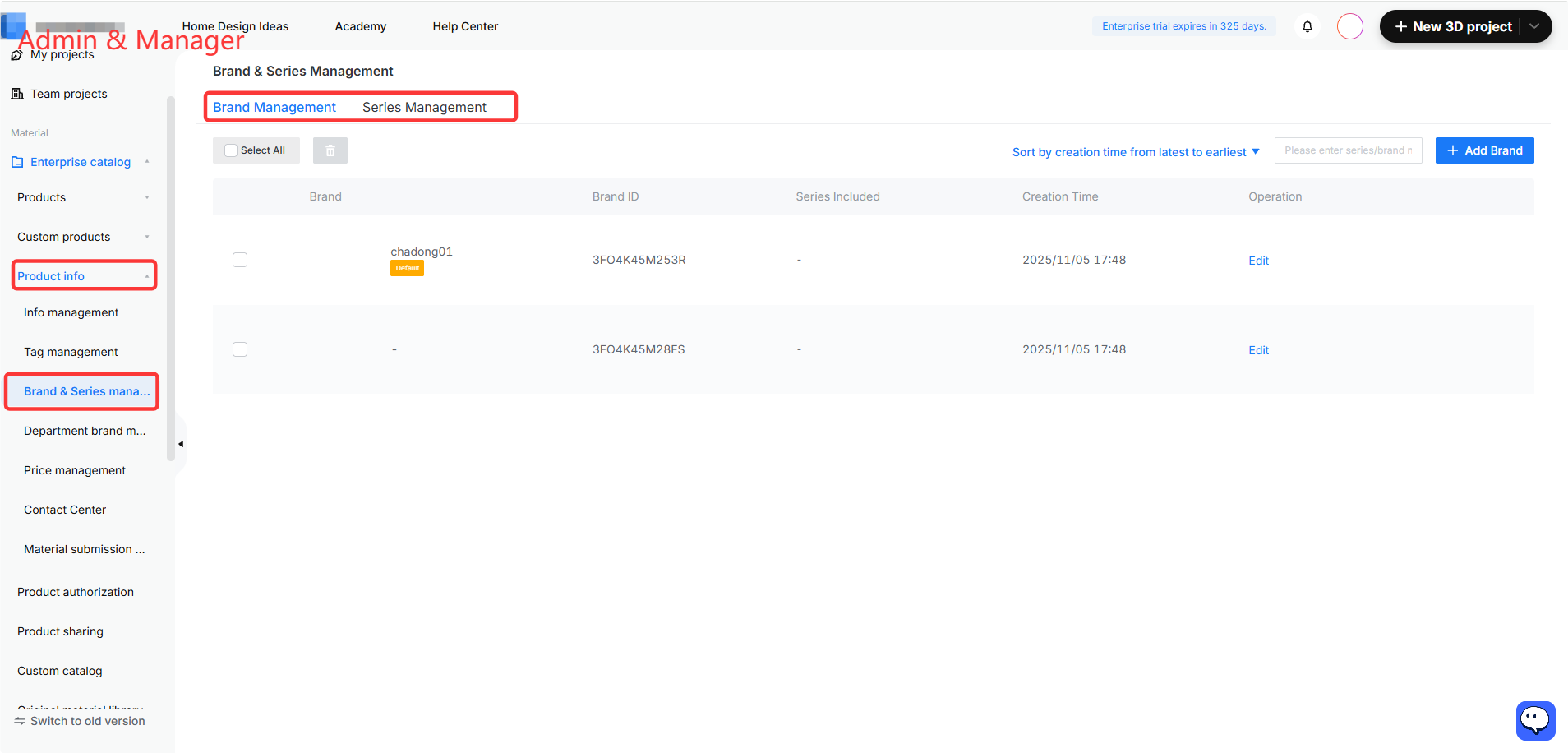
![**Module:** Admin & Manager > Product info > Brand & Series Management

**Annotated Objects & Functions:**
1. **"Product info" menu item:** Used to expand the product information management category in the sidebar.
2. **"Brand & Series mana..." menu item:** Used to navigate to the Brand & Series Management functional page.
3. **"Brand Management" tab:** Used to switch the view to the brand list for managing brand identities and IDs.](//qhstatic-sg-s3.coohom.com/yuntai/image/png/1784197005509/B16338FA83306C495FF5EF2194DA0EE2.png)

![**Module:** Admin & Manager > Enterprise catalog > Product info > Tag management

**Annotated Objects:**
1. **'Tag management' menu item** (Red box): Located in the left navigation sidebar; used to access the tag configuration interface.
2. **'New Category' button** (Red box): Located in the top right of the main panel; used to create a new tag category.](//qhstatic-sg-s3.coohom.com/yuntai/image/png/1784197005662/CE77448CF27F966FB417BA782CEDA0ED.png)

* **Admin** juga dapat mengonfigurasi **Department Brand Management** untuk menetapkan model merek-seri yang tersedia bagi tiap departemen, sehingga pemfilteran di sisi alat menjadi lebih mudah (Catatan: Manager memerlukan peran yang sesuai untuk menggunakan fitur ini).
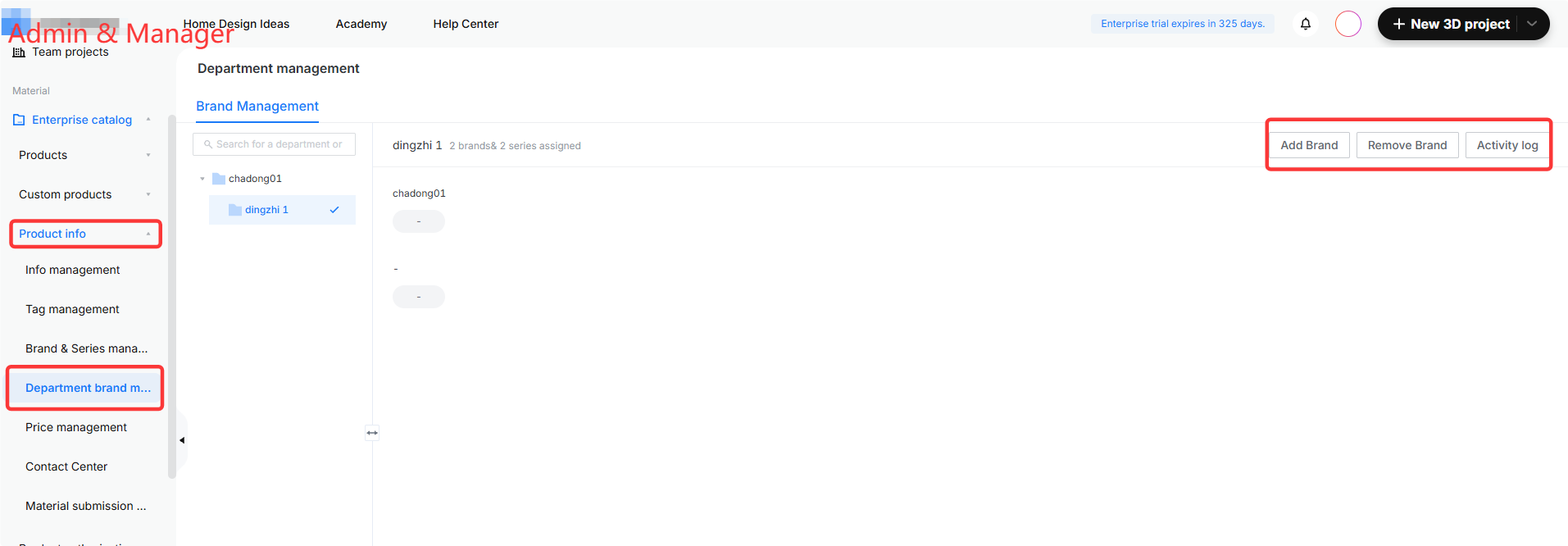
![**Module:** Admin & Manager > Enterprise catalog > Product info > Department brand management

**Annotated Objects & Functions:**
1. **"Product info" menu item:** Used to access product-related information management settings.
2. **"Department brand m..." menu item:** Used to enter the Department brand management interface for configuring brand assignments.
3. **Action Button Group (containing "Add Brand", "Remove Brand", and "Activity log"):** Used to add or remove brands from the selected department and view the operation history log.](//qhstatic-sg-s3.coohom.com/yuntai/image/png/1784197006566/B5C3F0D92EA98D248393B97516151C37.png)

* Selain itu, **Admin** dapat mengotorisasi/membagikan model perusahaan mereka kepada perusahaan lain.
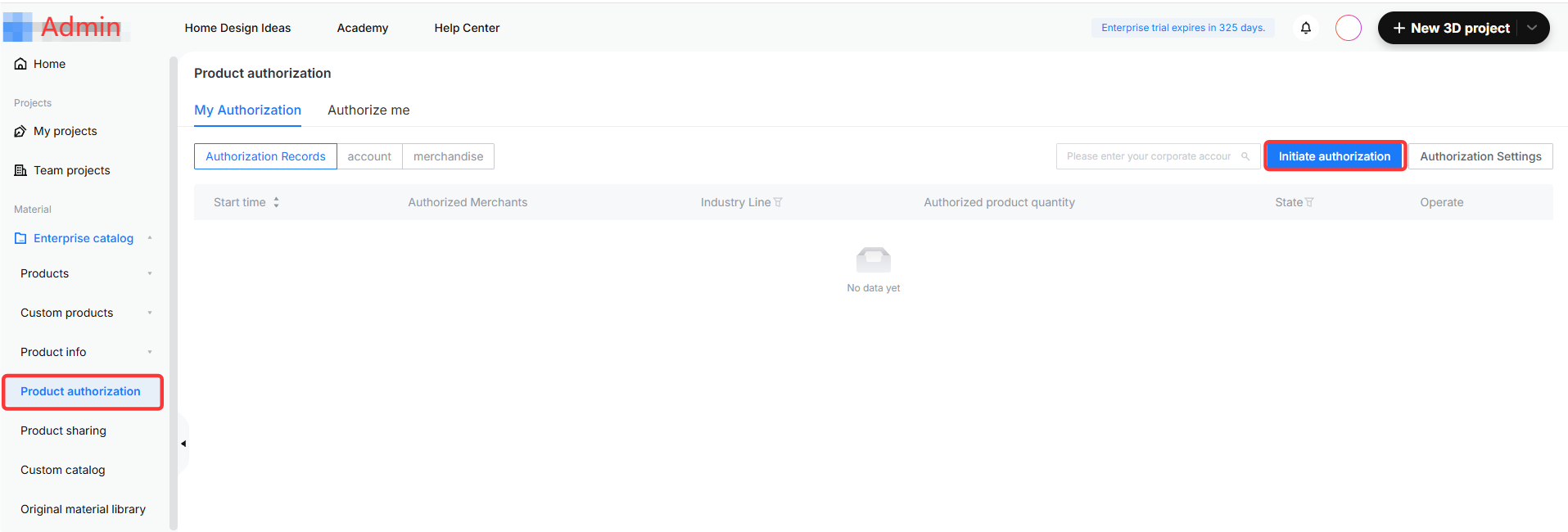
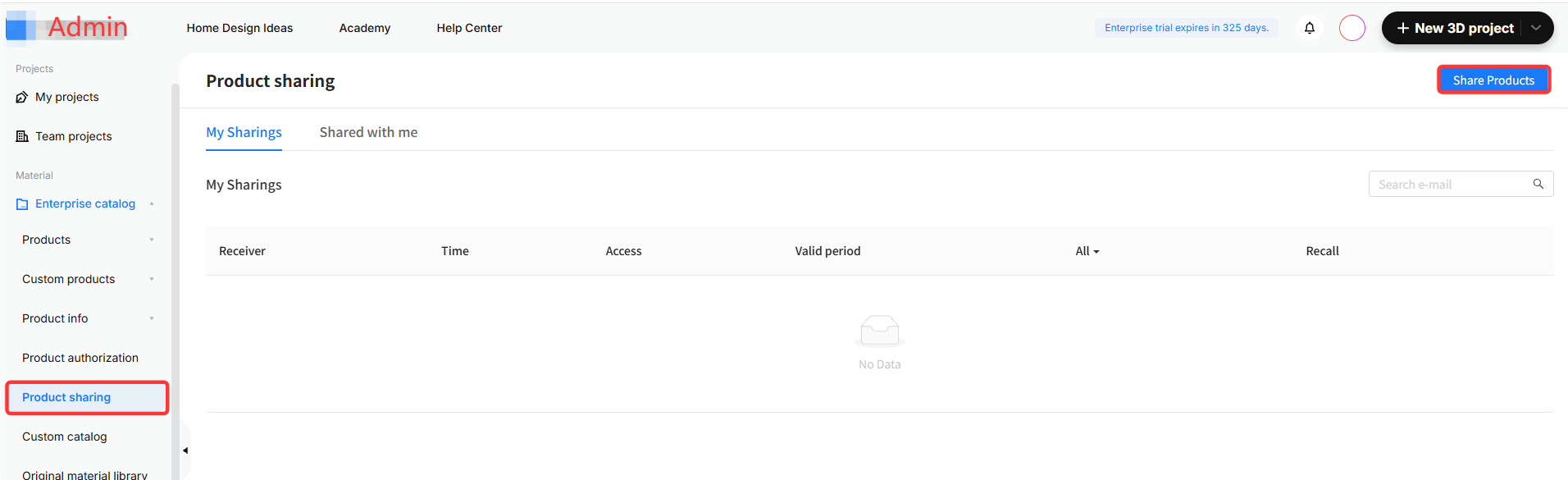
![**Module:** Enterprise catalog > Product authorization

**Annotated Objects:**
1. **"Product authorization" menu item** (Left sidebar): Used to navigate to the product authorization management page.
2. **"Initiate authorization" button** (Main panel): Used to start the process of granting product authorization.](//qhstatic-sg-s3.coohom.com/yuntai/image/png/1784197005753/8BA6B33655E000E3B54F861E3ED30F31.png)

![**Modul:** Katalog Enterprise > Berbagi Produk

**Objek target:** Item menu "Berbagi Produk" (disorot dengan kotak merah)

**Fungsi:** Digunakan untuk membuka halaman manajemen Berbagi Produk, tempat Anda dapat melihat dan mengelola catatan produk yang dibagikan.](//qhstatic-sg-s3.coohom.com/yuntai/image/png/1784197006614/A9D00642D73DEED7A41E972899E31501.png)

* **Admin** dan **Manager** dapat membuat pustaka produk baru di **Product Authorization** berdasarkan lini bisnis, merek, kategori produk, atau kebutuhan tim, lalu menetapkan Manager untuk klasifikasi dan pengelolaan sumber daya yang lebih terperinci.
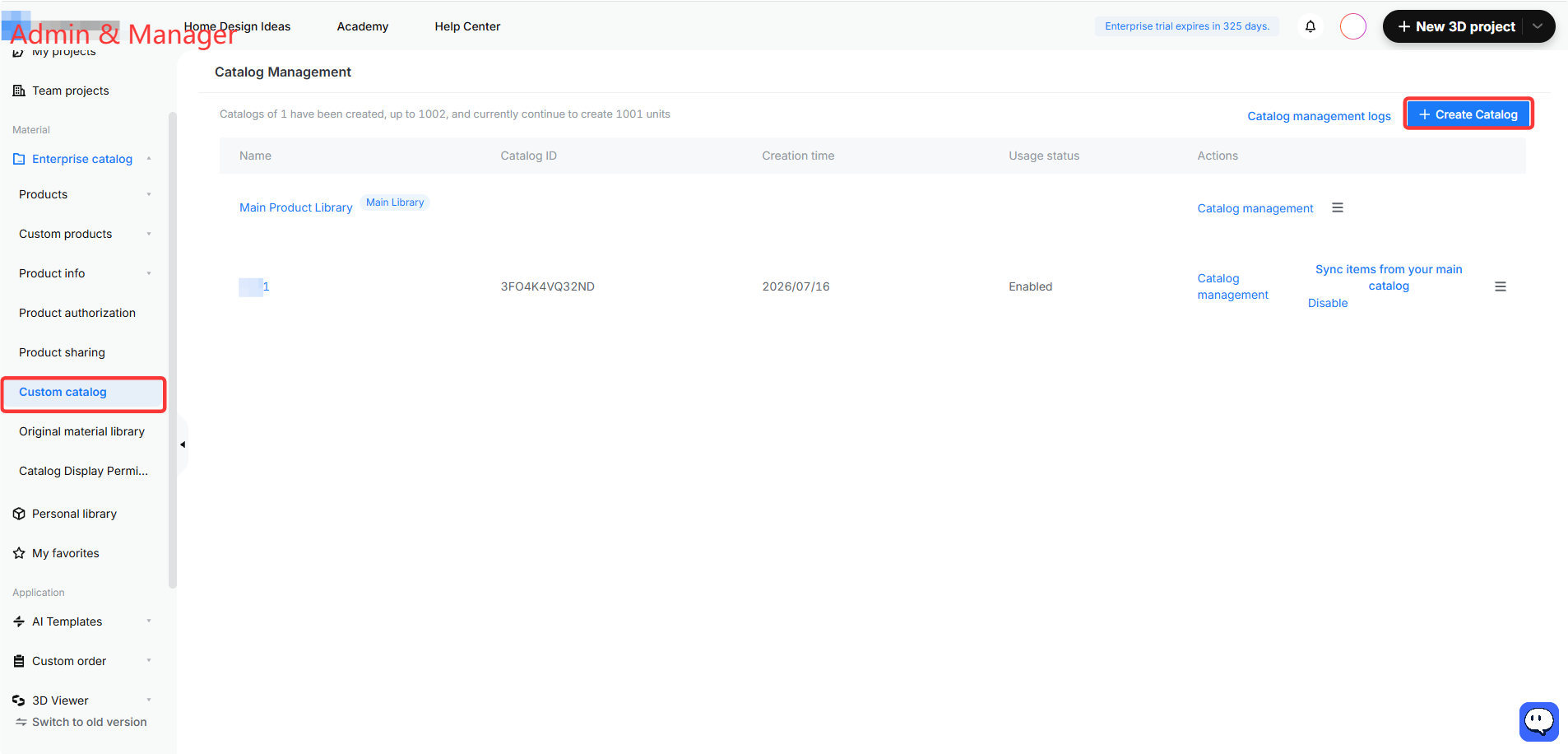
![**Module:** Admin & Manager > Catalog Management

**Annotated Objects:**
1. **"Custom catalog" menu item** (Left sidebar): Used to navigate to the custom catalog management section.
2. **"Create Catalog" button** (Top right): Used to initiate the creation of a new product catalog.](//qhstatic-sg-s3.coohom.com/yuntai/image/png/1784197008096/2F790093AAC69B7EADE940BE217D1C20.png)

* Di **Perpustakaan bahan asli** , **Admin** dan **Manager** dapat membuat bahan sesuai kebutuhan.
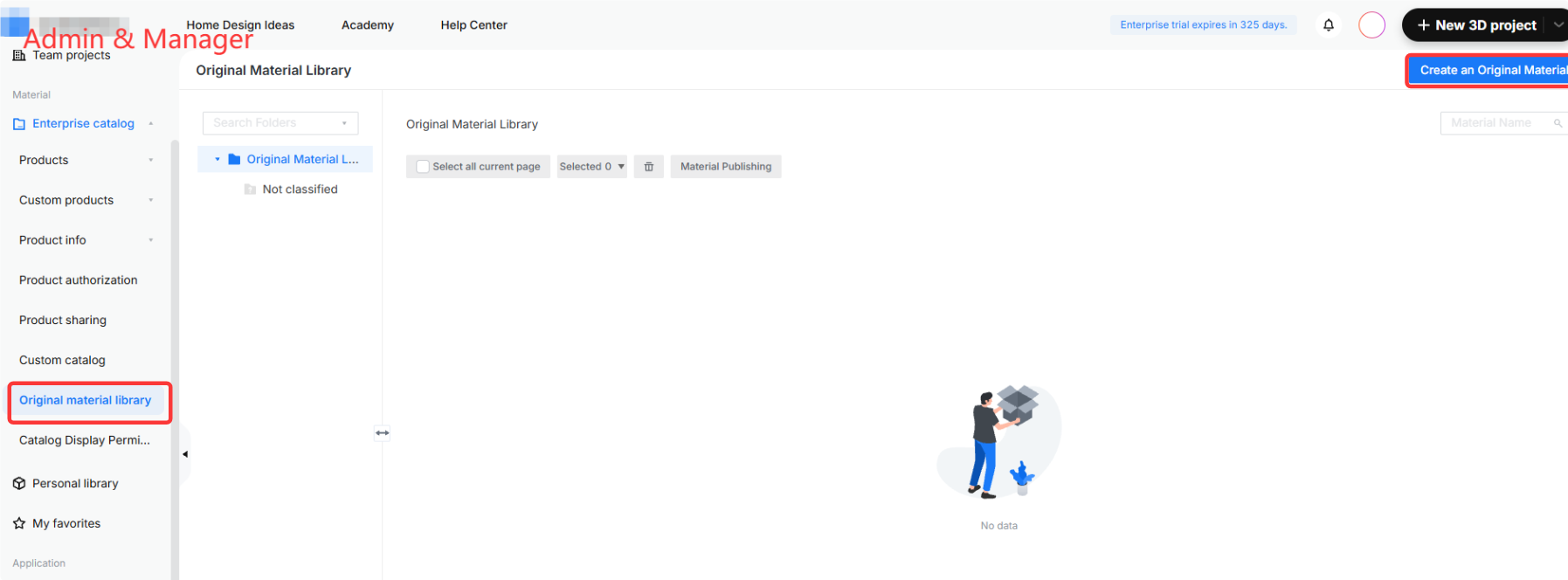
![**Module:** Admin & Manager > Material > Enterprise catalog

**Annotated Objects:**
1. **"Original material library" menu item:** Located in the left sidebar; used to navigate to the original material management section.
2. **"Create an Original Material" button:** Located in the top right corner; used to initiate the creation of a new original material asset.](//qhstatic-sg-s3.coohom.com/yuntai/image/png/1784197005488/98779871882620301B2FA403AB3DA7BE.png)

* Admin juga dapat mengatur izin tampilan untuk furnitur khusus dan **Material Products** di **Catalog Display Permission**.
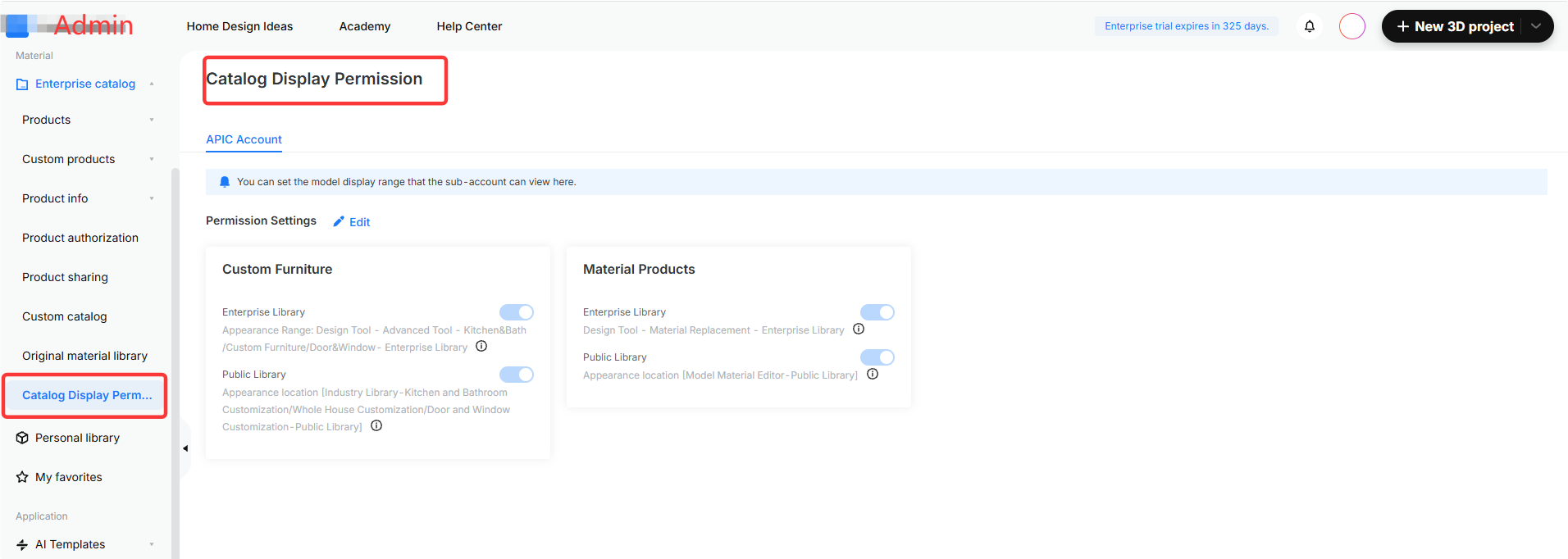
![**Module:** Admin > Material > Catalog Display Permission

**Annotated Objects:**
1. **"Catalog Display Perm..." menu item** (Left sidebar): Used to navigate to the catalog display permission settings page.
2. **"Catalog Display Permission" page title** (Main content area): Confirms the current active functional module for managing model display ranges for sub-accounts.](//qhstatic-sg-s3.coohom.com/yuntai/image/png/1784197005923/2D8A1984198E9EB45825160FE5419C96.png)

7. **3D Viewer** berfungsi sebagai modul tampilan produk digital dan operasional untuk perusahaan. **Admin** dan **Manager** dapat mengelola model jadi, produk khusus, dll. secara terpusat, lalu membuat konten produk yang dapat dibagikan. Coohom Showcase mendukung tampilan modular, pengelompokan produk, tampilan 3D/AR, dan analitik data untuk visualisasi produk, promosi berdasarkan skenario, serta pelacakan performa penayangan.
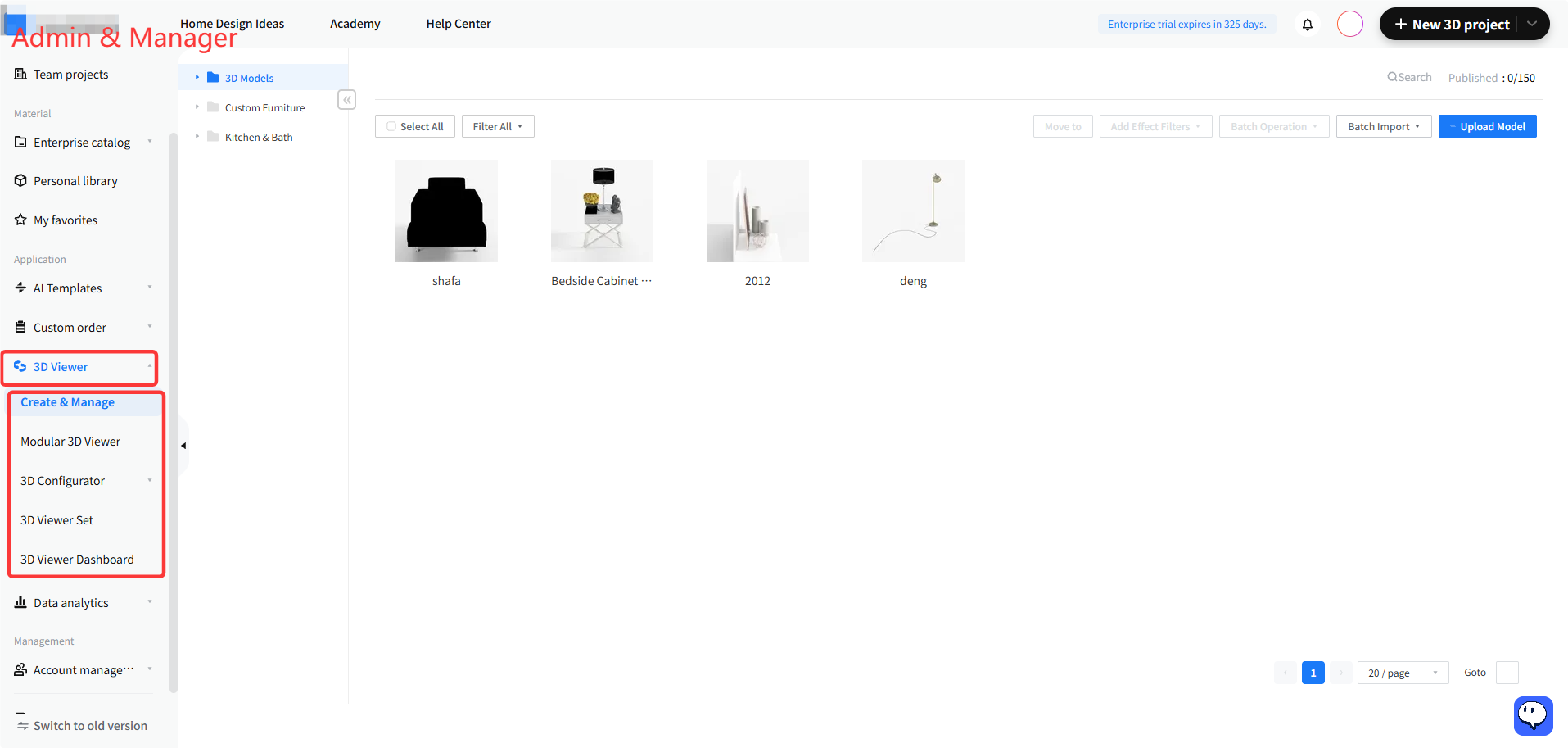
![**Module:** Admin & Manager > Side Navigation Menu

**Targeted Objects:**
1. **'3D Viewer' menu item:** The primary category selected to expand the sub-menu.
2. **'Create & Manage' sub-menu item:** The specific functional option highlighted within the 3D Viewer category.

**Workflow Purpose:**
The user navigates to the '3D Viewer' section and selects 'Create & Manage' to access the management interface for creating and organizing 3D viewer assets.](//qhstatic-sg-s3.coohom.com/yuntai/image/png/1784197005702/5CF8AFC85DEAF3E737E52D5E586853D6.png)

8. Fitur **Data Analytics** membantu Admin menilai metrik penggunaan dan performa individu maupun perusahaan di platform.

* Analisis data memungkinkan Anda melacak pembuatan desain, hasil rendering, waktu penggunaan alat, aktivitas akun, dan pemanfaatan model produk. Anda dapat menggunakan papan peringkat, bagan khusus, dan dasbor untuk tampilan serta analitik multidimensi, sehingga efisiensi operasional dapat ditingkatkan.
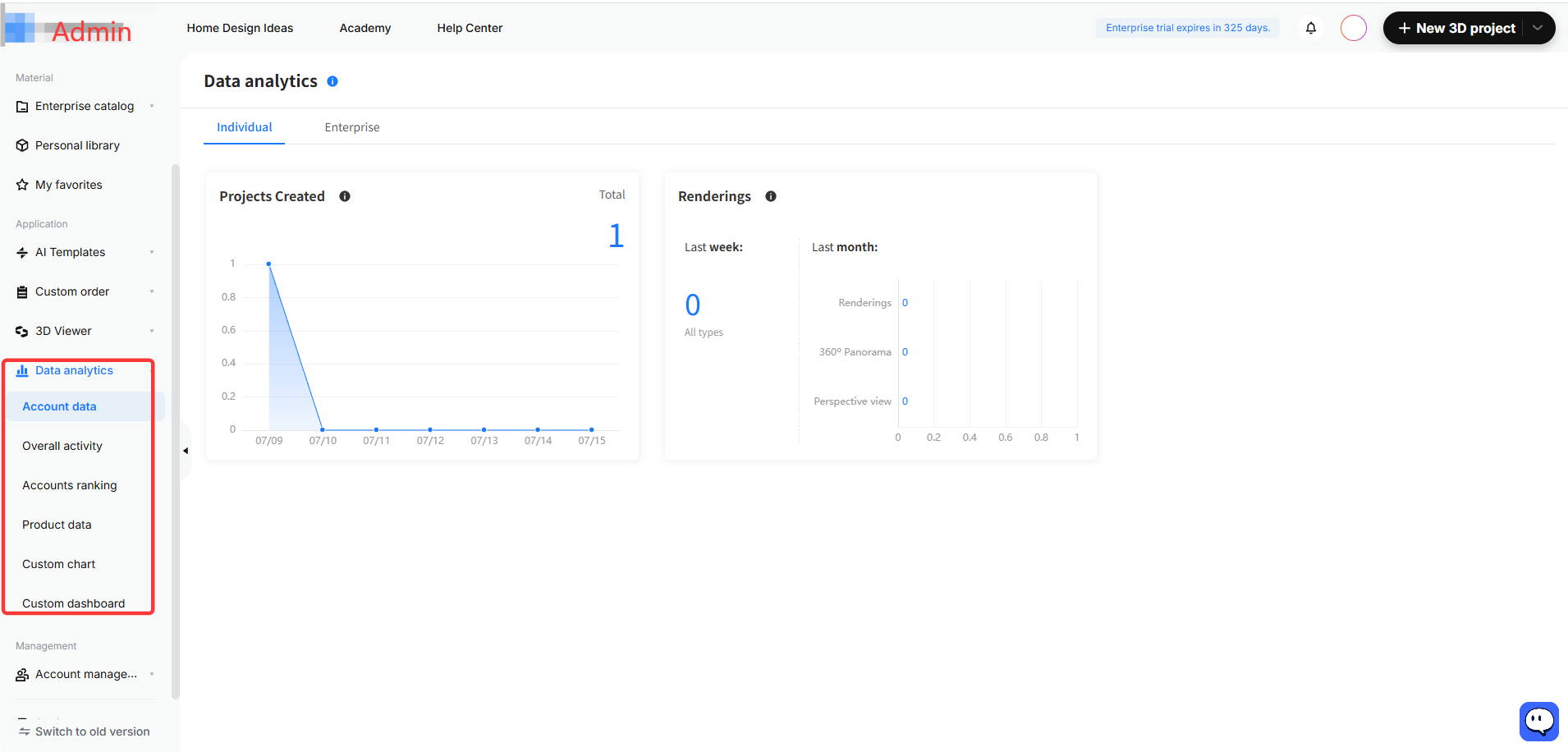
![**Module:** Side Navigation Bar > Data analytics

**Target Object:** "Account data" menu item (highlighted within the red boxed "Data analytics" section).

**Function:** Used to navigate to the account-specific data analytics dashboard to view individual or enterprise performance metrics.](//qhstatic-sg-s3.coohom.com/yuntai/image/png/1784197005464/048C32ADDE381FFBF003E53E46B2085F.png)

* Catatan: Manager hanya dapat melihat **Product Data**, termasuk rasio klik model dan penggunaannya di semua akun perusahaan.
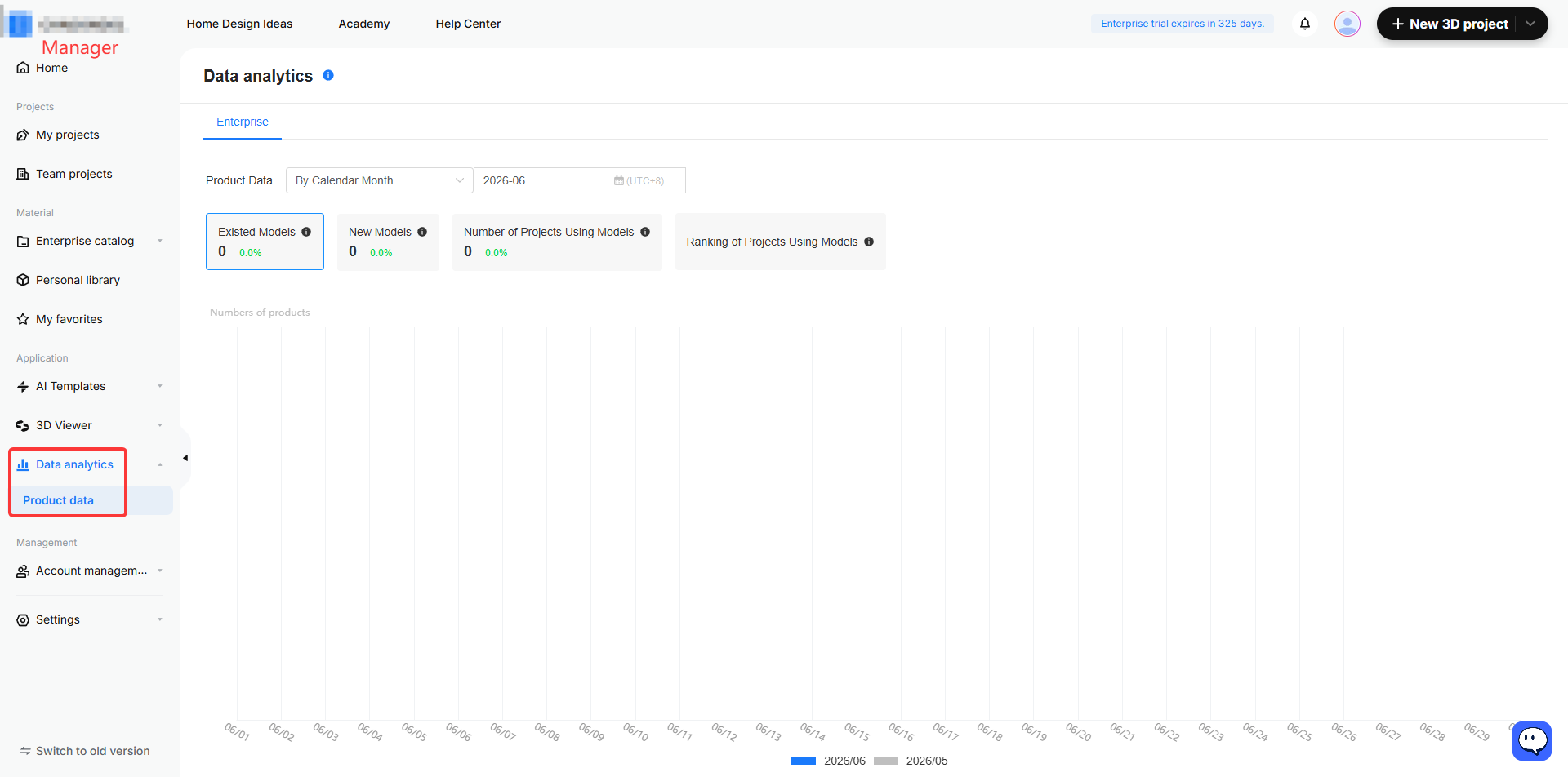
![**Module:** Application > Data analytics

**Highlighted Object:** "Product data" menu item (within the red bounding box).

**Function:** Used to navigate to the product data analysis view to monitor metrics such as existed models, new models, and project usage statistics.](//qhstatic-sg-s3.coohom.com/yuntai/image/png/1784197006634/039299C46BCCEC5664A3B409320A838C.png)

9. Modul **Account Management** digunakan untuk membuat dan mengelola akun Manager dan desainer.

* Admin dapat membuat dan mengelola peran **Manager** , **Head Designer** , **Designer** , dan **Design Manager**.
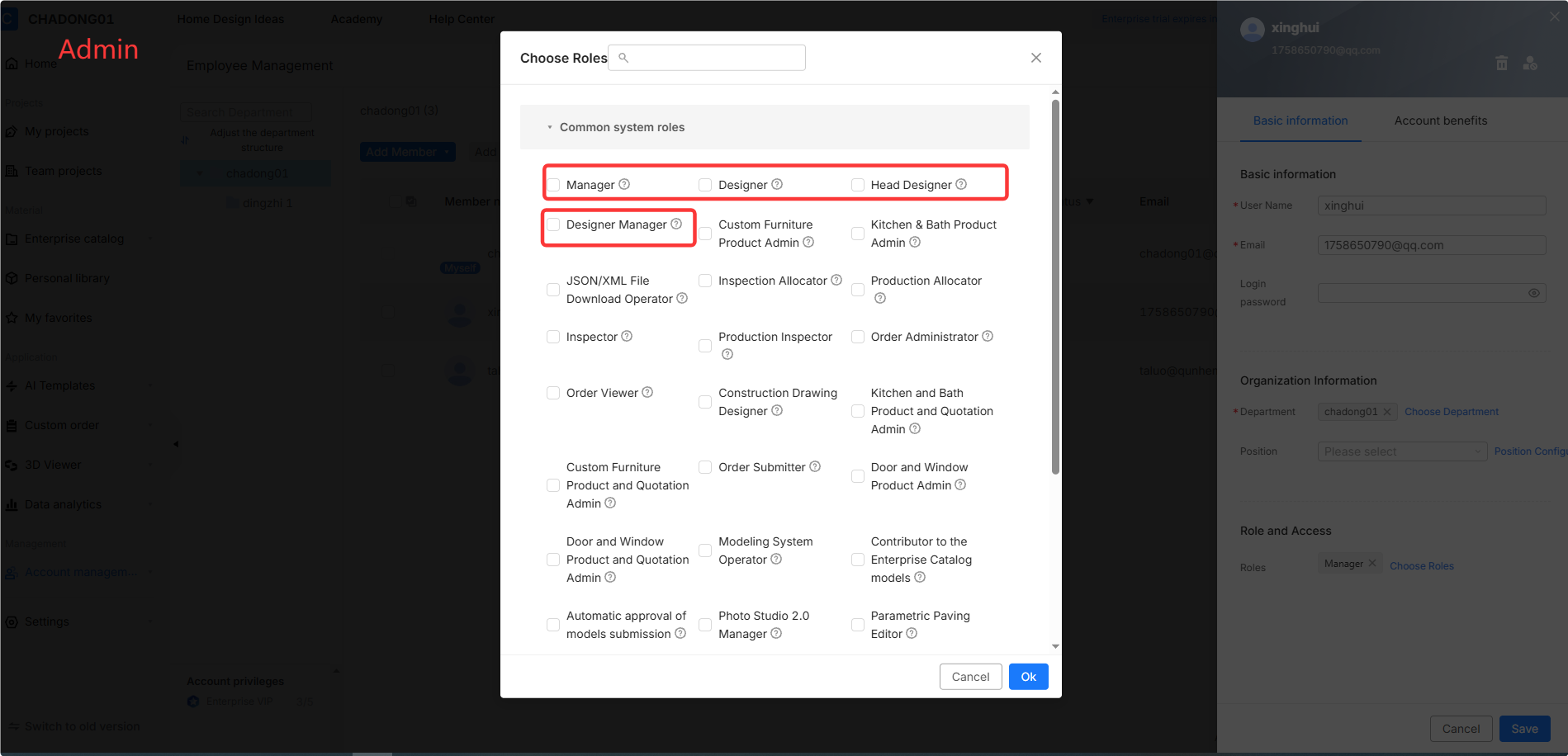
![**Module:** Account Management > Choose Roles Pop-up

**Highlighted Objects:**
1. **"Manager", "Designer", and "Head Designer" checkboxes:** Red box highlighting the primary system role options.
2. **"Designer Manager" checkbox:** Red box highlighting a specific management role.

**Purpose:** Used to assign one or multiple system roles to a user to define their access permissions and functional authority within the platform.](//qhstatic-sg-s3.coohom.com/yuntai/image/png/1784197006064/9F231EE4842F2CC925CDB888CEC46FA4.png)

* Manajer hanya dapat membuat dan mengelola akun **Head Designer** , **Designer** , dan **Design Manager**.
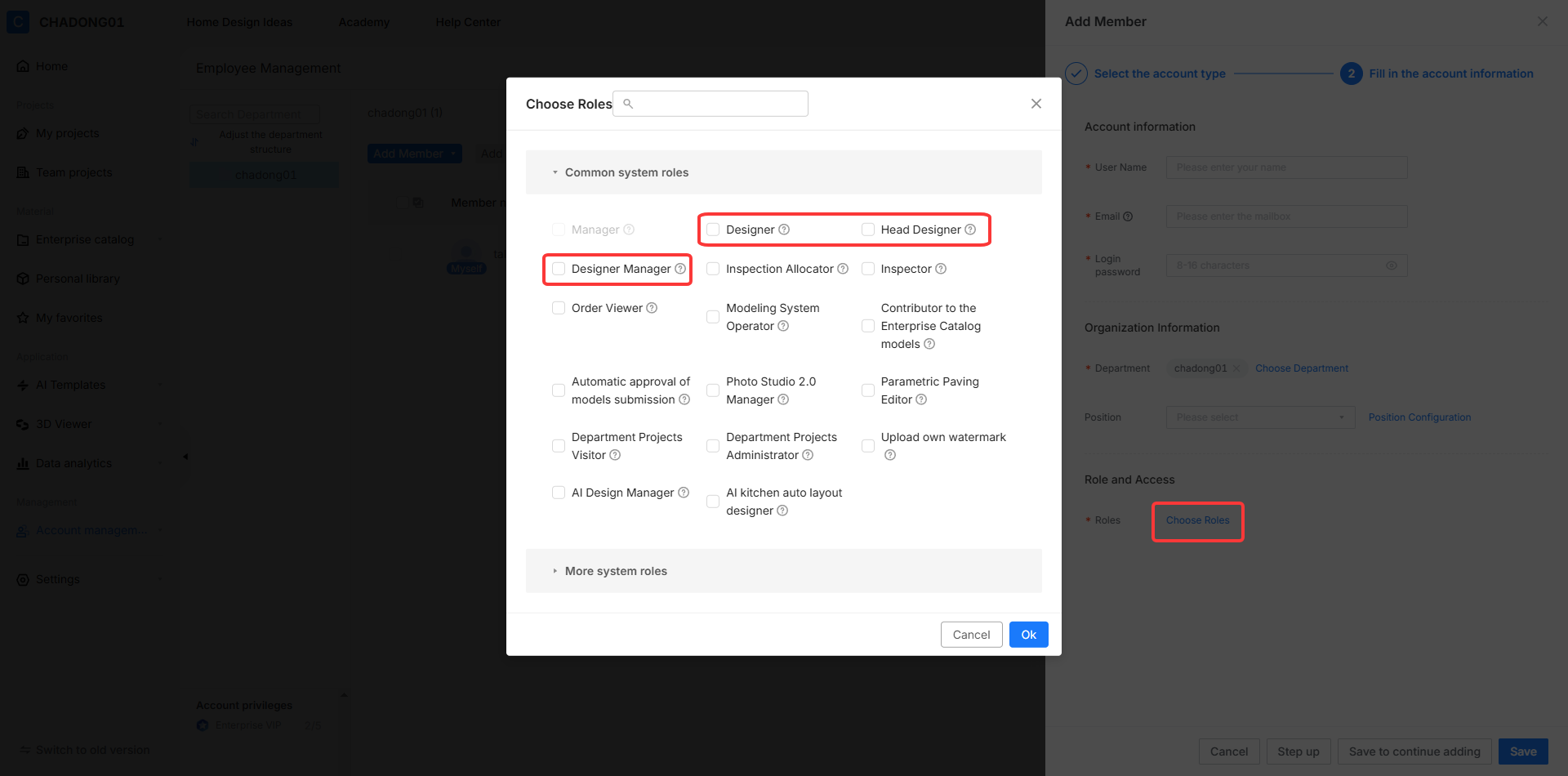
![**Module:** Add Member > Role and Access

**Annotated Objects:**
1. **'Choose Roles' button:** Located in the "Add Member" side panel; used to trigger the role selection pop-up.
2. **'Designer', 'Head Designer', and 'Designer Manager' checkboxes:** Located within the "Choose Roles" modal under "Common system roles"; used to assign specific permission levels to the new member.

**Workflow:**
The user clicks the 'Choose Roles' button to open the selection modal, then selects one or more specific roles (e.g., Designer) to define the member's access rights within the system.](//qhstatic-sg-s3.coohom.com/yuntai/image/png/1784197006477/E3589635221EF878E931ED4957D596DA.png)

* Admin dan manajer juga dapat mengedit peran dan departemen akun yang sudah ada, atau **Hapus** maupun **Nonaktifkan** akun tersebut.
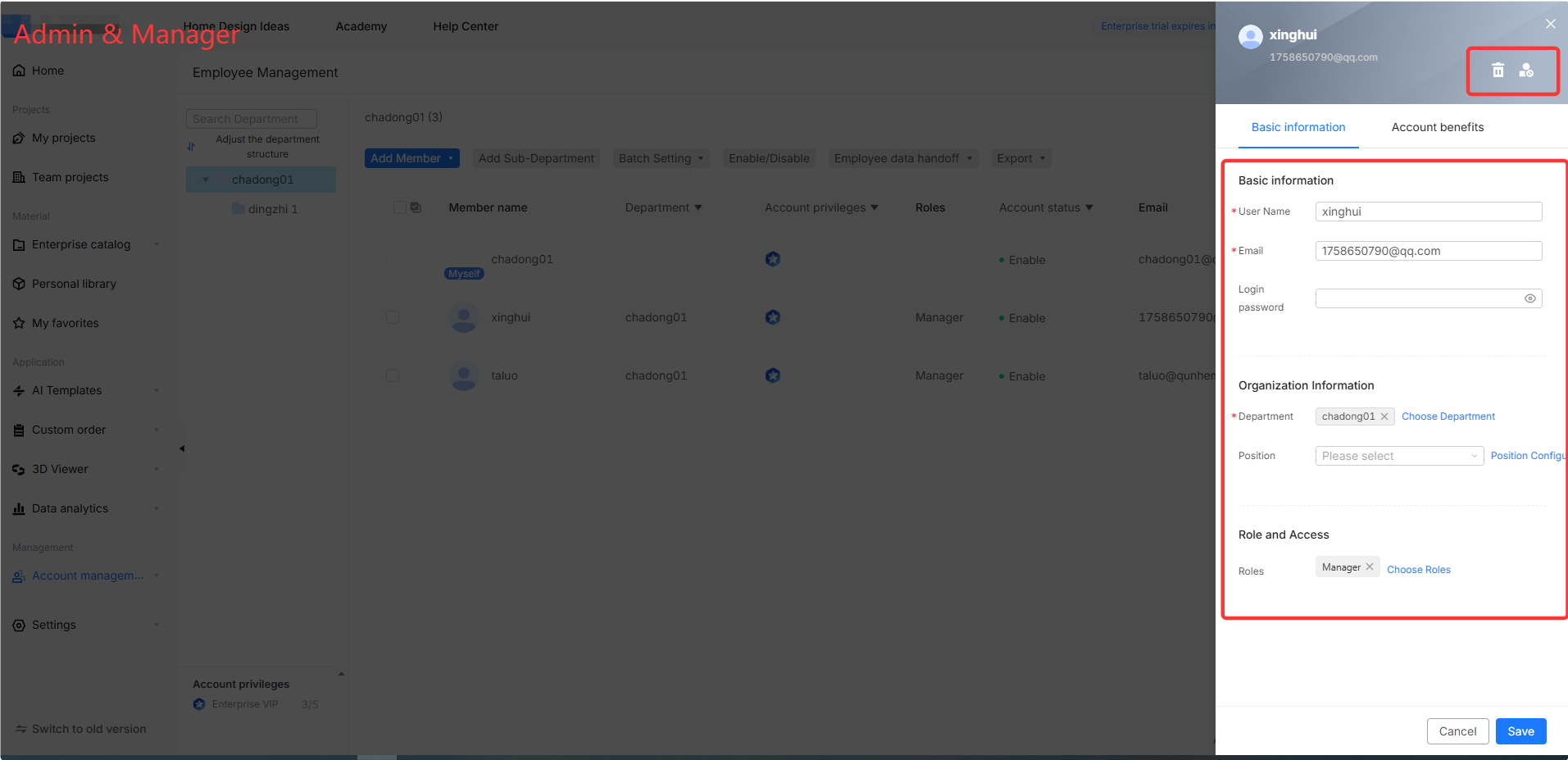
![**Module:** Admin & Manager > Employee Management > User Detail Panel

**Annotated Objects:**
1. **Red Box (Top Right):** "Delete" and "User Management" icons. Used to remove the user or manage account-level permissions.
2. **Red Box (Center Right):** "Basic information" form area. Used to edit the user's profile, including User Name, Email, Organization Information (Department/Position), and Role and Access settings.](//qhstatic-sg-s3.coohom.com/yuntai/image/png/1784197005391/376F52CF8F383DC36558B4786BC94A1C.png)

* Anda juga dapat melihat berbagai status VIP di **Manajemen VIP**, termasuk akun VIP yang terikat dan aktif, serta akun yang sudah kedaluwarsa. Akun tersebut dapat ditetapkan ulang berdasarkan hak istimewa VIP awal.
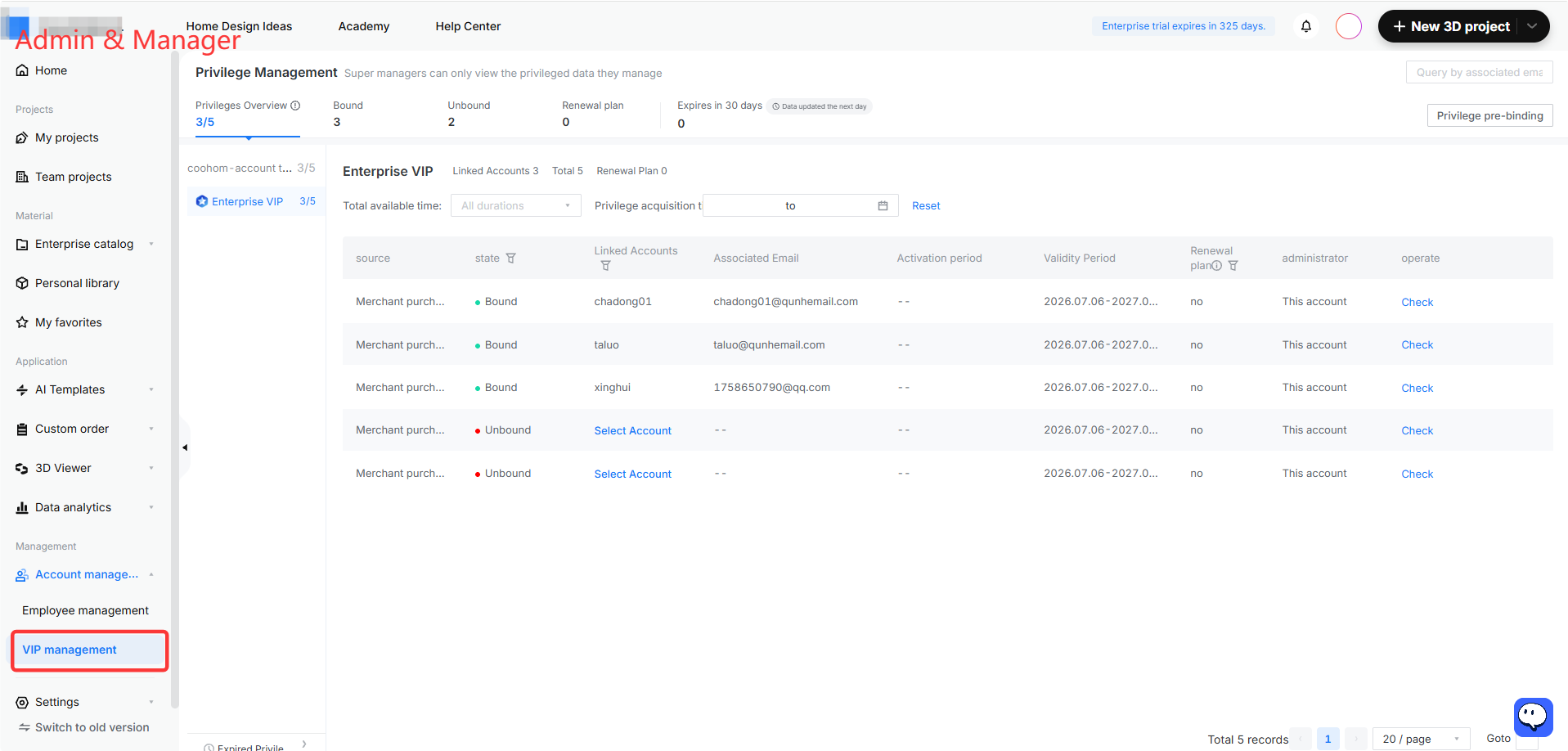
![**Module:** Account Management > VIP Management

**Target Object:** "VIP management" menu item (highlighted by red box).

**Function:** Used to navigate to the Privilege Management interface to manage Enterprise VIP accounts, track bound/unbound status, and oversee privilege distribution.](//qhstatic-sg-s3.coohom.com/yuntai/image/png/1784197005578/1104CA723E100CC3077A5B4A99F8C02C.png)

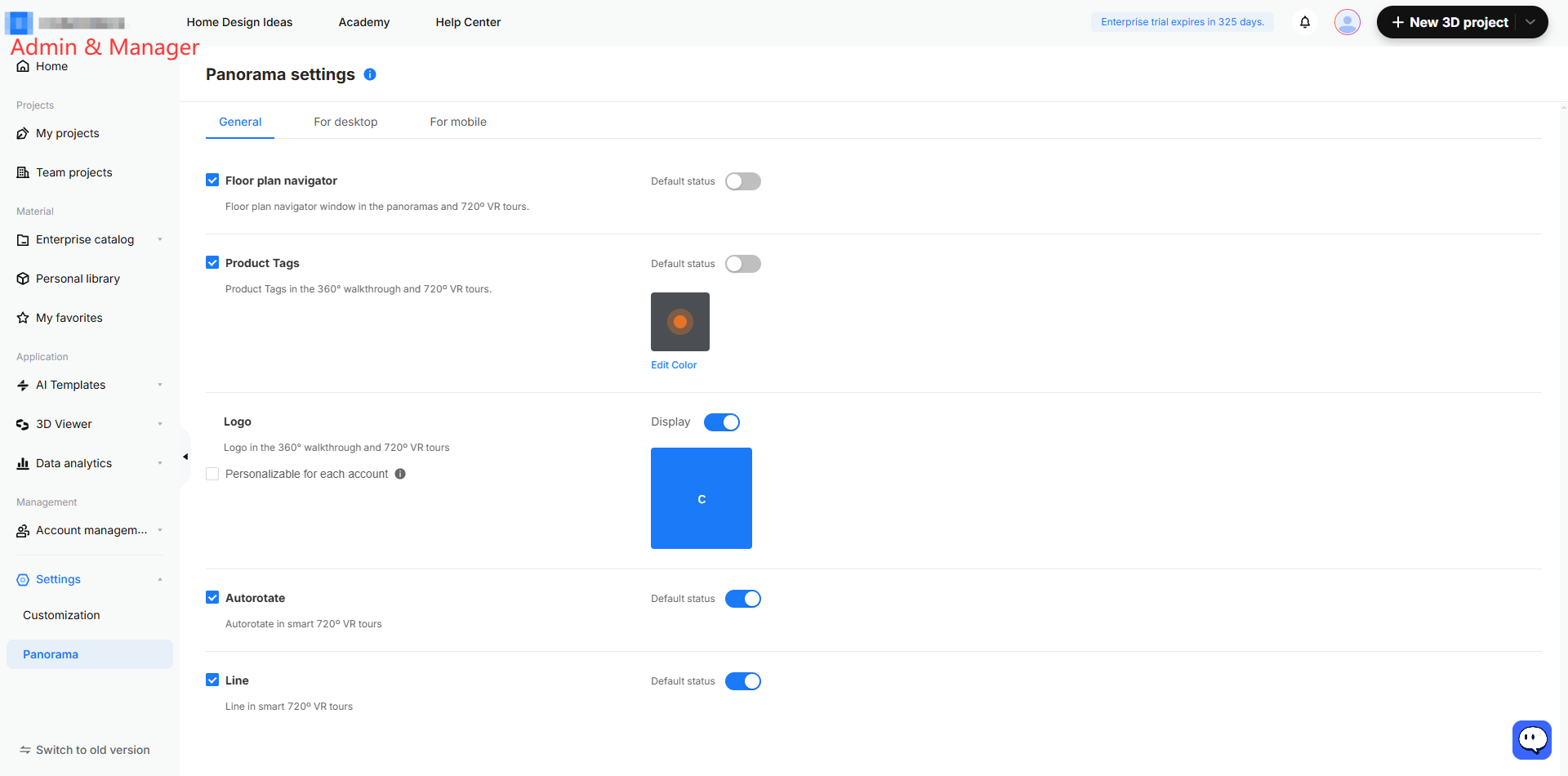
10. Selain itu, admin danmanajer dapat mengatur **Nama Perusahaan, Logo Perusahaan** , dan pengaturan **tanda air** di pengaturan khusus. Setelah diatur, pengaturan ini akan disinkronkan ke semua akun perusahaan.
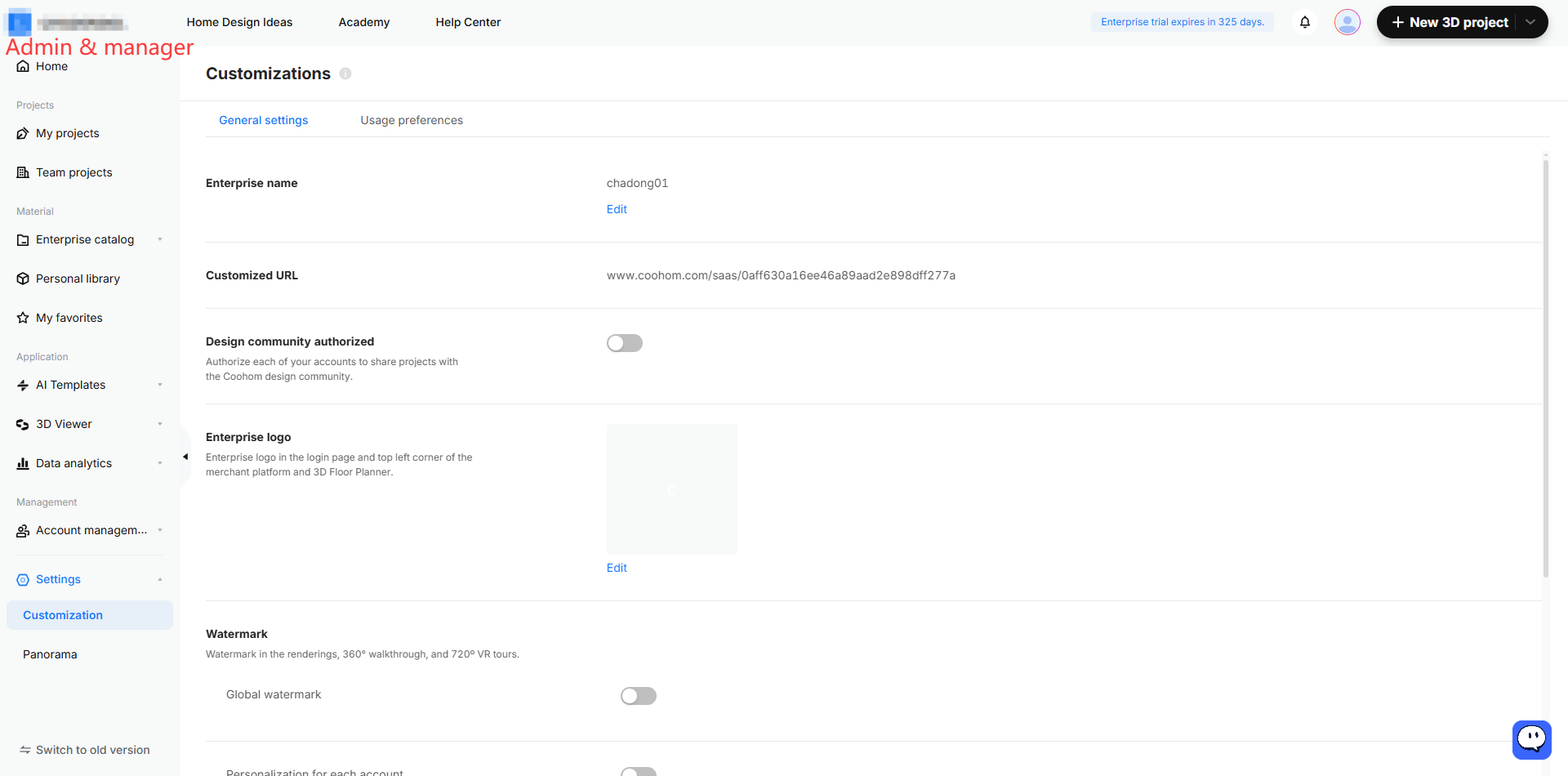
![**Module:** Settings > Customization

**Target Object:** "Customization" menu item in the left navigation sidebar.

**Action/Purpose:** Used to access the customization settings page for managing enterprise-level branding and preferences (such as Enterprise name, URL, and logo).](//qhstatic-sg-s3.coohom.com/yuntai/image/png/1784197006199/10BB6669F00678E946568E2E1F6AD5F5.png)

![**Modul:** Pengaturan > Kustom > panorama (tab Umum)

**Analisis:**
Tidak ada penanda instruksi berwarna merah, kuning, atau biru (panah, kotak, atau urutan bernomor) pada gambar yang disediakan.

**Kesimpulan:**
Tidak ditemukan operasi terpandu.](//qhstatic-sg-s3.coohom.com/yuntai/image/png/1784197005567/4F2FA5A38FF7BA3EFD802EAE28C7E5CA.png)

Head Designer, Designer, dan Design Manager
-------------------------------------------

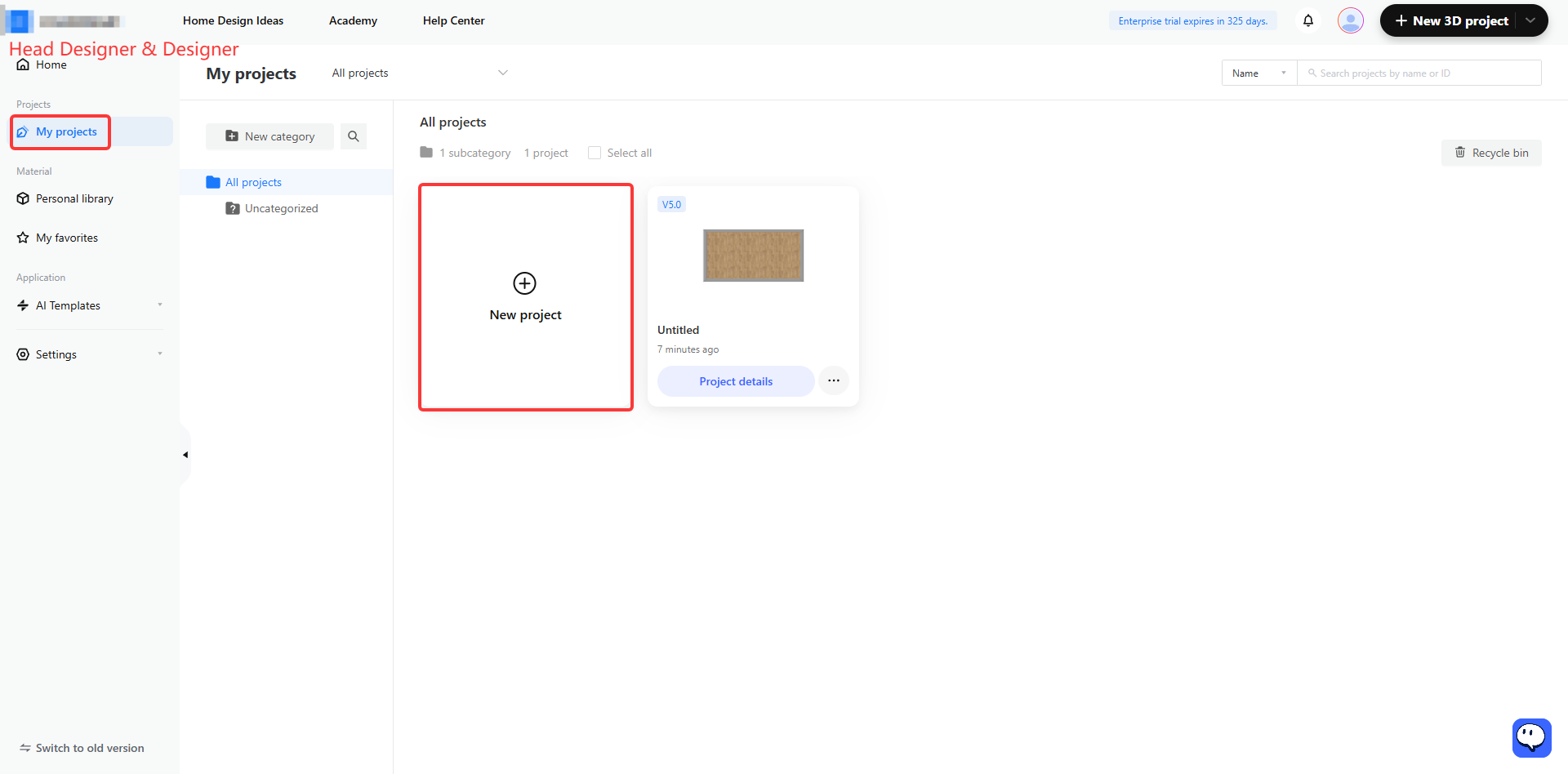
1. **Head Designer** dan **Designer** memiliki fungsi yang relatif sederhana, yaitu membuat dan mengelola desain.
![**Module:** Project Management > My projects

**Annotated Objects:**
1. **"My projects" menu item** (Left sidebar): Used to navigate to the user's personal project list.
2. **"New project" card** (Main project gallery): Used to initiate the creation of a new 3D project.](//qhstatic-sg-s3.coohom.com/yuntai/image/png/1784197005437/754445905F0C12A7F2C17D60EEB7C05E.png)

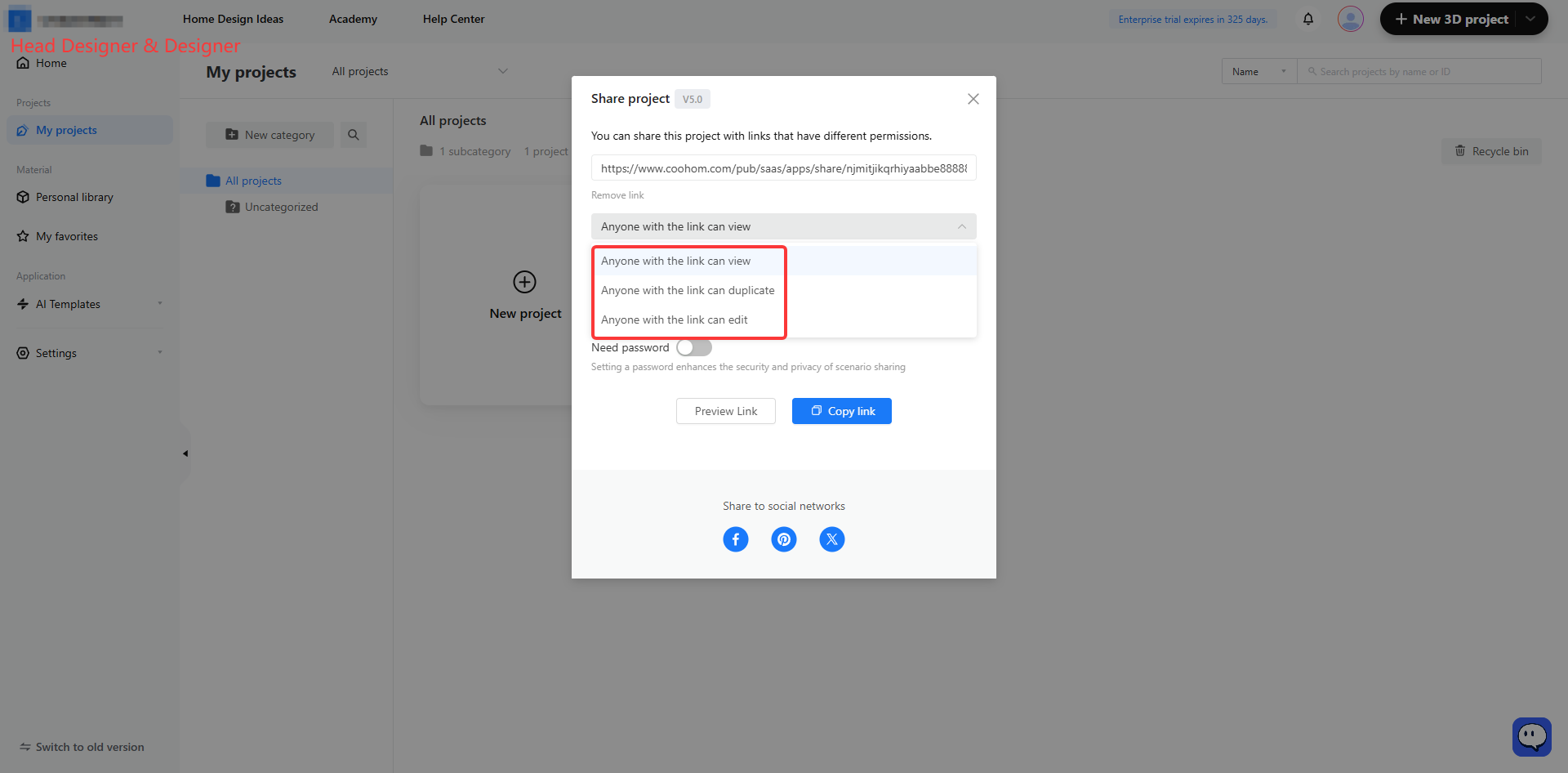
2. Mereka juga dapat membagikan desain kepada orang lain.
![**Module:** My projects > Share project popup

**Target Object:** Permission dropdown menu (specifically the options: "Anyone with the link can view", "Anyone with the link can duplicate", and "Anyone with the link can edit").

**Function:** Used to configure the access level and permissions for users who access the project via the shared link.](//qhstatic-sg-s3.coohom.com/yuntai/image/png/1784197005264/83F8167F46684804BD3F999FFC17131F.png)

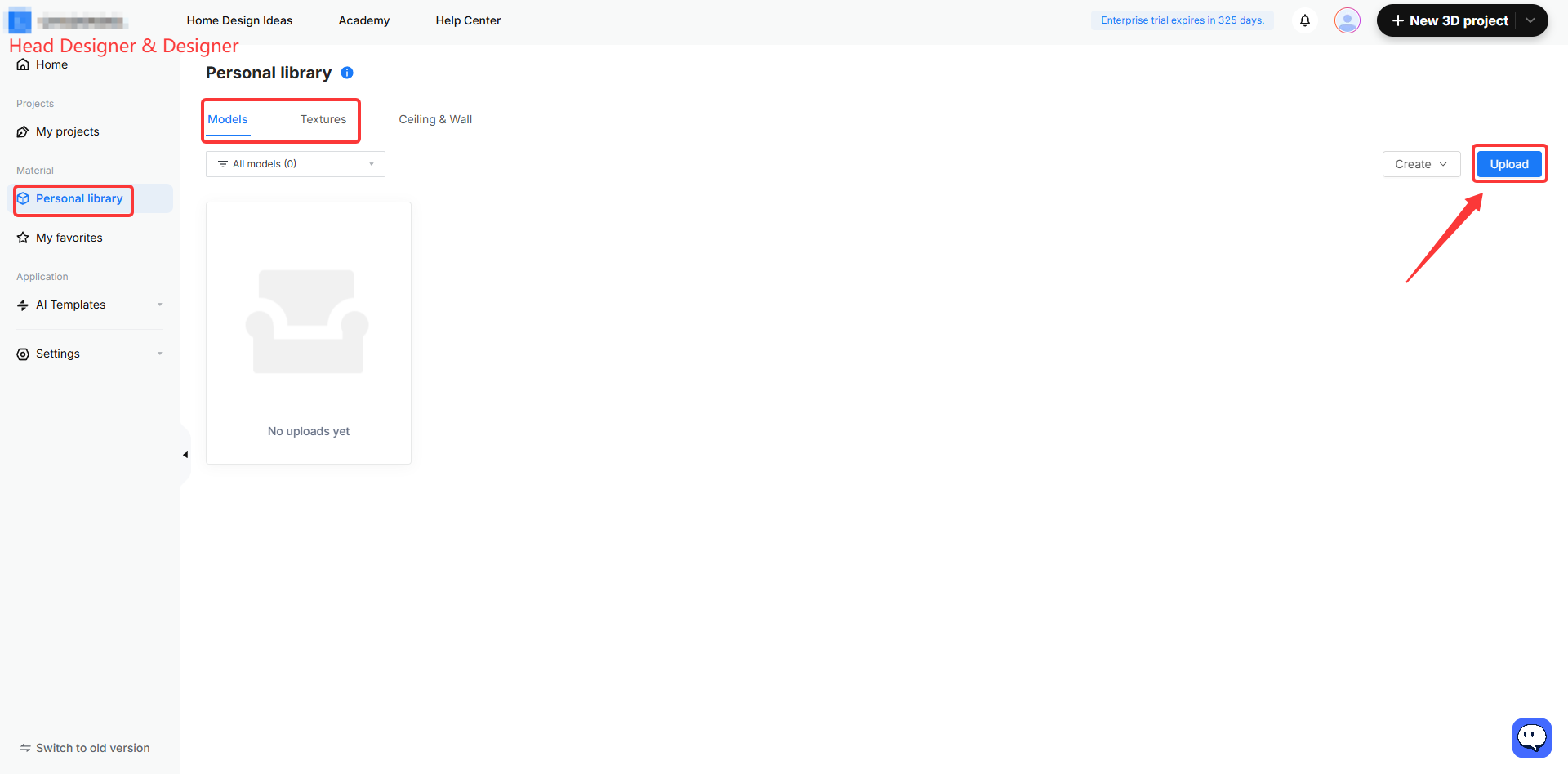
* Mereka dapat mengunggah model/tekstur ke **Perpustakaan Pribadi** untuk penggunaan pribadi.
![**Module:** Personal library > Models management

**Annotated Objects:**
1. **"Personal library" menu item** (Left sidebar): Used to enter the personal asset management area.
2. **"Models" tab** (Top navigation): Used to switch the view to the 3D models category.
3. **"Upload" button** (Top right): Used to upload new 3D model files to the personal library.](//qhstatic-sg-s3.coohom.com/yuntai/image/png/1784197005309/115127D56D5443FB9E080422DB91F600.png)

3. Di alat desain, **Head Designer** dan **Designer** dapat menggunakan semua produk perusahaan yang diunggah oleh admin dan manajer.
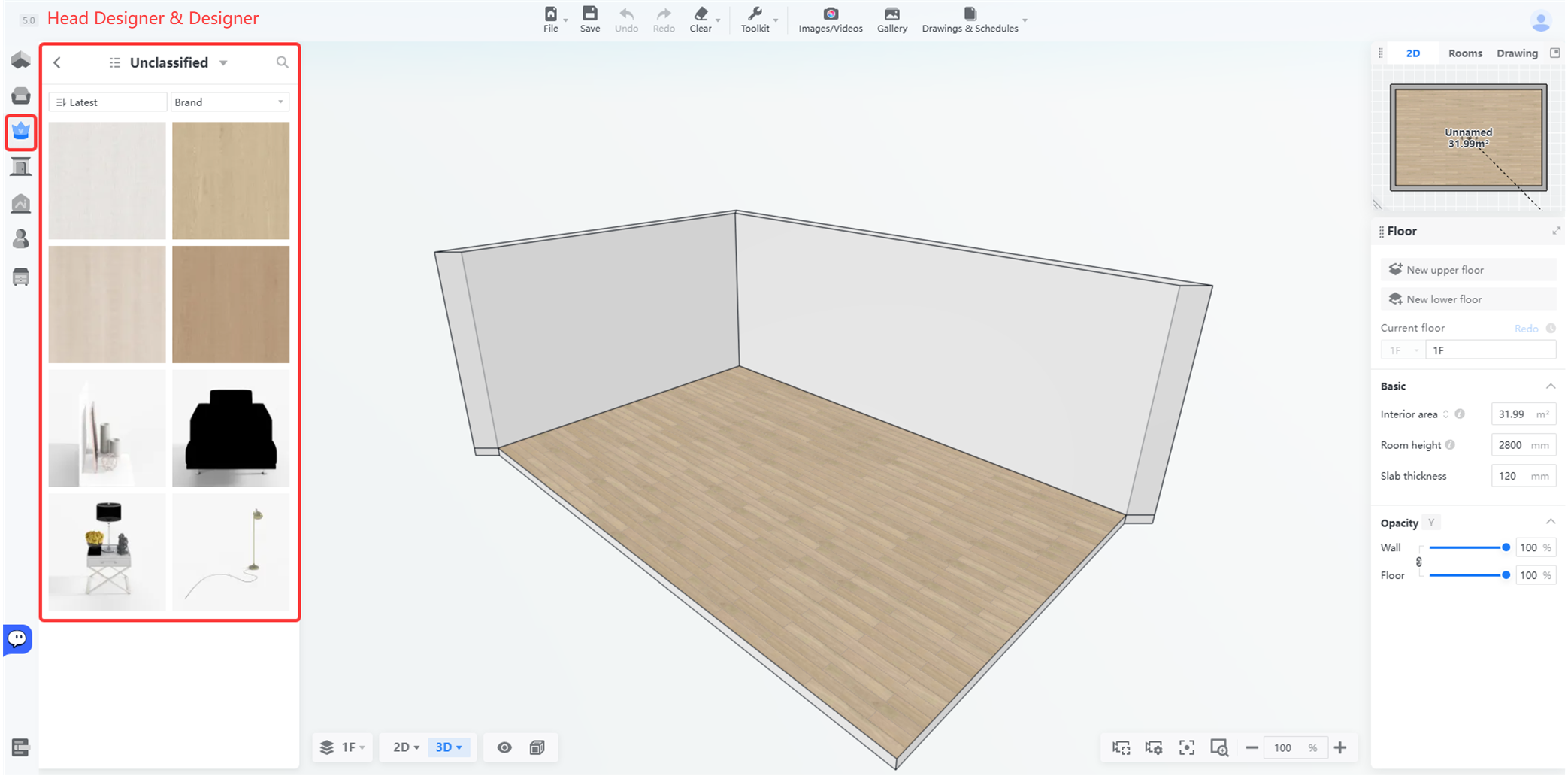
![**Module:** Asset Library > Material/Object Selection Panel

**Annotated Objects:**
1. **Left Sidebar Icon (Red Box):** The "Material/Asset" category icon, used to open the asset library.
2. **Main Asset Panel (Red Box):** The "Unclassified" asset gallery, used to browse and select materials or furniture items to apply to the 3D scene.](//qhstatic-sg-s3.coohom.com/yuntai/image/png/1784197006252/6AE998C71392C217840EAD2E797E503A.png)

* Model/tekstur yang mereka unggah ke **Perpustakaan Pribadi** dapat ditemukan di bagian **Saya**.
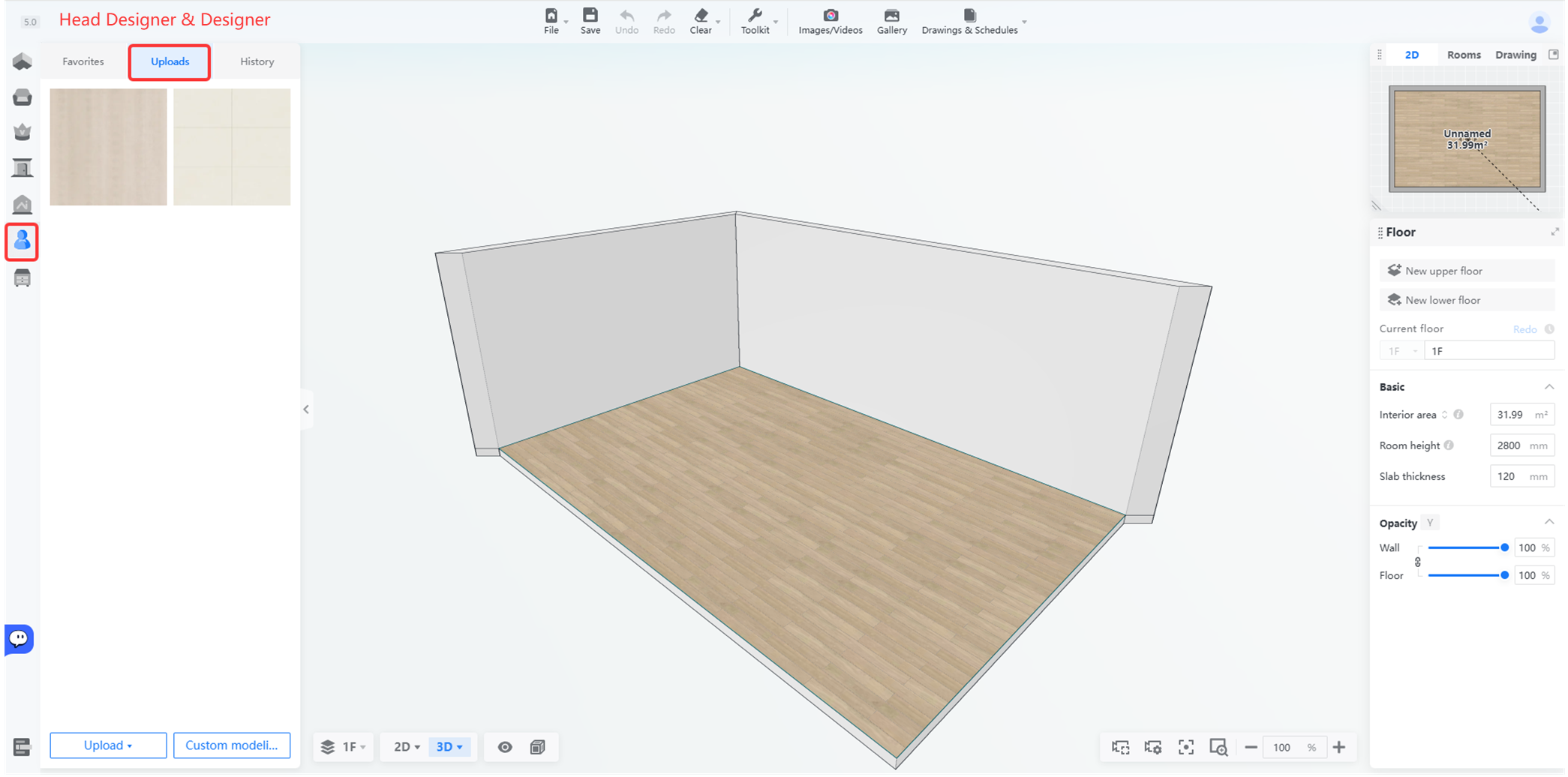
![**Module:** Asset Library > Uploads Tab

**Annotated Objects:**
1. **'Uploads' tab:** Located in the top navigation of the left sidebar; used to switch the library view to display user-uploaded assets.
2. **User Profile/Account icon:** Located in the far-left vertical toolbar; used to access user account settings or profile management.

**Workflow Role:** These markers guide the user to navigate to their personal uploaded materials and manage their account within the design workspace.](//qhstatic-sg-s3.coohom.com/yuntai/image/png/1784197006321/50A4F92DADAF8C135861AF98FBF0F06E.png)

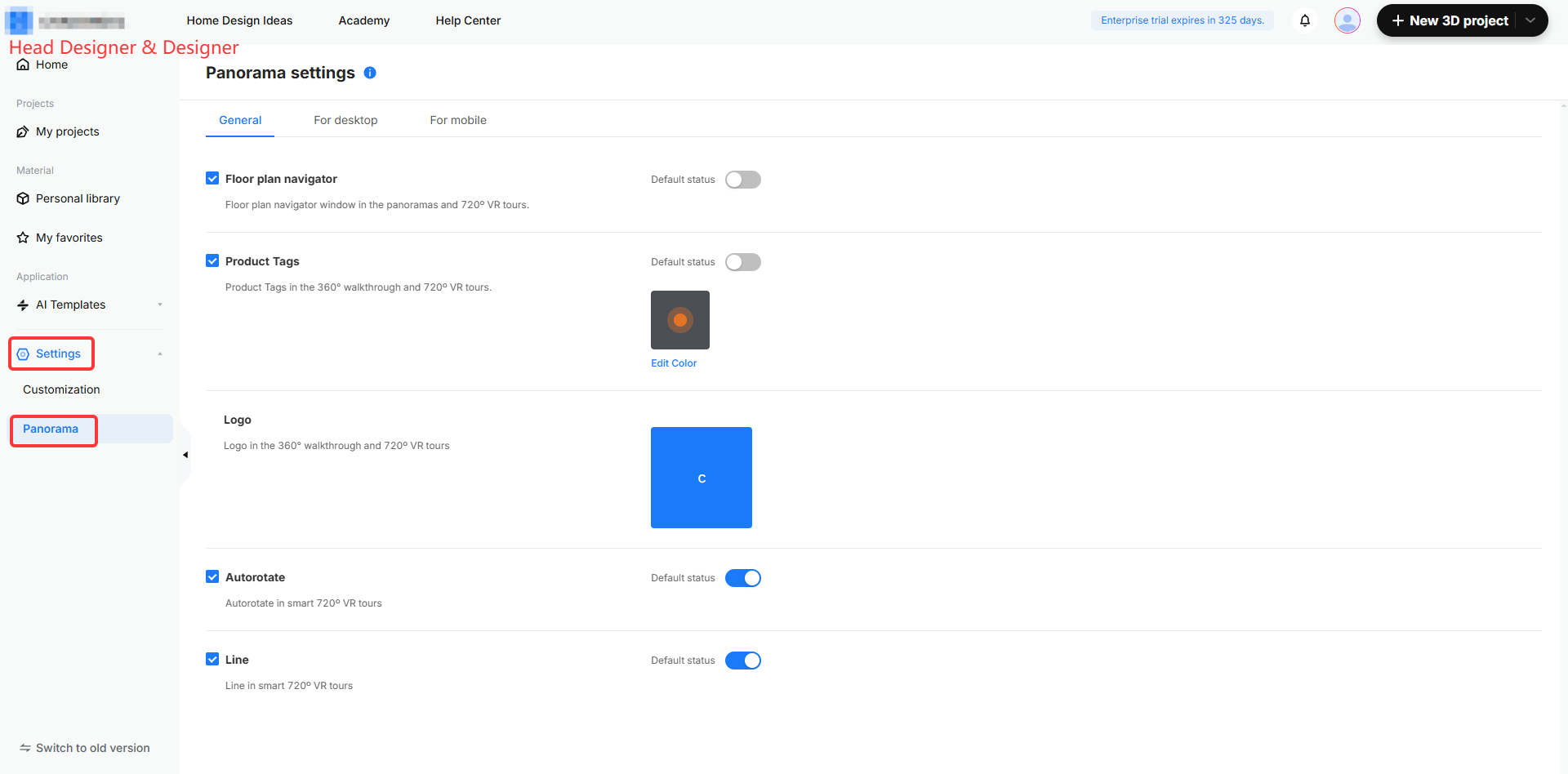
4. Untuk modul **Pengaturan** ,**Head Designer** dan **Designer** hanya dapat melihat opsi ini. Perubahan hanya dapat dilakukan oleh admin dan manajer, tetapi akan disinkronkan di alat desain dan rendering.
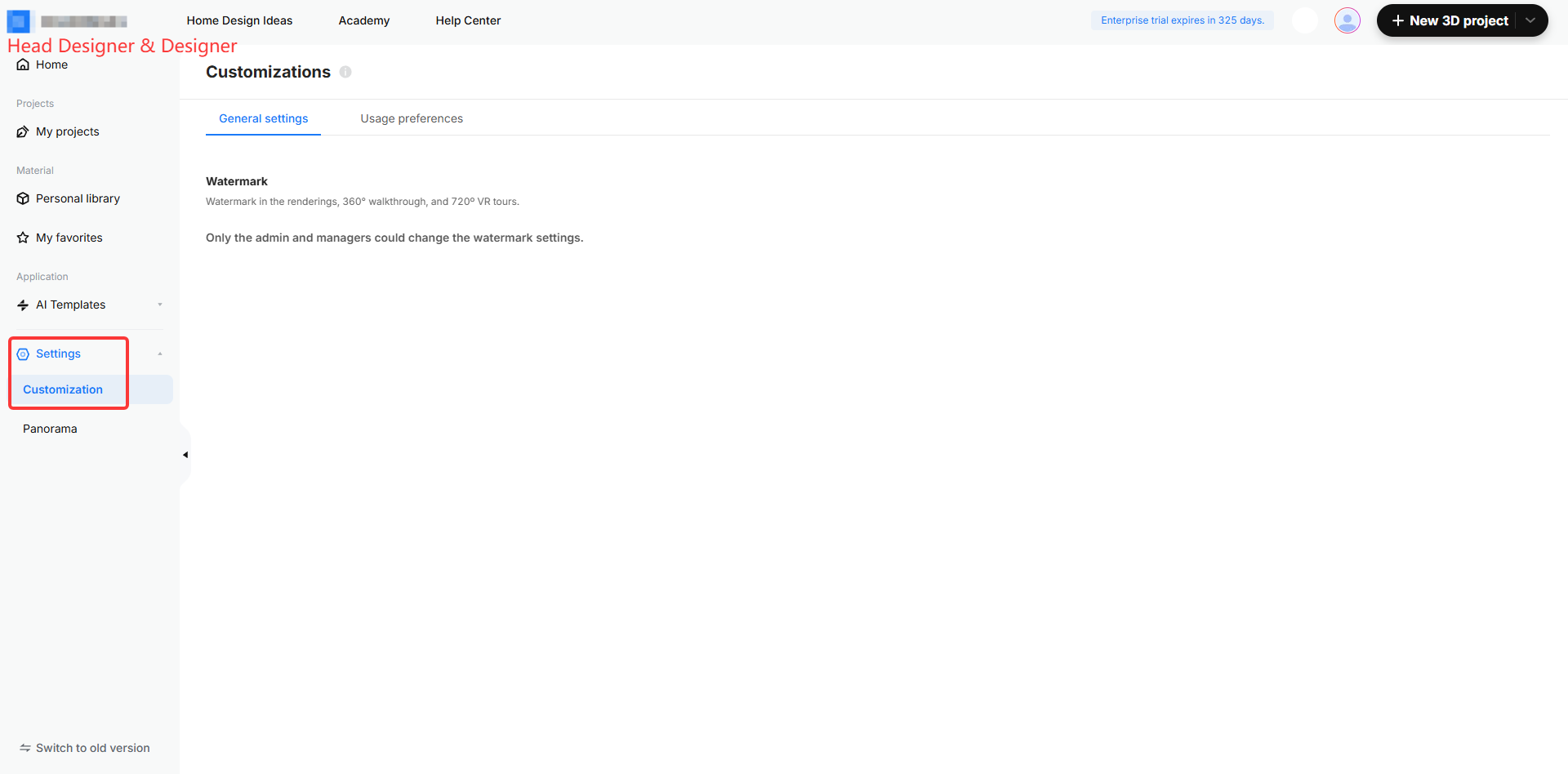
![**Module:** Side Navigation Bar > Application Settings

**Target Object:** "Settings" menu and "Customization" sub-menu item.

**Action/Purpose:** Used to navigate to the Customizations page to manage general settings and usage preferences, such as watermark configurations.](//qhstatic-sg-s3.coohom.com/yuntai/image/png/1784197005555/F70B23760CA139A61D2D3AD951EA3915.png)

![**Module:** Application > Settings > Panorama

**Annotated Objects:**
1. **'Settings' menu item:** Used to access the general application configuration panel.
2. **'Panorama' sub-menu item:** Used to enter the Panorama settings page to configure display options for 360° walkthroughs and 720° VR tours.](//qhstatic-sg-s3.coohom.com/yuntai/image/png/1784197005942/1779B3357D7055D96501127E45B0747A.png)

5. **Design Manager** memiliki izin yang sama seperti **Designer** , dengan hak tambahan untuk melihat dan mengedit **Proyek Tim**.
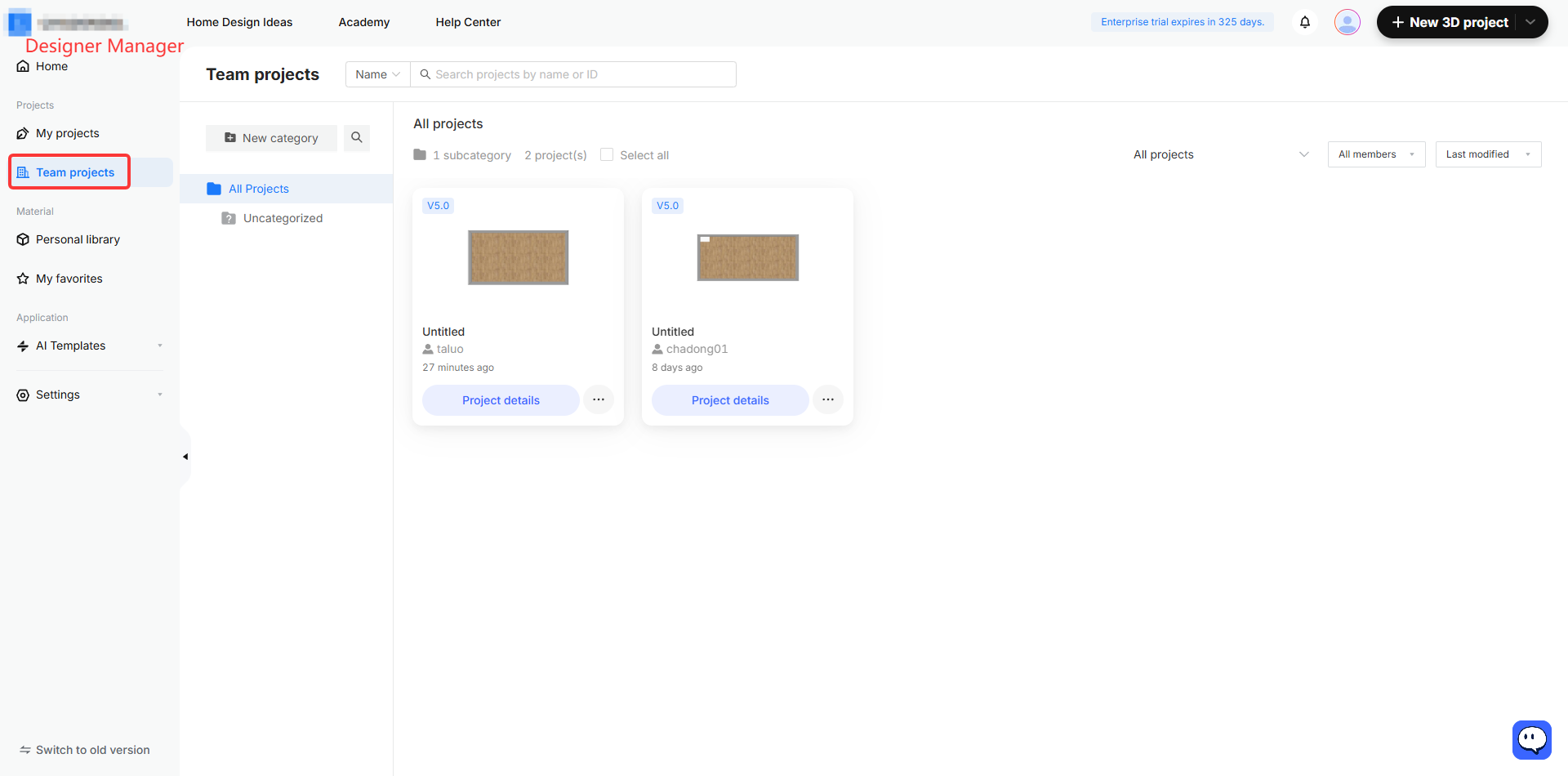
![**Modul:** Manajer Desain > Bilah Navigasi Samping

**Objek target:** item menu "Team projects"

**Operasi/Tujuan:** Mengalihkan tampilan saat ini ke ruang kerja "Team projects" untuk mengelola dan mengakses proyek kolaboratif.](//qhstatic-sg-s3.coohom.com/yuntai/image/png/1784197005544/C6C9B7CD9BD480B047E38A89388E497D.png)

<br />

<br />