# ai-interior-design-with-coohom-cli-for-coohom
> Use Coohom CLI to connect your AI agent for generating editable floor plans, furniture layouts, and renderings via conve
- **URL**: https://www.coohom.com/helpcenter/ai-interior-design-with-coohom-cli-for-coohom
- **Locale**: en_US
- **Updated**: 2026-10-30
## Content
In short, Coohom-cli is an embedded intelligent assistant. With coohom-cli, you can connect your AIagentto Coohom, upload a floor plan and design requirements to generate an editable layout, arrange furniture and revise the plan through conversation, and automatically create interior design renderings.
For Users
=========
All users
Open Coohom-cli
===============
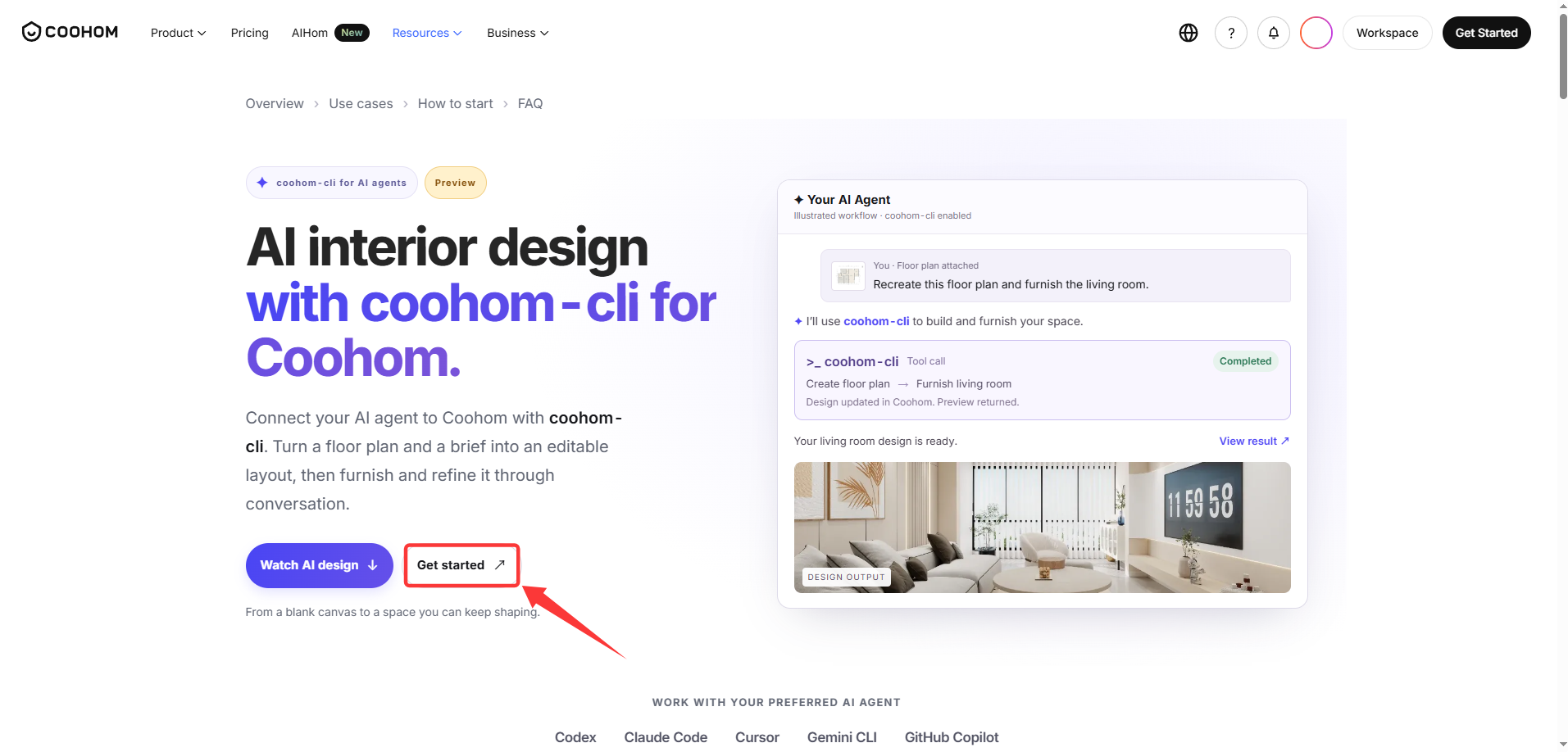
At the top of the official website homepage, click **Resources---[Design with Al Agents](https://www.coohom.com/ai-agent-floor-planner)**to open the tool page.

Install Coohom-cli
==================
**⭐Note: Coohom-cli includes built-in skill installation presets for Codex, Claude Code, Cursor, Gemini CLI, and GitHub Copilot. Select the preset you need during installation.**
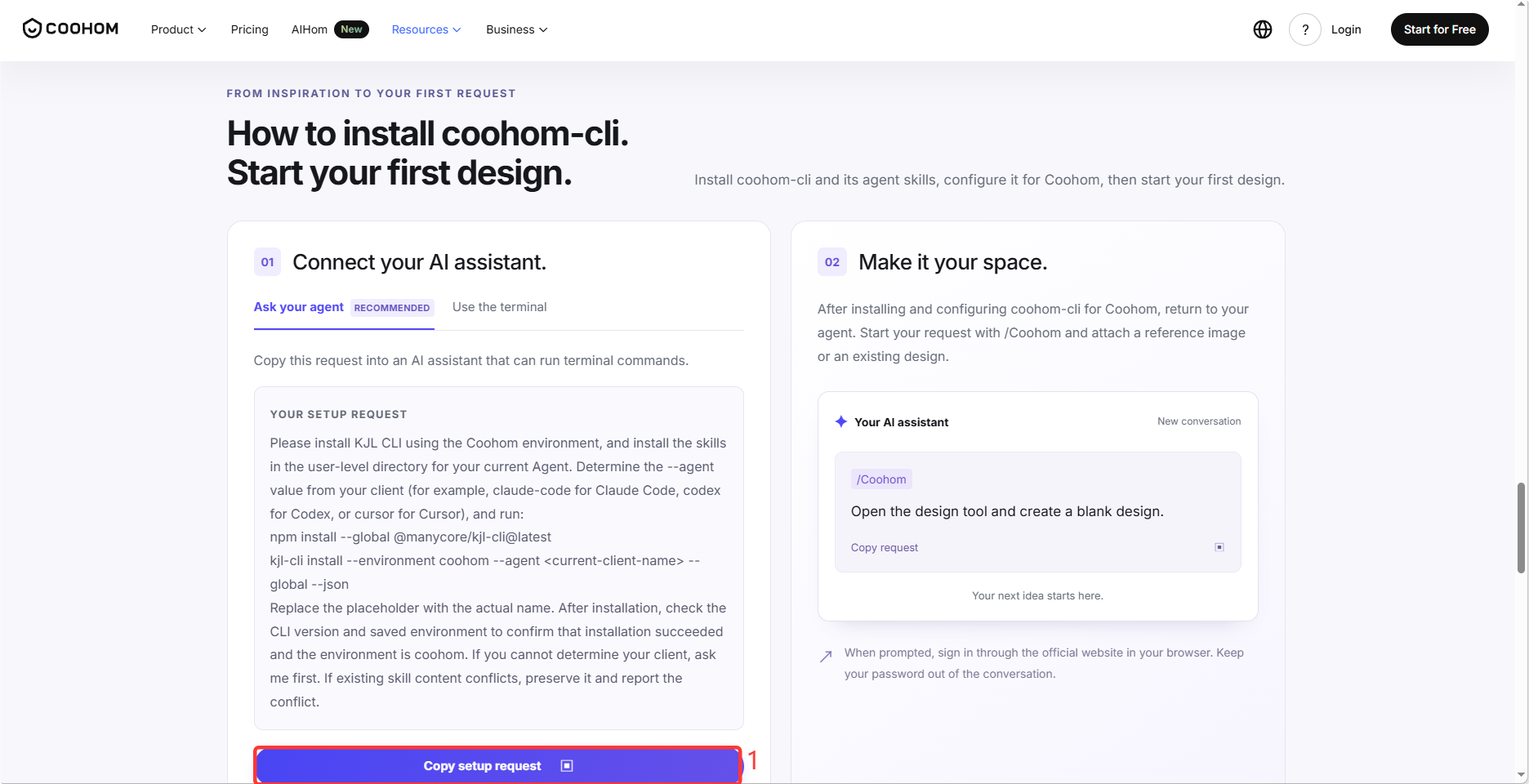
On the tool page, click **Get Started**. You will be redirected to the installation page, where two installation methods are available. Choose the one that best fits your needs.
Method 1
--------
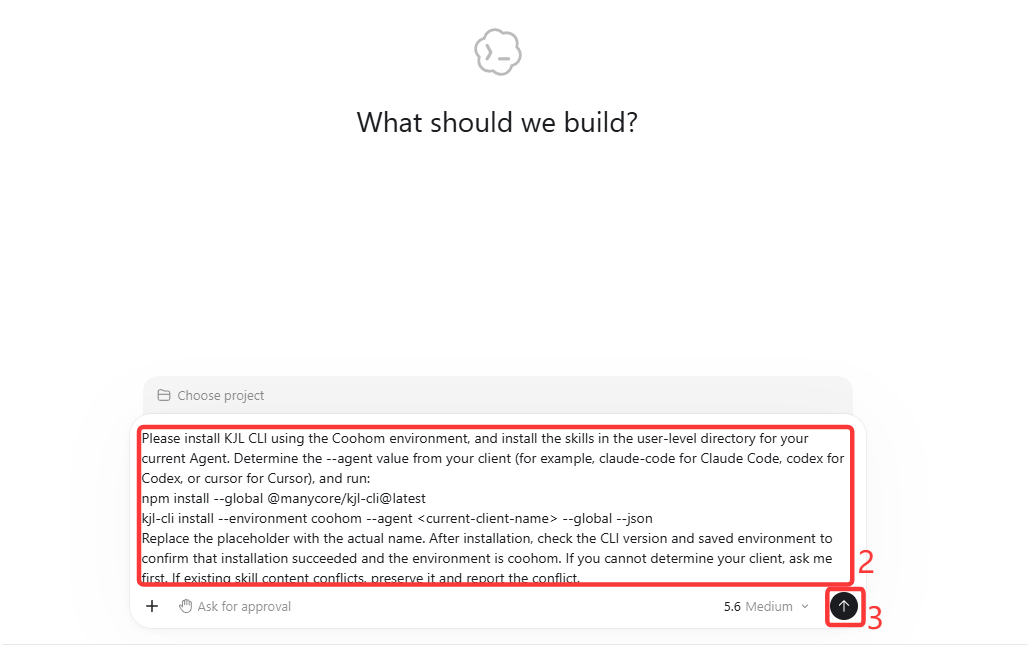
Click **Copy Setup Request** , then paste the request into an AI assistant that can run terminal prompts and follow the prompts to complete the installation.
Method 2
--------
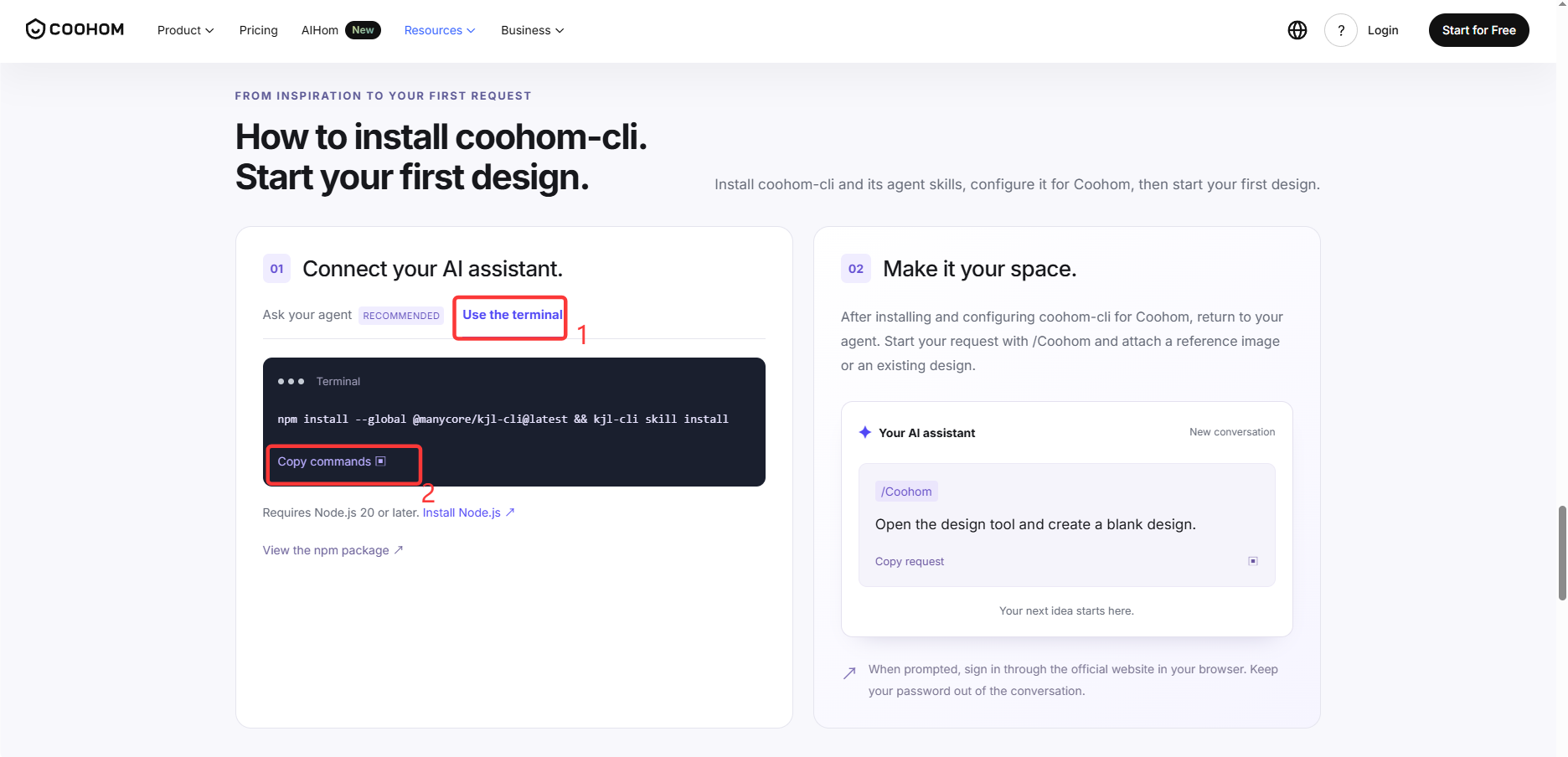
At the top of the page, switch to **Use the Terminal** , then open a terminal on your computer, paste the prompt, and press Enter to confirm. (This method is better suited for users with development experience.)
Create a Blank Design
=====================
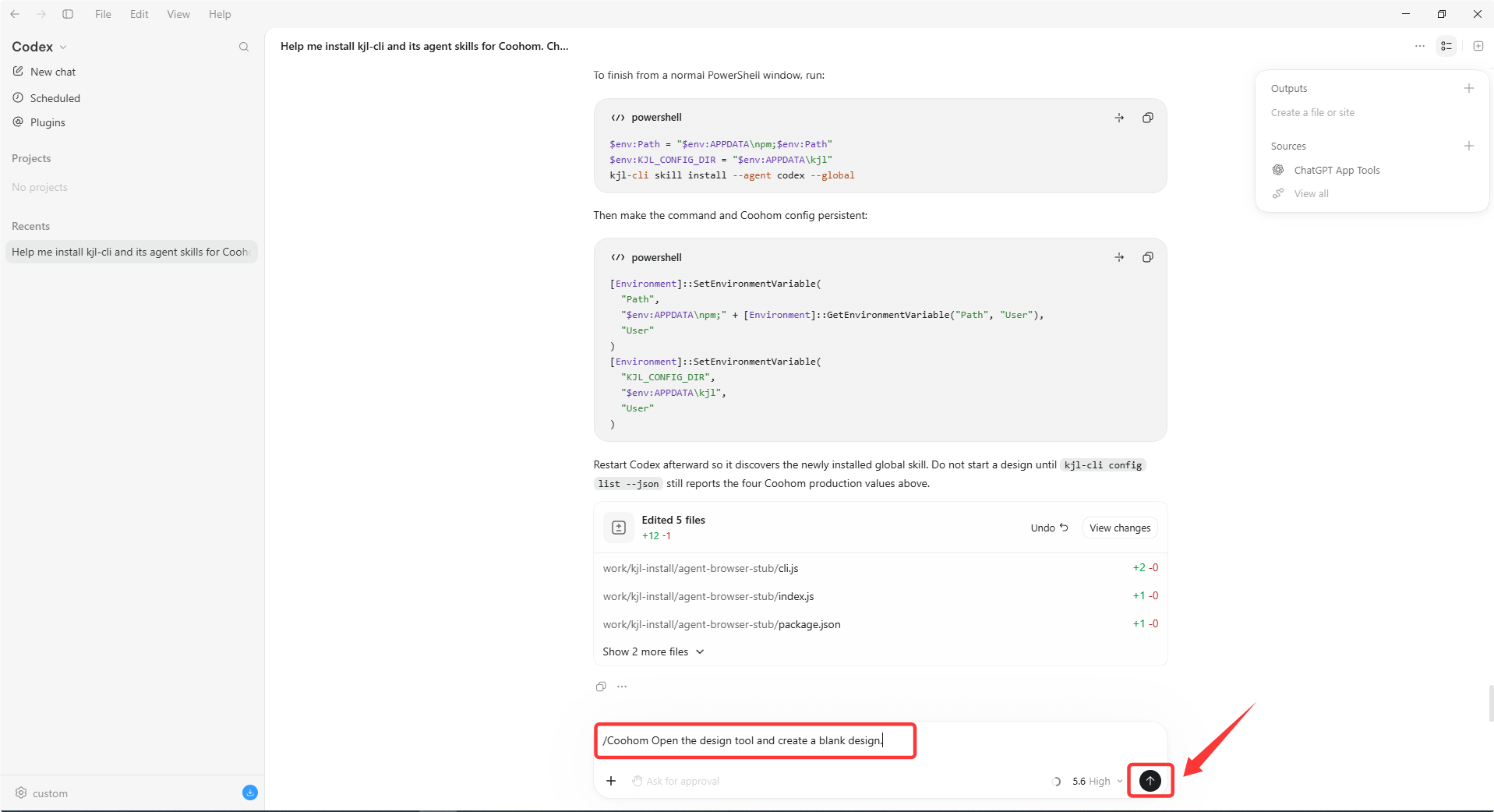
1. After installation is complete, enter the following prompt in the chat box to open the design tool.
* **AI Prompt: /Coohom Open the design tool and create a blank design.**
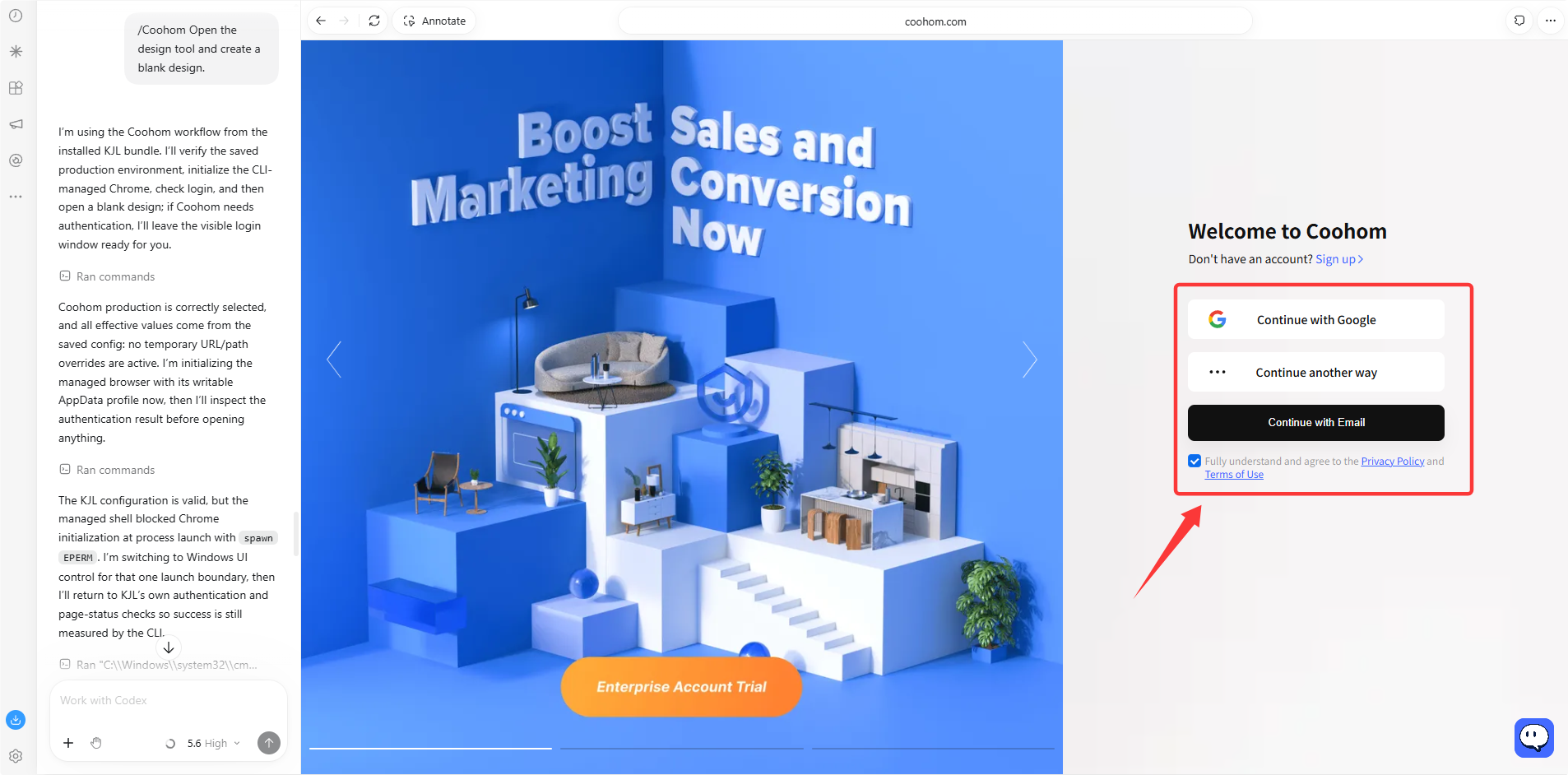
2. In the pop-up window, sign in to Coohom. If you do not have an account, register first and then sign in.
Turn a Floor Plan into an Editable Design
=========================================
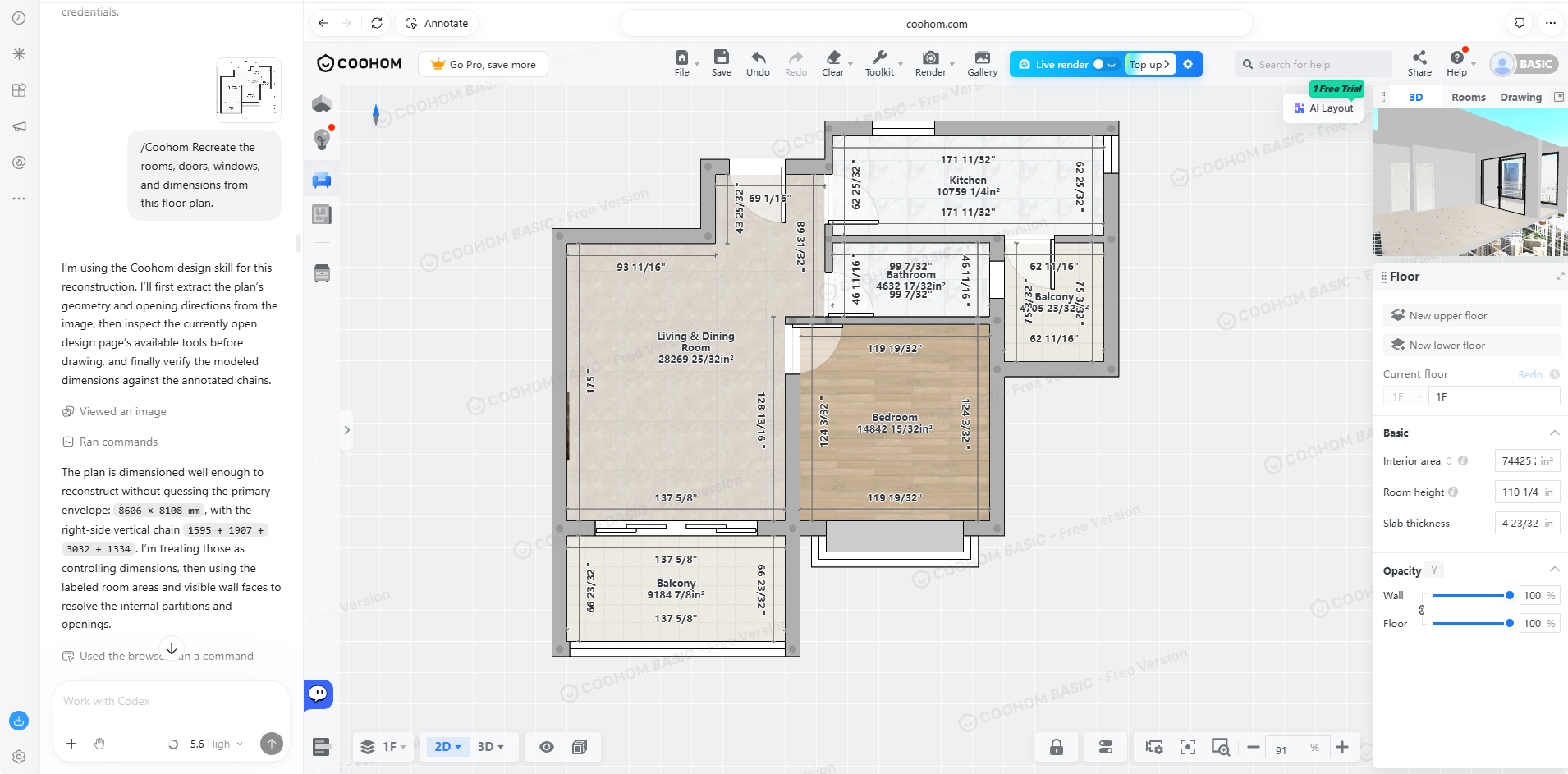
First, provide a floor plan in your AI Agent. Then enter the prompt, and the AI tool will recreate the room layout, doors, windows, and dimensions in Coohom.
* **AI Prompt** : **/Coohom Recreate the rooms, doors, windows, and dimensions from this floor plan.**
Design your Living Room from a Reference Image
==============================================
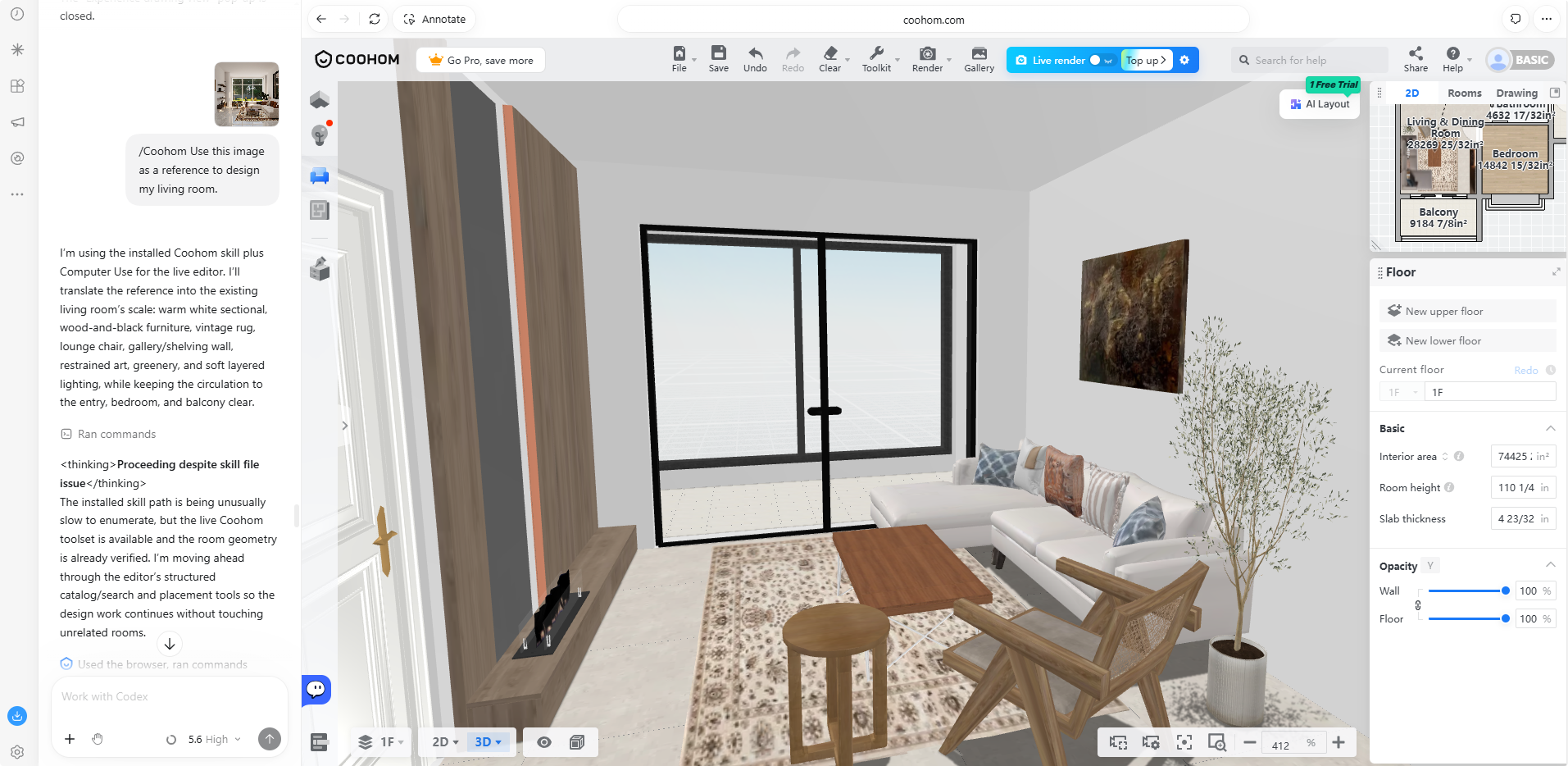
Upload a reference image and enter the prompt. The AI tool can incorporate the colors, furniture, and overall atmosphere from the reference image into an editable design.
* **AI Prompt: /Coohom Use this image as a reference to design my living room.**
Redesign a Living Room for Reading
==================================
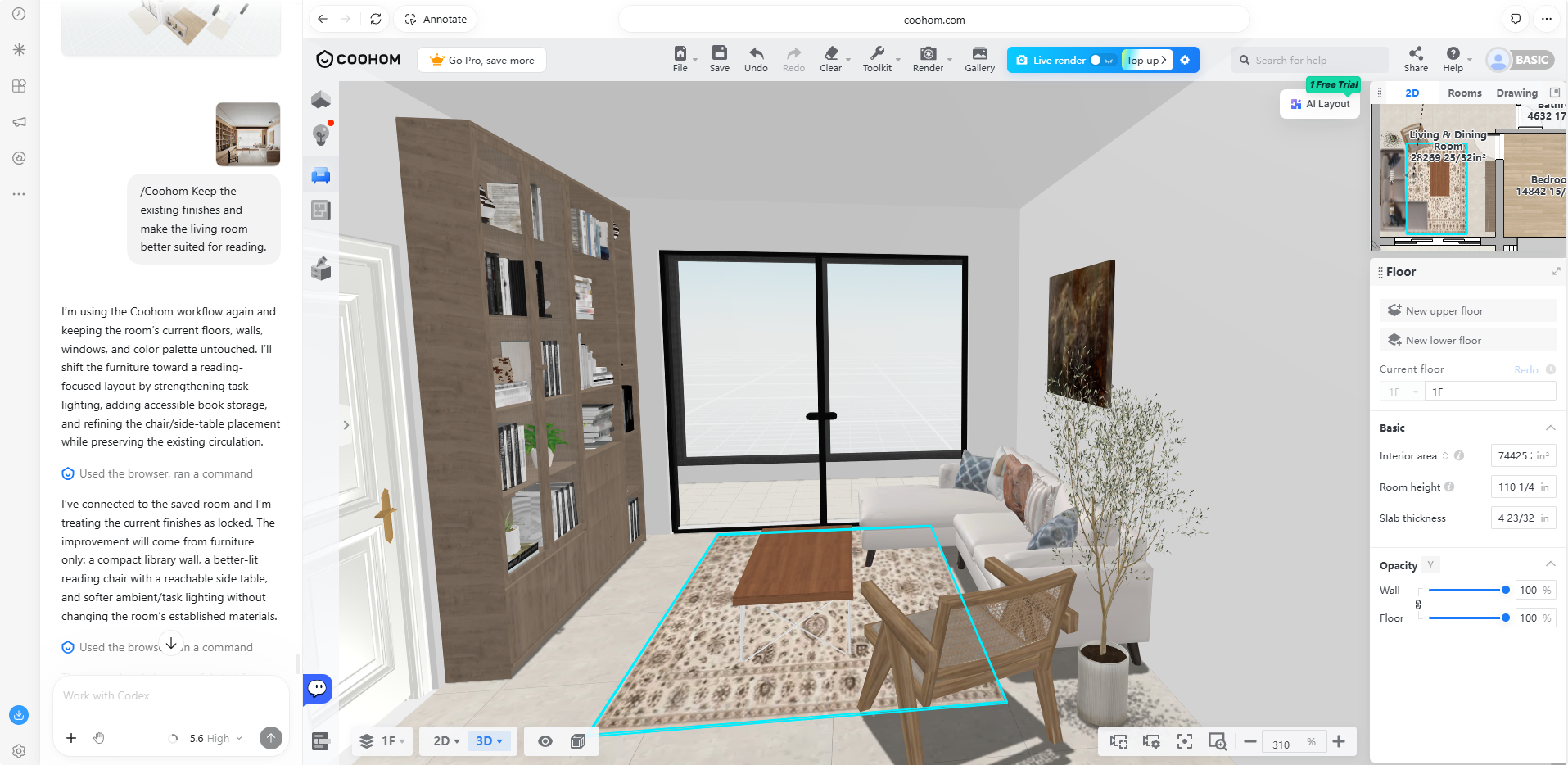
Upload a reference image and enter the prompt. Based on the uploaded image, the AI tool can help optimize the current layout while keeping the existing space as a foundation.
* **AI Prompt: /Coohom Keep the existing finishes and make the living room better suited for reading.**
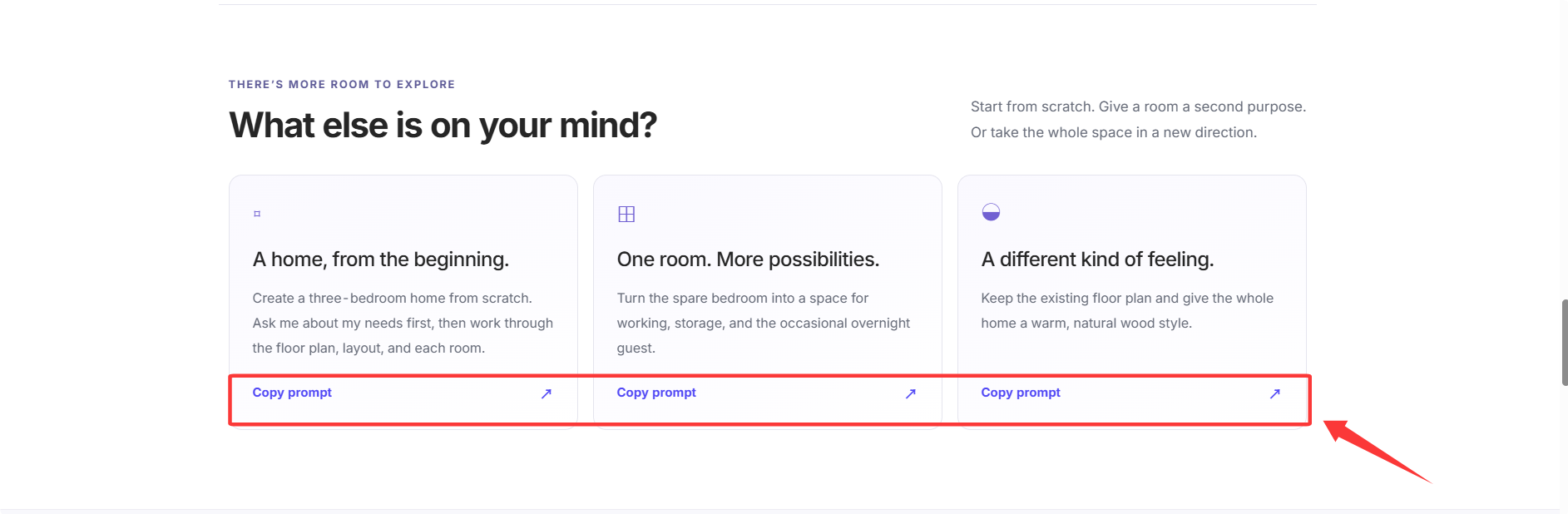
* ⭐Note: In addition to the examples above, more design directions are available for you to explore. You can use the corresponding prompts directly to start designing more quickly.
FAQ
===
**Q1: What does coohom-cli do?**
A1: coohom-cli connects an AI agent to design tools through the command line. You describe a change in natural language, and the agent uses the available tools to create or adjust an editable space design.
**Q2: Which AI assistant can I use?**
A2: coohom-cli provides skill installation presets for Codex, Claude Code, Cursor, Gemini CLI, and GitHub Copilot. Use an agent with terminal access, and install the corresponding skills. Client setup may vary; check the current CLI help for installation options.
**Q3: Can I keep editing the result?**
A3: The workflow is designed around editable space plans. Continue with another request to adjust the layout, furniture, or finishes using the capabilities available in your connected design tool.
**Q4: Do I need to share my password?**
A4: No. Follow your agent's instructions to sign in on the official service in your browser. Do not paste your password into the chat.
**Q5: Where do I open a terminal?**
A5: On macOS, open Terminal from Applications → Utilities. On Windows, open Windows Terminal or PowerShell from the Start menu. You can also use an AI assistant with terminal access to guide installation.
**Q6: Do I need a Coohom account?**
A6: During installation, you'll be guided to sign in with your Coohom account. If you don't have a Coohom account, please create one.