# enterprise-live-render-tool-operation-guide
> Learn to use Live Render for real-time design previews and adjustments in Coohom Enterprise.
- **URL**: https://www.coohom.com/helpcenter/enterprise-live-render-tool-operation-guide
- **Locale**: en_US
- **Updated**: 2026-10-29
## Content
What you edit is what you see, making design more efficient. Live render lets you preview results as you adjust your design, so ideas can be brought to life faster.
For Users
=========
All Coohom enterprise designers. This feature is being gradually opening.
Open the Live Render Tool
=========================
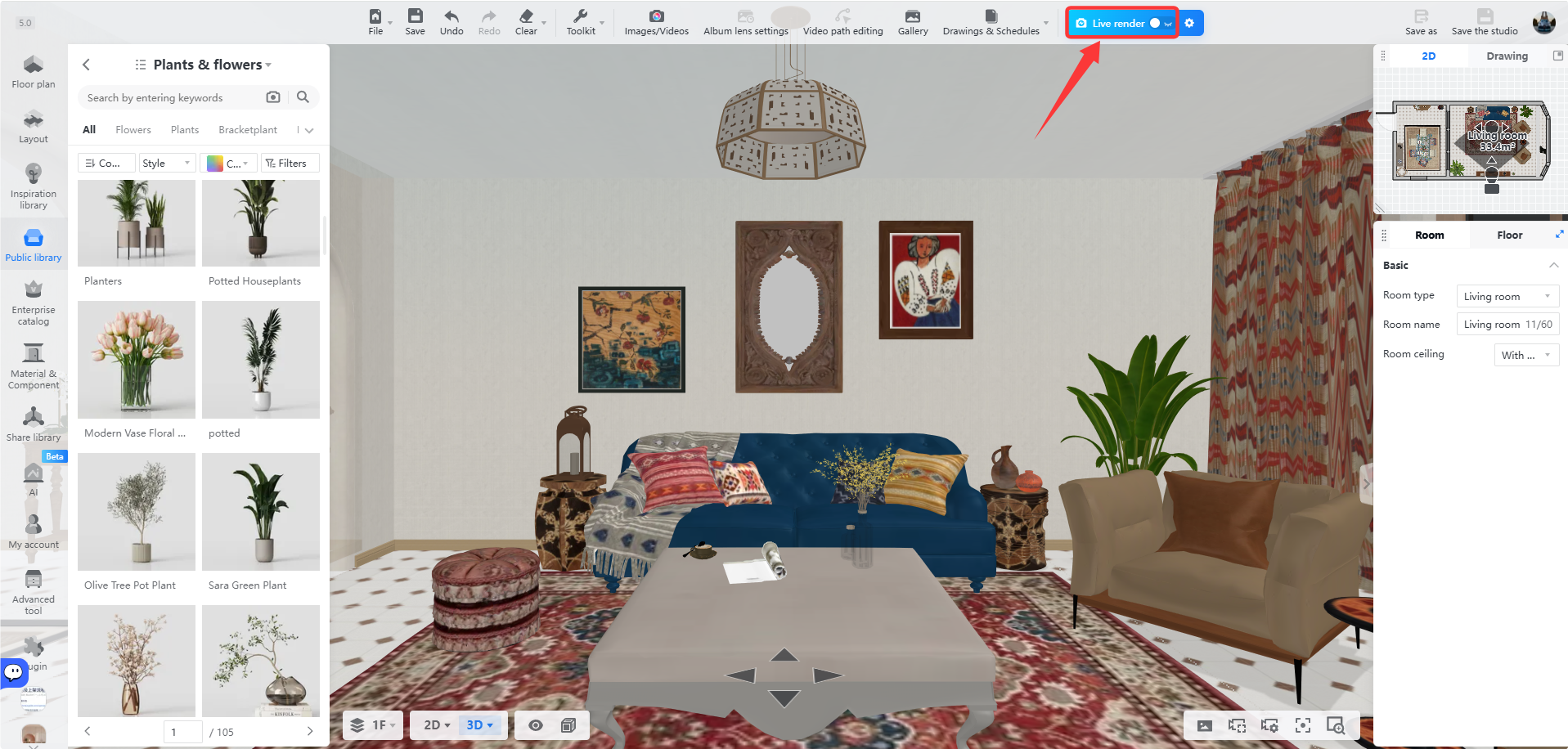
In the design tool, click **Live Render** in the top navigation bar.
Adjust Projects While Rendering
===============================
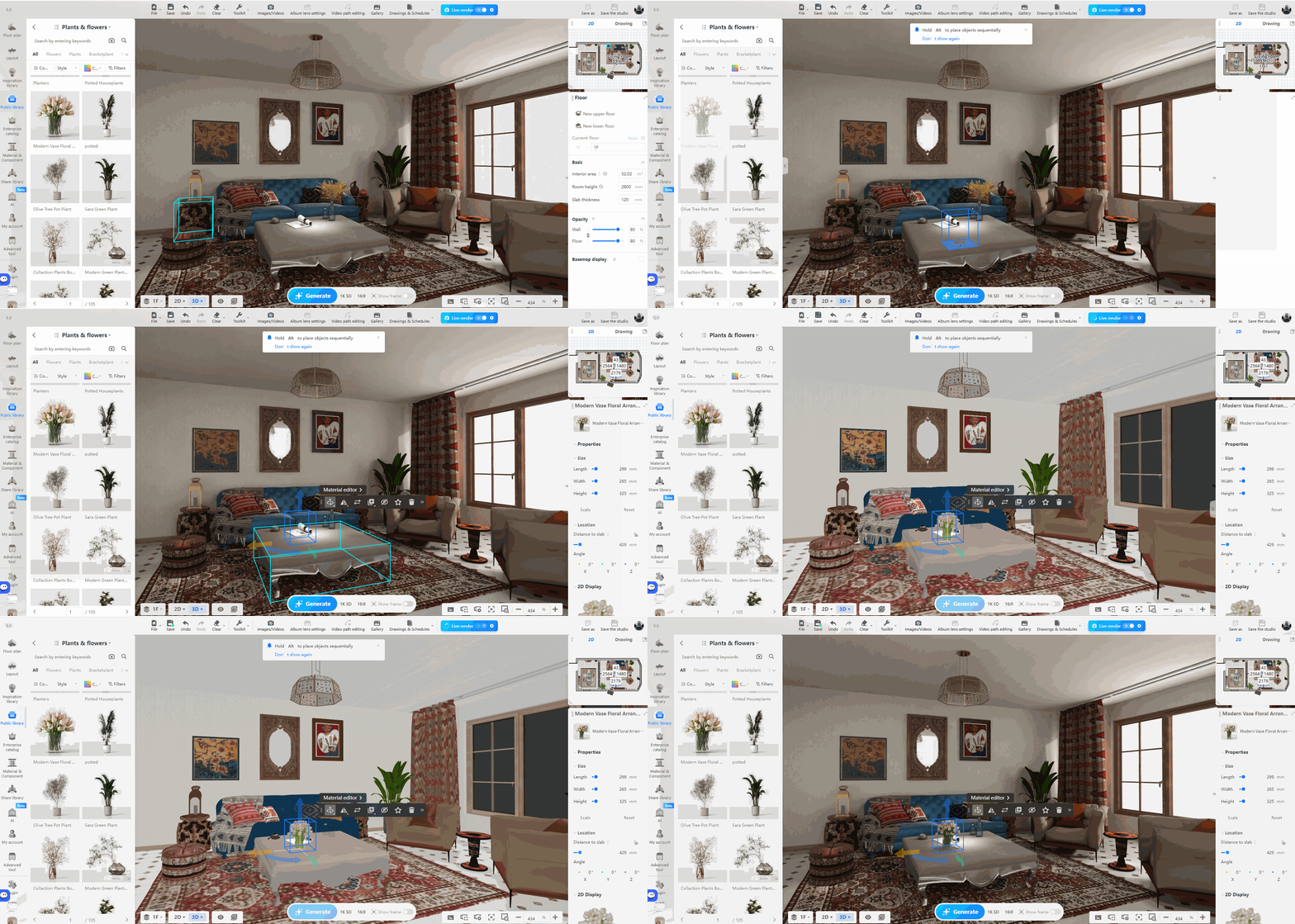
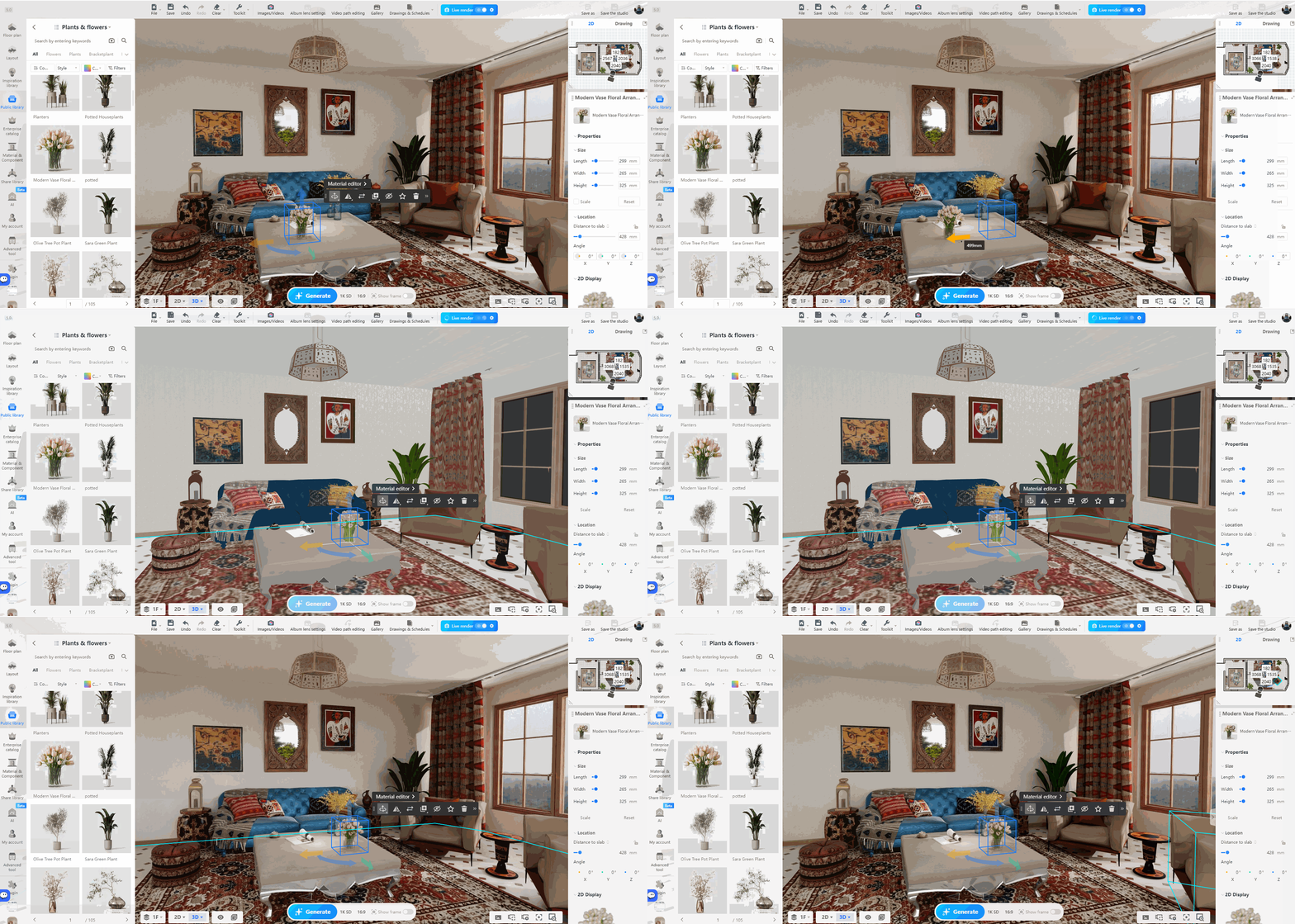
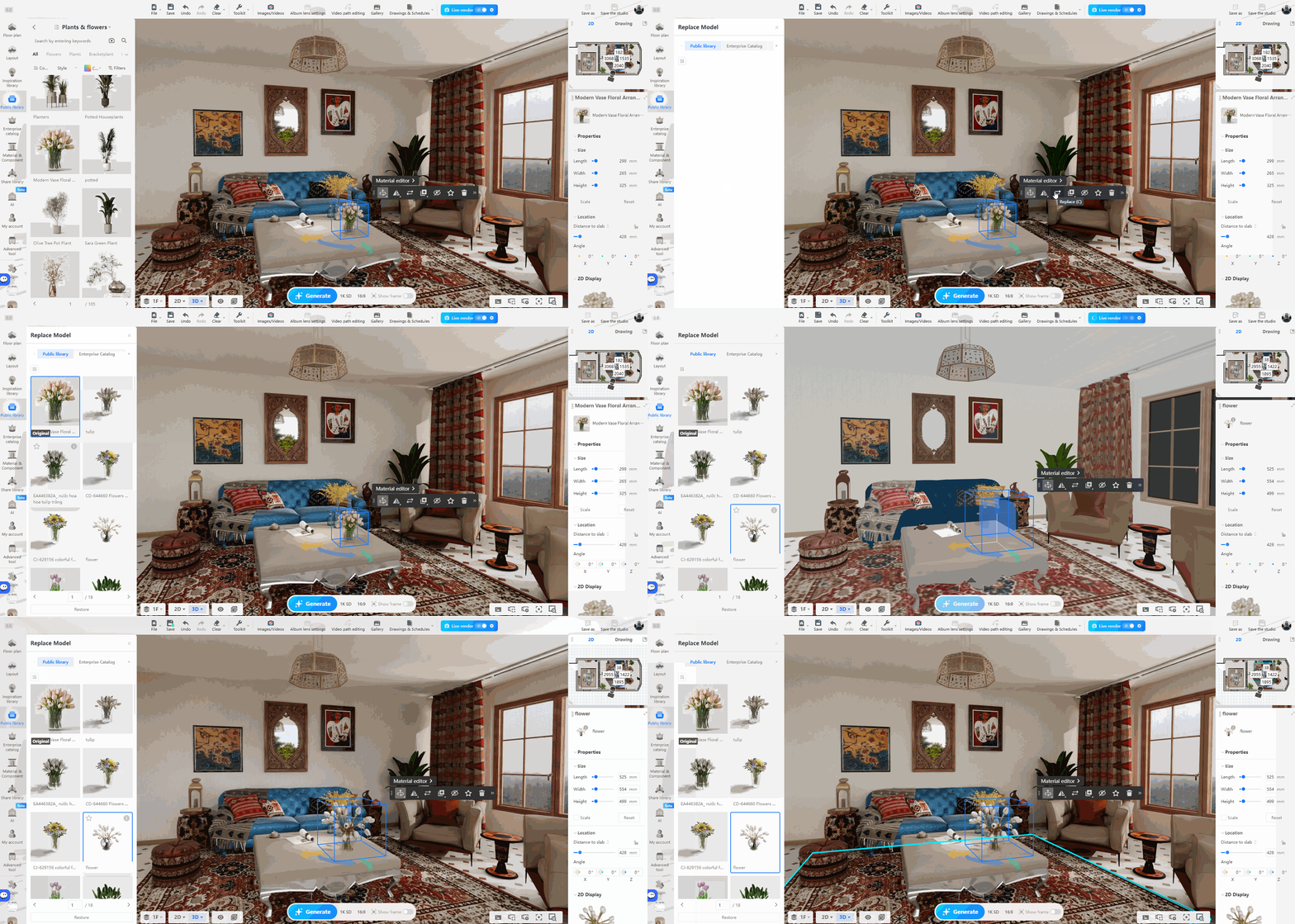
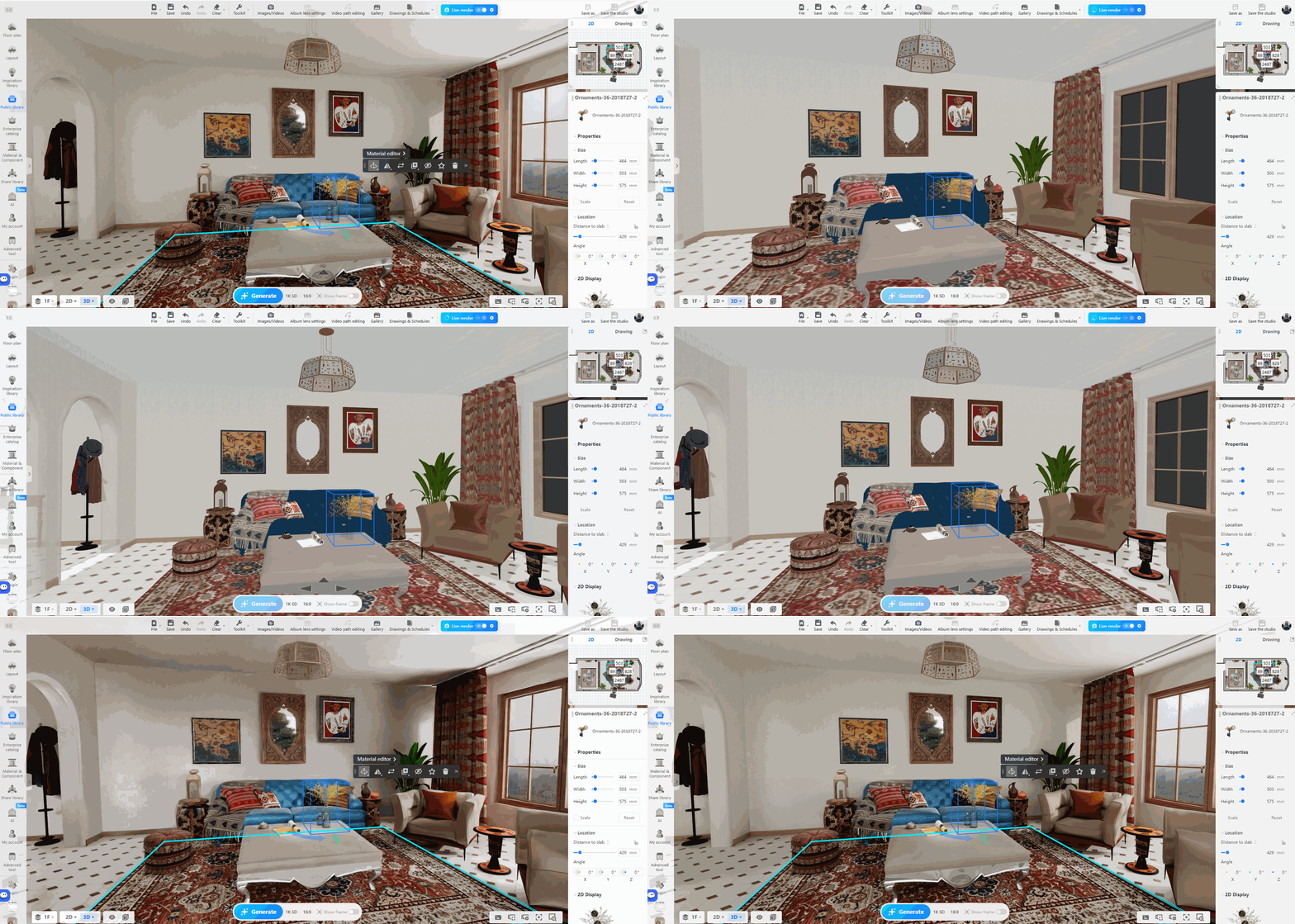
1. 1. On the rendering page, you can adjust the project (e.g., adding materials, adjusting positions, model replacement) while viewing the rendering results in real-time.
* Adding material is shown below:
* Adjusting positions is shown below:
* Details of model replacement are shown below:
Set Rendering Settings
======================
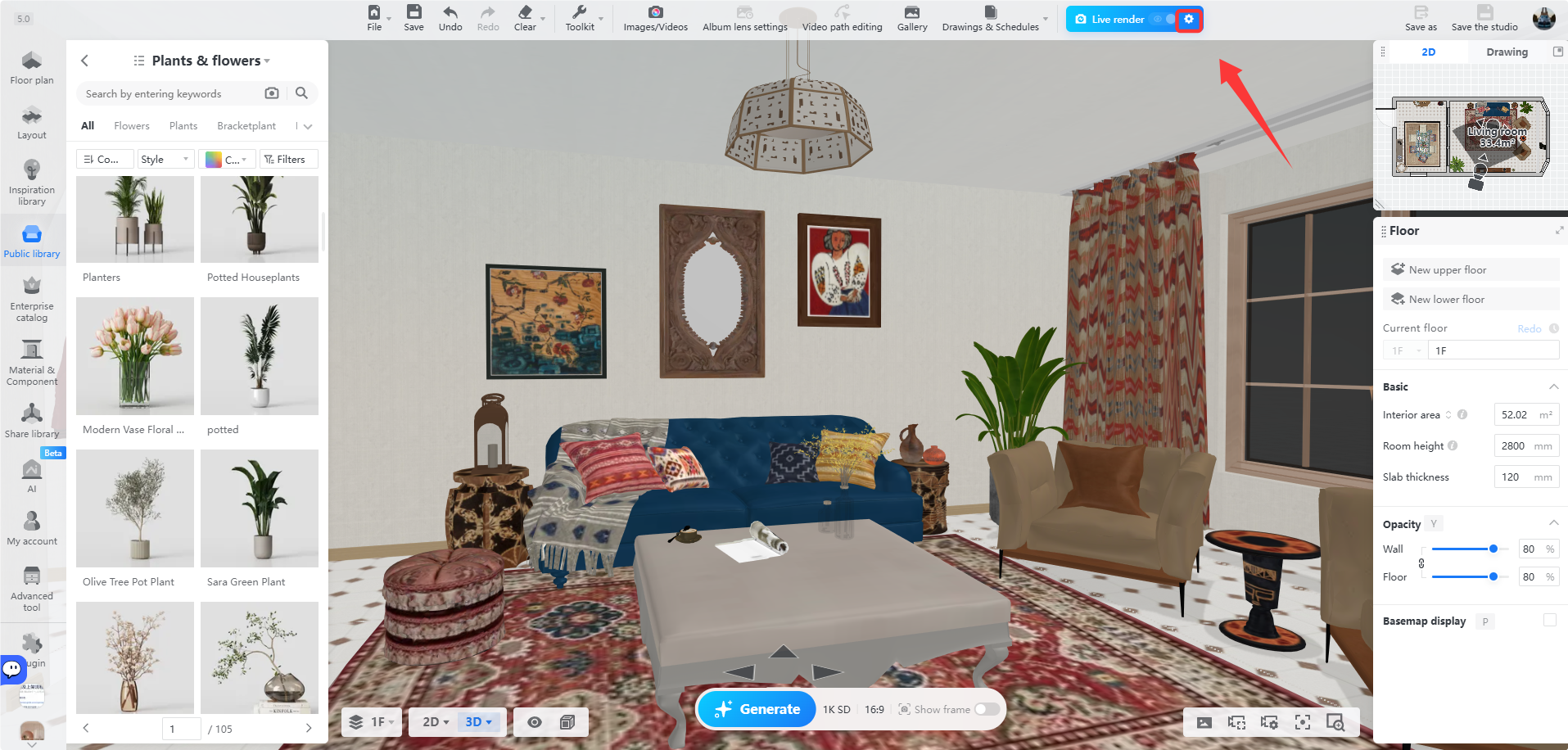
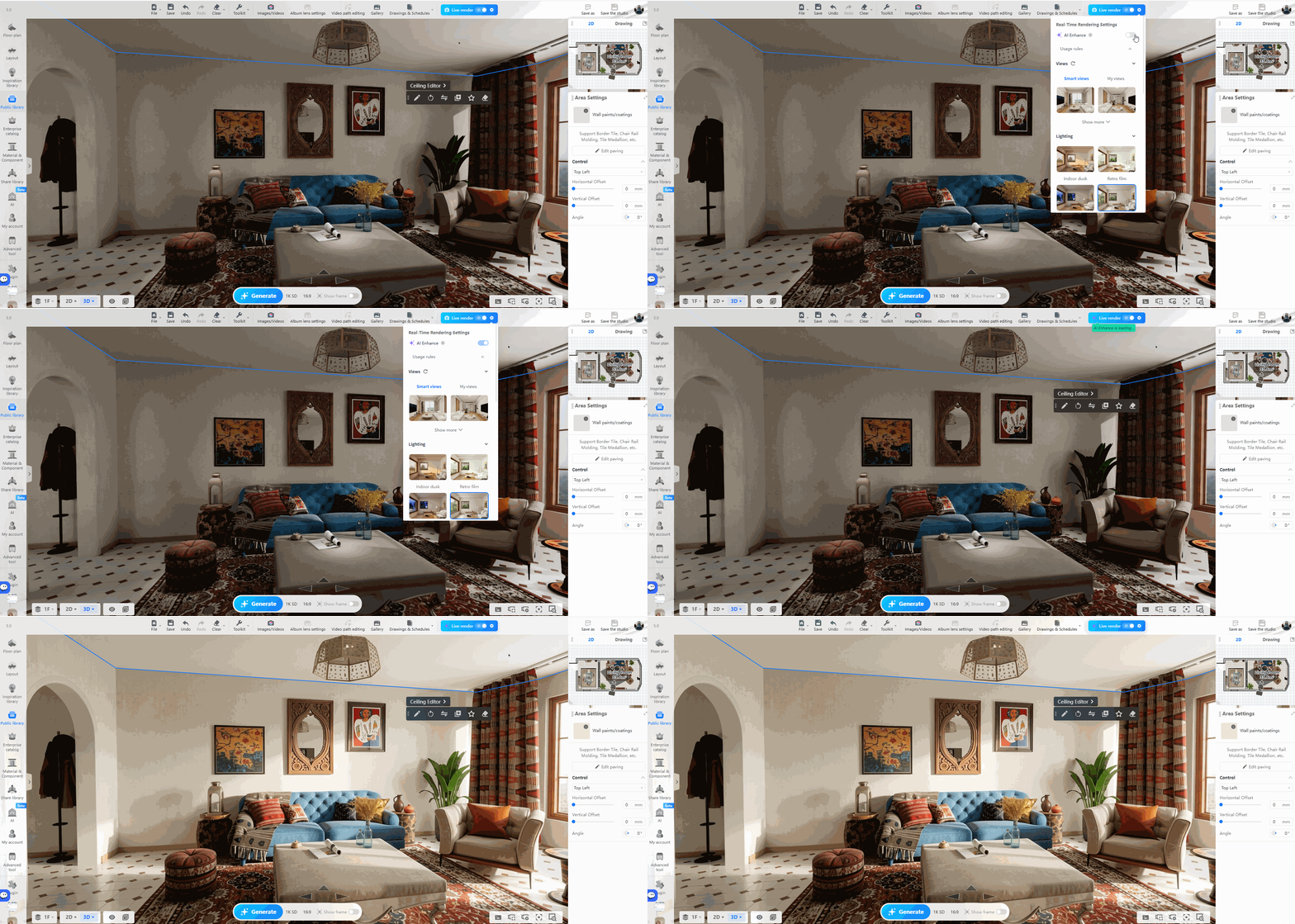
1. Click the **Settings** button in the top live render bar, then turn on **AI Enhance** to improve image texture, lighting, and shadow quality.
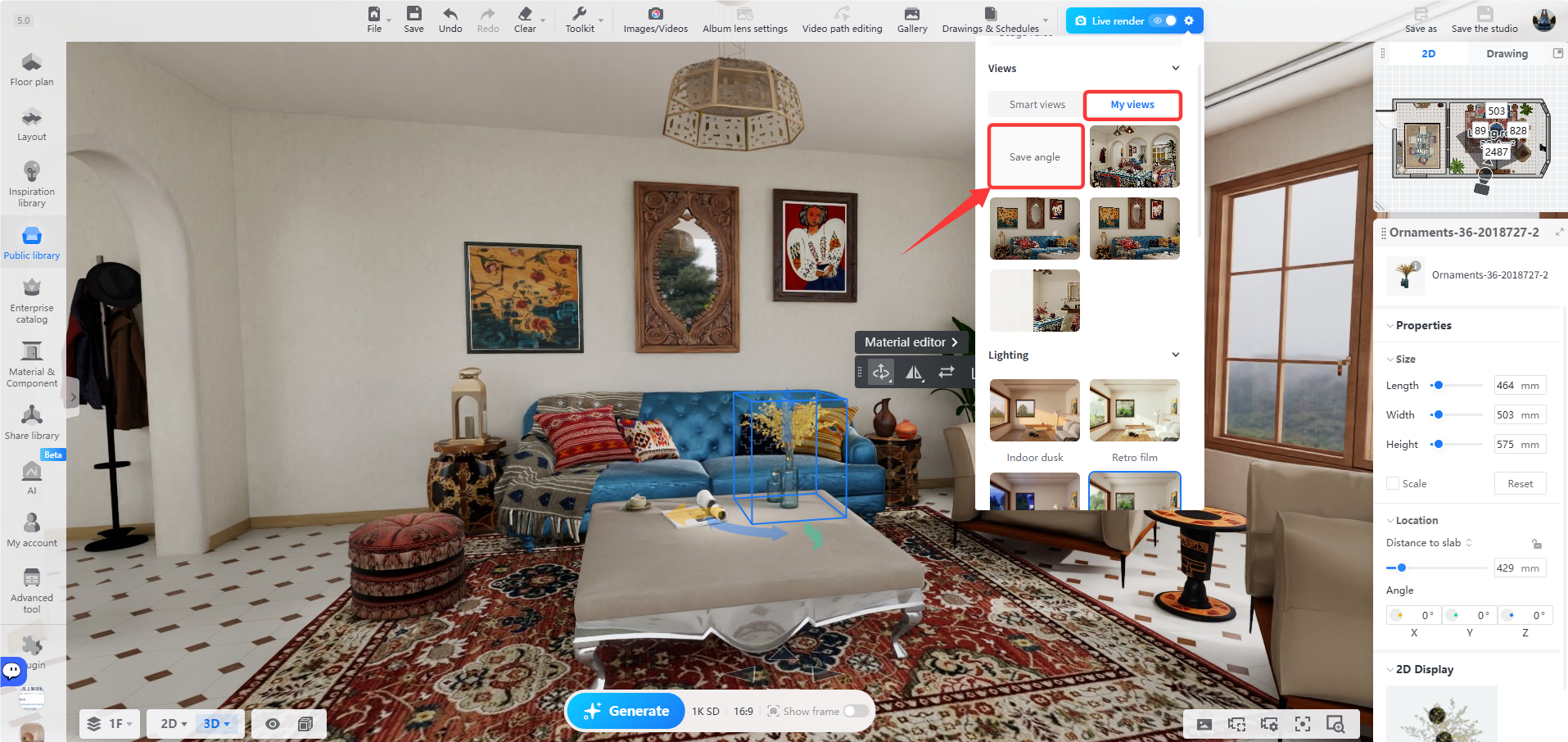
2. Set the **Views** . You can choose a suitable angle from the system's default **Smart Views**, or manually adjust to the angle you want.
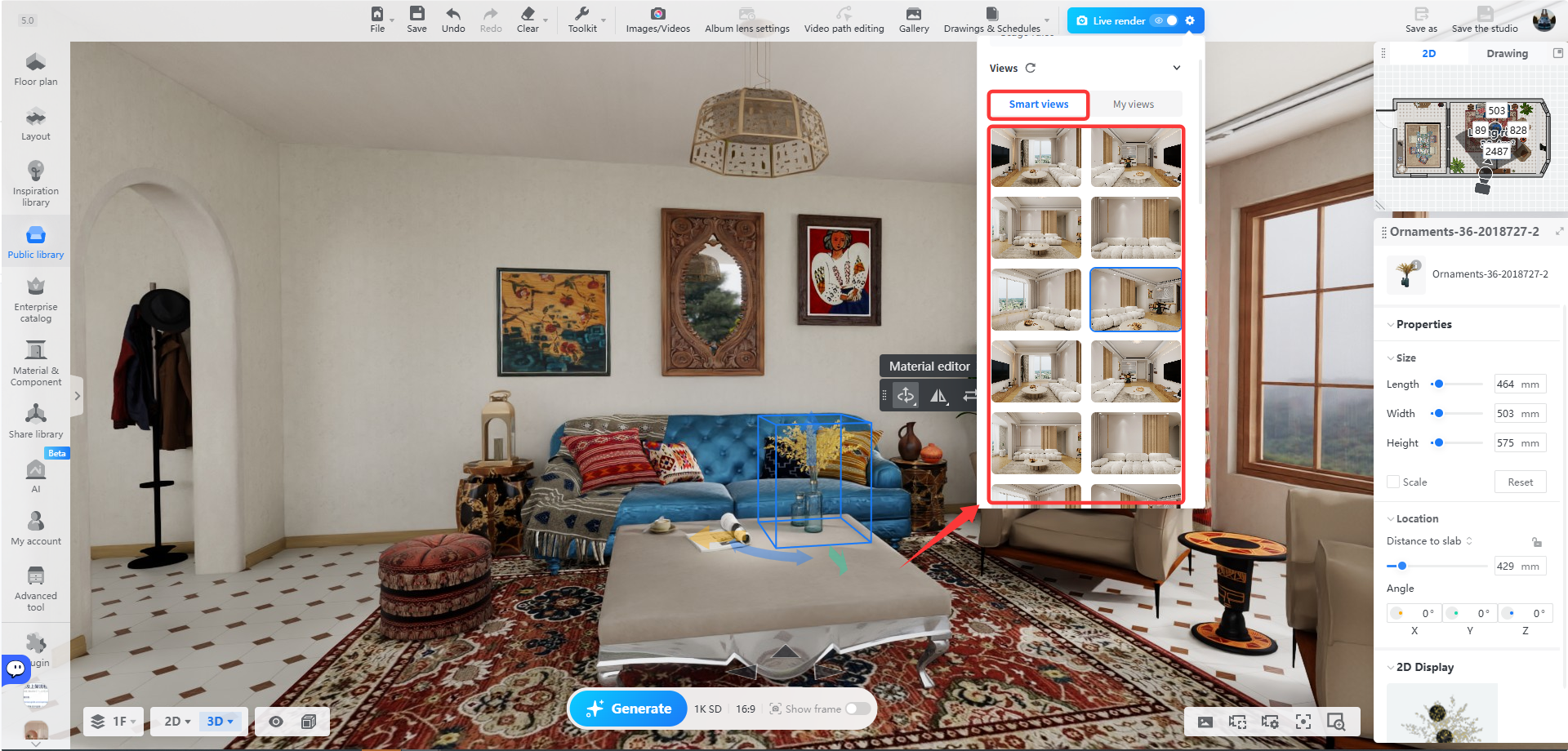
* After adjusting manually, click **My Views** --- **Save Angle** to reuse it later.
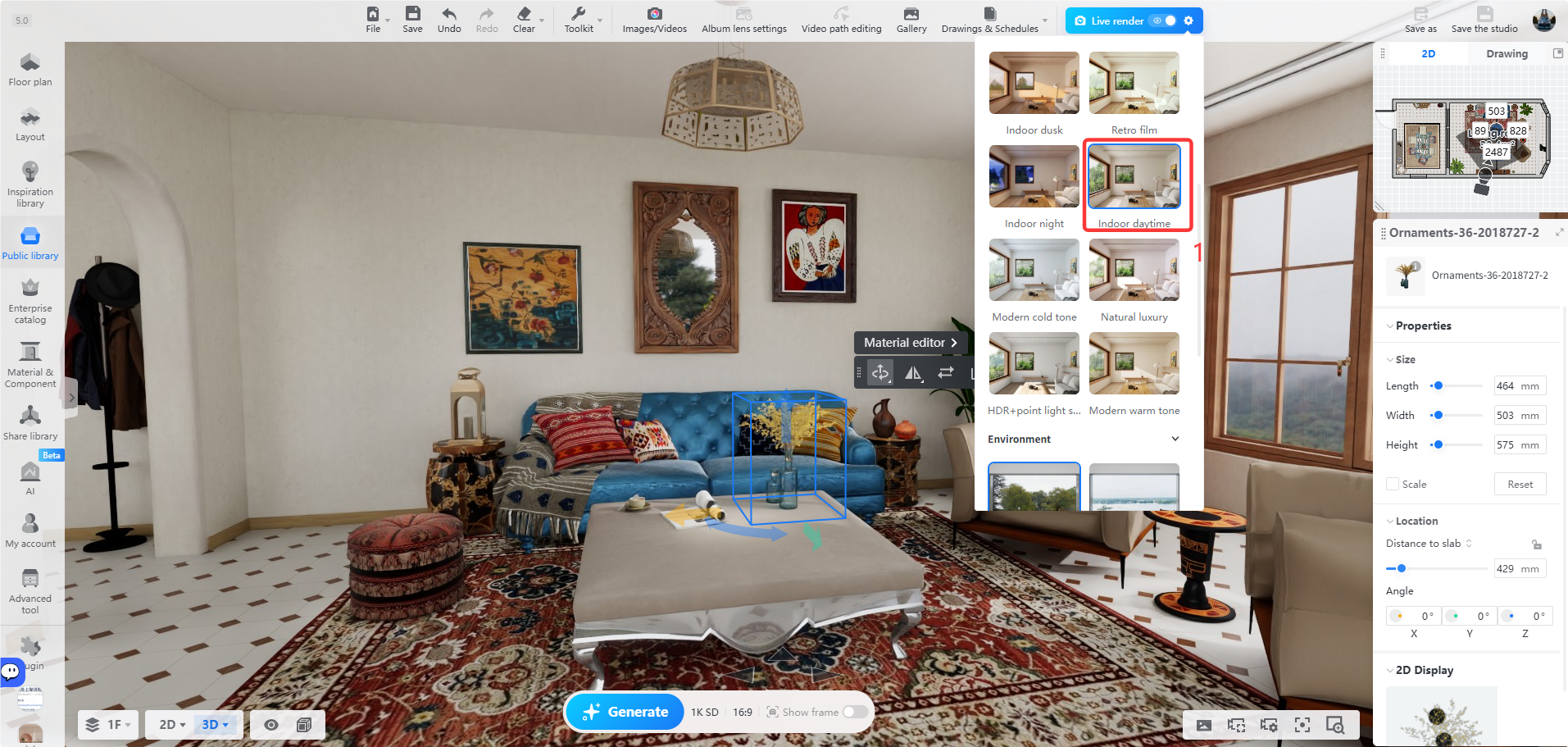
3. Next, select **Lighting** and **Environment**.
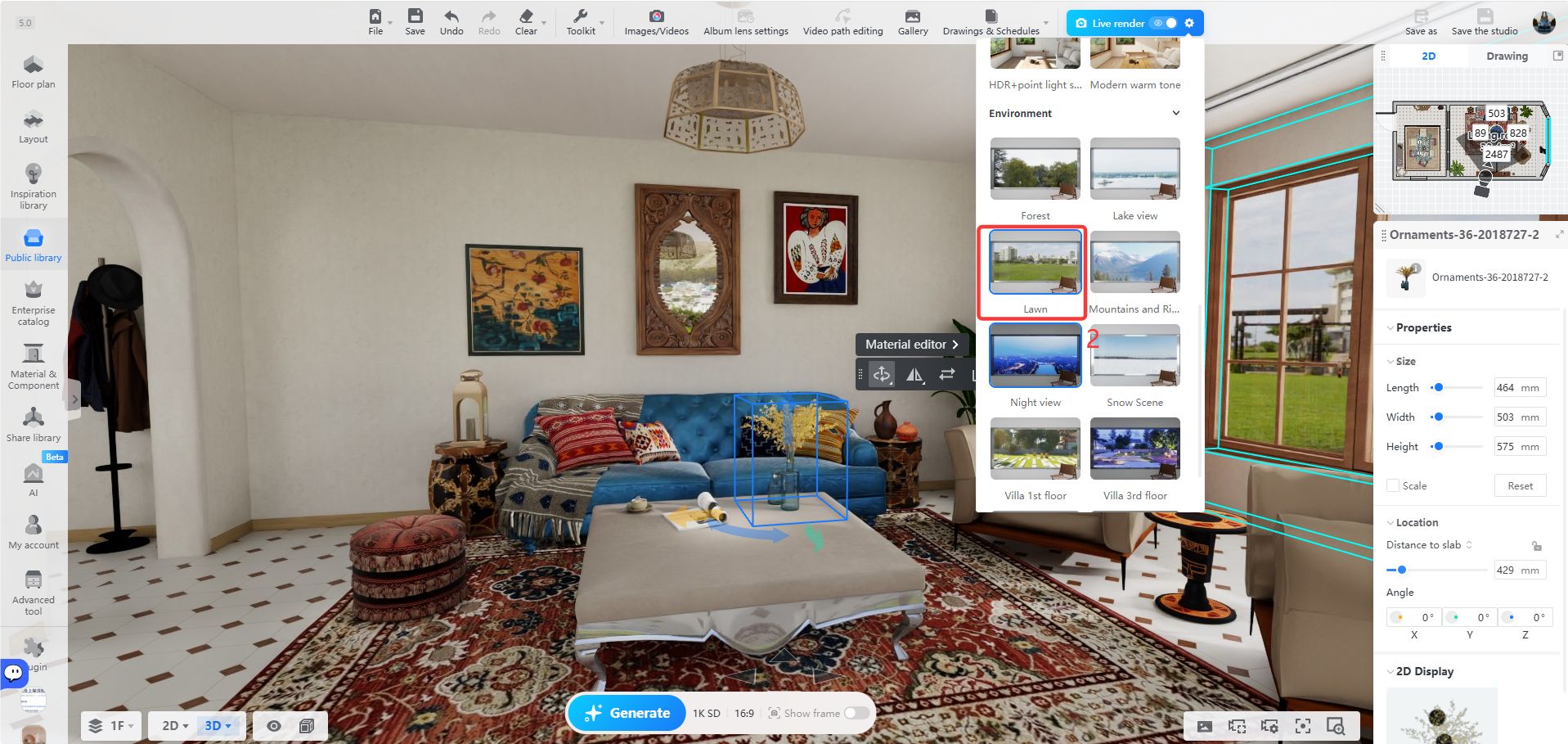
4. Turn on **Show Frame** to view the composition boundaries more clearly.
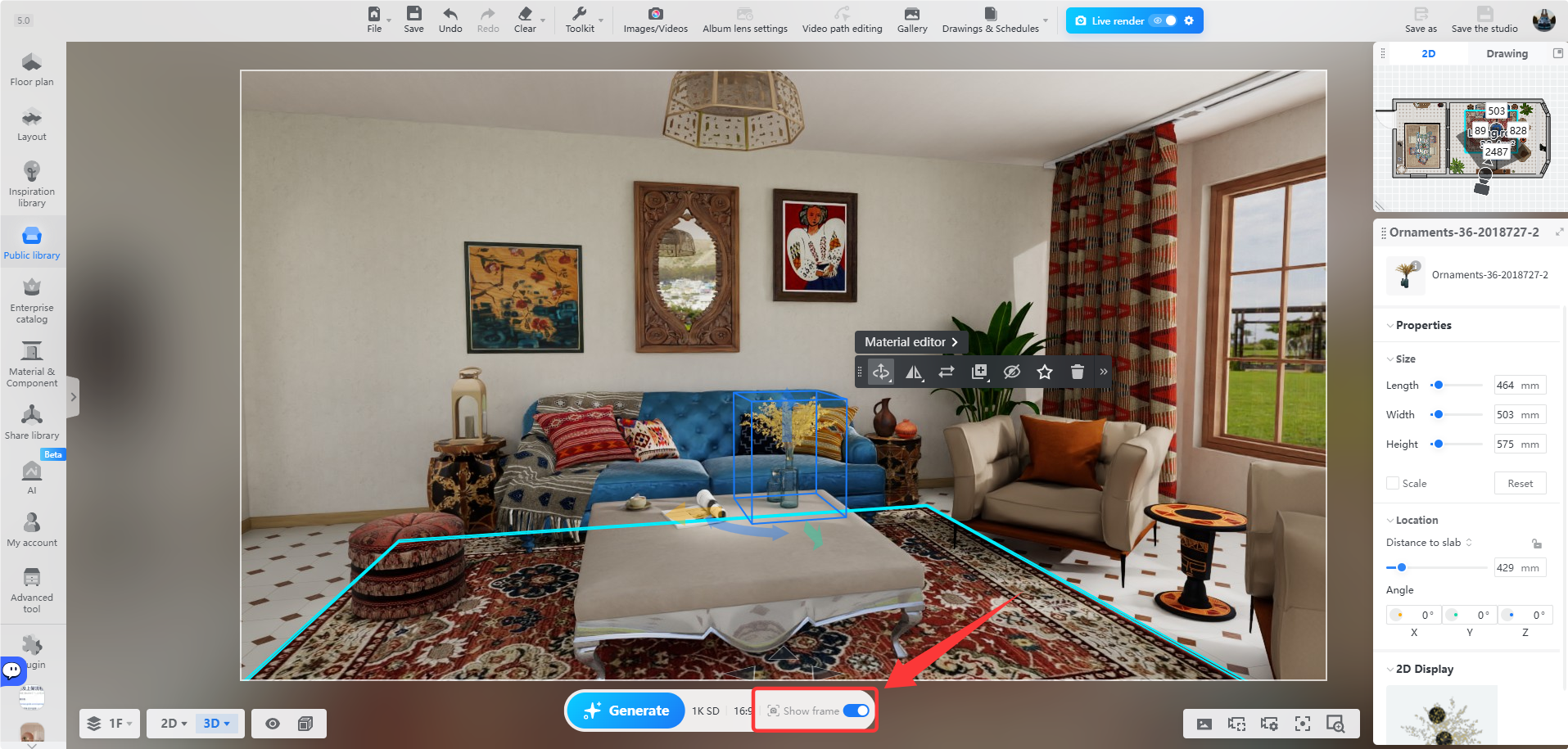
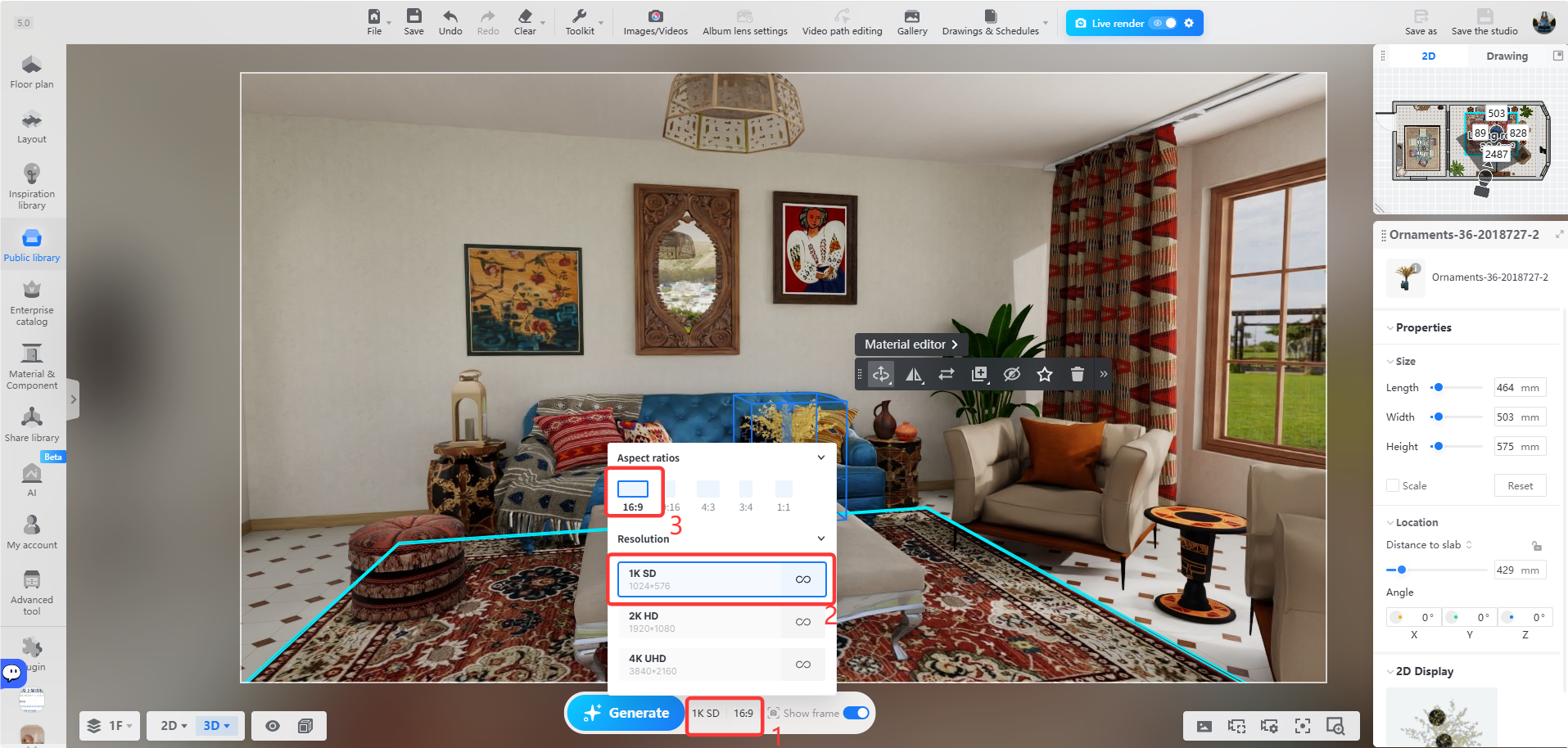
5. After finishing the adjustments, set the **Aspect Ratios** and **Resolution** in the bottom toolbar.
Generate Renderings
===================
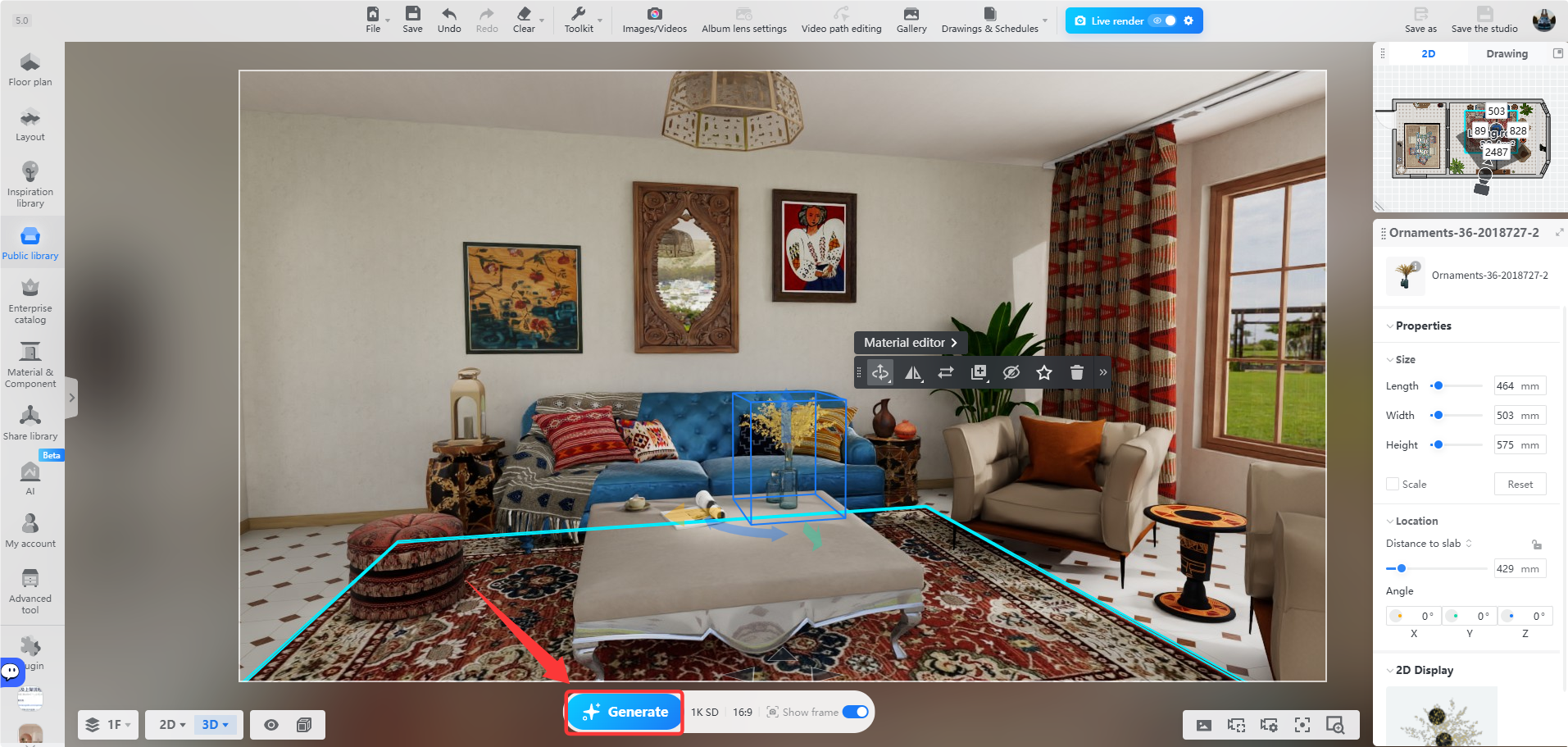
After setup is complete, click **Generate** at the bottom.
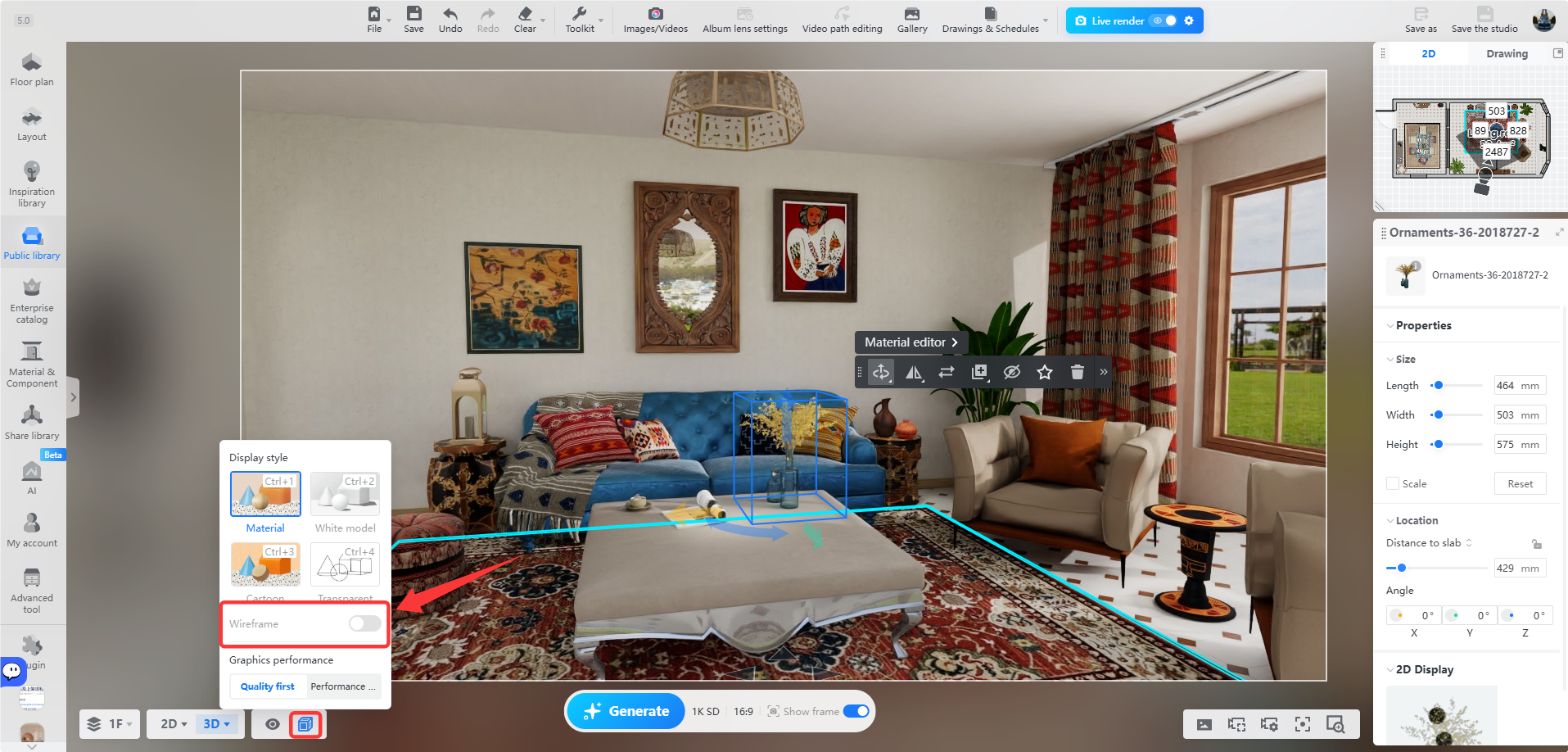
* Note: To ensure rendering quality, make sure **Wireframe** mode is off before rendering.
View Renderings
===============
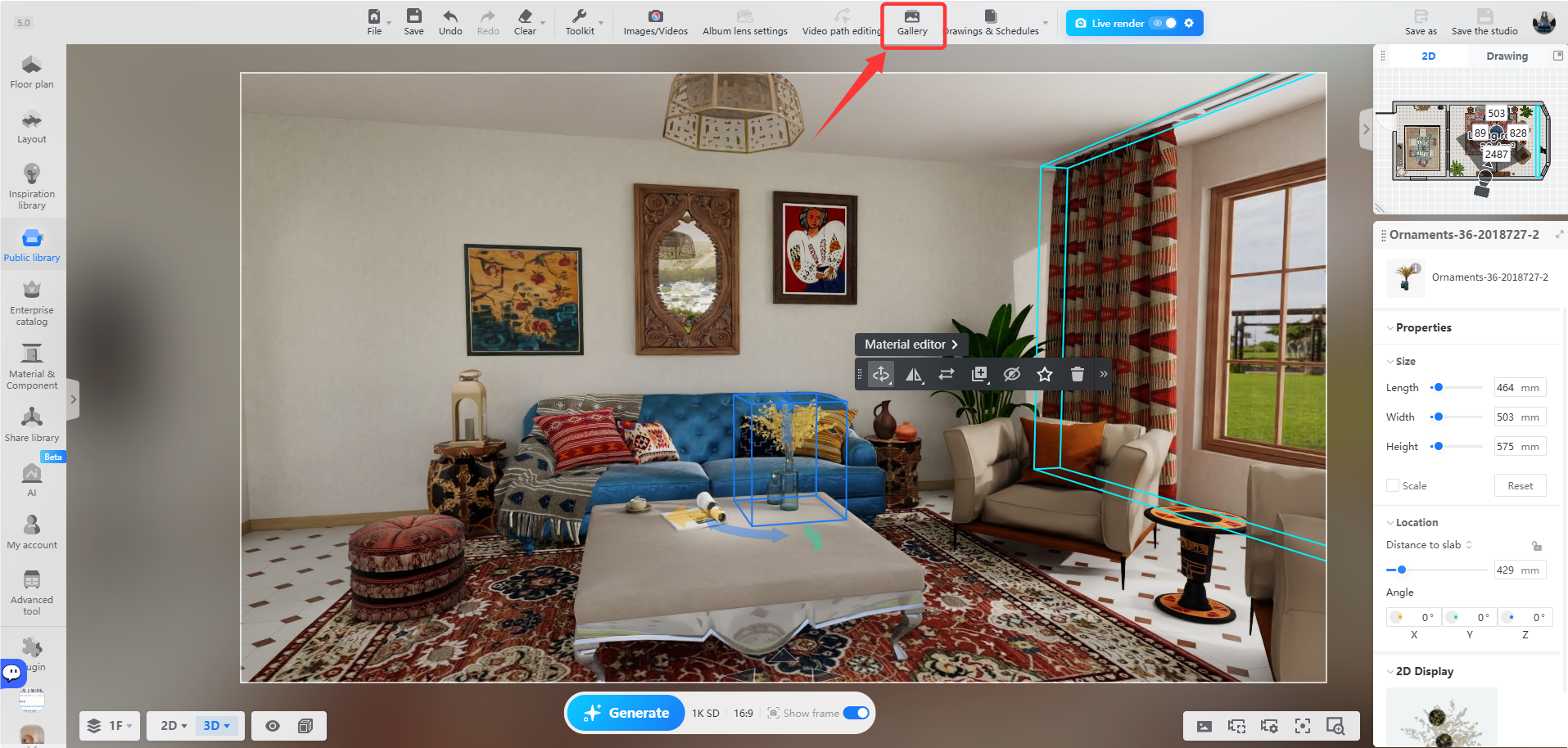
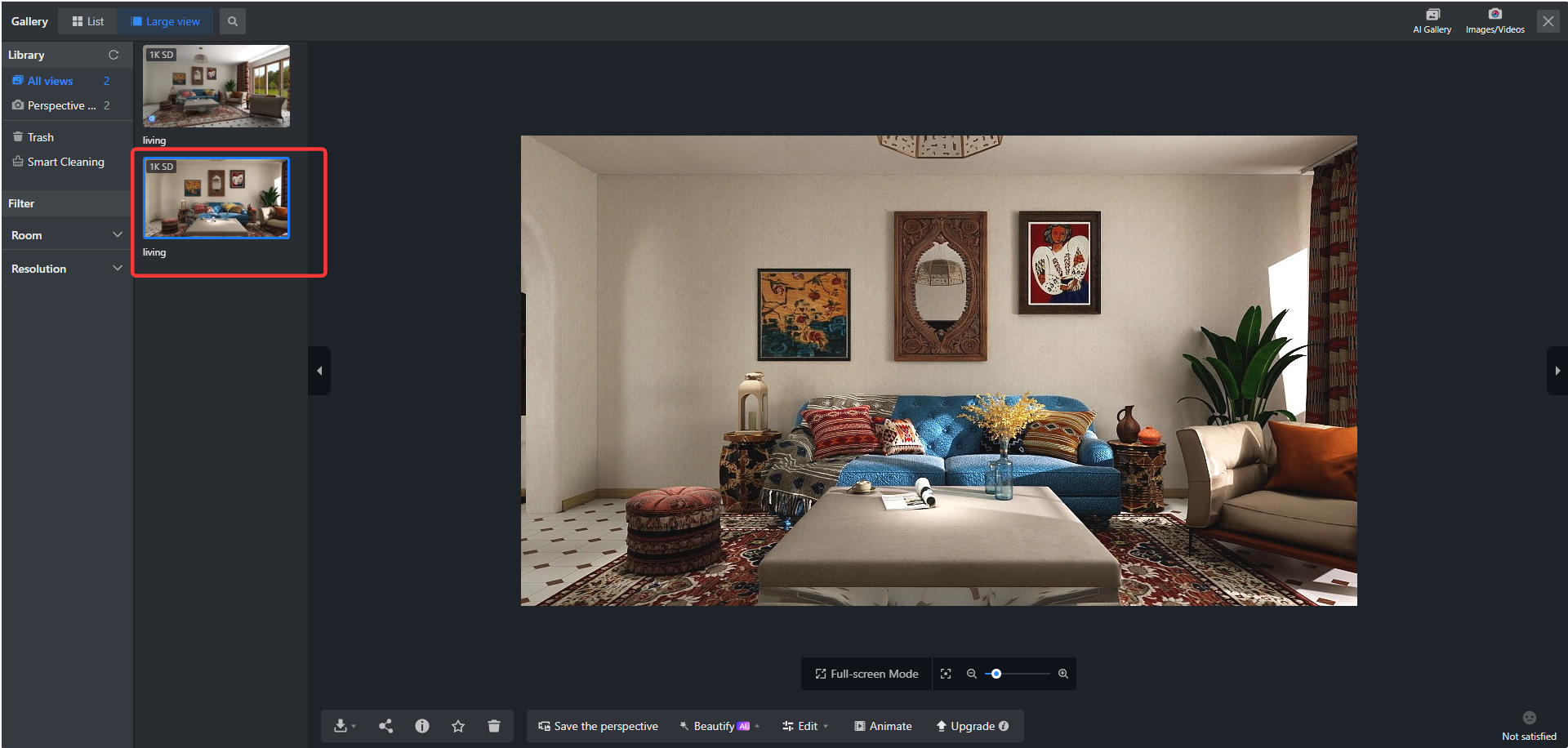
When rendering is complete, click **Gallery**at the top to view the result.
Exit Live Render
================
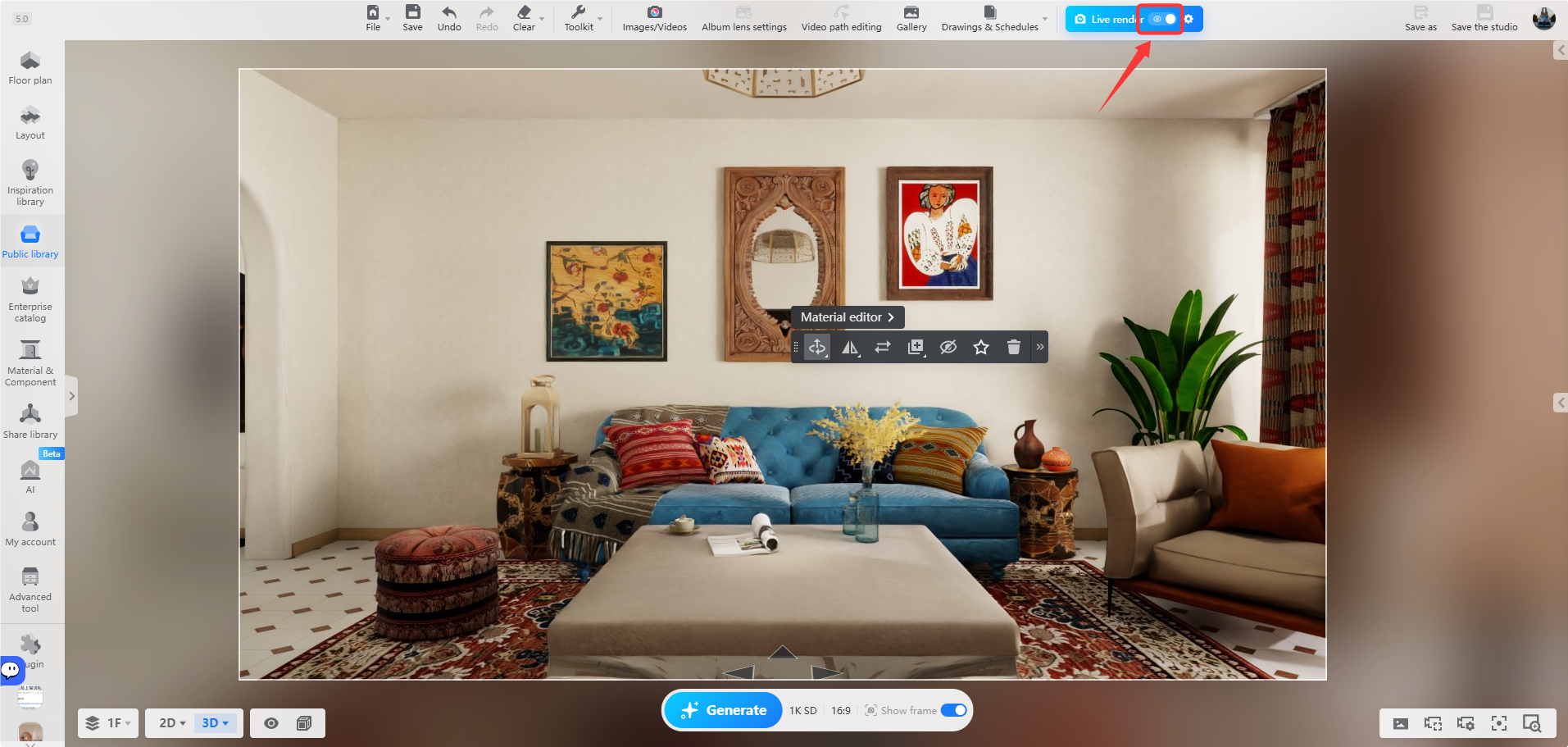
Click the switch at the top to return to the design tool page.