# aihom-design-with-aihom
> Quickly create detailed floor plans and furnished 3D designs using AI. Just describe your space and preferences—AIHom does the rest. Start designing today.
- **URL**: https://www.coohom.com/helpcenter/aihom-design-with-aihom
- **Locale**: en_US
- **Updated**: 2026-09-29
## Content
**For Users: All Coohom interior designers**
*** ** * ** ***
Generate a New Floor Plan with AI
---------------------------------
Describe the home you want, and AIHom will generate a visual floor plan that you can review, refine, and use as the basis for a furnished 3D design.
Generate a Floor Plan by Chatting with AI
-----------------------------------------
1. Describe your home requirements in AIHom chat.
2. Hit Generate.
3. Wait for AIHom to generate a floor plan.
4. Review the layout and continue chatting to request adjustments.
5. When the layout is ready, continue to 3D design generation.
\[Video URL\](https://www.youtube.com/watch?v=7FuKIFpnh48)
Include the Right Details in Your Prompt
----------------------------------------
**Home Size**
Provide an approximate area, for example:
* 1,000 sq ft apartment
* 120 m² house
* 80 m² two-bedroom apartment
**Rooms and Functions**
List the rooms you need and how they should be used, for example:
* Three bedrooms and two bathrooms
* A primary bedroom with a private bathroom
* An open kitchen connected to the living room
**Layout Preferences**
Explain important relationships or constraints, such as:
* Open-concept living and kitchen area
* Kitchen next to the dining area
* Separate public and private areas
* Large living-room windows
* Kitchen island
**Lifestyle Needs**
Mention requirements related to family life, working from home, entertaining, or storage.
Include the Right Details in Your Prompt
----------------------------------------
**Home Area**
Provide an approximate area, for example:
* 1,000-square-foot apartment
* 120-square-meter home
* 80-square-meter two-bedroom apartment
**Rooms and Uses**
List the rooms you need and how they should be used, for example:
* Three bedrooms and two bathrooms
* Primary bedroom with an en suite bathroom
* Open kitchen connected to the living room
**Layout Preferences**
Describe important spatial relationships or constraints, for example:
* Open living, dining, and kitchen area
* Kitchen close to the dining area
* Separation between shared and private areas
* Large windows in the living room
* Kitchen island
**Lifestyle Needs**
Mention any needs related to family life, working from home, entertaining guests, or storage.
Example Prompt
--------------
Create a 1,200 sq ft family home with three bedrooms and two bathrooms. Include a primary bedroom with a private bathroom, two additional bedrooms, an open-concept kitchen and living room, a dining area, and a small home office. Make the layout practical for a family of four, with good natural lighting and a modern minimalist style.
Refine the Result
-----------------
Start with the essential requirements, review the generated layout, and add constraints in follow-up messages. Once the floor plan meets your needs, you can generate a furnished 3D design, explore interior styles, adjust furniture, and create renders.
Turn a Floor Plan into an Editable 3D Design
============================================
AIHom can convert an uploaded or AI-generated floor plan into a furnished 3D design. You can then apply an interior style, explore the space in 360°, and generate render images or videos.
\[Video URL\](https://www.youtube.com/watch?v=aXEdyFqwSIc)
Create or Upload a Floor Plan
-----------------------------
Choose one starting method:
* **Upload a floor plan without furniture:** AIHom analyzes the layout and matches furniture to the rooms.
* **Upload a furnished floor plan:** AIHom recognizes the existing arrangement and converts it into a digital design.
* **Create a floor plan through chat:** Describe the home size, rooms, layout preferences, and lifestyle requirements.
For help writing a floor plan request, see **Generate a floor plan with AI**.
Generate the 3D Design
----------------------
1. Confirm that the floor plan is ready.
2. Click **Generate 3D**.
3. Review the generated space in 2D and 3D views.
Apply an Interior Style
-----------------------
Choose a listed style, such as Wabi Sabi, Minimalist, Organic Modern, Italian, Mid-Century Modern, American Classic, or Japandi. You can also describe your own preferences.
AIHom applies matching furniture, materials, and decorations to the space.
Explore the 360° Render
-----------------------
* Double-click the render window or click the expand button in its top-right corner to enter full screen.
* Use the navigation control in the bottom-right corner to move through the space.
* Drag on the screen to change the viewing angle.
* Select a room angle in the left panel to switch perspectives.
You can change the real-time render quality in the top-right corner. The source lists these plan-dependent options:
| Plan | Interactive Render Quality | Rendered Image Resolution |
|------------|----------------------------|---------------------------|
| Free | 1K | 1K |
| AIHom Lite | 2K | 2K |
| AIHom Plus | 2K Enhanced | 4K |
Generate Render Images or Videos
--------------------------------
AIHom automatically creates render images from different views. For video output, either click **Generate Video** after completing the design or select up to two render images and ask AIHom to generate a video.
Get Better Results
------------------
* Upload a clear floor plan.
* Describe space requirements, room functions, style preferences, and lifestyle needs.
* Try more than one interior style before choosing a final direction.
Redesign a Room with AI
-----------------------
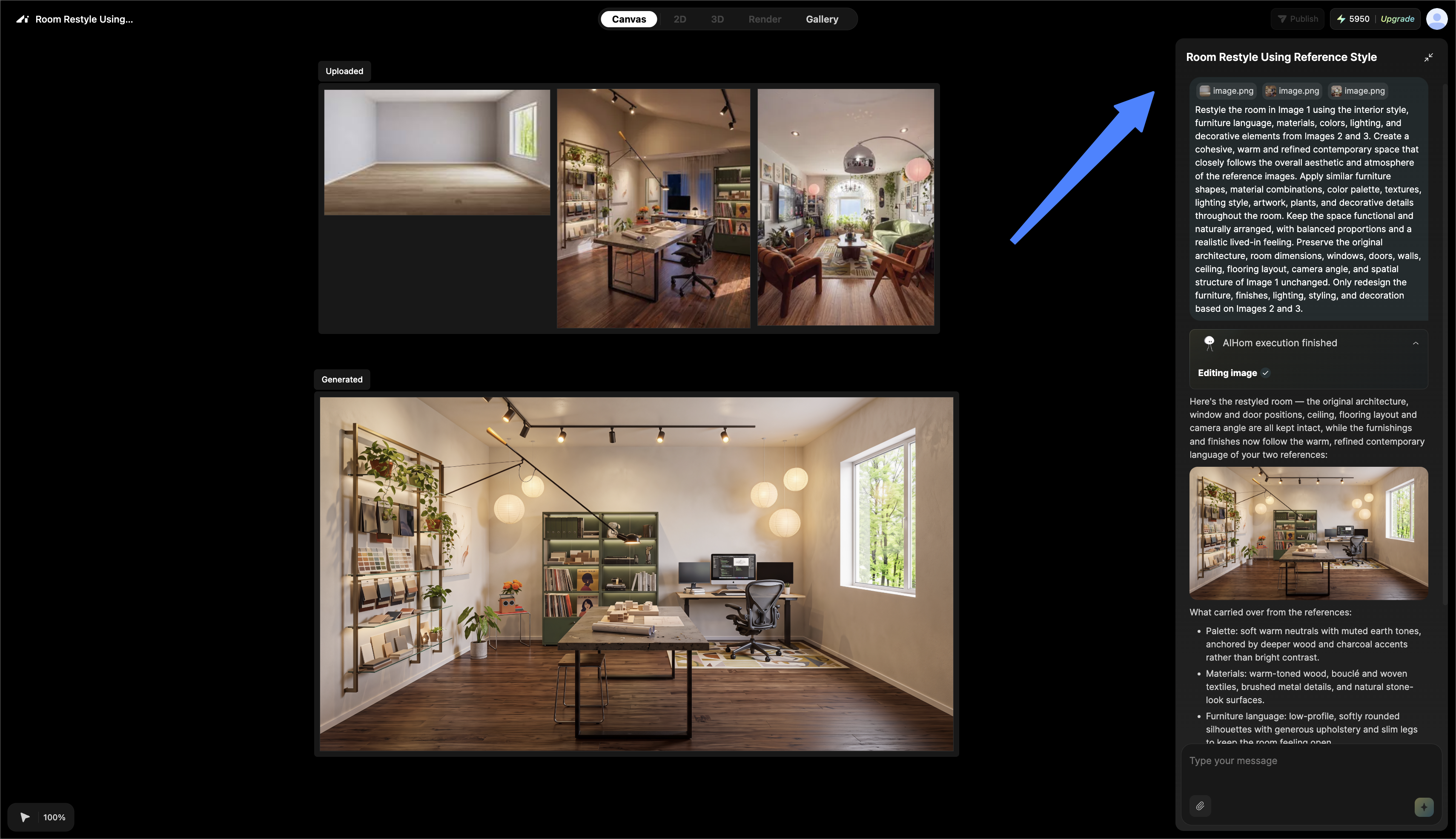
Upload a photo of an existing room and give AIHom reference images or a description of the style you want. AIHom generates a new interior concept while keeping the original room structure.
Redesign the Room
-----------------
1. Upload a clear photo of the existing room.
2. Add reference images or describe the preferred style.
3. Tell AIHom what you want to change.
4. Review the redesigned room that AIHom generates.
Example:
Image 1 is my current room. Image 2 is the style reference. Redesign Image 1 to match that style.
Changes You can Explore
-----------------------
AIHom can help you visualize changes to:
* Interior style
* Furniture arrangement
* Colors and materials
* Decorations
* Overall room atmosphere
Get Better Redesign Results
---------------------------
* Use a clear room photo that shows the full space.
* Add reference images that consistently represent the desired style.
* Describe important colors, materials, furniture preferences, and atmosphere.
* State what should remain unchanged when that matters to the design.
**Expected result:** A redesigned visualization of the uploaded room that reflects your references or written instructions.
Place Furniture in Your Room with AI
====================================
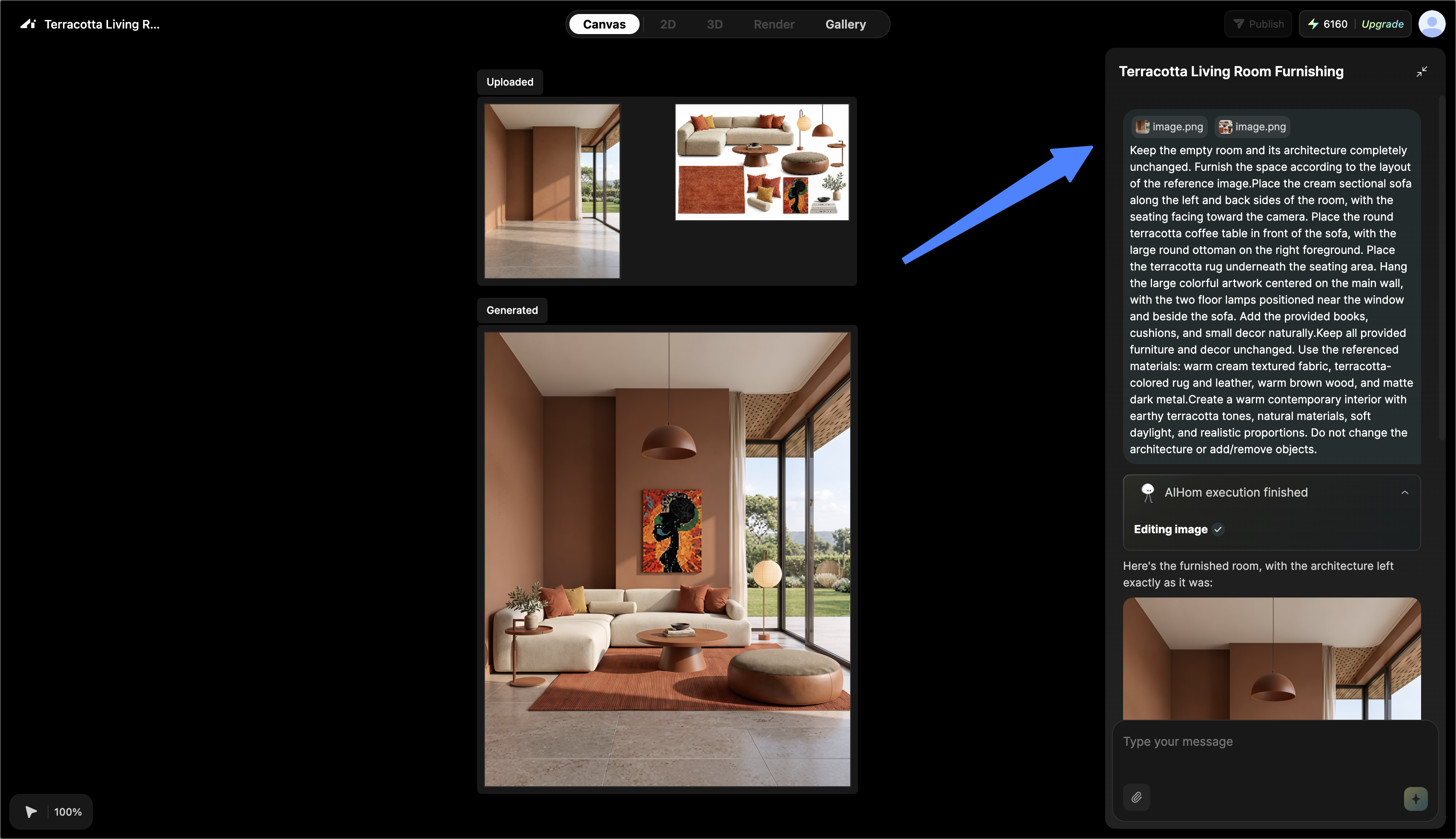
Use AIHom to preview a furniture item in your own space. Upload a room photo and an image of the furniture, then describe where it should appear.
Place the Furniture
-------------------
1. Upload a clear photo of your room.
2. Upload an image of the furniture you want to try.
3. Tell AIHom where you want to place the item.
4. Review the generated visualization.
Example:
Place this sofa next to the window and match it with the existing room style.
Furniture You can Preview
-------------------------
Examples include:
* Sofas
* Chairs
* Tables
* Beds
* Cabinets
* And more
Use the Preview to Compare Options
----------------------------------
The generated image can help you compare furniture choices, assess whether an item matches the room, and explore different placements before making a purchase decision. Treat the result as a visual concept rather than a precise measurement of fit.
Get Better Placement Results
----------------------------
* Use a well-lit room photo with the intended placement area visible.
* Upload a clear furniture image with the full item in view.
* State the desired location and orientation.
* Describe how the furniture should relate to the existing room style.
**Expected result:** A visualization showing the selected furniture item in the uploaded room.