# closet-design-use-measure-to-take-the-distance-between-models
> Discover flexible measurement methods for cabinetry and panel distances, enhancing design accuracy and convenience. Explore varied techniques for optimal results. Learn more today.
- **URL**: https://www.coohom.com/helpcenter/closet-design-use-measure-to-take-the-distance-between-models
- **Locale**: en_US
- **Updated**: 2026-06-11
## Content
Customized measurement tools include different measurement methods such as selecting model, selecting point, orthogonal measurements, isolated measurements, etc. You can use the measure to measure the distance between cabinets and panels, which is suitable for different scenarios, and is more flexible and convenient.
⭐Before reading the article, it is recommended to watch the video tutorial first for easy getting started\~
\[Video URL\](https://www.youtube.com/watch?v=fSx1gjfEjEY)
For Users
=========
All users
Entrance
========
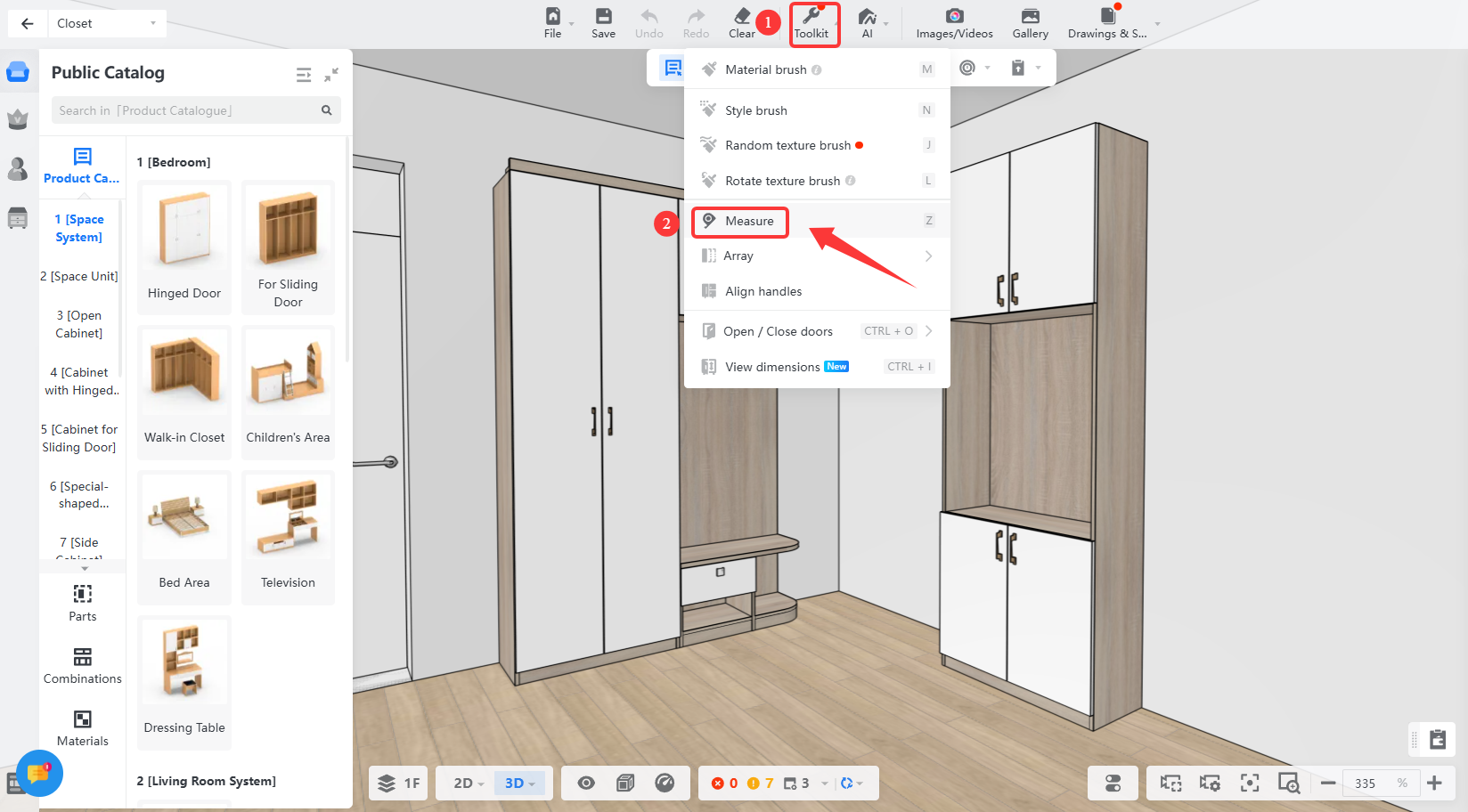
1. Select **Kitchen&Bath** / **Closet /** **Doors&Windows** to enter the customization interface.
2. Select the **Toolkit-Measure** from the top toolbar.
General Measurement
===================
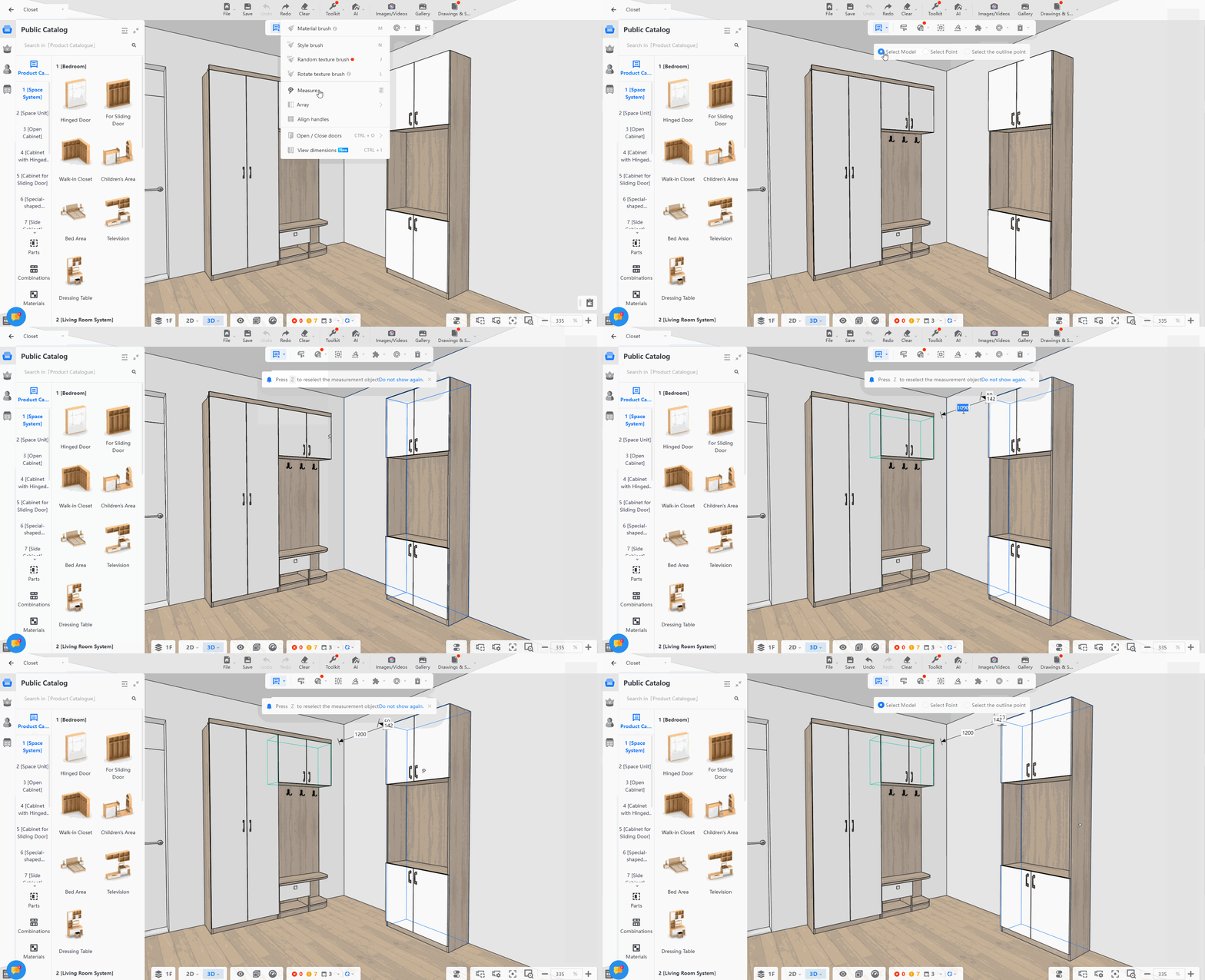
**Select Model**
----------------
1. First select the measurement object, then select the distance object, and modify the distance to move object.
2. **Press Z** to reselect the measurement object, **Right-click** or **Esc key** to exit.
3. Part distance can be measured in **select part** mode.
**Select Point**
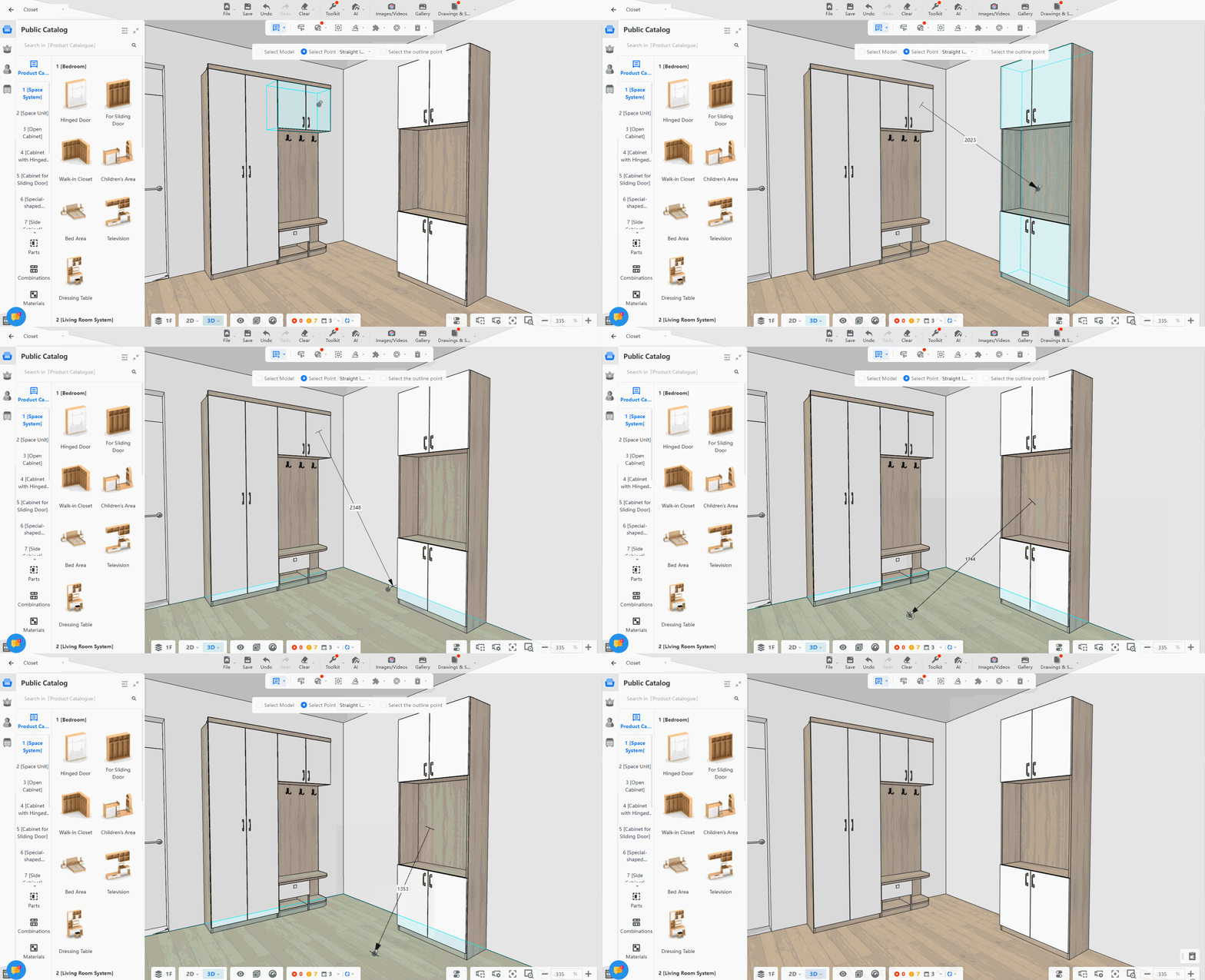
----------------
You can select any two points in the canvas to measure the distance, not limited to the model, and modify the distance to move object.
**Select the Outline Point**
----------------------------
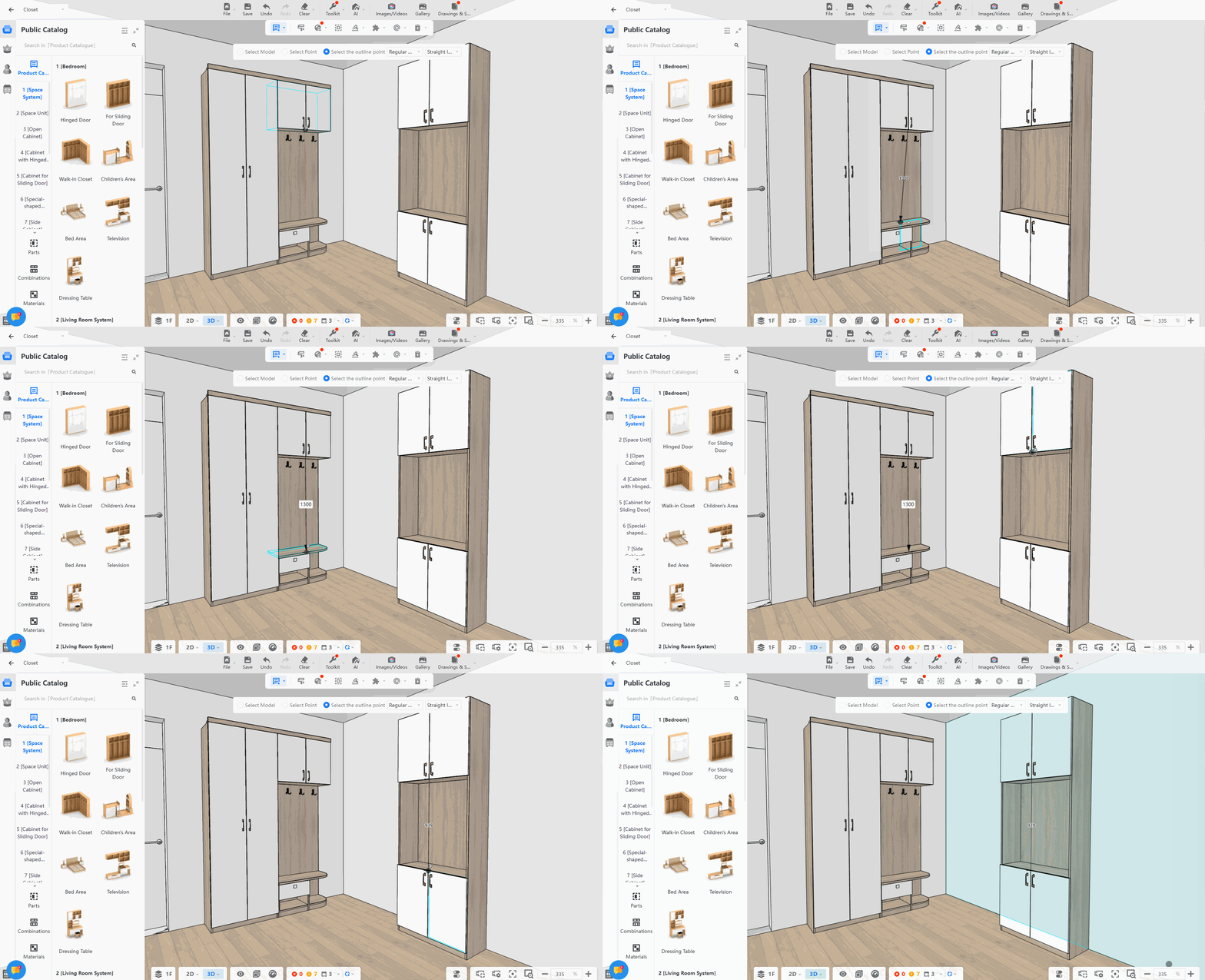
The custom tool has a proprietary function that can capture and recognize the panel outline of the customized model, measure the distance between the model and the model more accurately, and modify the distance to move model.
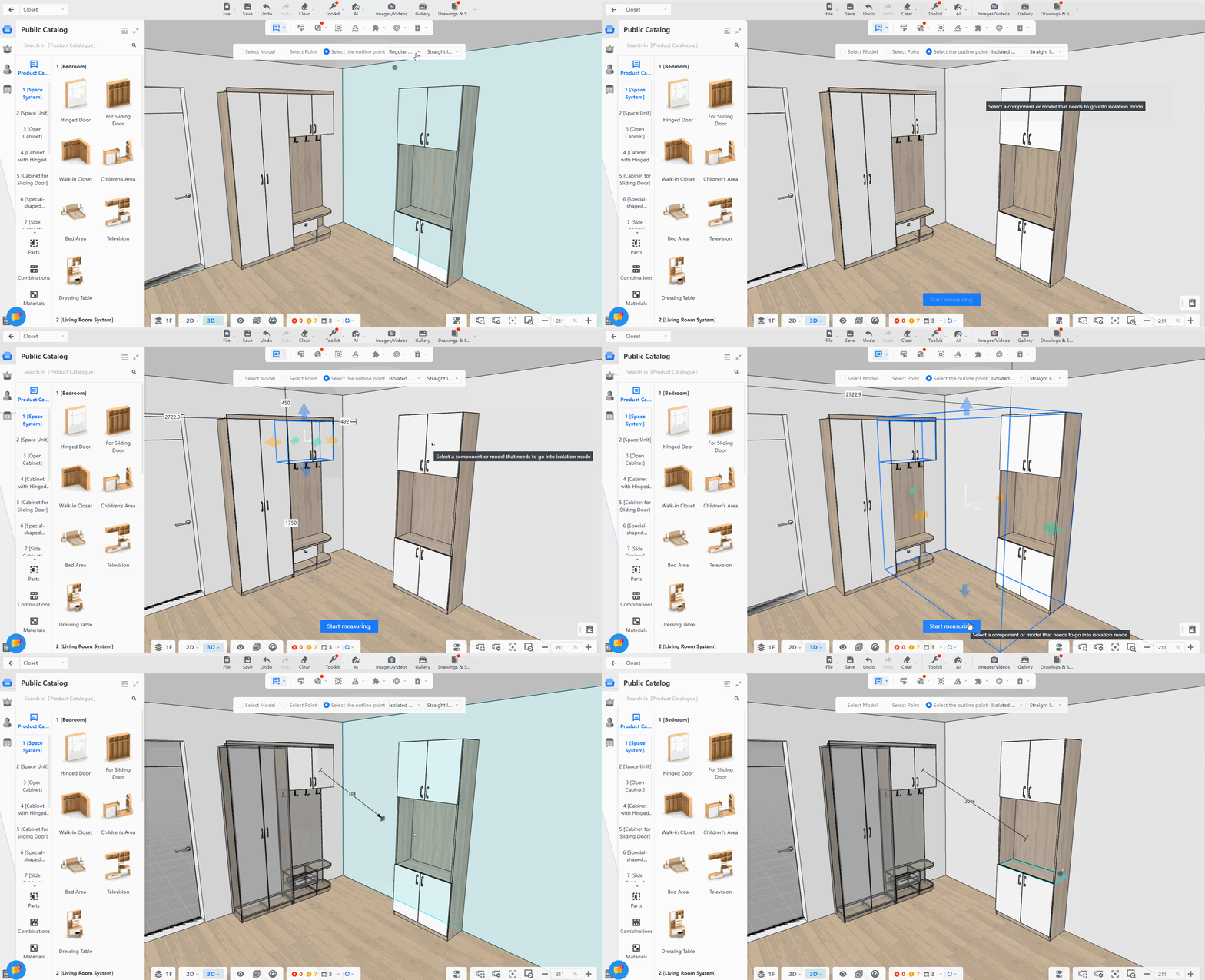
Orthogonal Measurement
======================
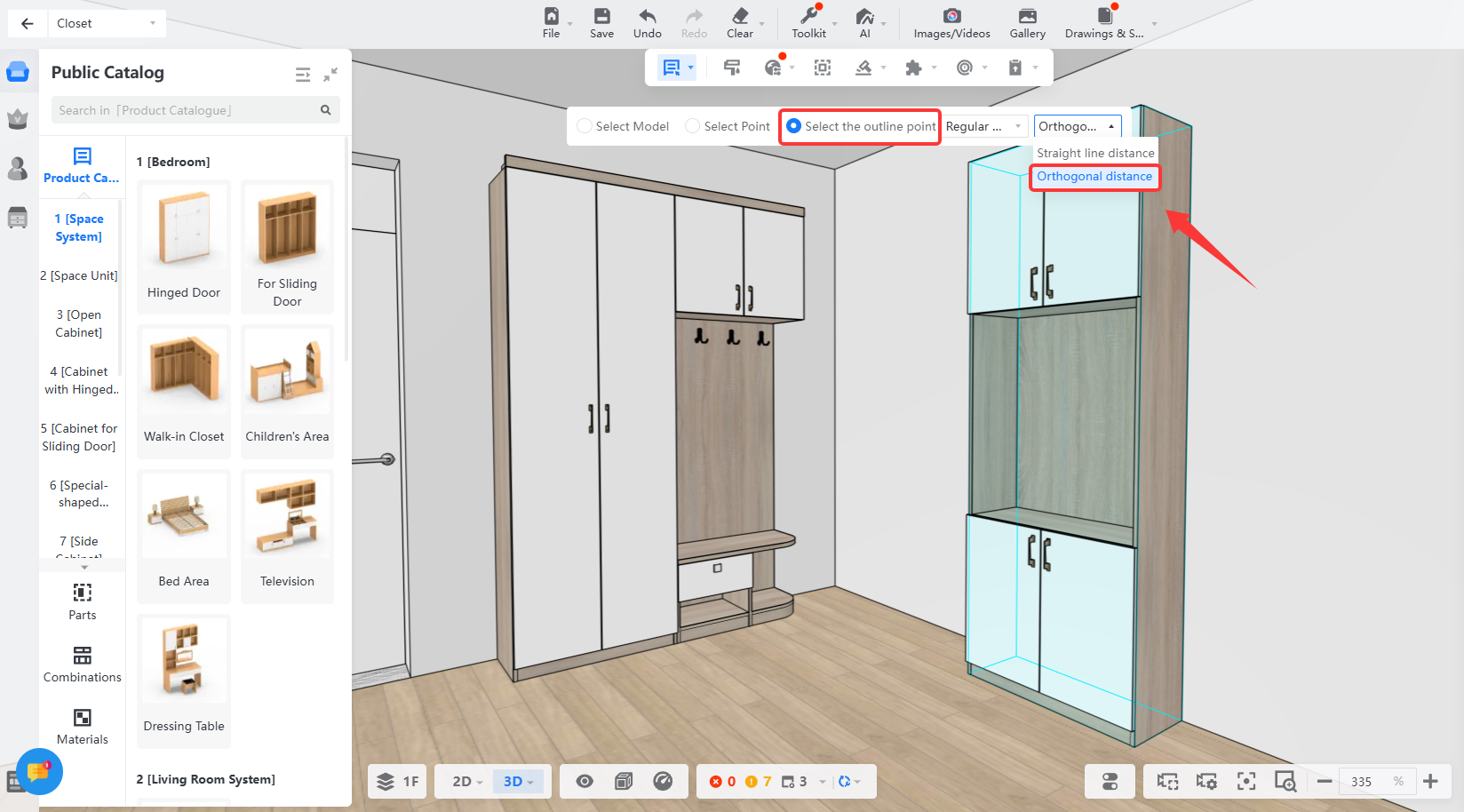
1. Enter the measure tool interface, **select the outline point** , and select**orthogonal distance**.
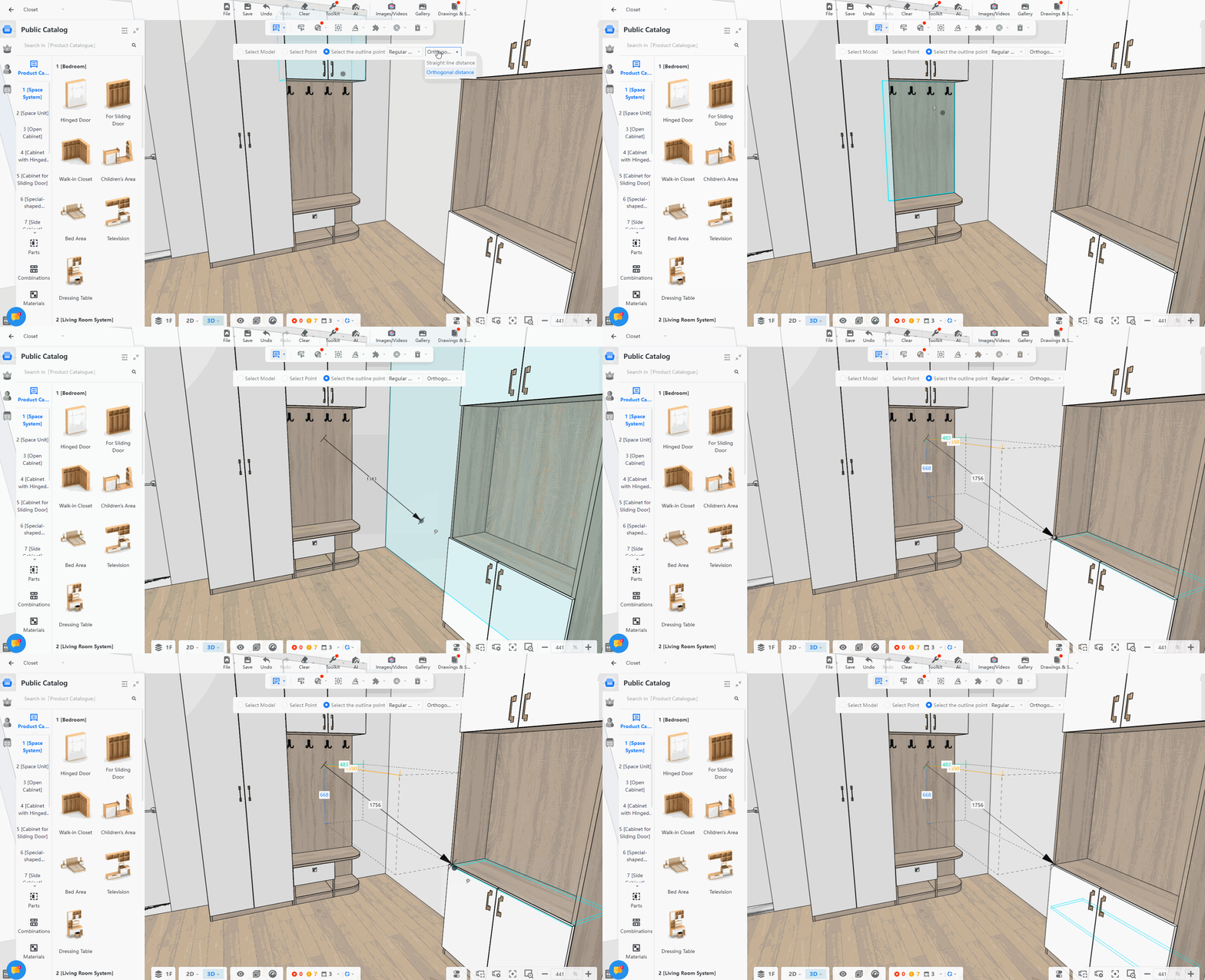
2. Click the two cabinets that need to measure the orthogonal distance to display the vertical distance between the cabinets.
Isolated Measurement
====================
1. Select**isolated measurements** , **press and hold Shift to multiple-select** the model or part you want to measure, and click below to **start measuring**.
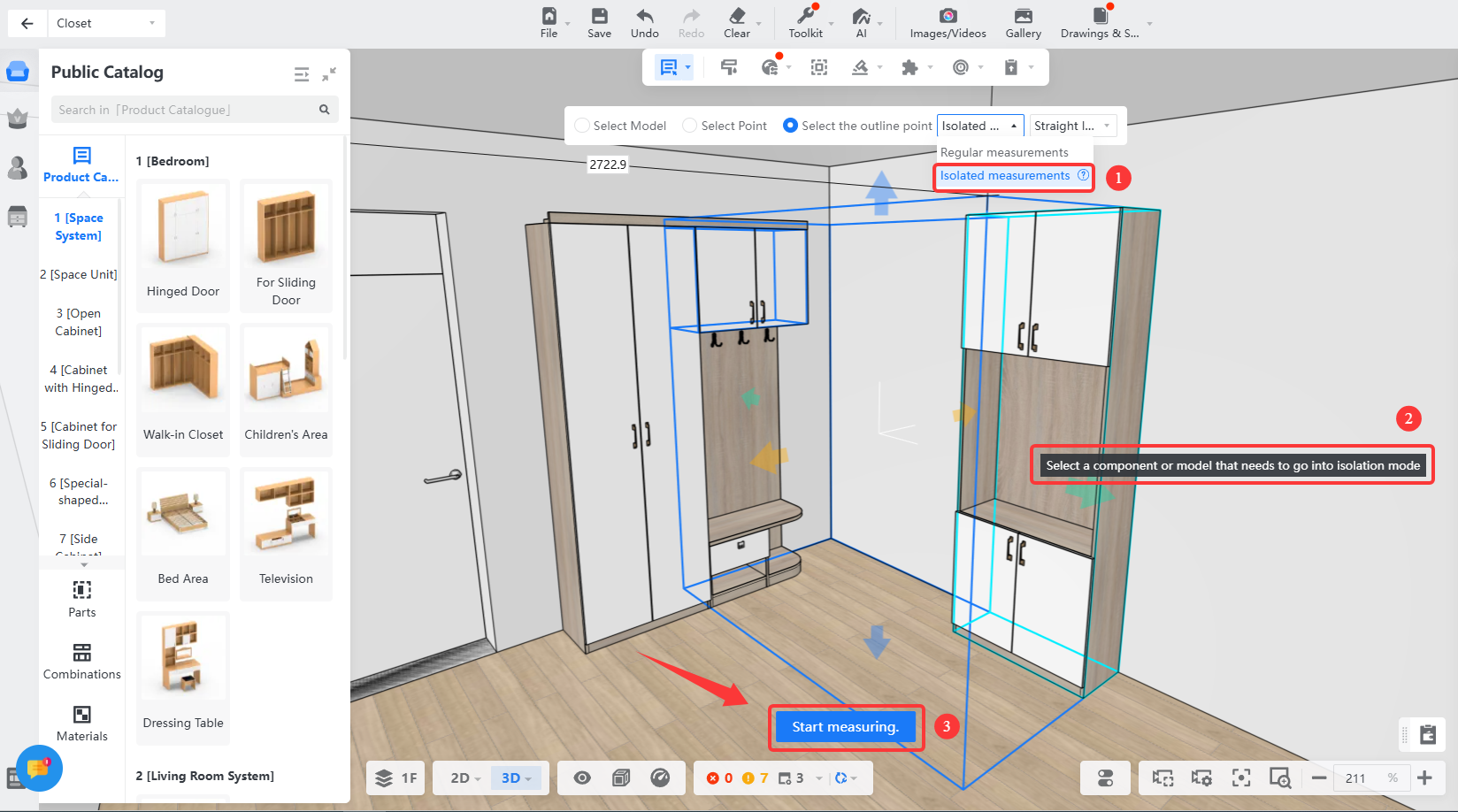
2. Enter the isolated measurement, and other unselected models will be locked and unselectable measurements. Only the isolated models or parts can be measured.