# floor-plan-draw-a-floor-plan-faster-when-copying-a-basemap
> Efficiently import CAD drawings by adjusting floor plan opacity and toggling basemap visibility. Simplify your workflow with these quick shortcuts. Learn more today.
- **URL**: https://www.coohom.com/helpcenter/floor-plan-draw-a-floor-plan-faster-when-copying-a-basemap
- **Locale**: en_US
- **Updated**: 2026-09-18
## Content
When importing CAD or copy drawings, the basemap and floor plan may overlap, making the screen cluttered. The floor plan tool allows you to adjust the opacity of the floor plan and toggle the visibility of the basemap to reduce drawing workload and improve efficiency. The shortcut operations are as follows:
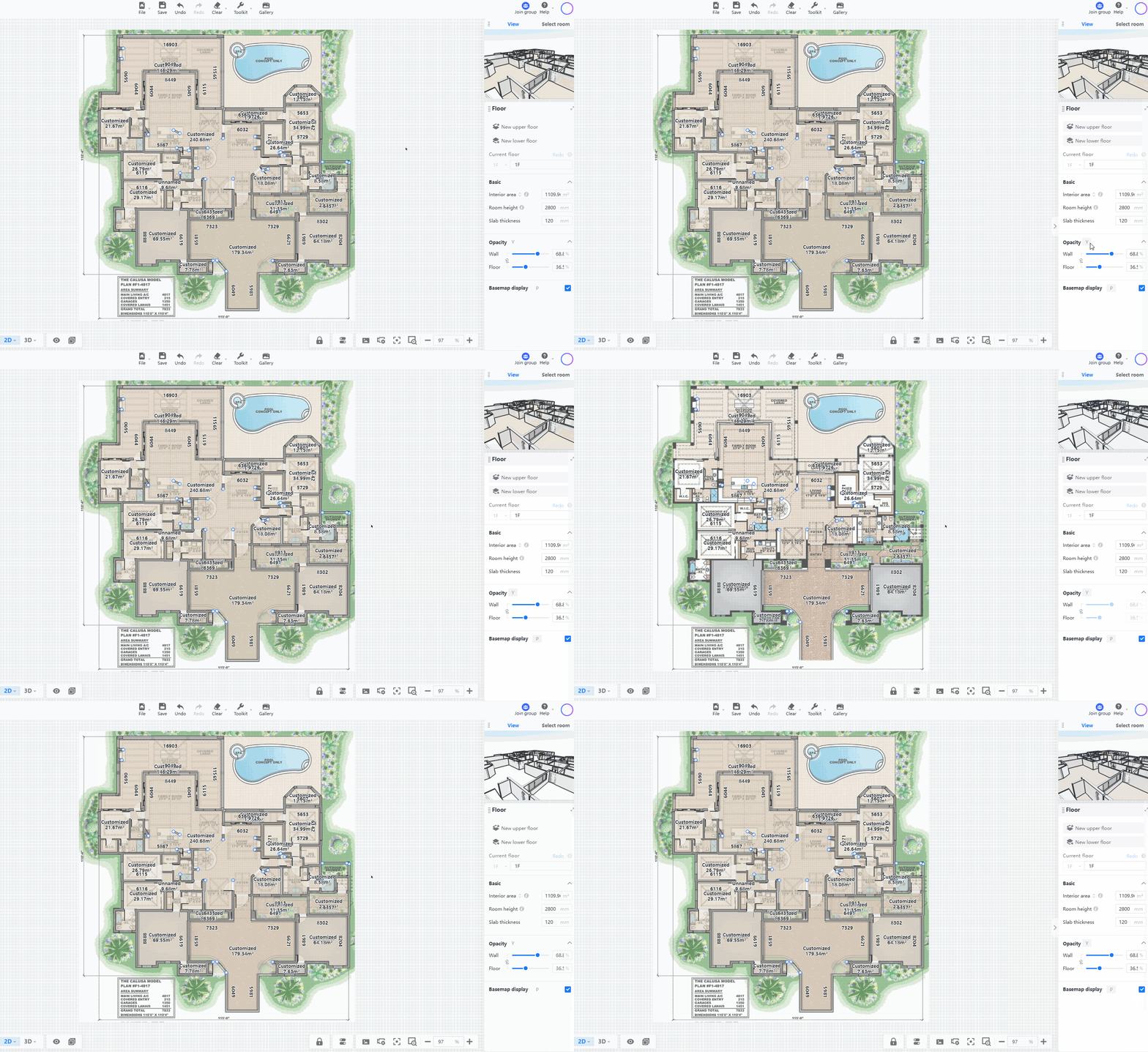
* press and hold Y to hide the floor plan. (it will reappear when you release Y)
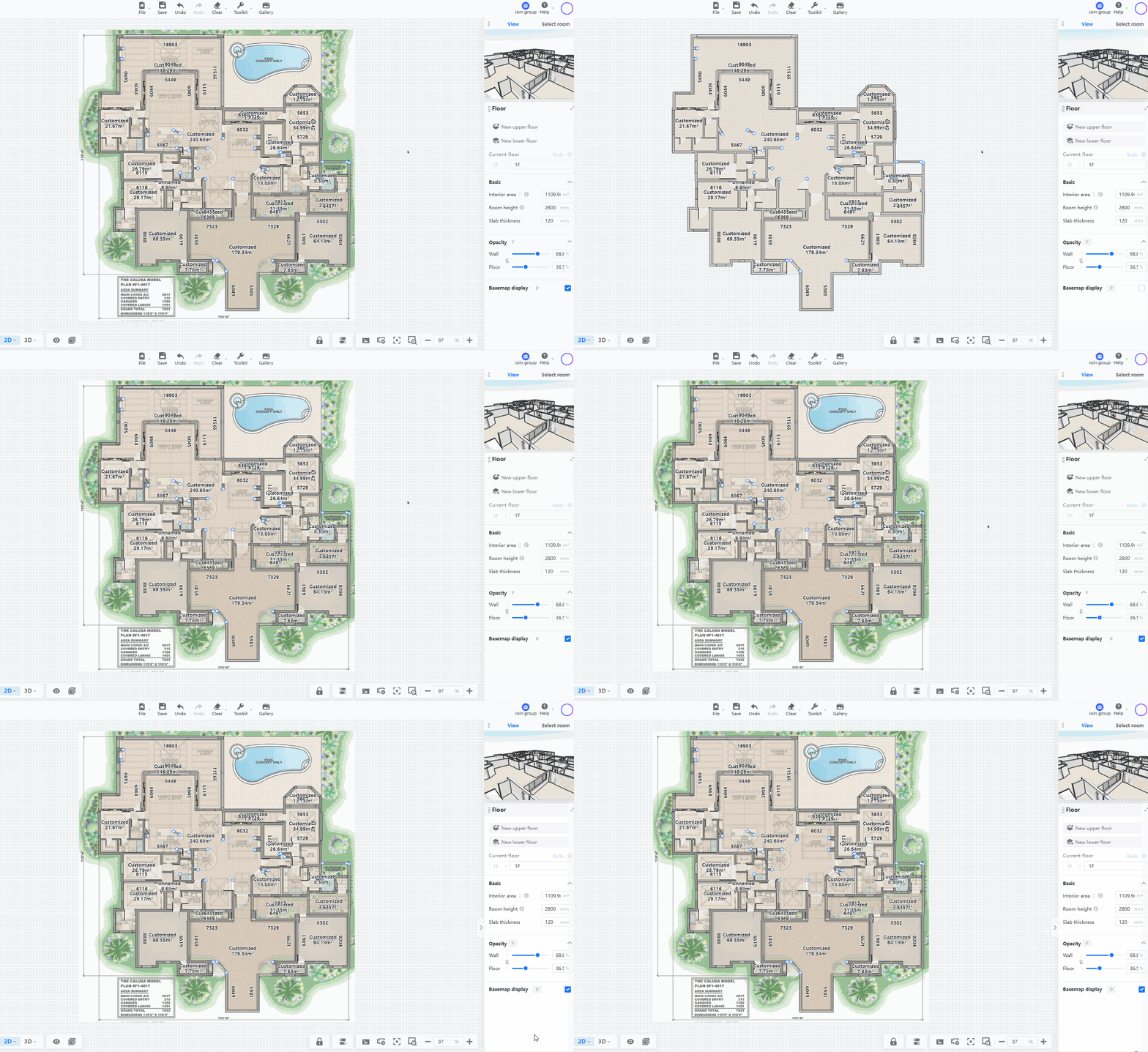
* Press P to switch the visibility of the basemap.
⭐Before reading the article, it's recommended to watch the video tutorial first to get started quickly.
\[Video URL\](https://www.youtube.com/watch?v=xYpCJAPAZzc)
For Users
=========
All Coohom interior designers
Adjust Floor Plan Opacity After Import
======================================
When you import a drawing, the [**floor plan creator**](https://www.coohom.com/case/floor-planner?kjl_source=hc) automatically reduces the plan's opacity so the basemap is easier to trace.
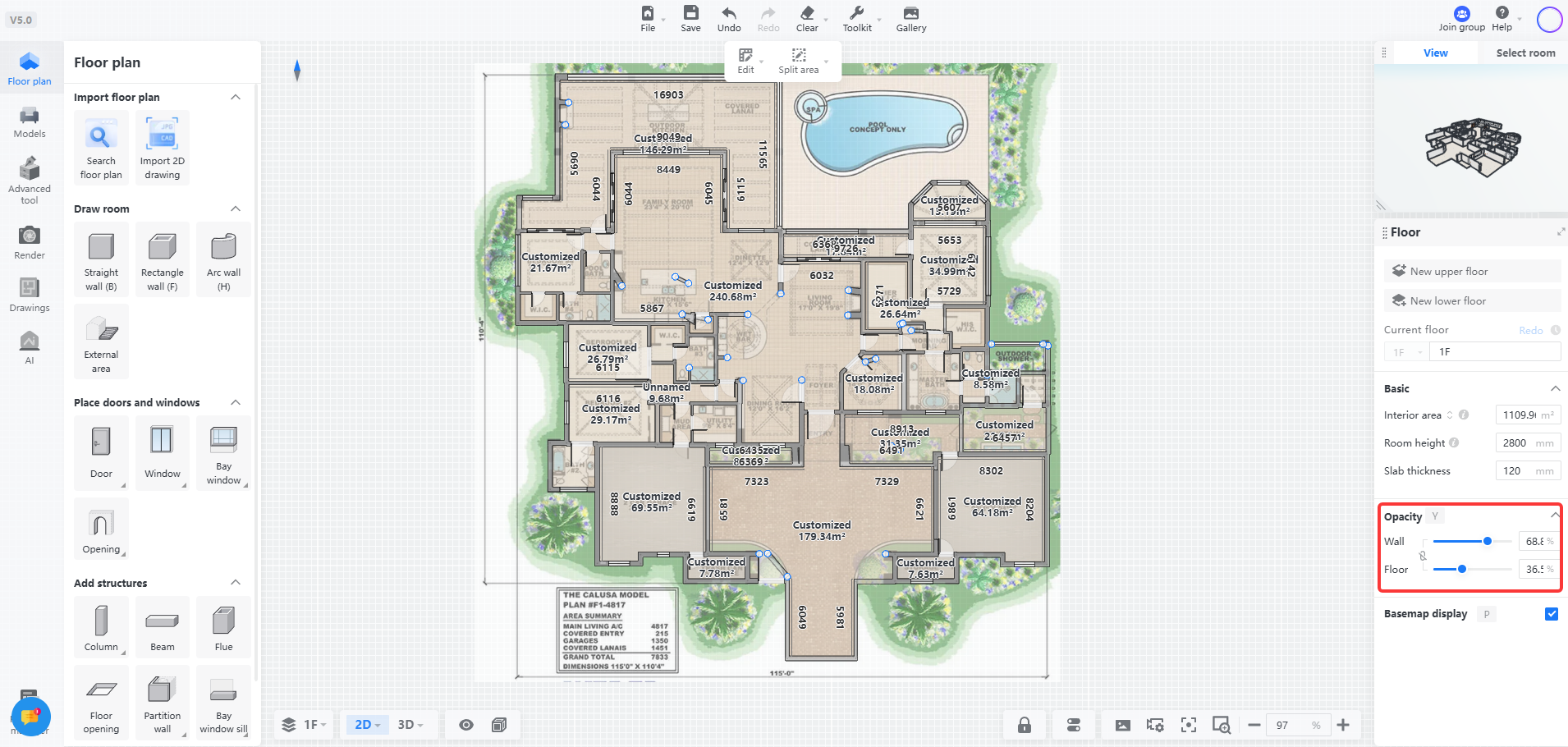
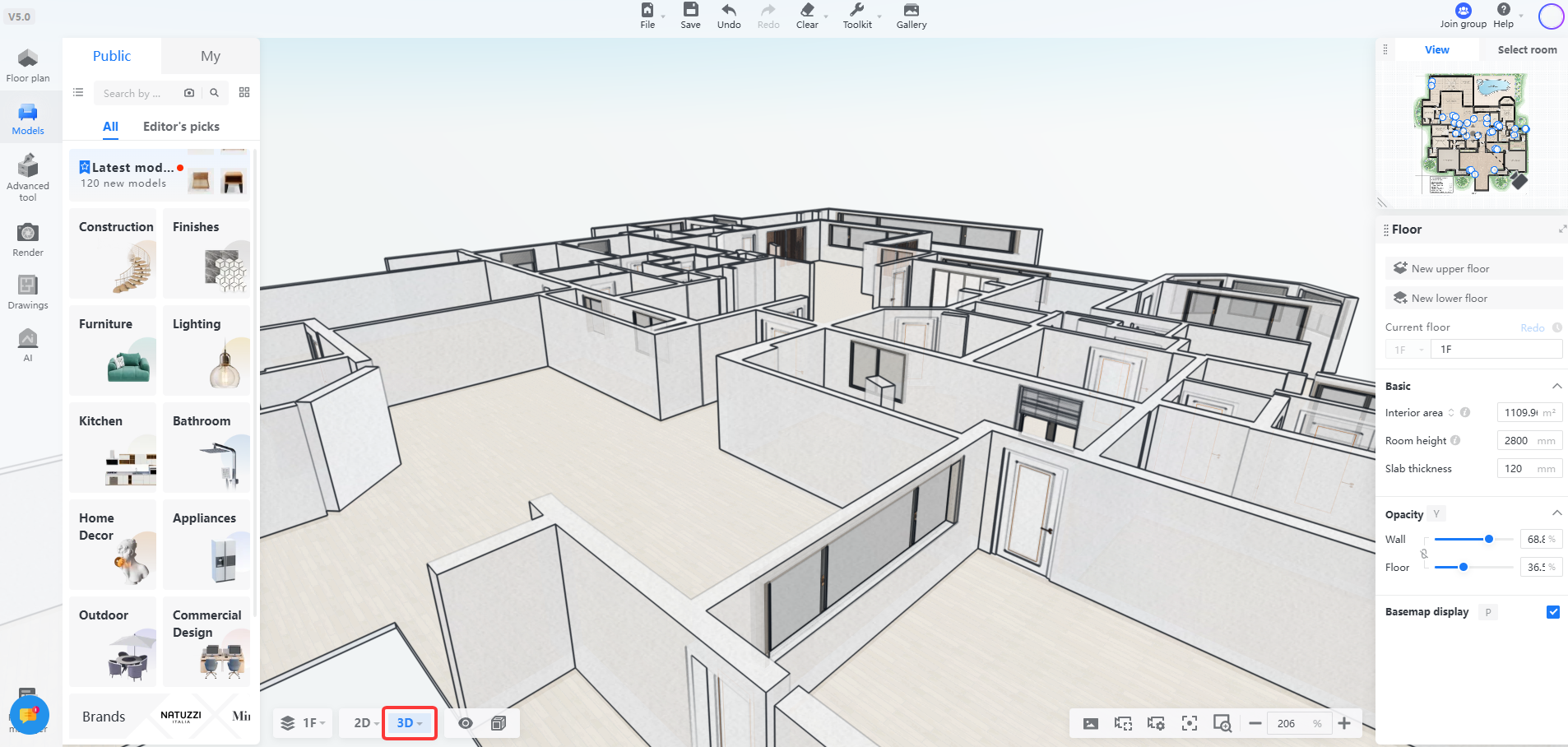
* Opacity will also affect the display of the project in 3D mode, so the walls and floors will also have a transparent effect in 3D mode.
Change Opacity in the Right Panel or Floor Navigation
=====================================================
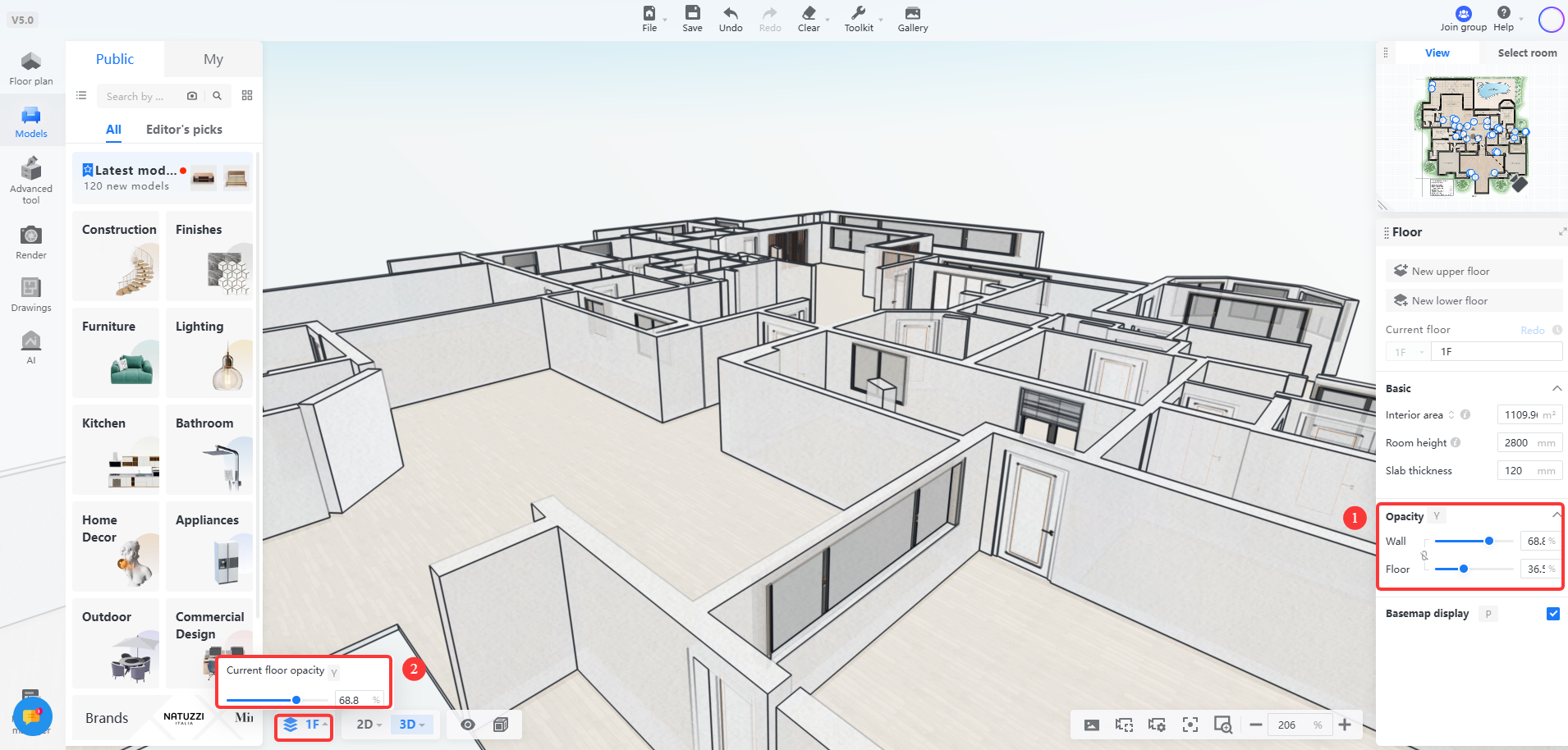
You can directly drag the slider on the right properties panel or the "floor navigation" at the bottom to adjust the opacity of the floor plan.
* **Note: The properties panel on the right needs to be seen when the object is not selected in the canvas.**
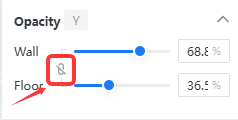
* When adjusting the opacity of the floor plan on the right, the default is to be adjusted together. You can manually unlock the association and adjust the wall and floor respectively.
Hide the Floor Plan Temporarily While Tracing
=============================================
During the copying process, you can press and hold the shortcut Y to hide the floor plan temporarily to facilitate copying the basemap.
Hide the Basemap to Check the Floor Plan More Clearly
=====================================================
There are also two methods to hide the basemap more conveniently, so that the part of the floor plan can be easily confirmed.
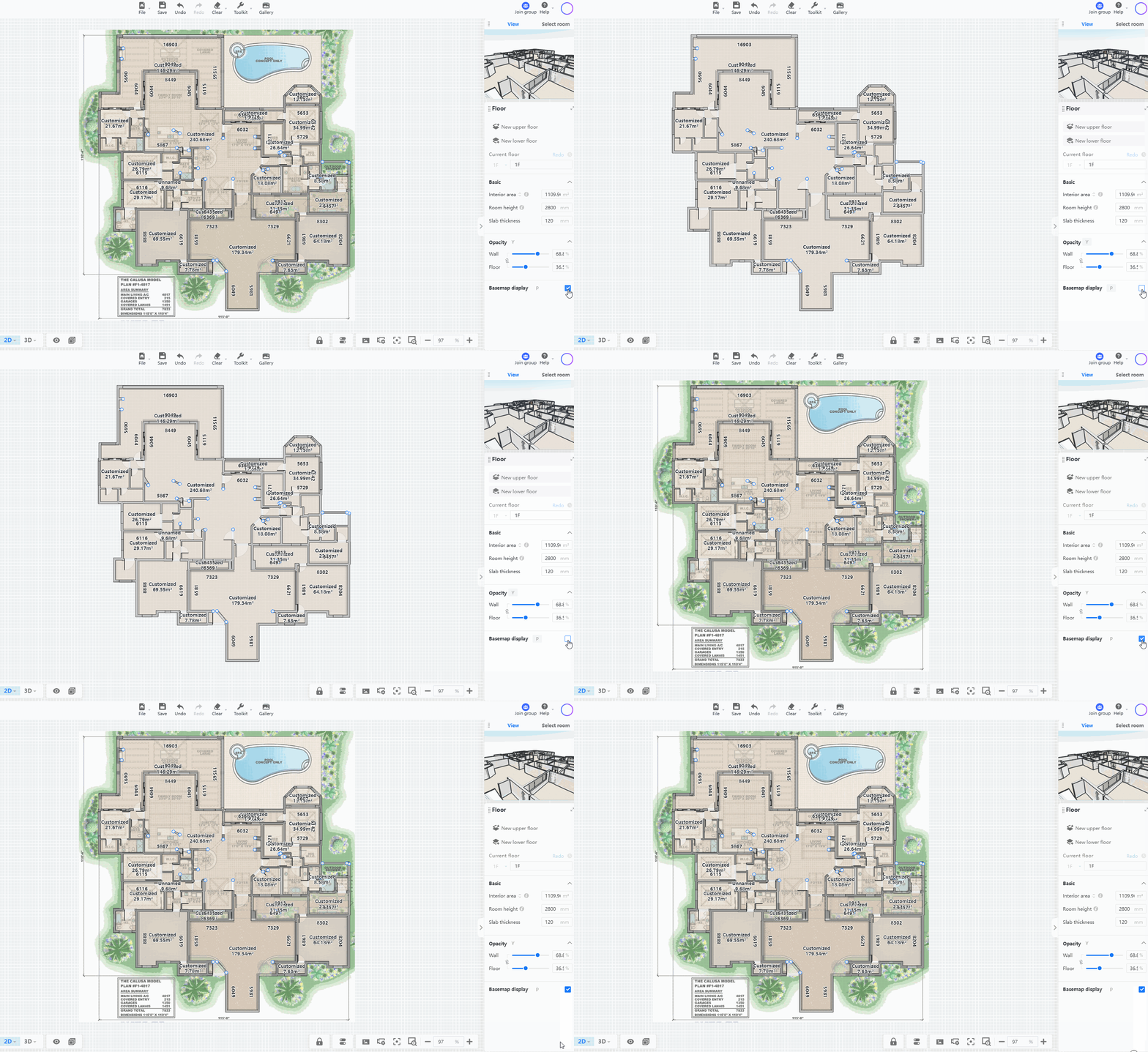
Use Basemap Display in the Right Panel
--------------------------------------
① Click the selection box of **"Basemap Display"** in the right panel to operate the hidden basemap.
Use the P Shortcut
------------------
② Press the shortcut P to operate the hidden basemap. (it can take effect during the wall drawing process)
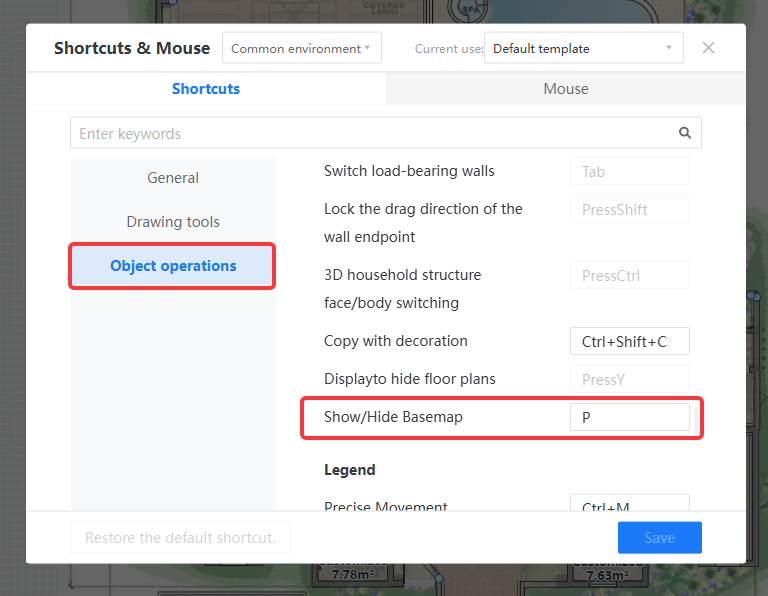
* Shortcuts support customization.
* Select the **shortcuts and mouse** under the avatar in the upper right corner, and modify the shortcut in the pop-up window in **"Object Operations - Show/Hide Basemap"**.

Precautions
===========
1. If the ground is missing or has a transparent effect, you need to pay attention to check whether the transparency parameters of the wall and floor are correctly set.
2. The basemap display entrance of the property panel on the right will only be displayed when there is a basemap in the project, and it will not be visible when there is no basemap.