# how-to-resolve-the-fail-to-save-the-project-on-cloud-error-in-coohom
> Discover simple solutions to resolve the "Fail to save the project on cloud" error in Coohom. Follow quick troubleshooting steps for smooth project saving. Learn more today.
- **URL**: https://www.coohom.com/helpcenter/how-to-resolve-the-fail-to-save-the-project-on-cloud-error-in-coohom
- **Locale**: en_US
- **Updated**: 2026-06-25
## Content
Dear Coohomers,
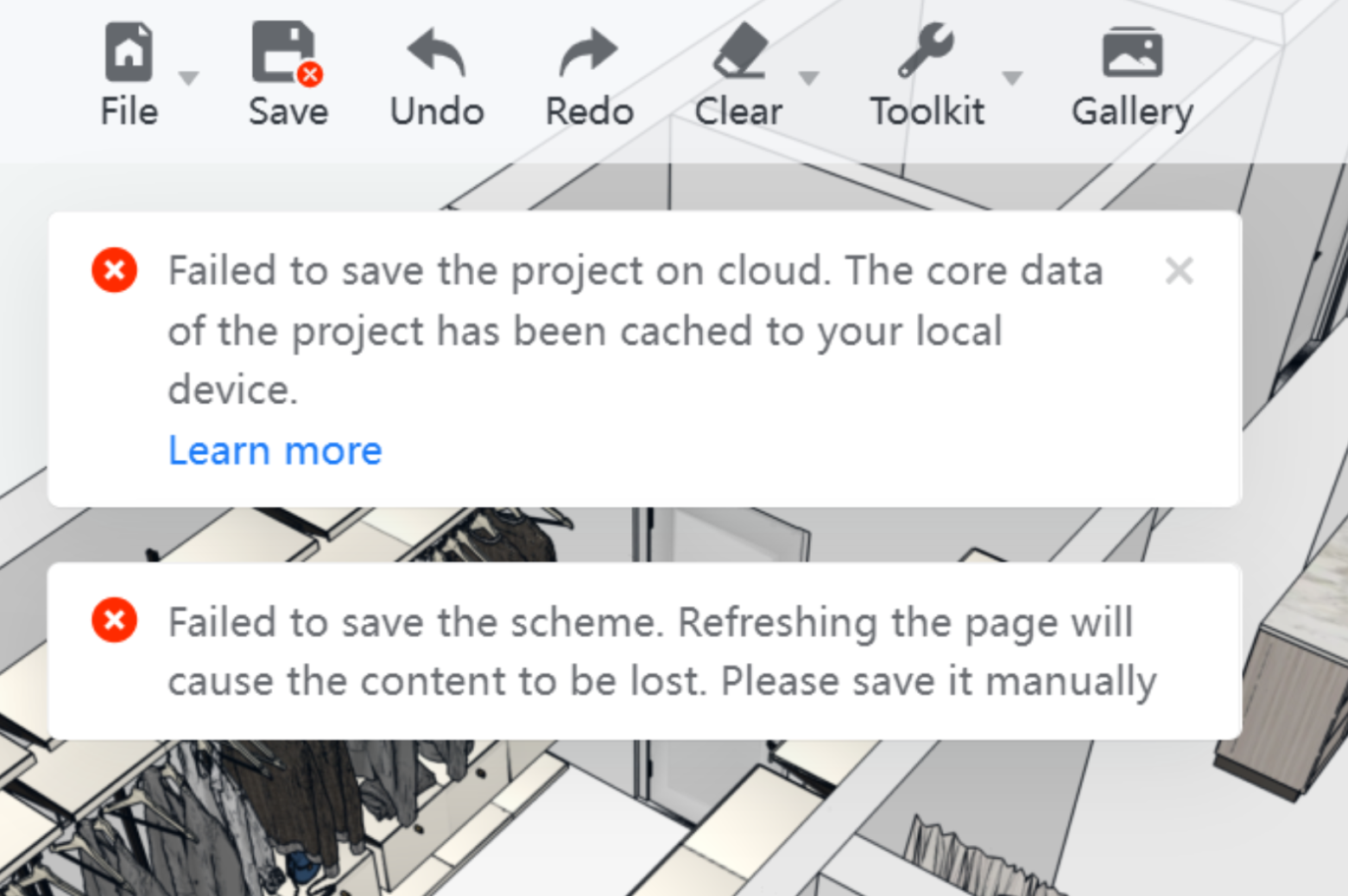
If you're encountering the error **"Fail to save the project on cloud"** while working on your Coohom project, please don't worry---this issue is typically easy to resolve. In this article, we'll explain the likely causes of the problem and guide you through the steps to fix it.
### **Users: All users**
*** ** * ** ***
**Why Does This Error Occur?**
------------------------------
There are two common reasons why Coohom might fail to save your project on the cloud:
1. **Login Status is Off**
One of the most frequent causes of this error is that your login status is no longer active. This can happen if you've cleared your browser's cache or cookies. These actions can cause Coohom to log you out automatically, leading to the failure when you try to save your work.
2. **Multiple Accounts in the Same Browser**
Another possible cause is that you're logged into multiple Coohom accounts in the same browser session. This can confuse the system, causing issues with syncing and saving your project to the cloud. When switching between accounts in a single browser, the active session may become unstable.
**How to Resolve the "Fail to Save the Project on Cloud" Error?**
-----------------------------------------------------------------
If you're experiencing this issue, follow these simple steps to get back on track:
#### **Step 1: Log in Again**
If you have met this error after clearing caches of the broswer, please log in your account again.
#### **Step 2: Use a Different Browser for Multiple Accounts**
If you need to work with multiple Coohom accounts, it's best to use separate browsers for each one. For instance:
* **Browser 1**: Log into your first Coohom account.
* **Browser 2**: Log into your second Coohom account.
By using different browsers (rather than multiple tabs or windows in the same browser), you can avoid conflicts between sessions and ensure your projects are saved correctly to the cloud.
#### **Bonus Tip: Clear Cache Regularly**
To prevent issues related to cookies and cache, it's a good idea to periodically clear your browser's cache, especially when using web-based platforms like Coohom. You can do this by going into your browser's settings and choosing to clear browsing data.
*** ** * ** ***
If the error persists despite following these steps, we recommend reaching out to Coohom's support team for further assistance via: support@coohom.com.