# construction-drawings-real-time-drawing-view-tool-operation-guide
> Learn how to design layouts, adjust view sizes, and create automatic annotations with the Drawing View Tool. Simplify your workflow and enhance your designs. Start now!
- **URL**: https://www.coohom.com/helpcenter/construction-drawings-real-time-drawing-view-tool-operation-guide
- **Locale**: en_US
- **Updated**: 2026-03-20
## Content
Using the drawing view tool, you can design layouts, customize actions, and simultaneously observe the styles and annotation effects automatically generated on the drawings in real time. It supports switching between different view nodes for comprehensive inspection and effect evaluation, making it convenient to adjust designs for drawing at any time. This article explains how to use the drawing view tool.
⭐Before reading the article, it is recommended to watch the video tutorial first for easy getting started\~
\[Video URL\](https://www.youtube.com/watch?v=skwFTwA5T1U)
For Users
=========
All users
Entrance
========
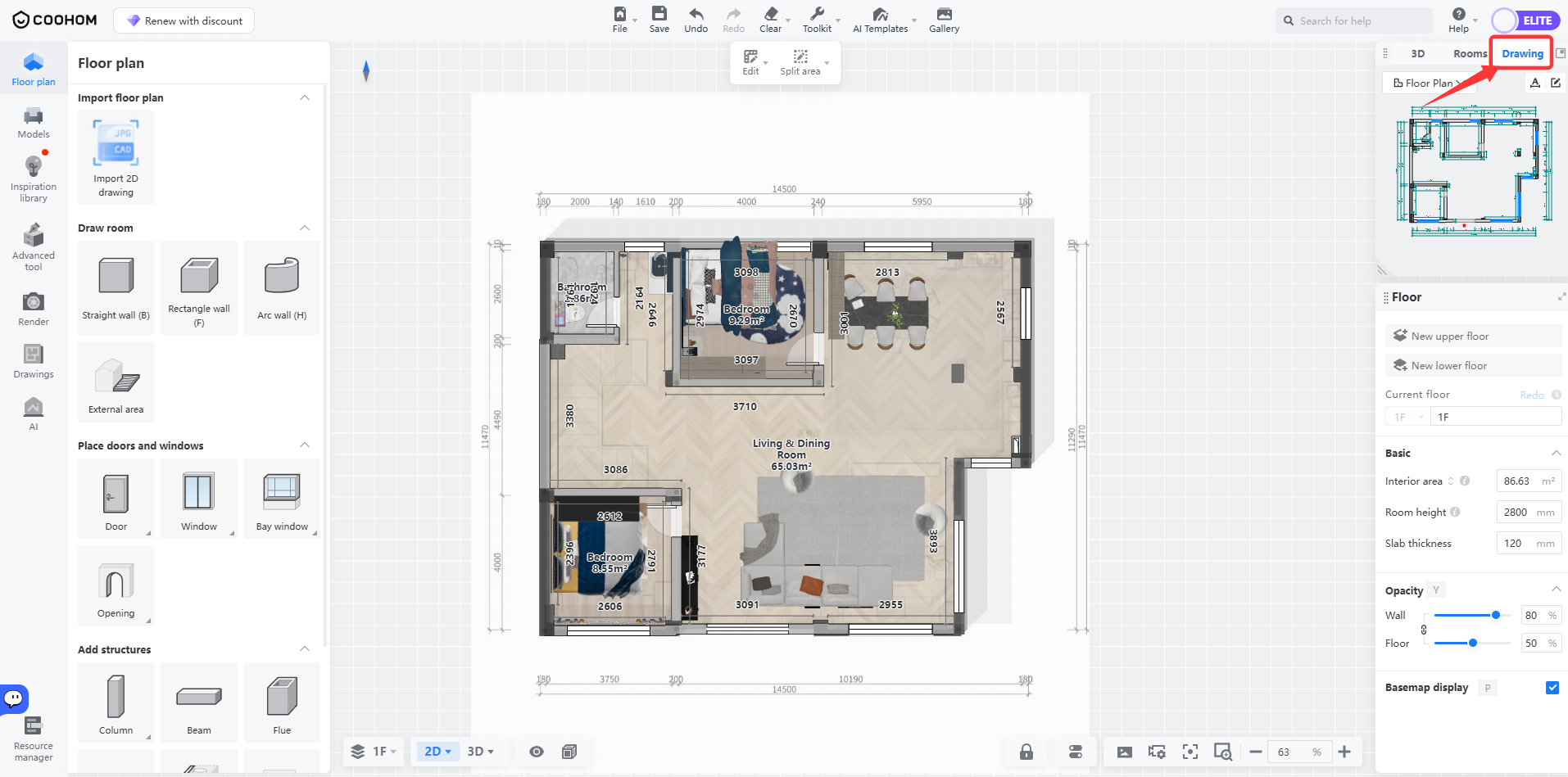
After entering the design tool, click on the third tab in the view window at the top right corner: **Drawing**.
Adjust Drawing View Size
========================
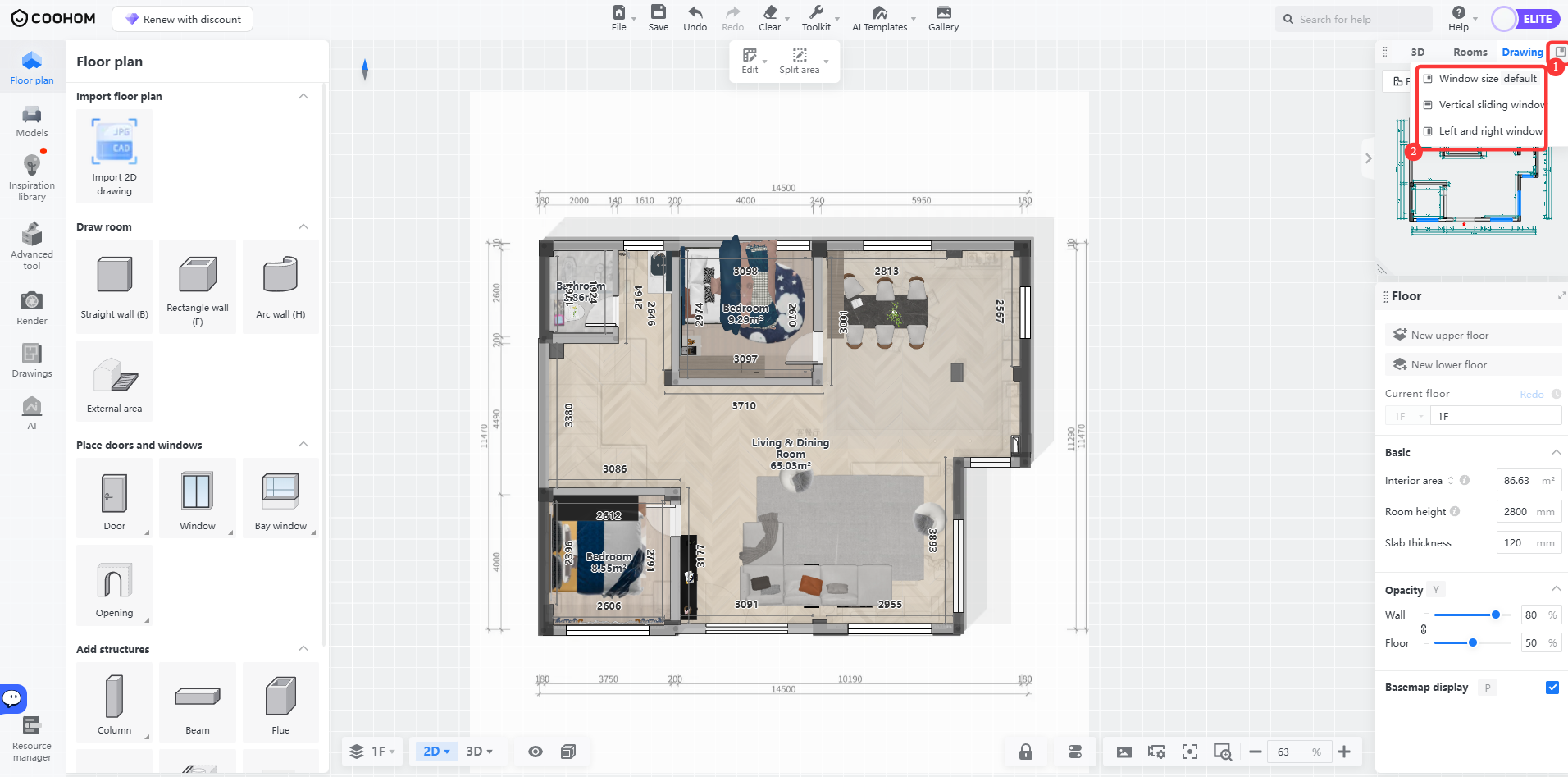
If you find the current view window too small, you can adjust the layout between the small window and the main canvas by clicking **View Arrangement**.
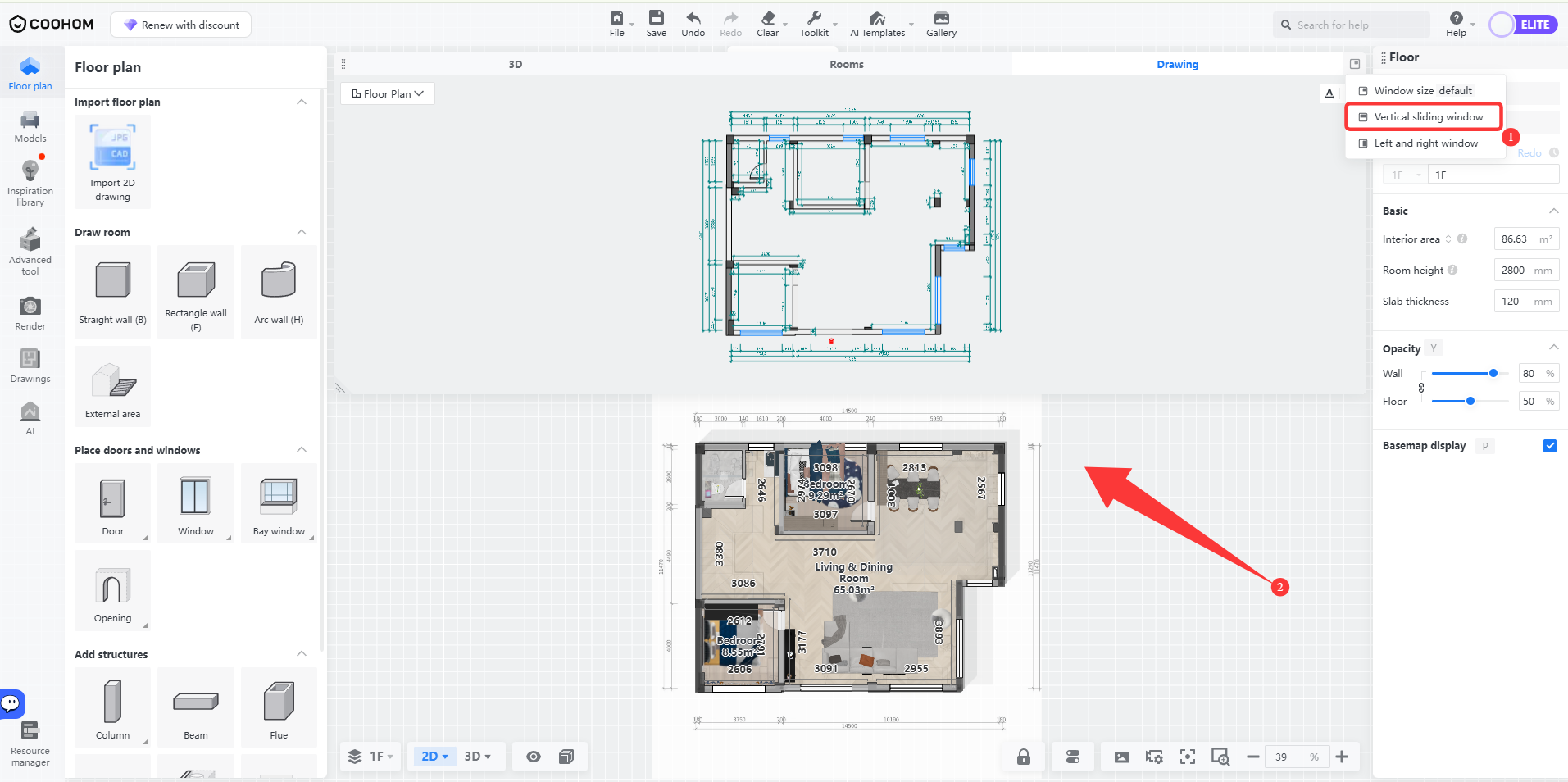
* When selecting **Vertical Sliding Window**, as shown below:
* When selecting **Left and Right Window**, as shown below:
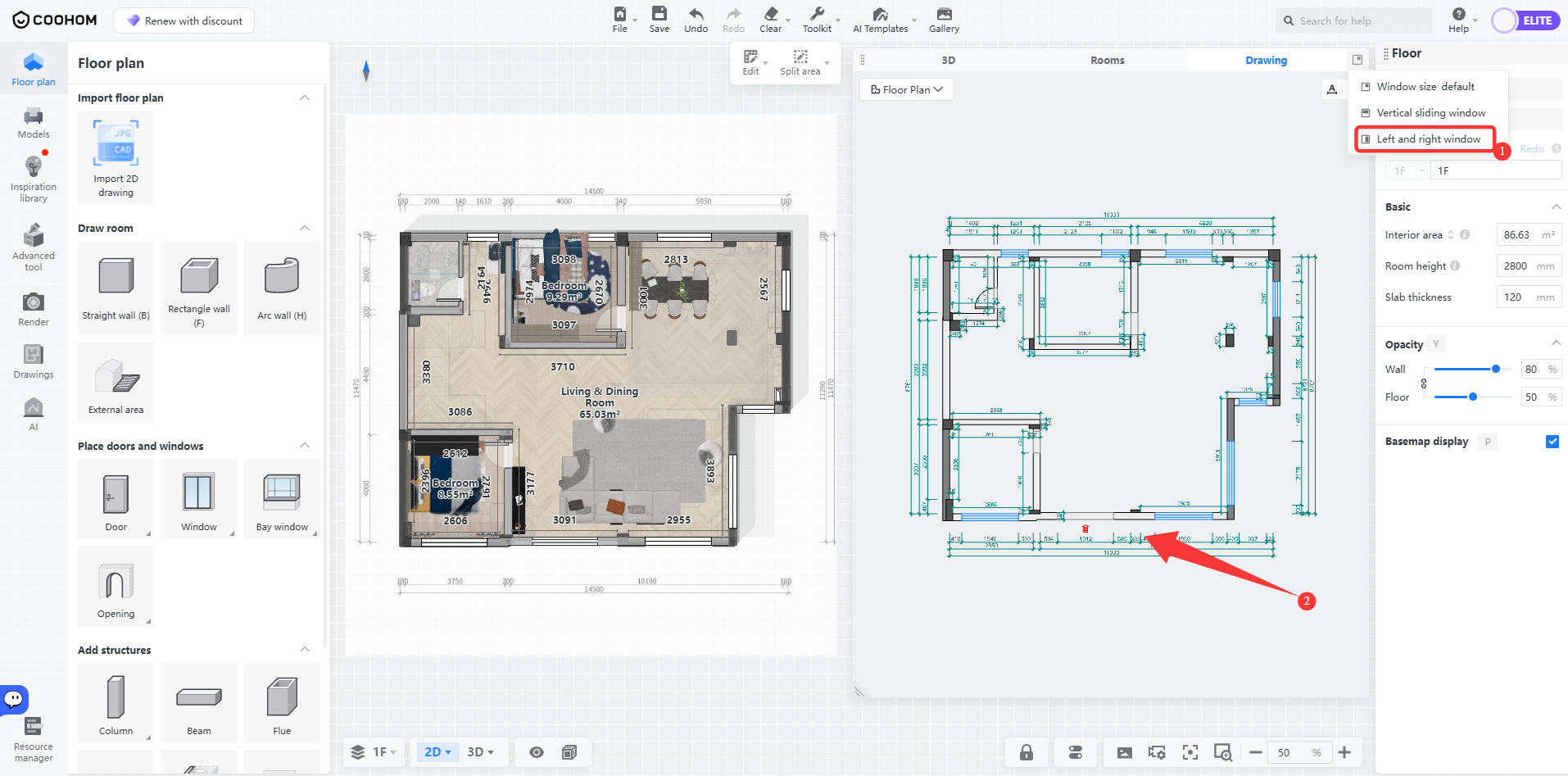
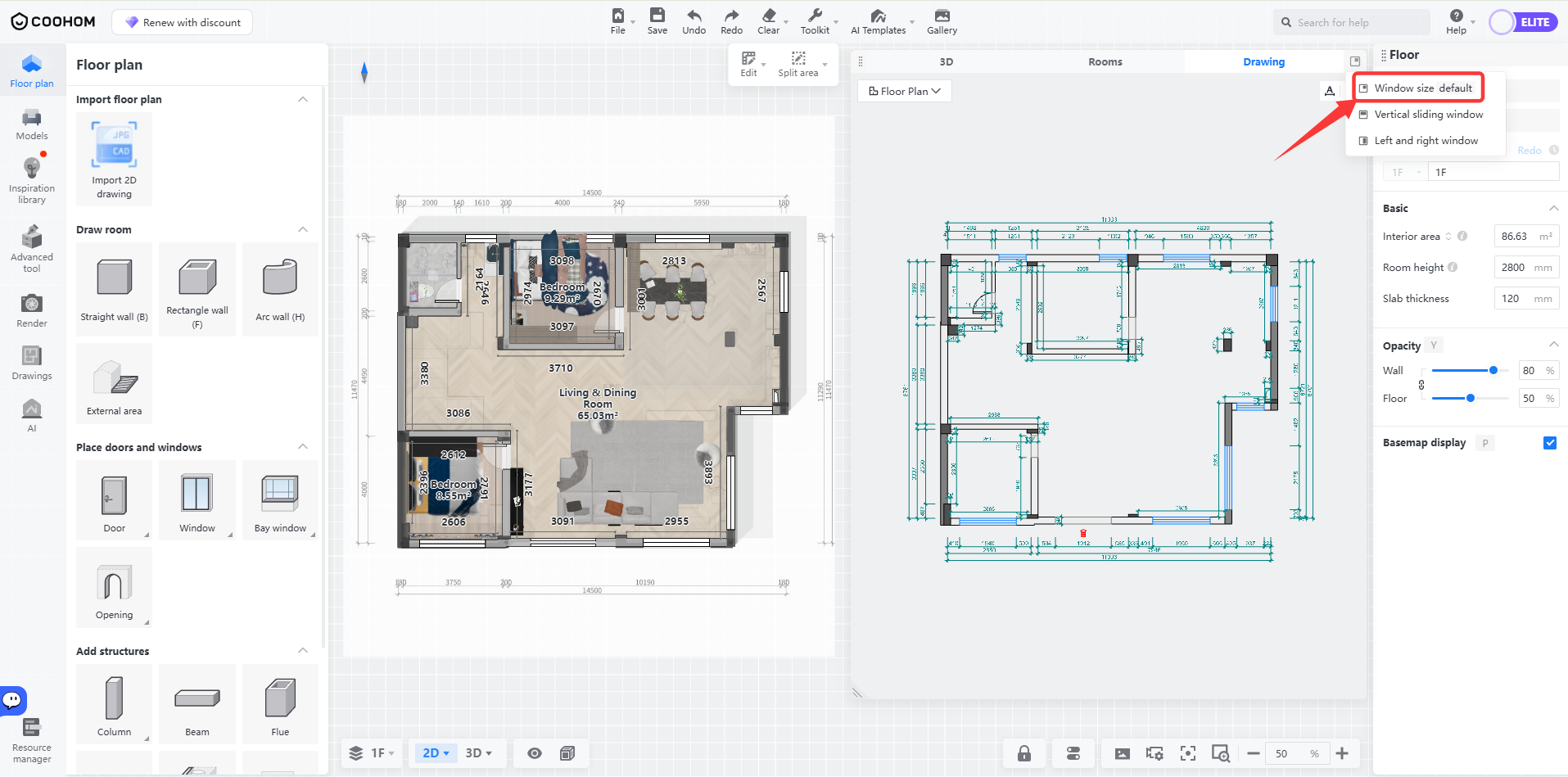
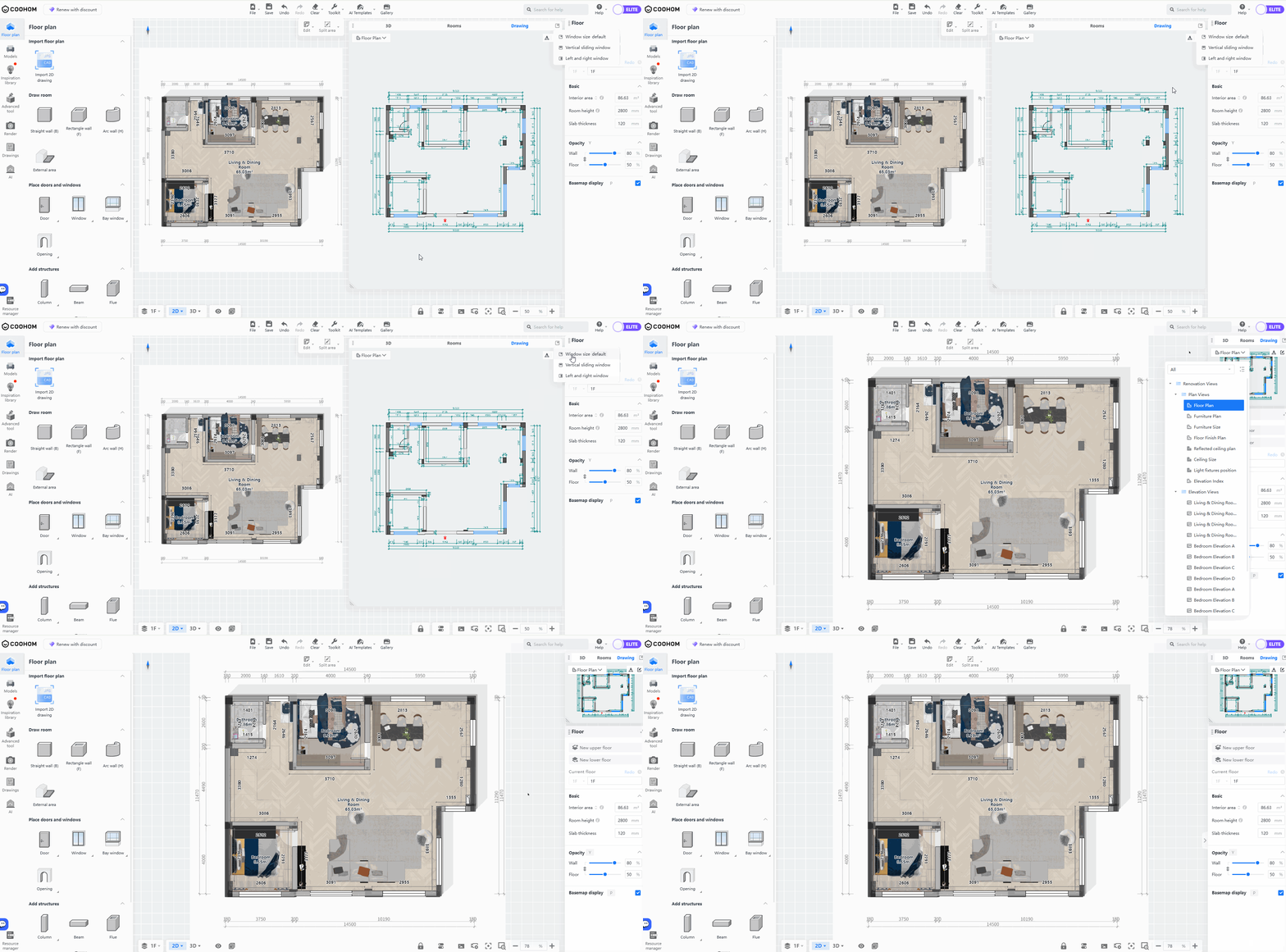
* When selecting **Window Size Default**, you can restore the default layout, as shown below:
Switch Views
============
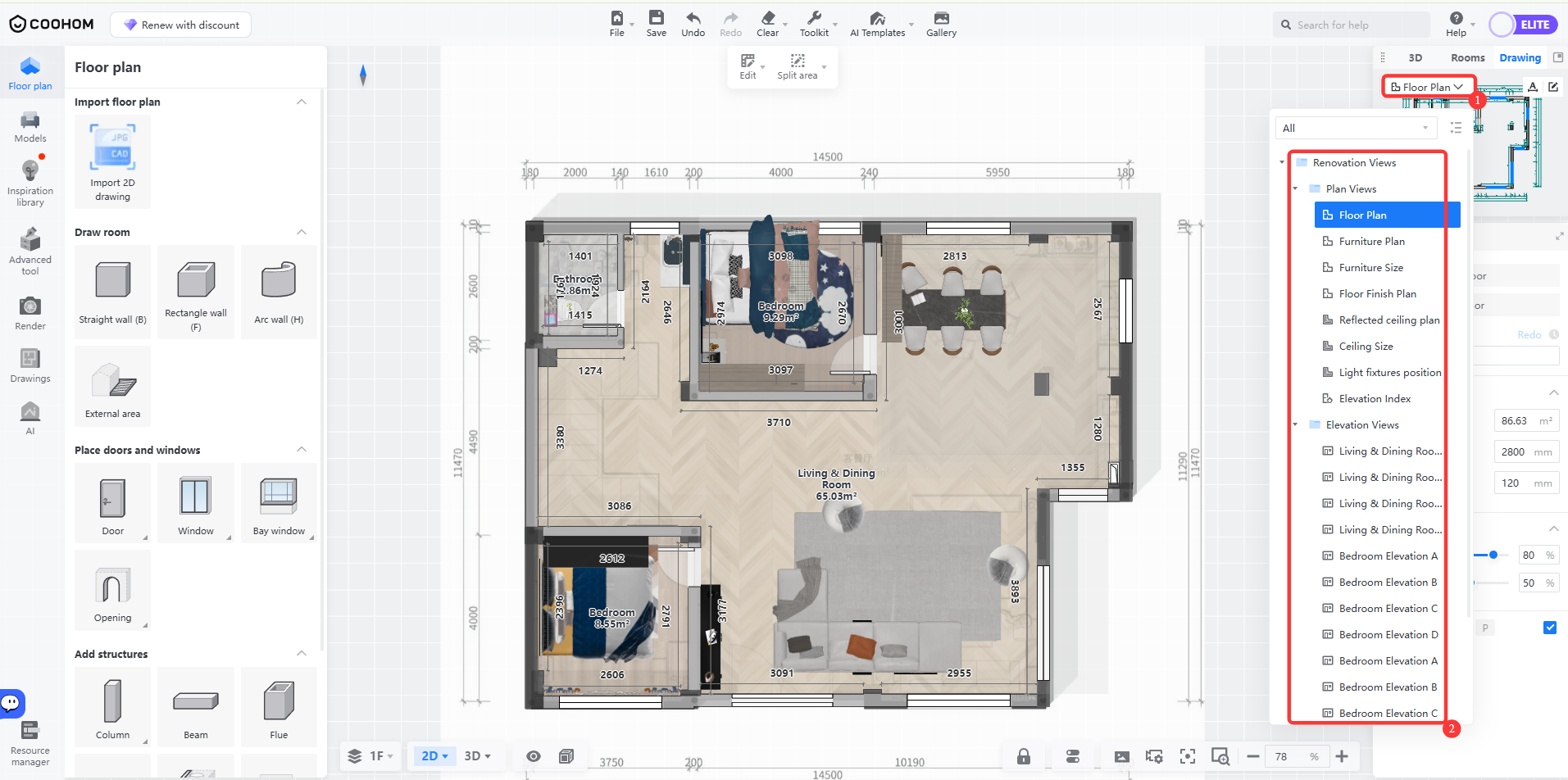
Click the view node entry to switch between different view nodes, making it easier to check and compare different view effects.
Automatic Annotation
====================
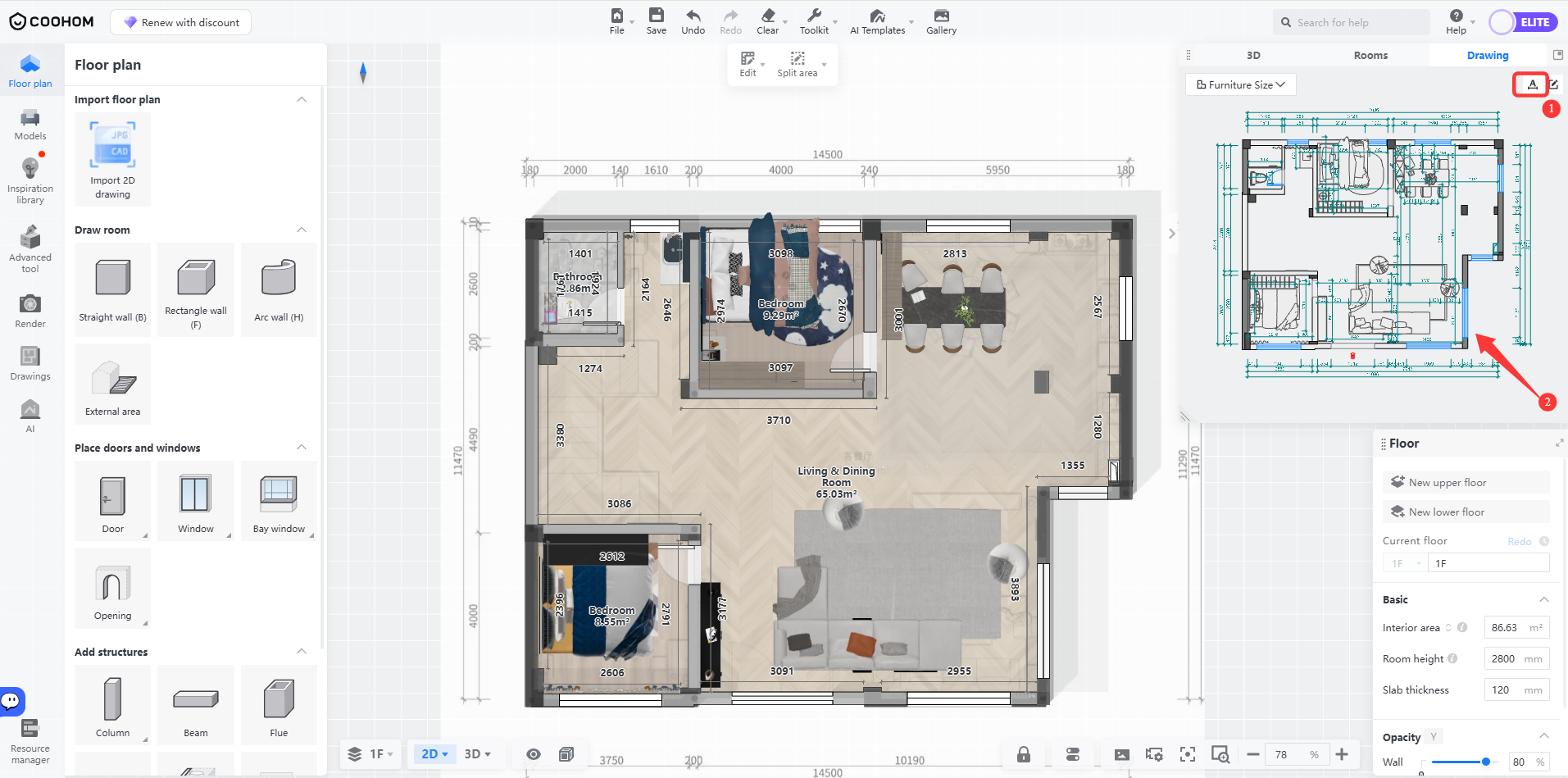
Click the **Auto - Annotation** button at the top right corner to instantly trigger and generate the default annotation effect in the **Drawing**.
Quick Access to Drawing Editing
===============================
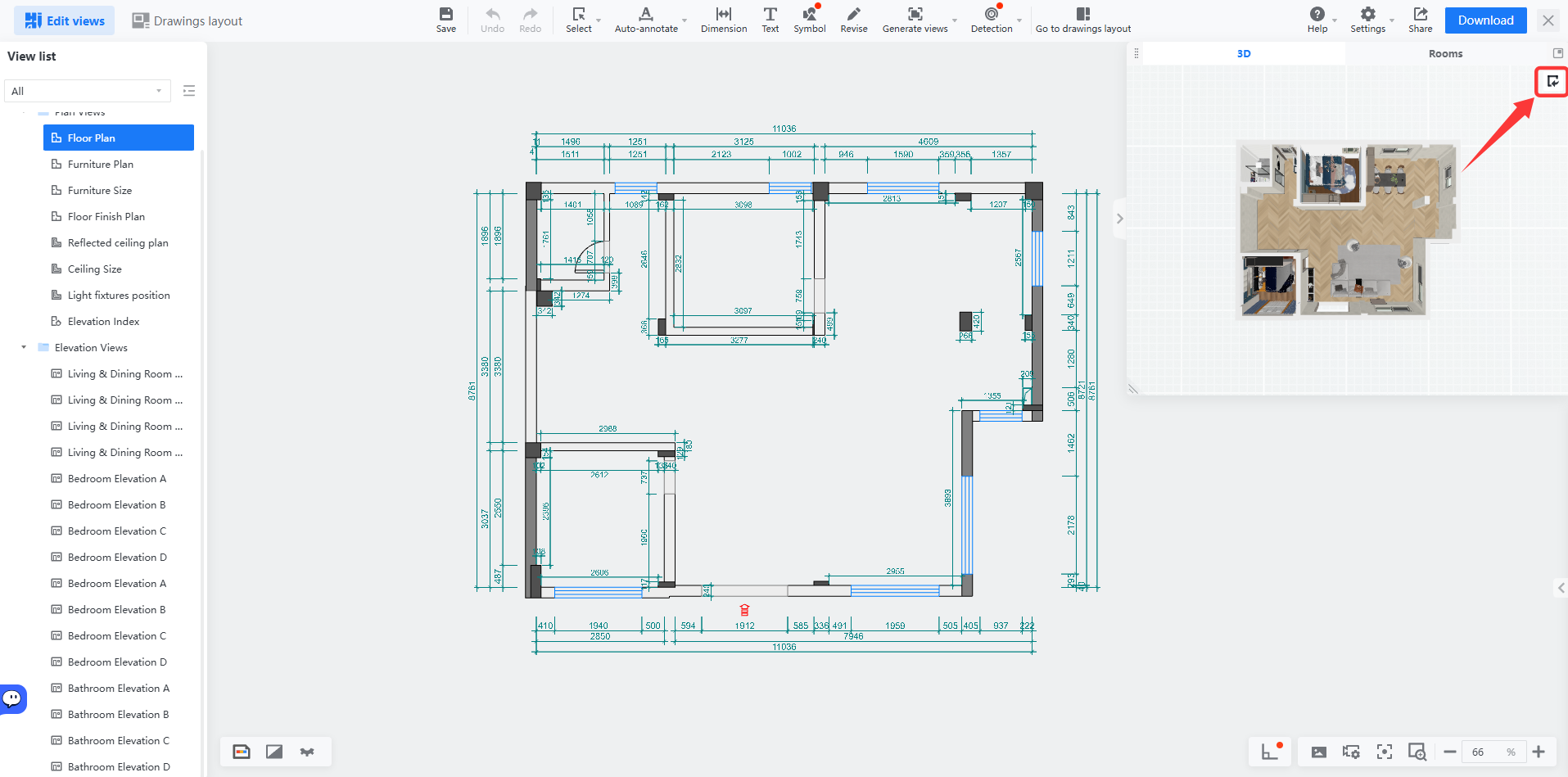
1. Click **Editing Drawing Views** to switch tools immediately and enter the drawing tool.
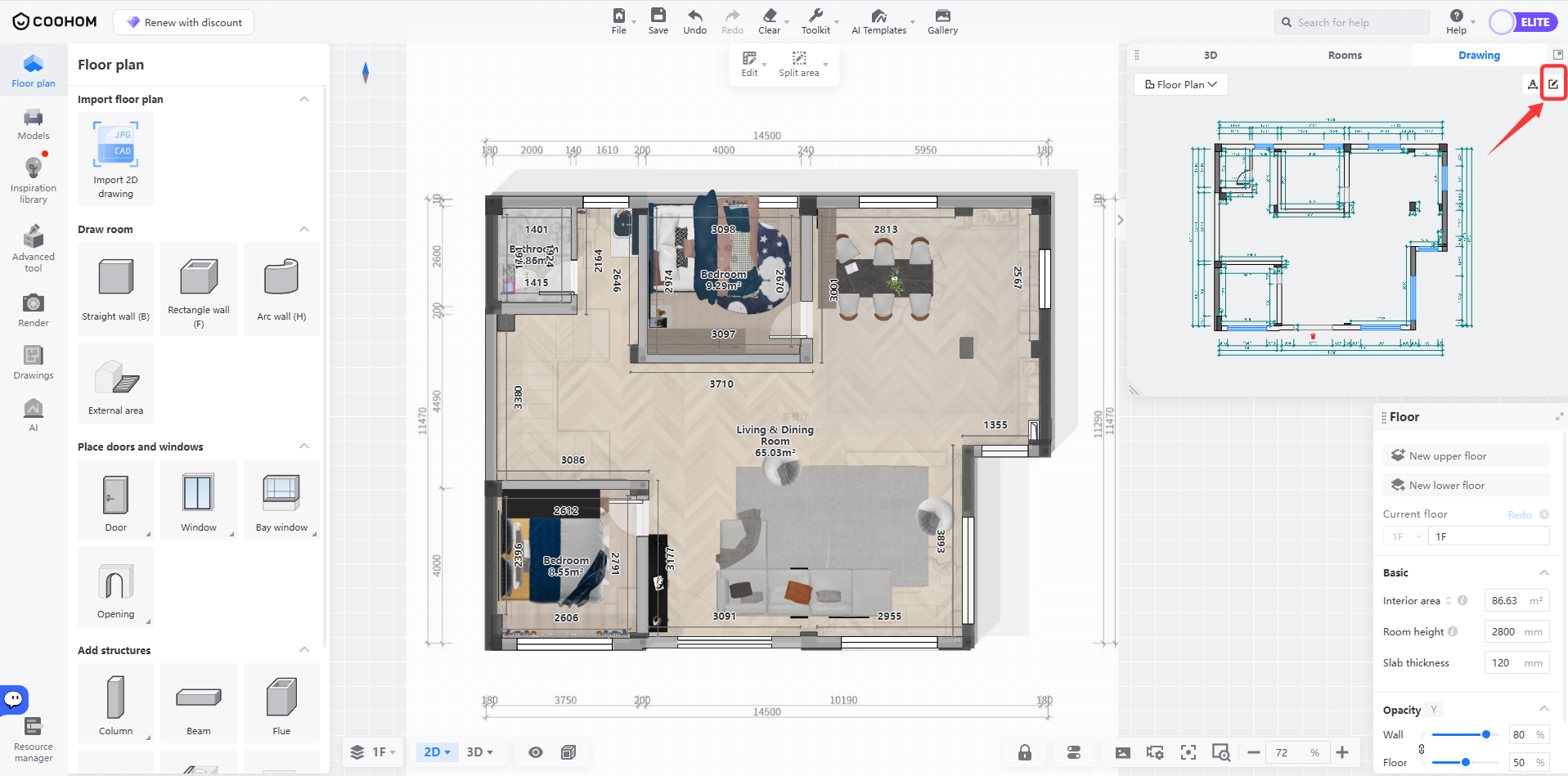
2. After entering the drawing tool, you can click **Back to Design** to go back to the design tool.