# floor-plan-hide-or-show-walls
> Learn how to display exterior walls in Coohom's 3D view effortlessly by following simple steps. Enhance your design with comprehensive views. Learn more today.
- **URL**: https://www.coohom.com/helpcenter/floor-plan-hide-or-show-walls
- **Locale**: en_US
- **Updated**: 2026-08-19
## Content
Flexibly controlling the show and hide of walls allows us to view the internal structure of the floor plan more clearly. Whether setting the show and hide settings for exterior walls individually or controlling the display of all walls as a whole, there are simple and easy-to-understand methods of operation. This article will explain in detail how to hide and show walls.
⭐Before reading the article, it is recommended to watch the video tutorial first for easy getting started.
\[Video URL\](https://www.youtube.com/watch?v=IZAfz88vi3o)
For Users
=========
All Coohom interior designers
Hide or Show Exterior Walls
===========================
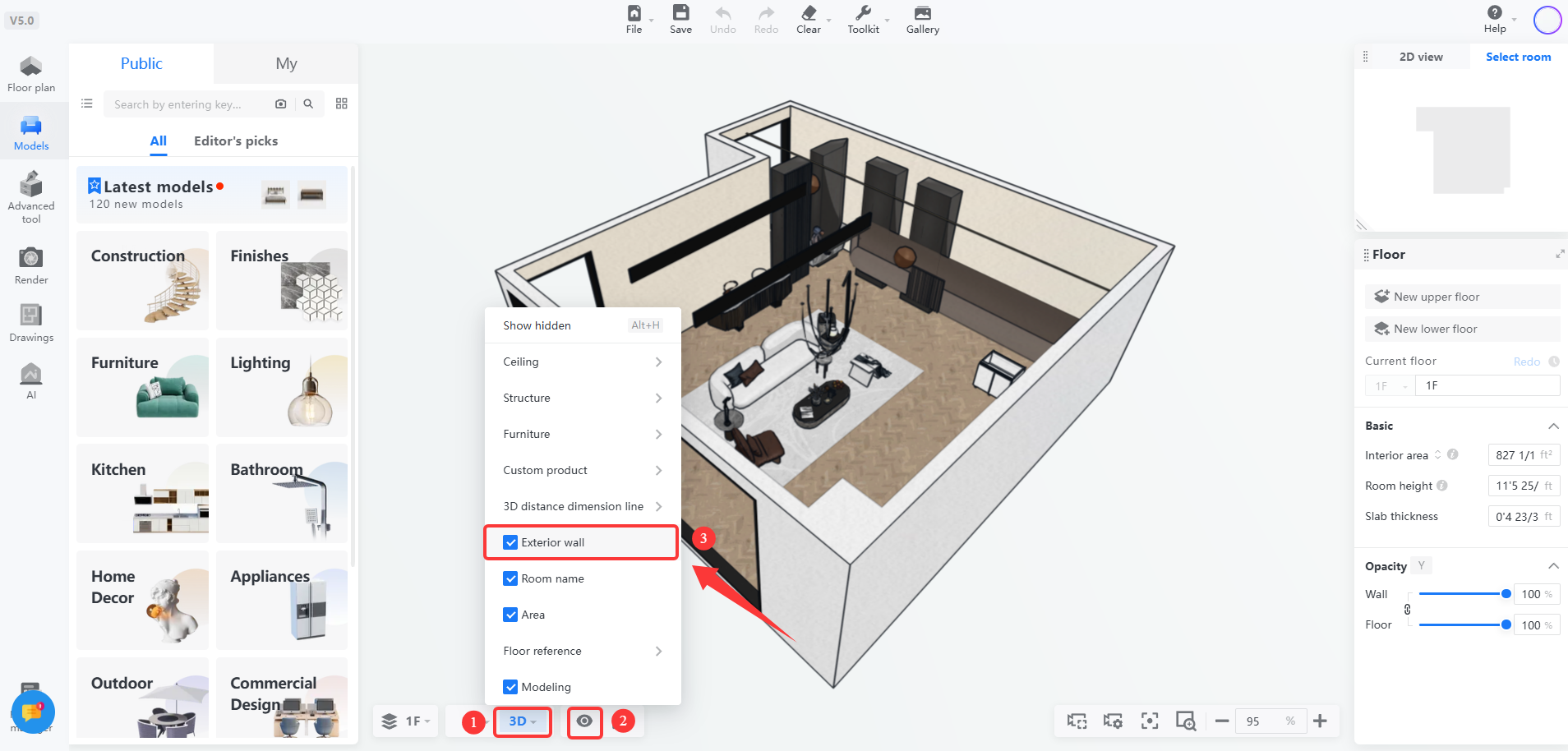
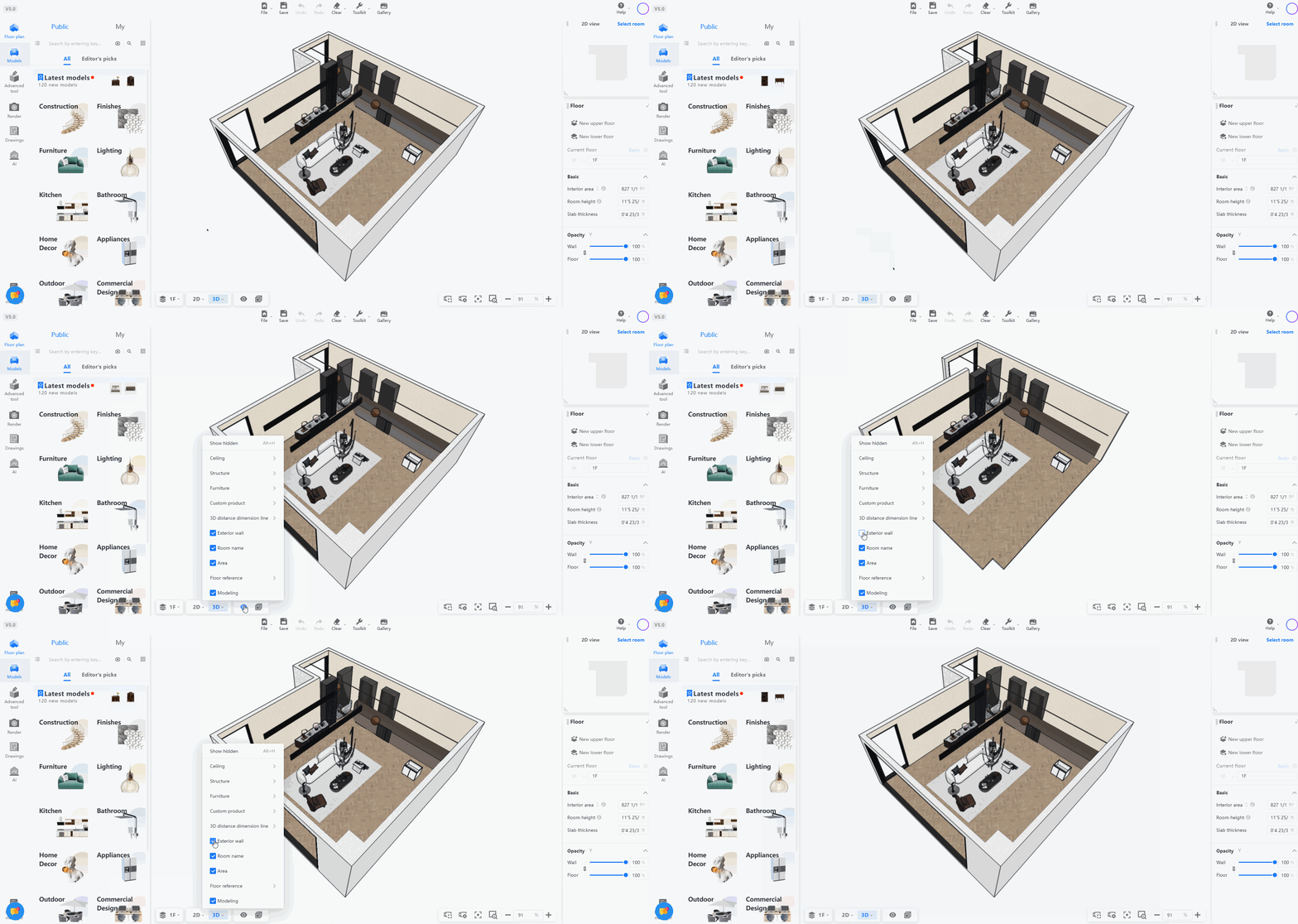
Enter the design tool, switch to **3D Mode** , and click on the **eye icon** to choose whether to check or uncheck exterior walls. When exterior walls are checked, they will be showed; when unchecked, they will be hidden.
Hide or Show All Walls
======================
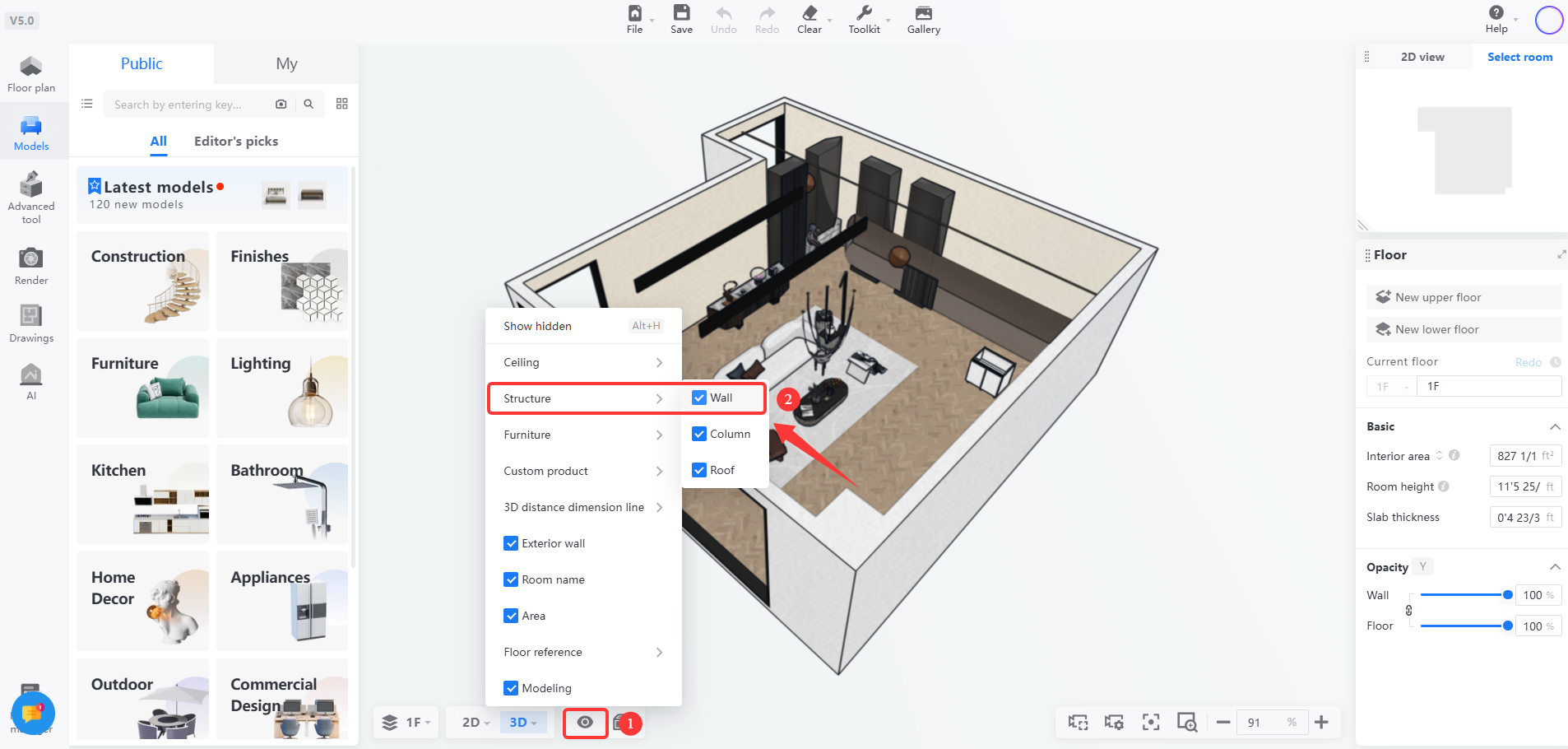
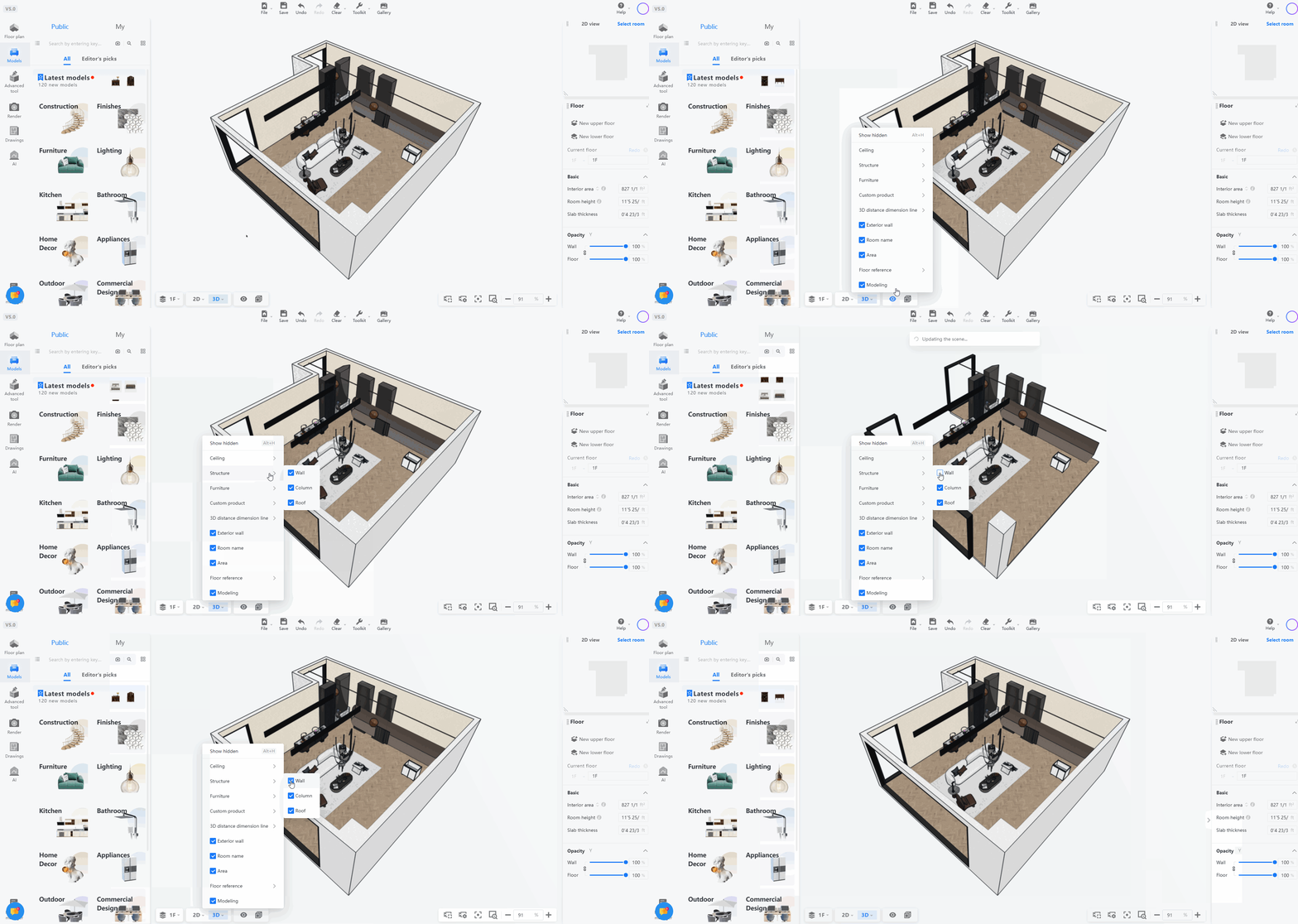
Enter the design tool, either in **2D/3D Mode** (demonstrated in 3D mode in the text), and click the **eye icon** to choose whether to check or uncheck wall in the structure. When wall is checked, all walls will be showed; when unchecked, all walls will be hidden.