# set-coohom-watermark-and-brand-watermark-in-renderings
> Learn how to remove or customize the watermark in Coohom images to enhance your designs. Follow simple steps for a professional look. Start designing now!
- **URL**: https://www.coohom.com/helpcenter/set-coohom-watermark-and-brand-watermark-in-renderings
- **Locale**: en_US
- **Updated**: 2026-06-11
## Content
In the renderings, Coohom watermark and brand watermark can be optionally removed, or you can re-upload the image to update the watermark. This article will provide a detailed explanation on how to set Coohom watermark and brand watermark.
⭐Before reading the article, it is recommended to watch the video tutorial first for easy getting started\~
\[Video URL\](https://www.youtube.com/watch?v=j_rdBhThjog)
For Users
=========
Users with Pro and above permissions
Coohom Watermark
================
Disable Watermark
-----------------
Users with Pro and above permissions can choose not to display the Coohom watermark in images (turn off the watermark switch before rendering).
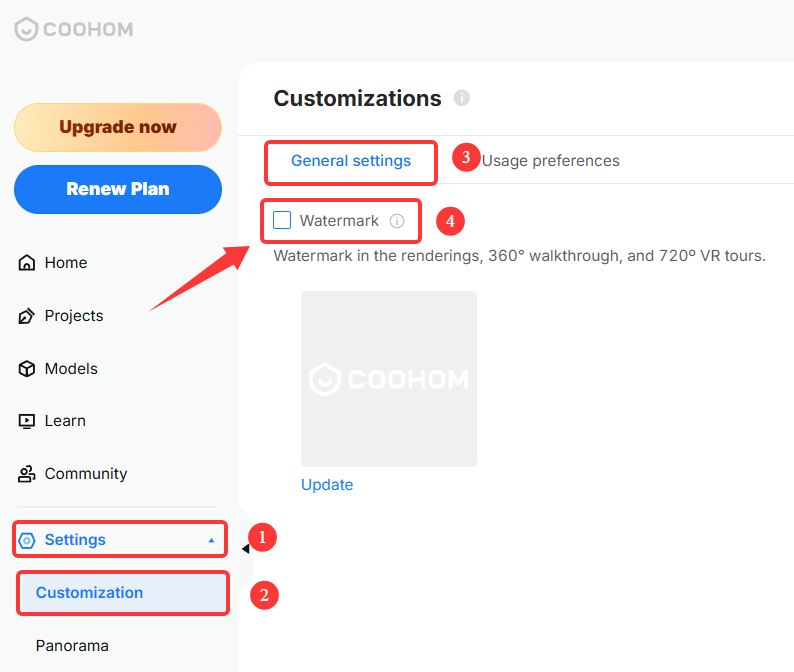
Enter **Workspace** , choose **"Settings - Customization - General Settings"** and **uncheck the Watermark**. After unchecking the watermark, watermarks in renderings, 360° walkthrough, and 720º VR tours will no longer be displayed.
* **Note:** If you want to hide the Coohom watermark, please uncheck this option before rendering .

Upload Watermark
----------------
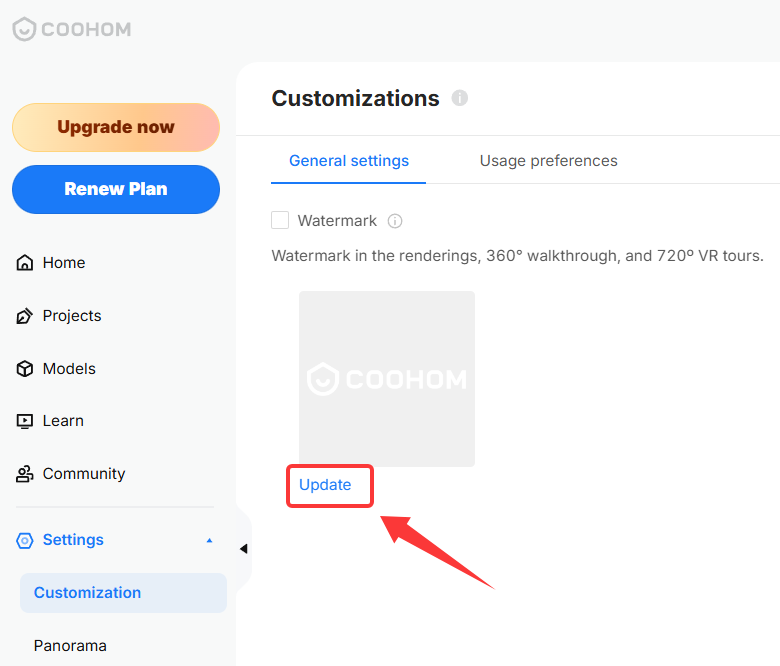
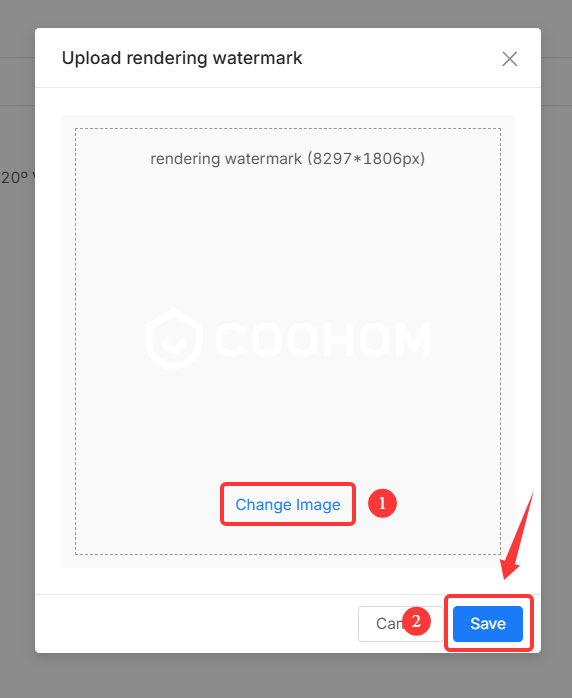
If you need to upload your own watermark, please click **Update,** then click **Change Image** , and then **Save**.
Brand Watermark
===============
The brand watermark is another watermark function displayed in renderings (excluding 360° walkthrough and 720º VR tours). Brand watermarks can be turned off and can only be edited in account settings.
Disable Watermark
-----------------
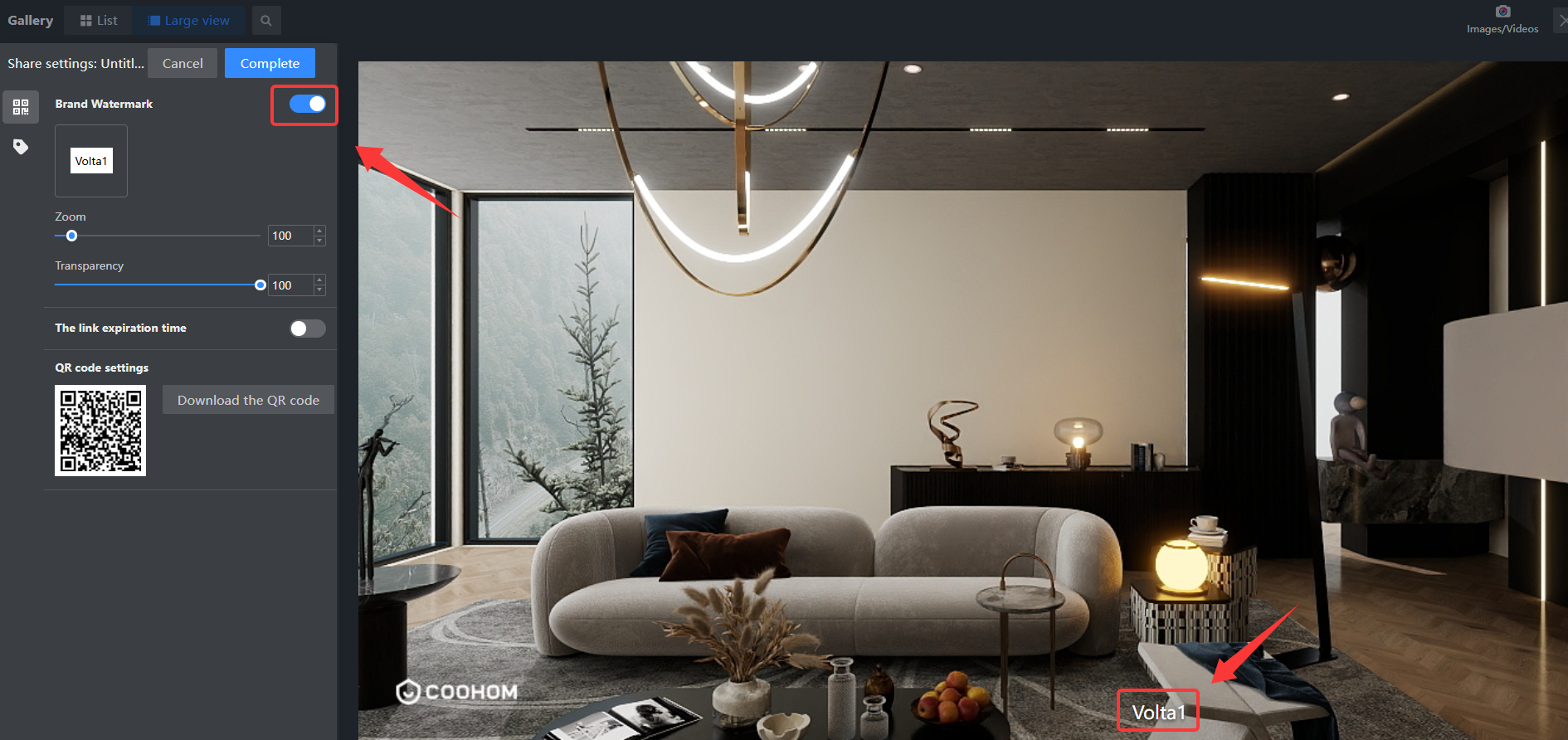
1. Open the **Rendered Gallery** , and select **"Edit - Picture Settings"** under the rendered image.
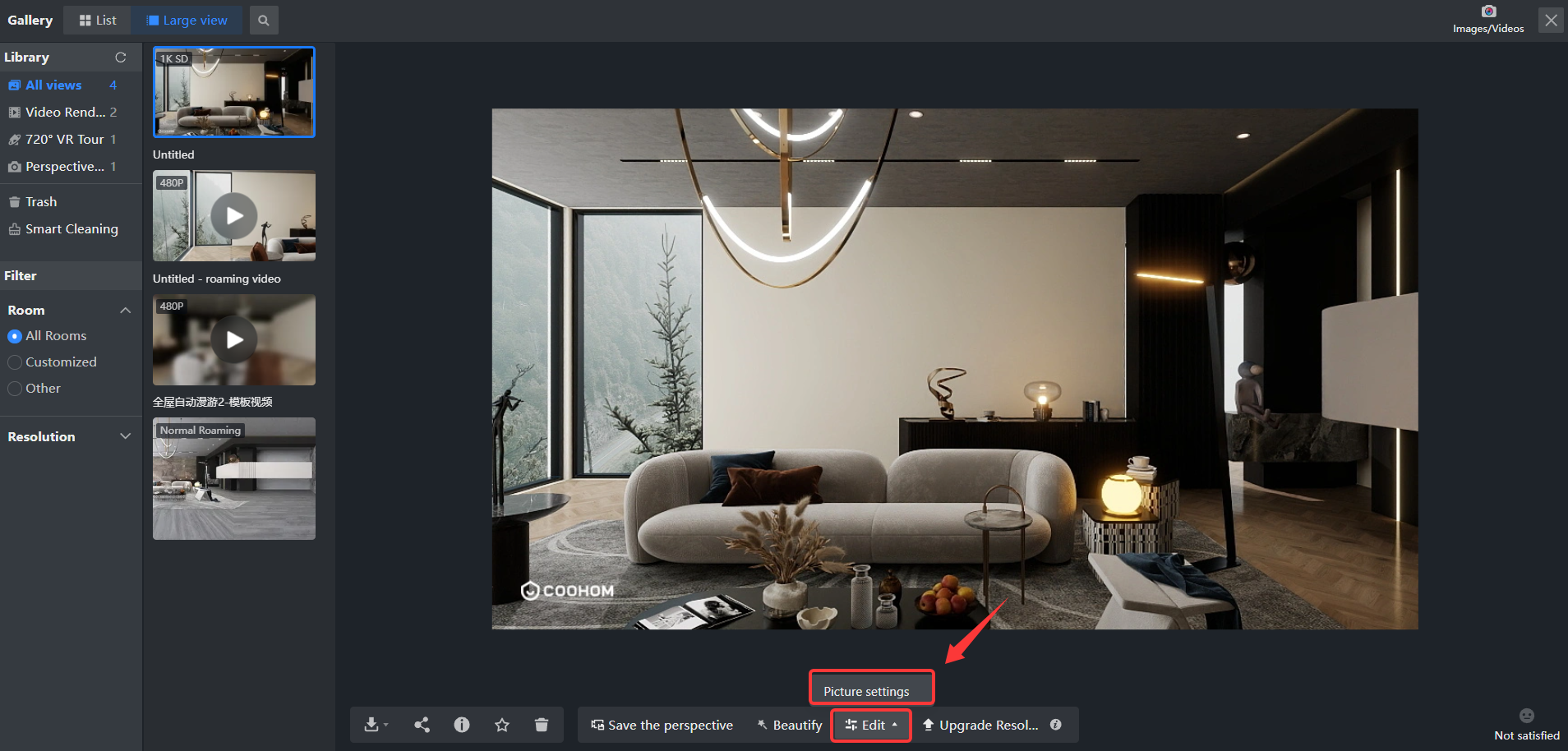
2. The **brand watermark** switch can be turned off. After turning off the watermark, watermarks in renderings will no longer be displayed.
Edit Watermark
--------------
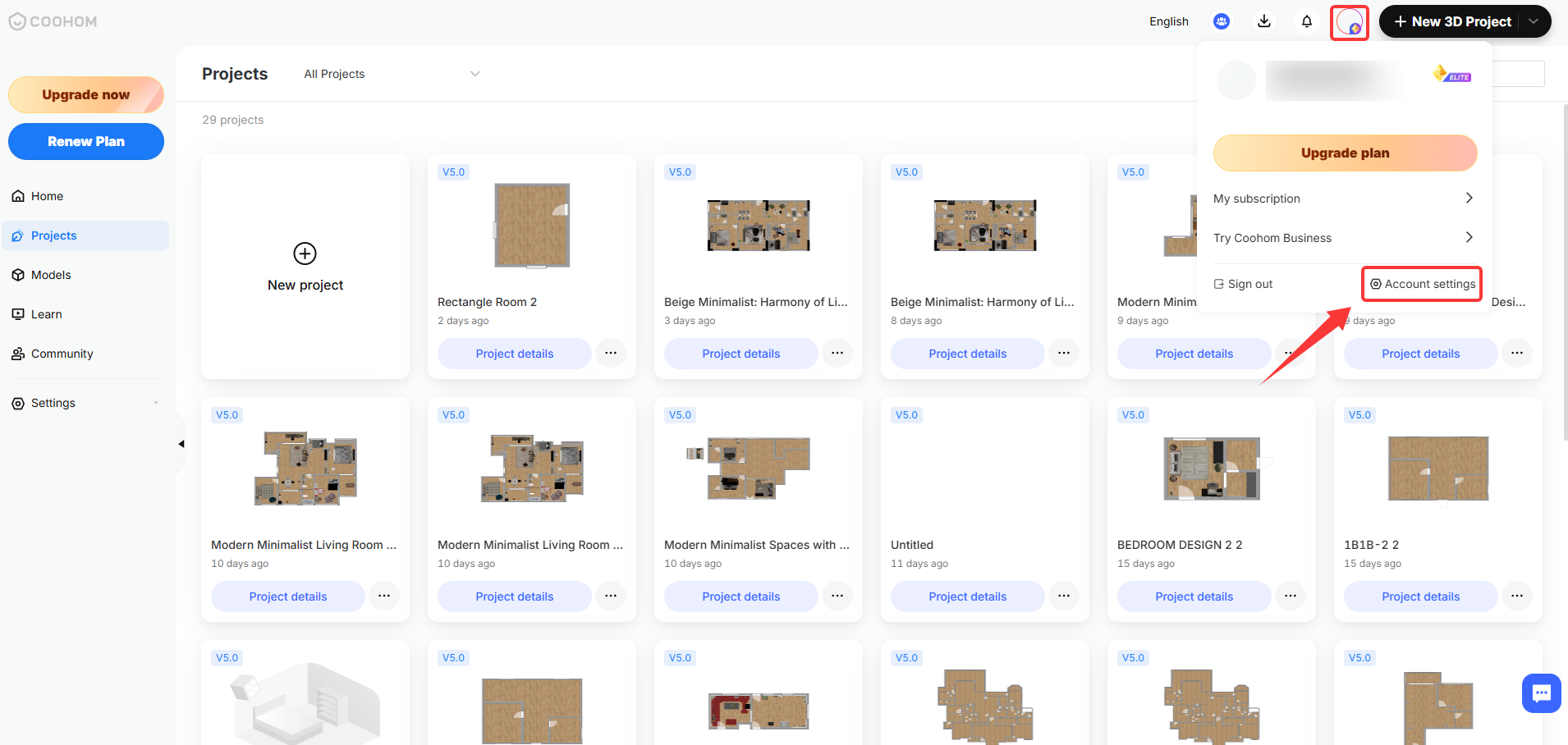
1. In the upper right corner of the Workspace interface, you will find the **Profile Icon**. This icon typically resembles a person or an avatar and serves as a gateway to access your account settings.
2. Click the profile icon to open a dropdown menu. Select **Account Settings** from the menu.
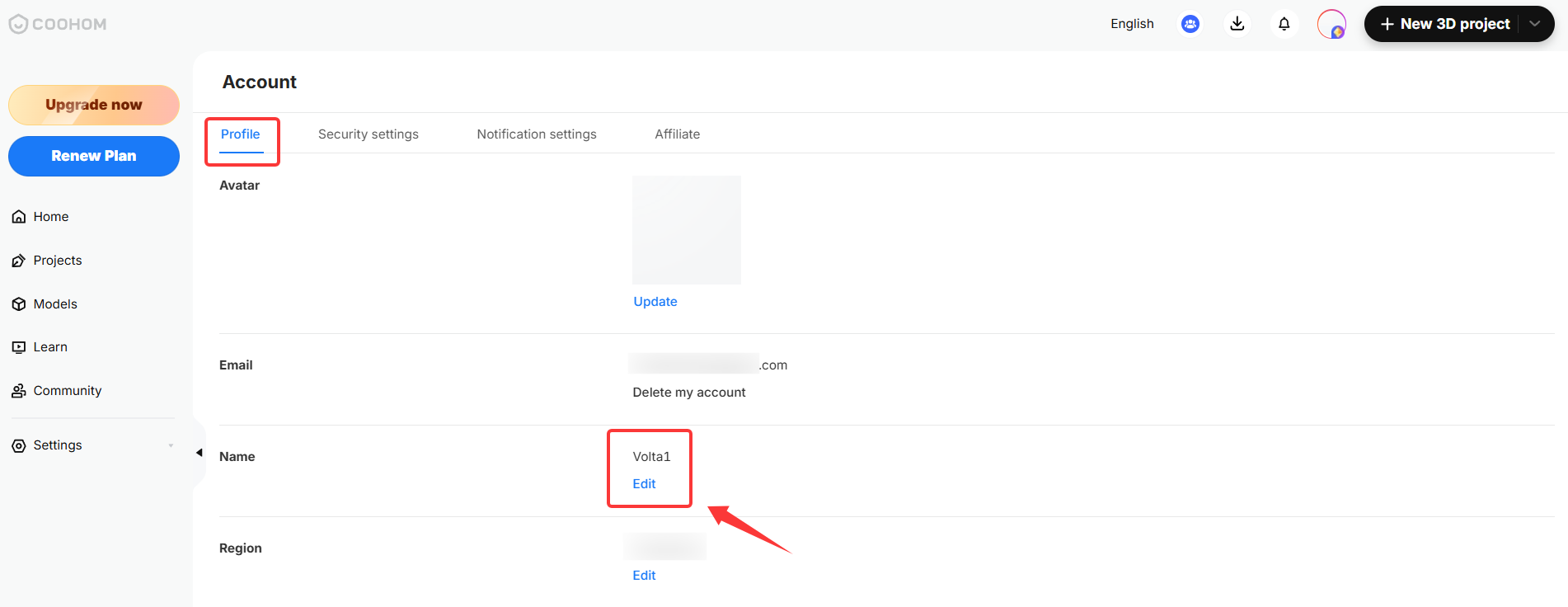
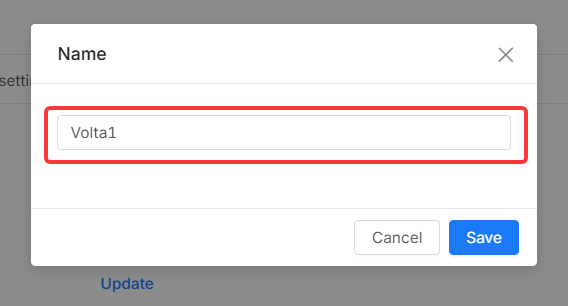
3. In **Profile** , select **Name** , click **Edit,** enter the new name, and **Save**.
* **Note:** The edited name must be **unique**, because if another user has previously used the same name, it will not be effective in the image.
Important Notes
===============
**Basic/Plus accounts do not have the rights to remove watermarks. If you need to subscribe to a Pro account, please click [here](https://www.coohom.com/pricing)**.