# floor-plan-adjust-the-wall-size
> Learn how to set and modify low walls and columns in Cloud Design 5.0 efficiently. Follow our step-by-step instructions to customize your floor plan. Start designing now.
- **URL**: https://www.coohom.com/helpcenter/floor-plan-adjust-the-wall-size
- **Locale**: en_US
- **Updated**: 2026-06-11
## Content
After drawing walls, you can adjust the length, thickness and height of the walls to fit the actual layout.
⭐Before reading the article, it is recommended to watch the video tutorial first for easy getting started\~
\[Video URL\](https://www.youtube.com/watch?v=JGti9OcCrYM)
For Users
=========
All users
Modify Wall Length
==================
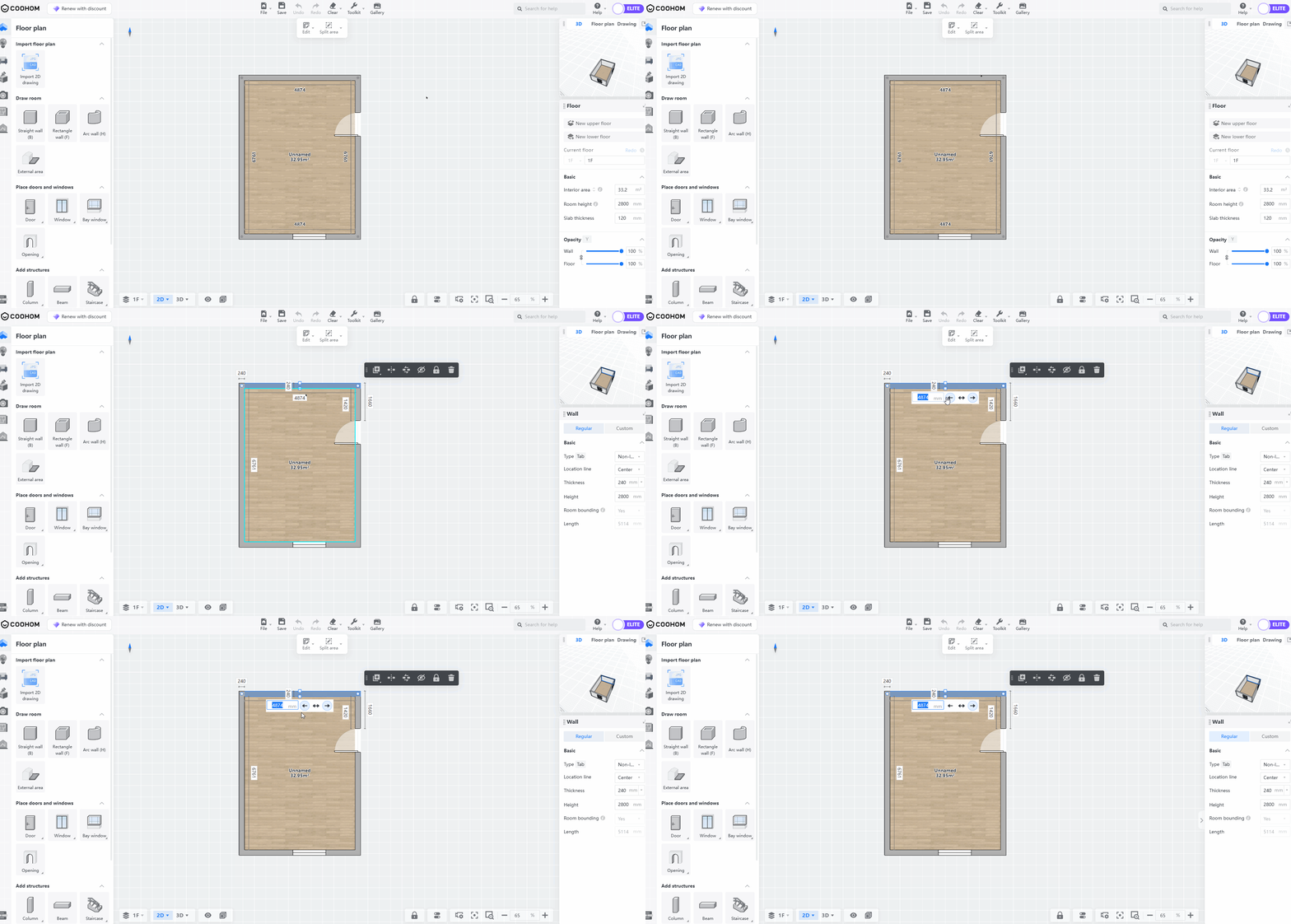
1. Enter the design tool, select the wall you want to modify, click on thedimension line for lengthannotation, andactivate the dimension line input field.
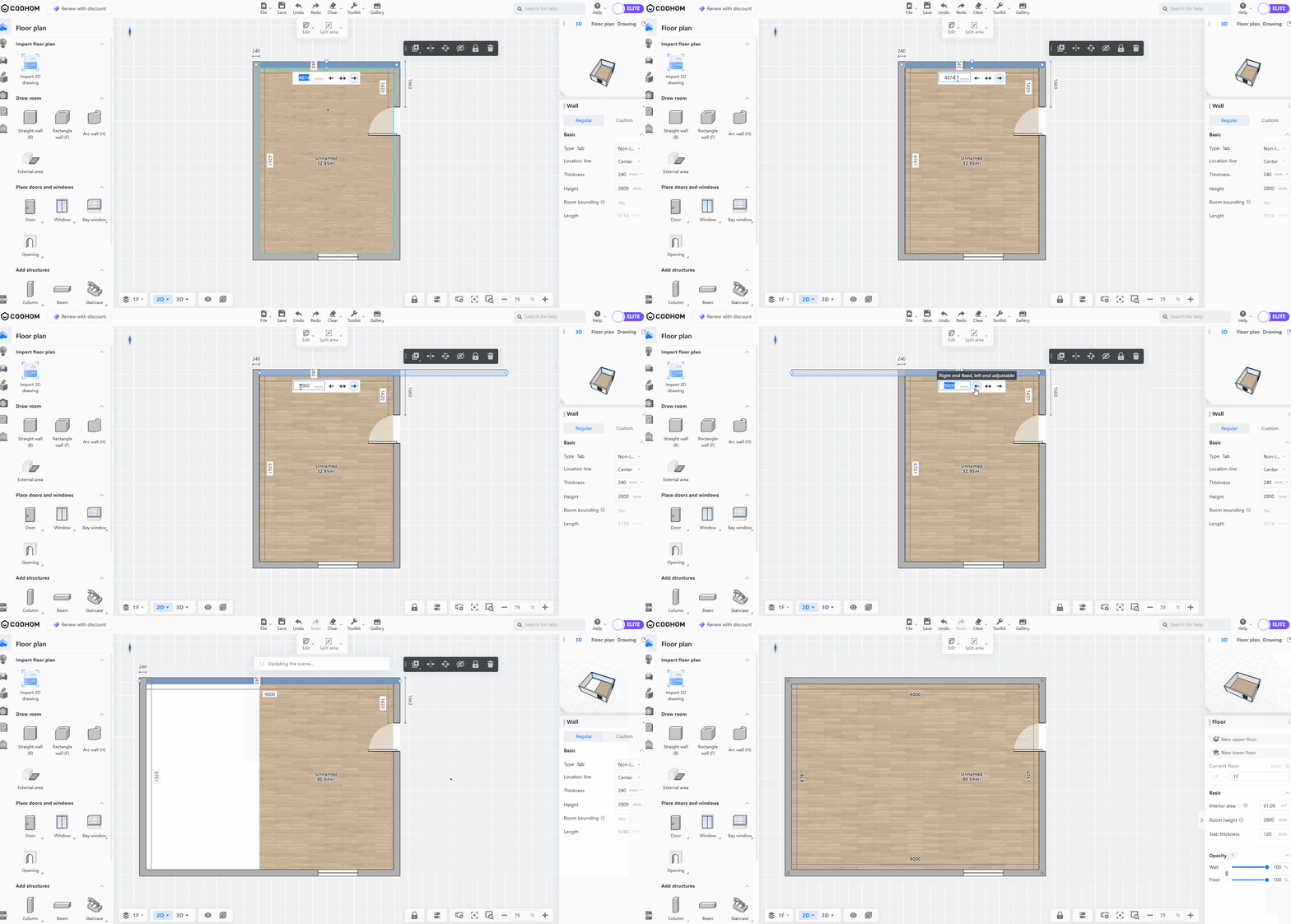
2. Enter thedimensions in the input field, choose the wall'sdirection of extension, then press the**Enter** key to confirm**.** At this point, you'll see the wall length has changed.
Modify Wall Thickness
=====================
There are three ways to modify wall thickness, as detailed below:
**Method 1**
1. Select the wall you want to modify, click on thedimension line for thickness annotation, and activate the dimension line input field.
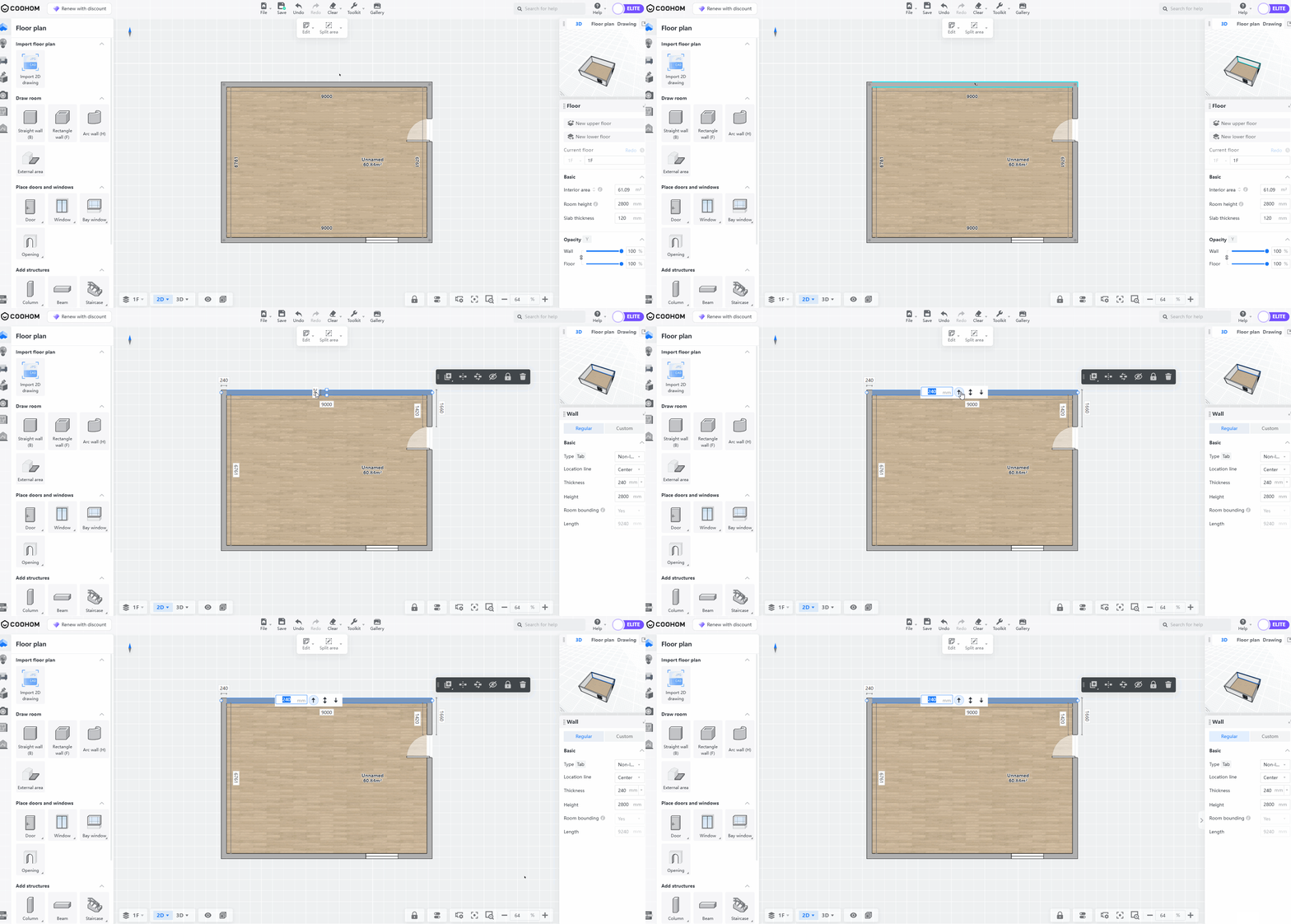
2. Enter thedimensions in the input field, choose the wall'sdirection of extension, then press the**Enter** key to confirm**.** At this point, you'll see the wall thickness has changed.
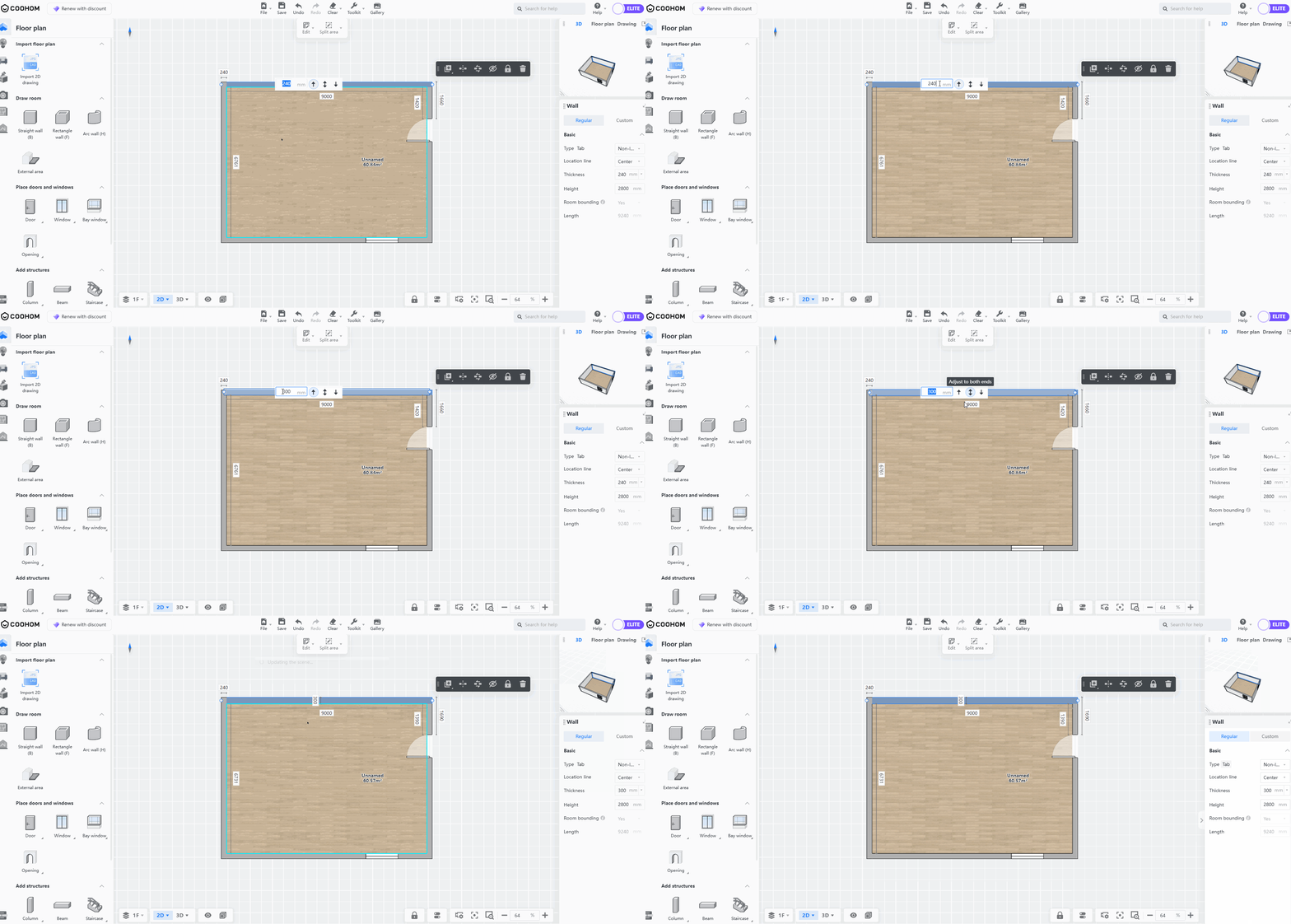
**Method 2**
After selecting the wall, find the**Thickness** option in the parameters panel on the right. You can either choose the required size directly from the value bar and click apply, or manually input the values in the input box to adjust the wall thickness.
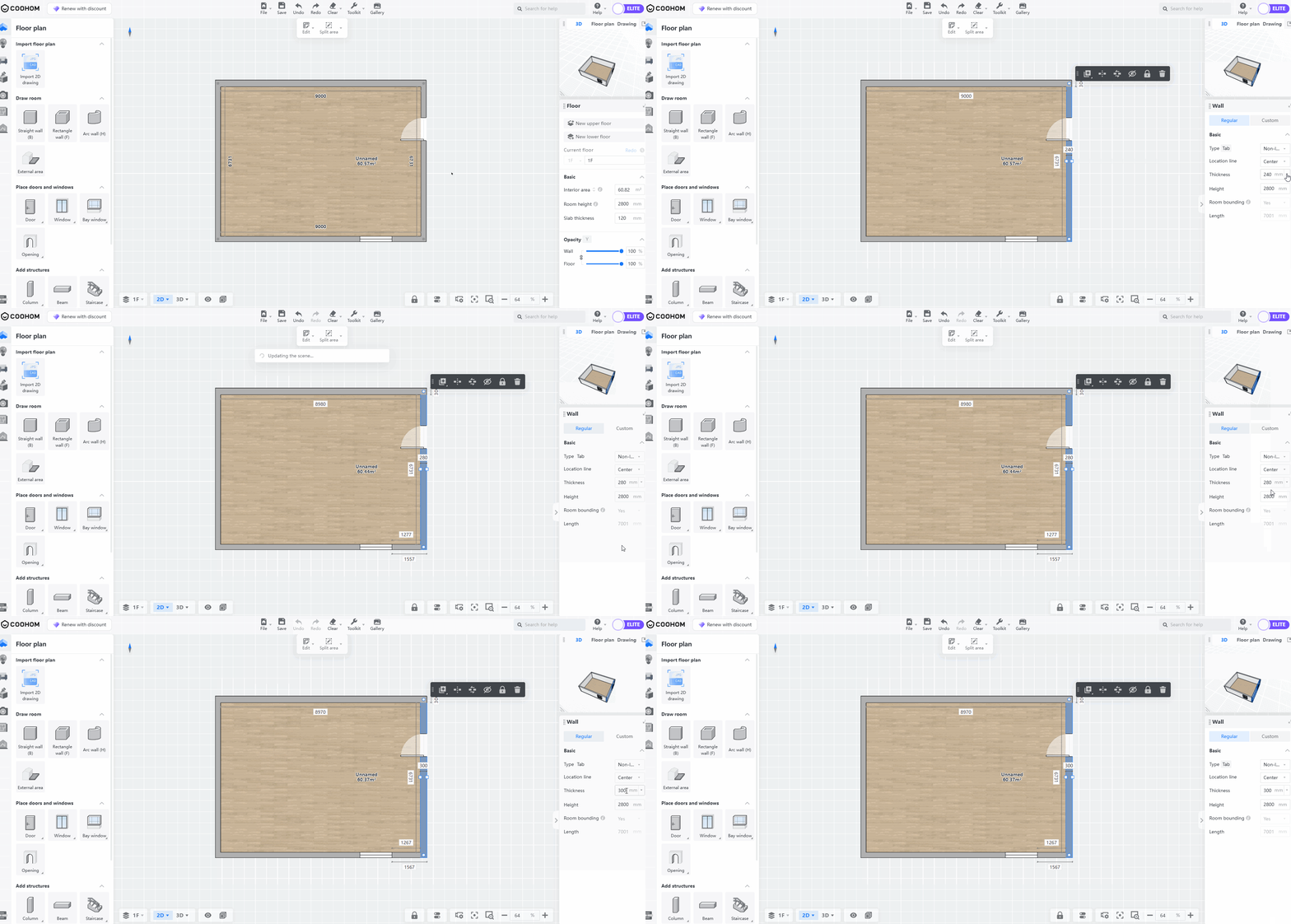
**Method 3**
When drawing walls, you can hold down the**Alt**key to switch wall thickness quickly and conveniently.
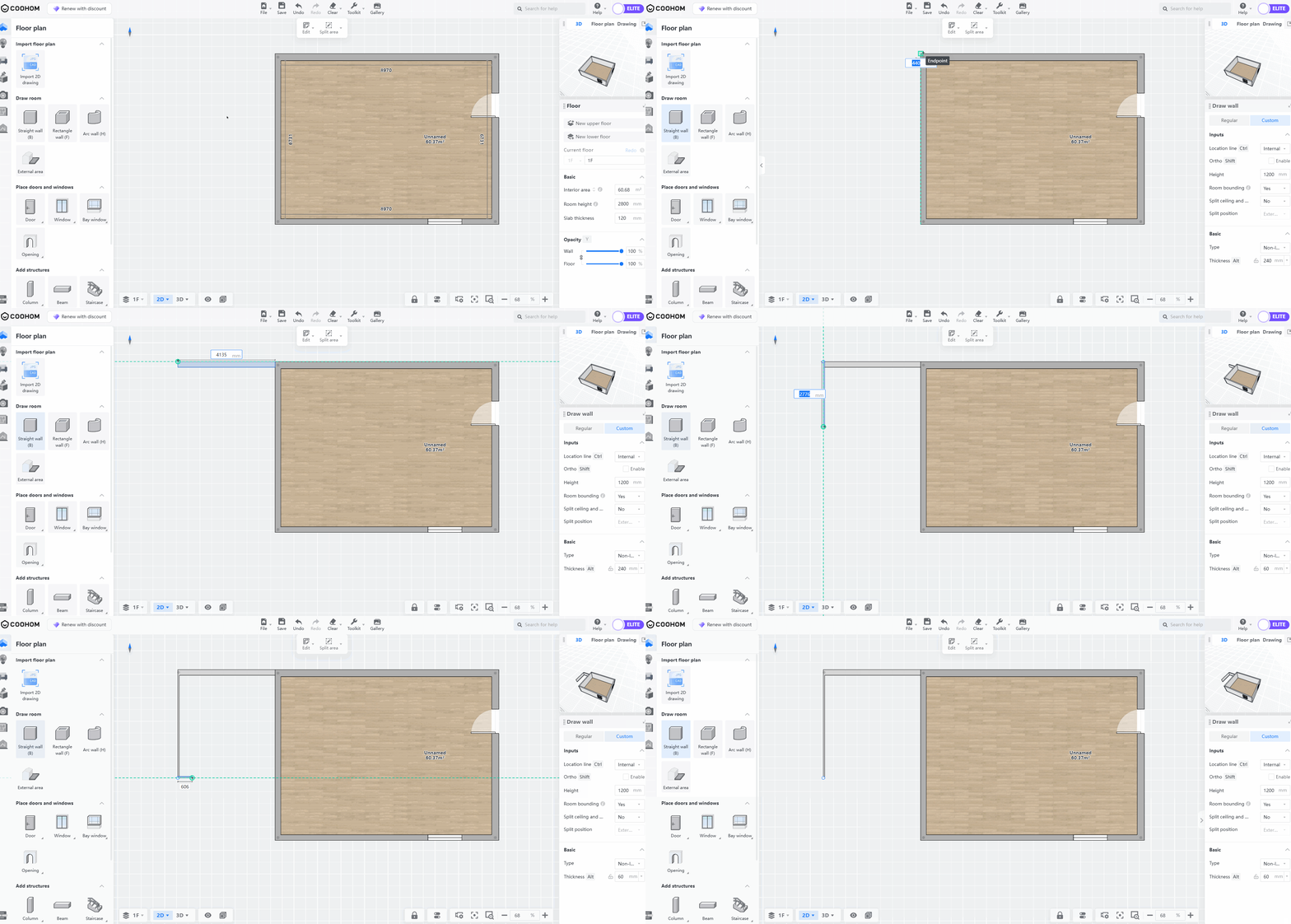
Modify Wall Height
==================
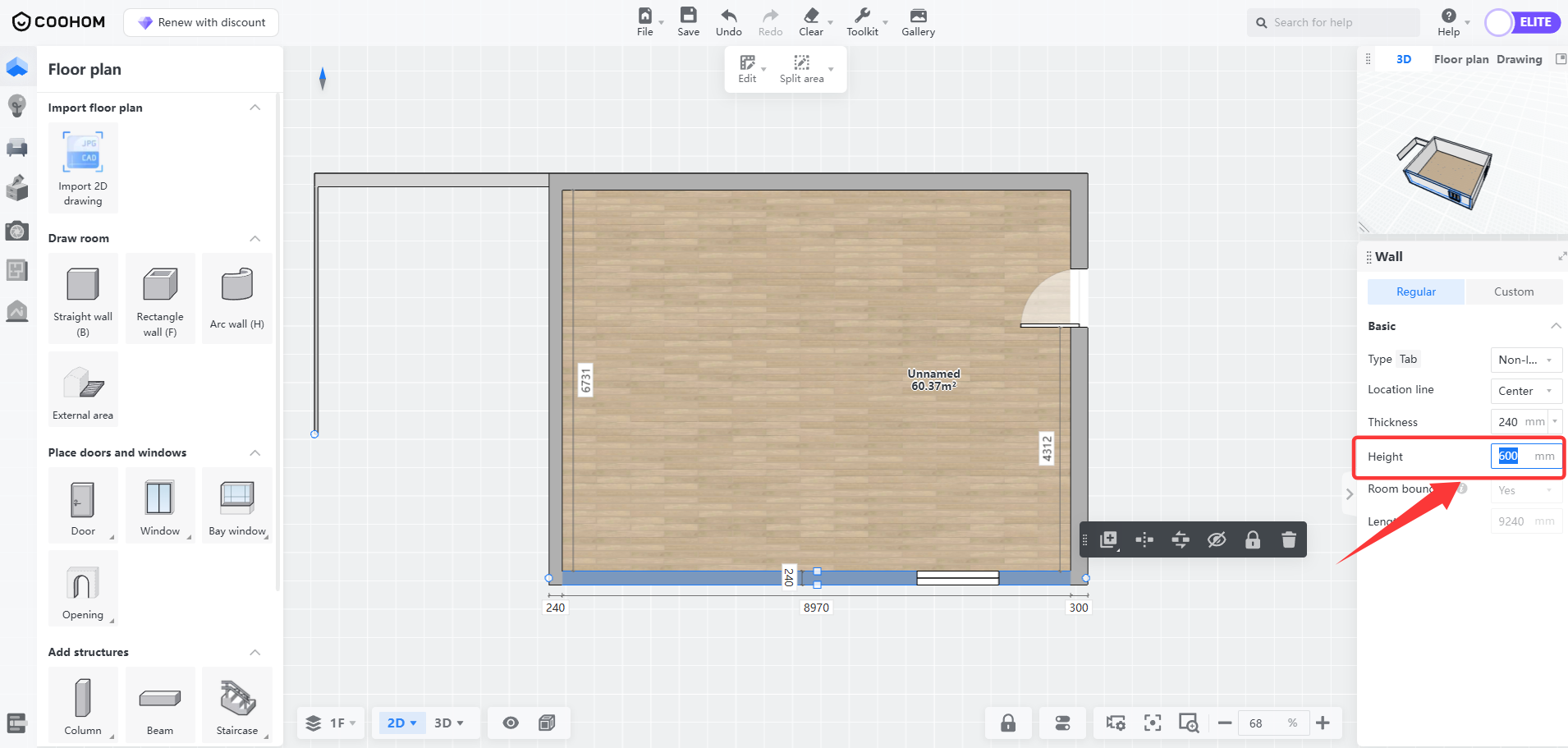
To modify wall height, firstselect the wall, then input the desired value in the**Height** section on the right parameter panel, andpress the**Enter** key to confirm (default height is 2800).
Notes
=====
The dimension line input box supports the addition (+) subtraction (-) multiplication (\*) division (/) four operations, using the current size or input size for quick calculation, and quickly modifying wall parameters (the dimension line input box of beams and columns is also supported)