# model-materials-use-the-array-tool-to-quickly-place-your-models
> Learn how to use linear, polar, and rectangular array tools to copy and arrange models accurately in design projects. Boost efficiency in just a few steps.
- **URL**: https://www.coohom.com/helpcenter/model-materials-use-the-array-tool-to-quickly-place-your-models
- **Locale**: en_US
- **Updated**: 2026-06-16
## Content
In the design tool, multiple placements of the same model can be accurately copied using the linear/polar/rectangular array tools. This allows placement and arrangement of objects based on row count, column count, and center point settings. Especially in commercial projects or large-scale scenes, equidistant distribution of similar objects is often needed, such as office desk and chair placements. Using the array tools can improve work efficiency.
⭐Before reading the article, it's recommended to watch the video tutorial first to get started quickly\~
\[Video URL\](https://www.youtube.com/watch?v=ugnUqH7pjb4)
For Users
=========
All users
Entrance
========
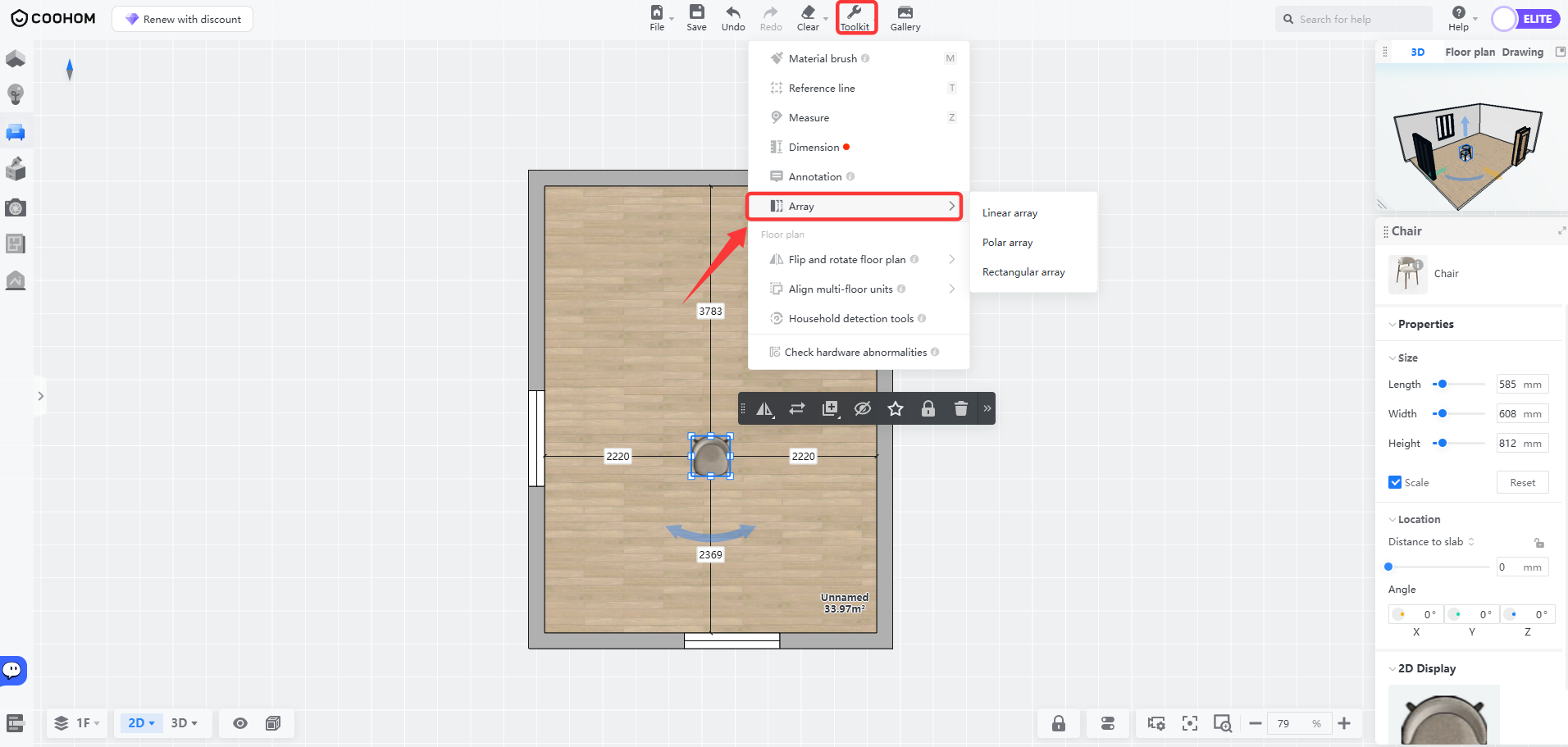
Entrance 1: Enter the design tool, click on **Toolkit** in the top toolbar, and select **Array** . Then choose the desired **Linear/Polar/Rectangular Array** tool.
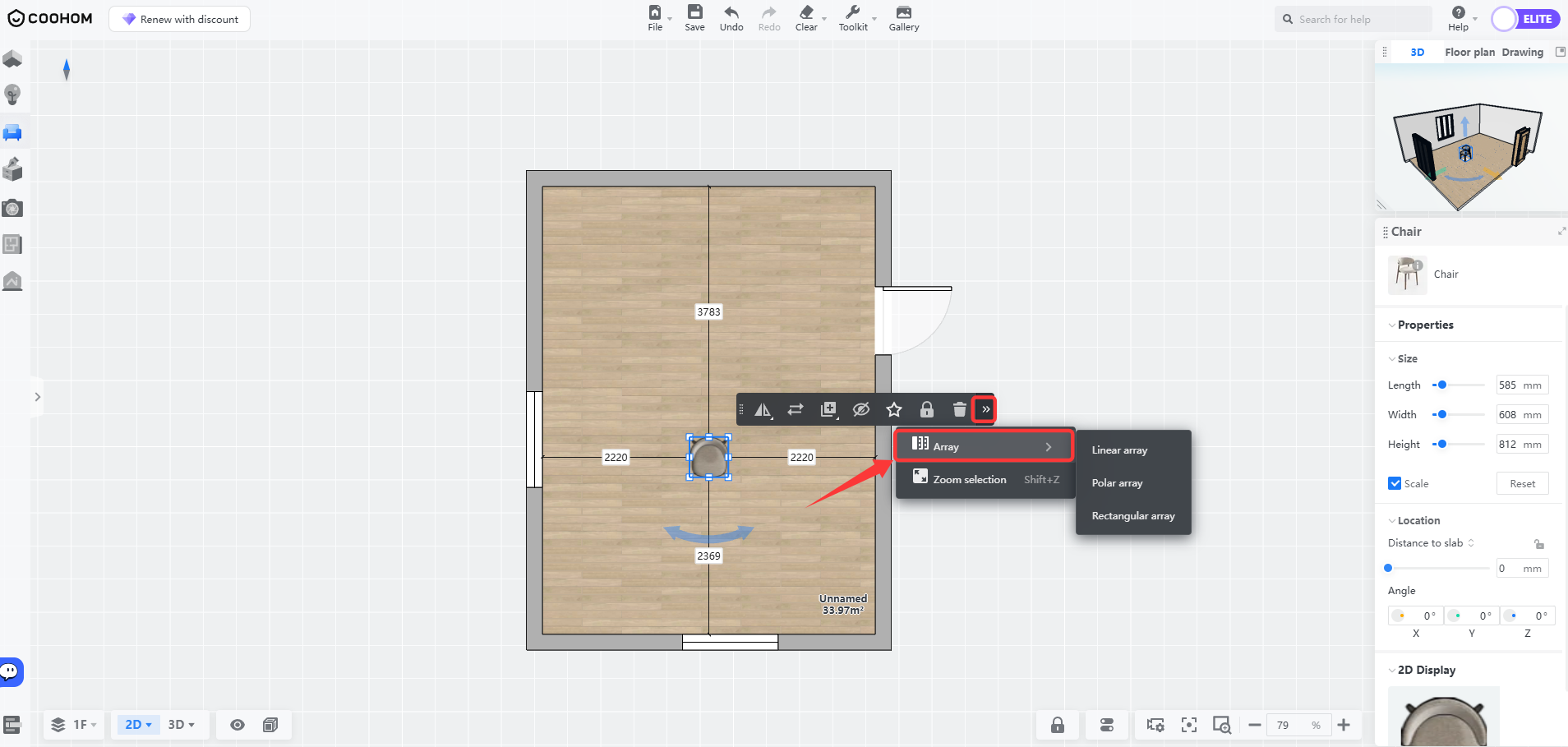
Entrance 2: Select a model, click on the arrow icon in the floating window, and select **Array** . Then choose the desired **Linear/Polar/Rectangular Array** tool.
Linear Array
============
1. Select a model, click **Array** , and choose **Linear Array**.
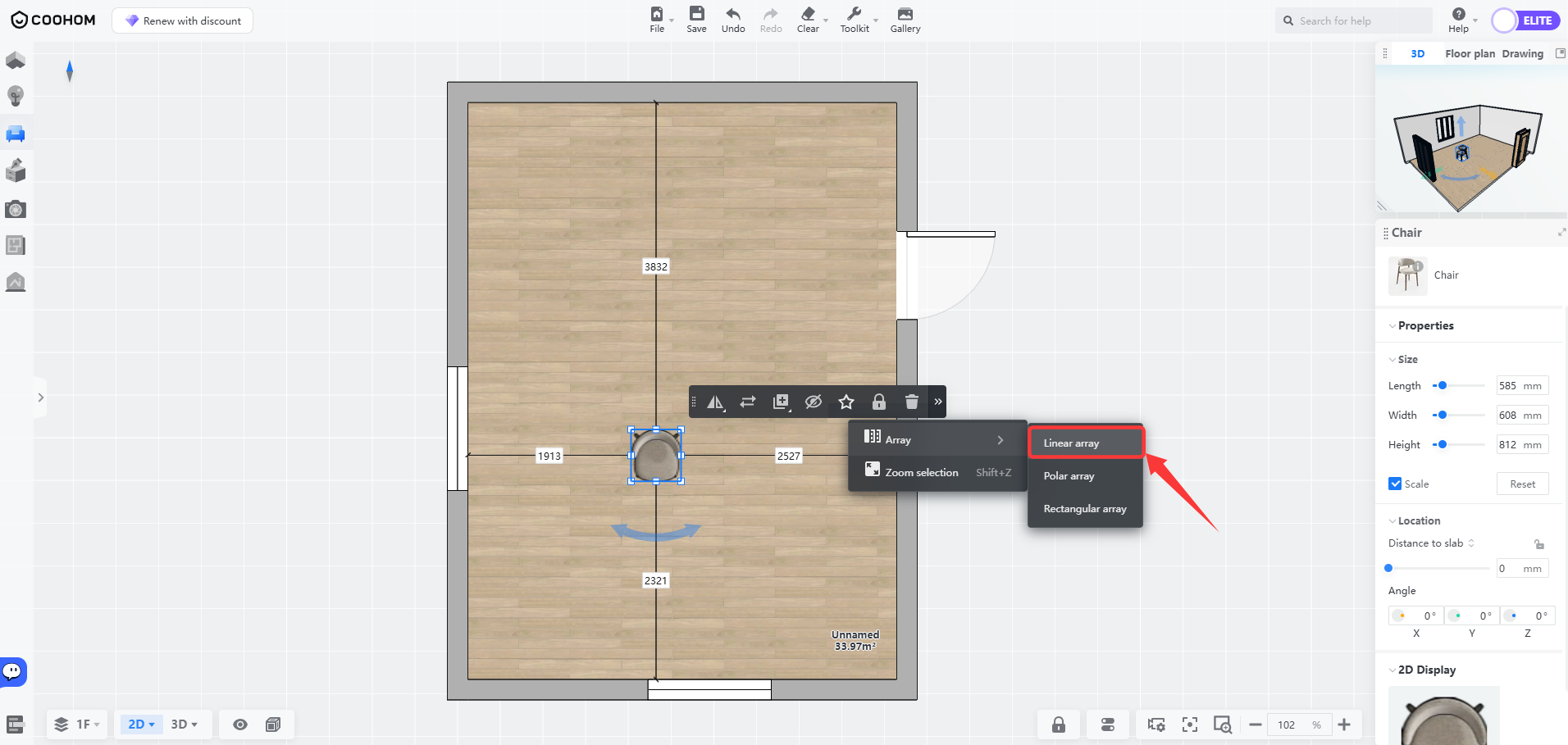
2. First, define a starting point (a point on any edge), then specify the direction and endpoint (array interval). Afterward, use the top toolbar to select **Fixed Pitch/Fixed Length** , and set **Pitch/** **Length, Number** . Once the settings are complete, click **Confirm**.
* For example, select **Fixed Pitch**. The detailed operation steps are demonstrated in the following video:
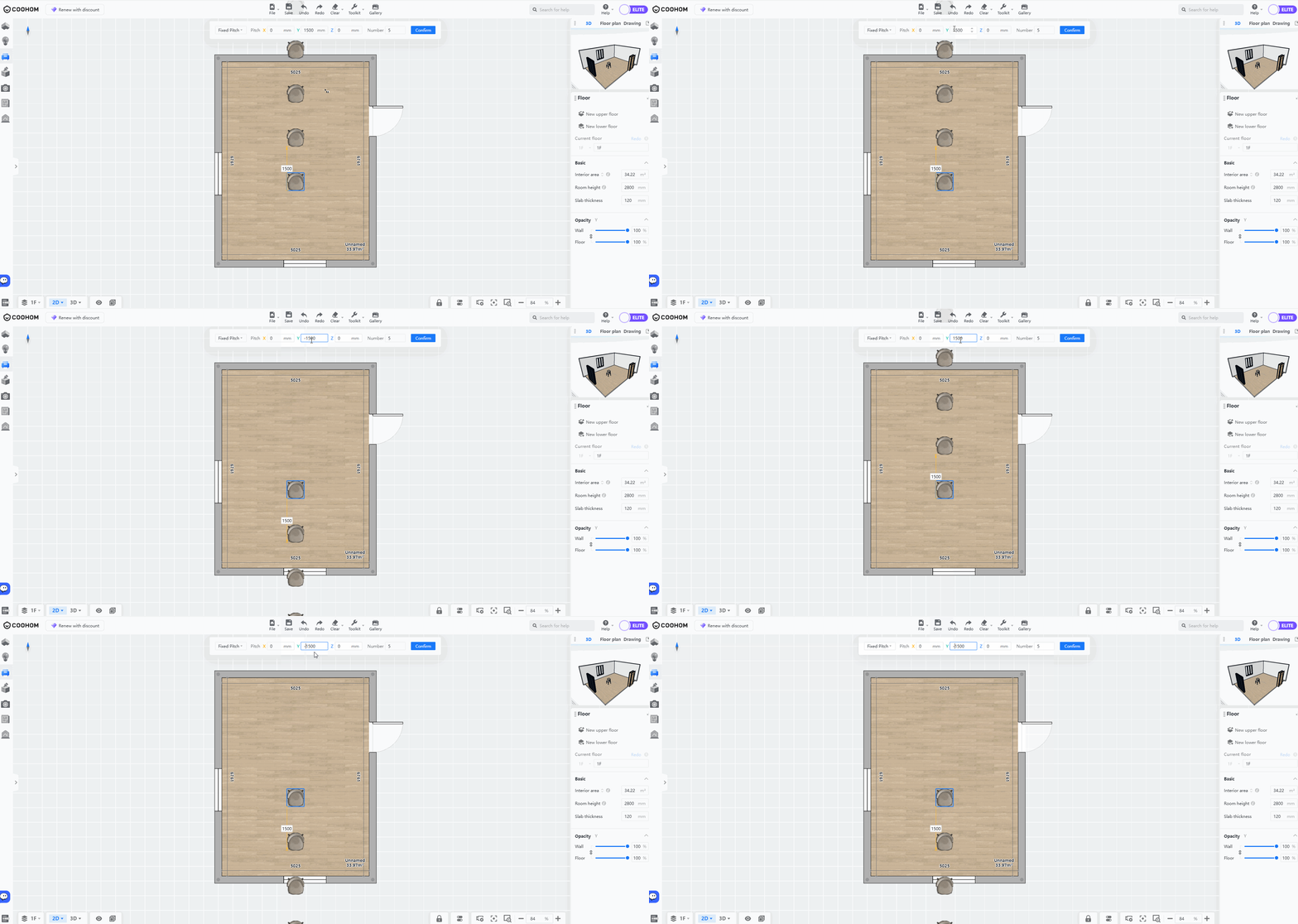
* **Note:** When entering spacing values in the top toolbar, input a negative value for the corresponding Y-axis to reverse the direction. Example demonstration below:

Polar Array
===========
1. Select a model, click **Array** , and choose **Polar** **Array**.
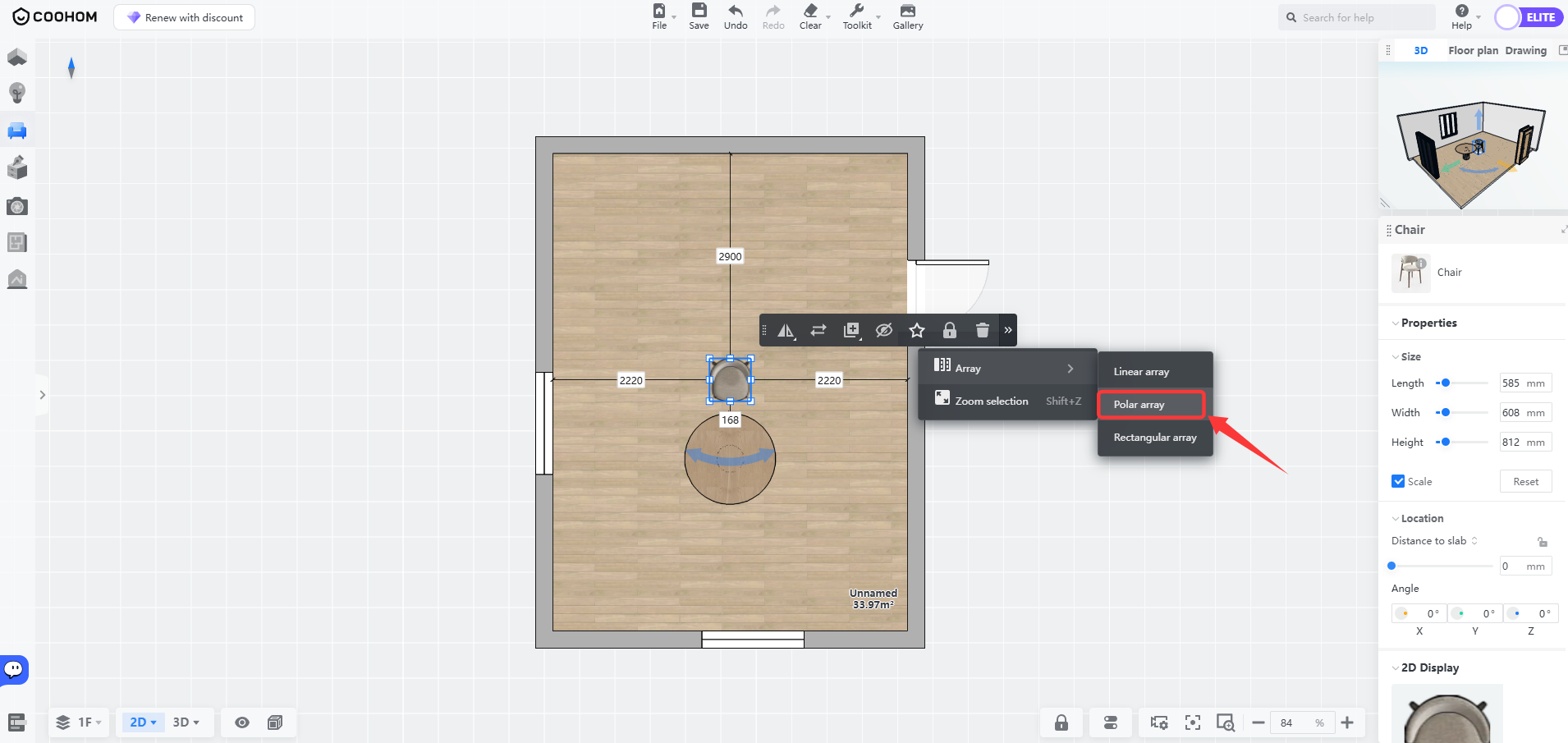
2. First, define a starting point (the center of the reference object, which will serve as the rotation center of the circular array). Then, click on any point along the edge of the array object to confirm the rotation direction. Use the top toolbar to choose **Fixed Intervals/Fixed Total Angle** , and set **Angular Interval** and **Number** . Once the settings are complete, click **Confirm**.
* For example, select **Fixed Total Angle**. The detailed operation steps are demonstrated in the following video:
Rectangular Array
=================
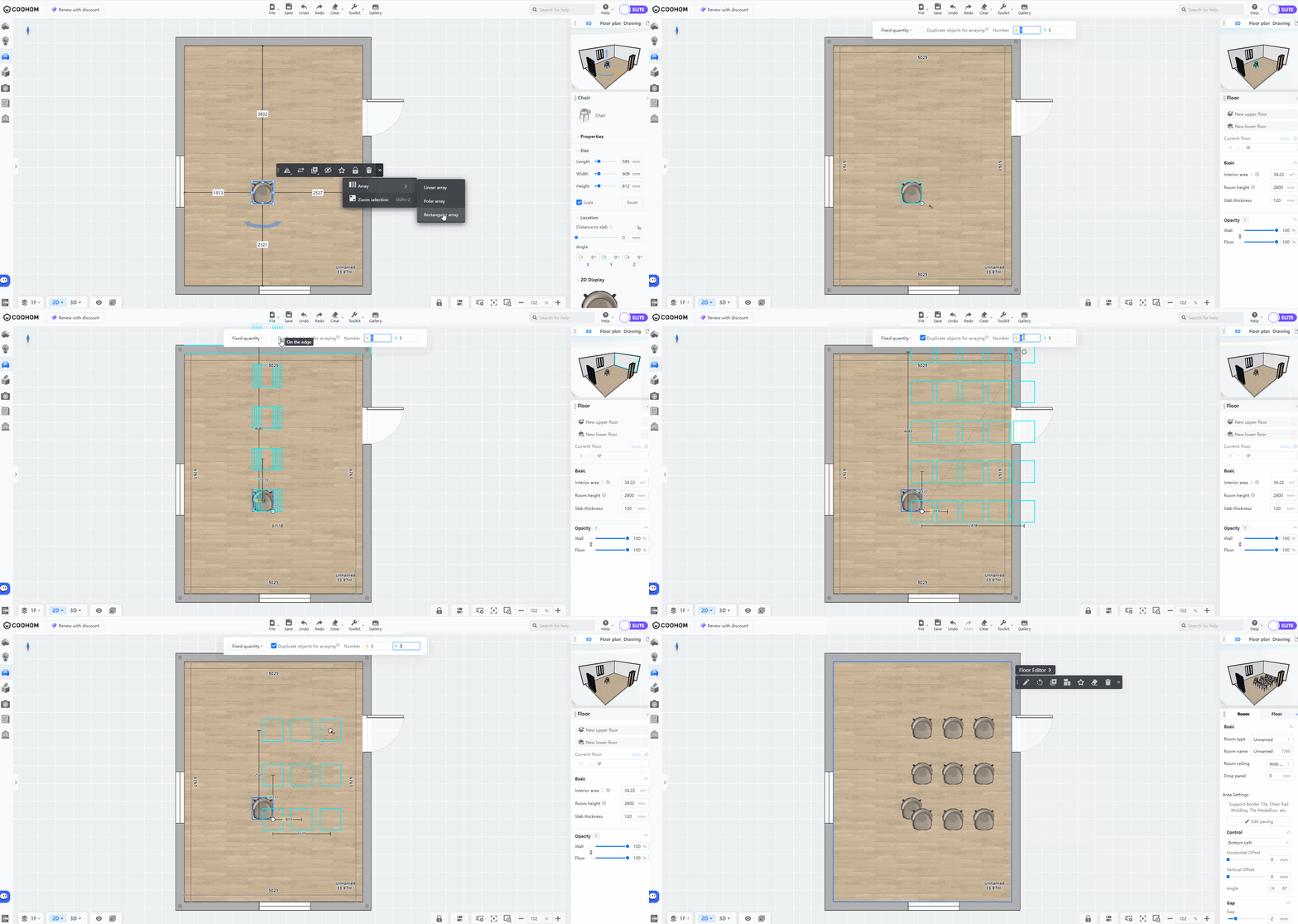
1. Select a model, click **Array** , and choose **Rectangular Array**.
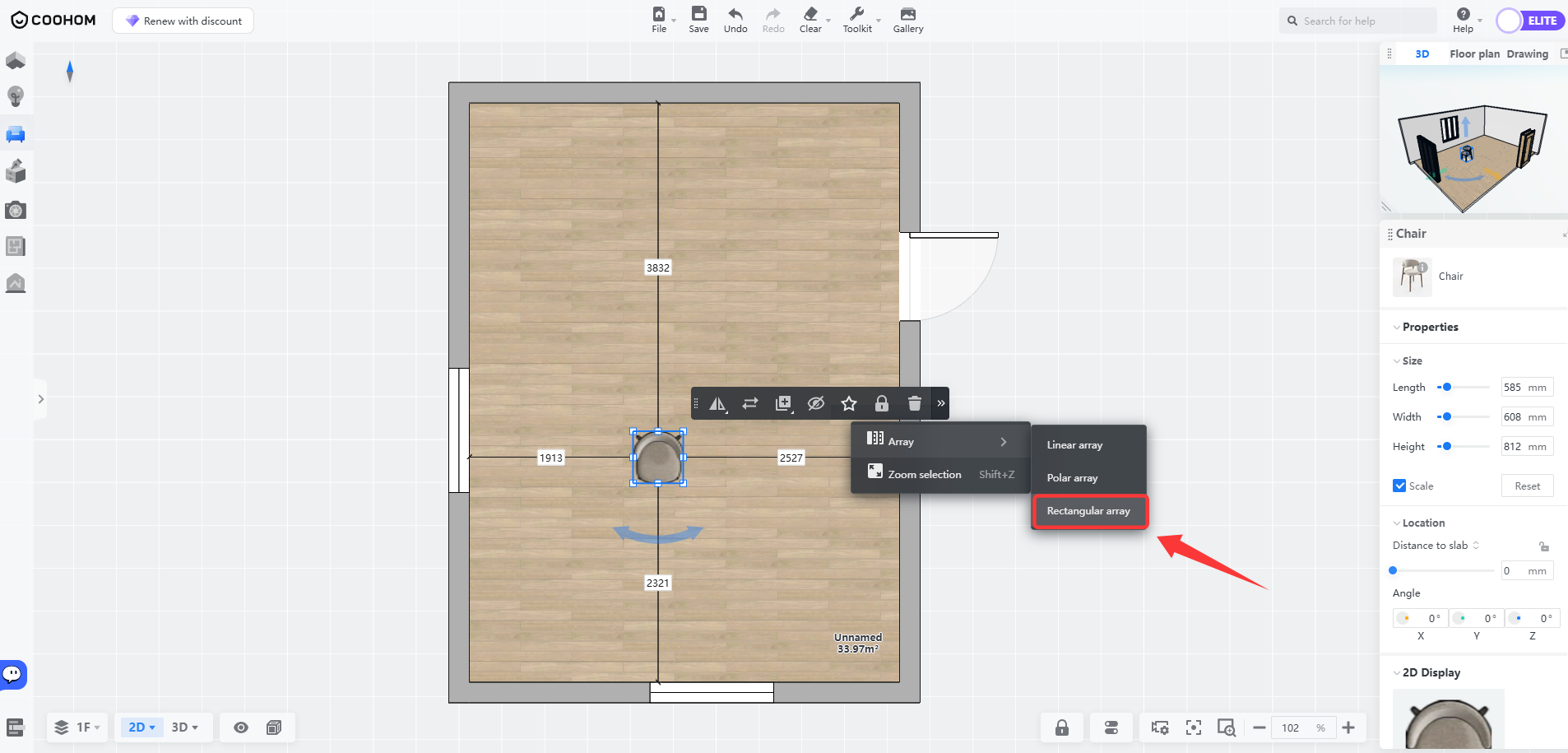
2. First, define a starting point. Then, use the top toolbar to select **Fixed Pitch/Fixed Quantity** , and set **Pitch/Quantity** (X/Y-axis) as needed. Confirm the array direction, then click**Left Mouse Button** or press **Enter** to complete.
* For example, select **Fixed Quantity**. The detailed operation steps are demonstrated in the following video:
Notes
=====
1. Single array quantity should not exceed 50.
2. In 2D view, you can use **Linear/Polar/Rectangular Array** tools. In 3D view, only **Linear/Polar Array** tools are available.
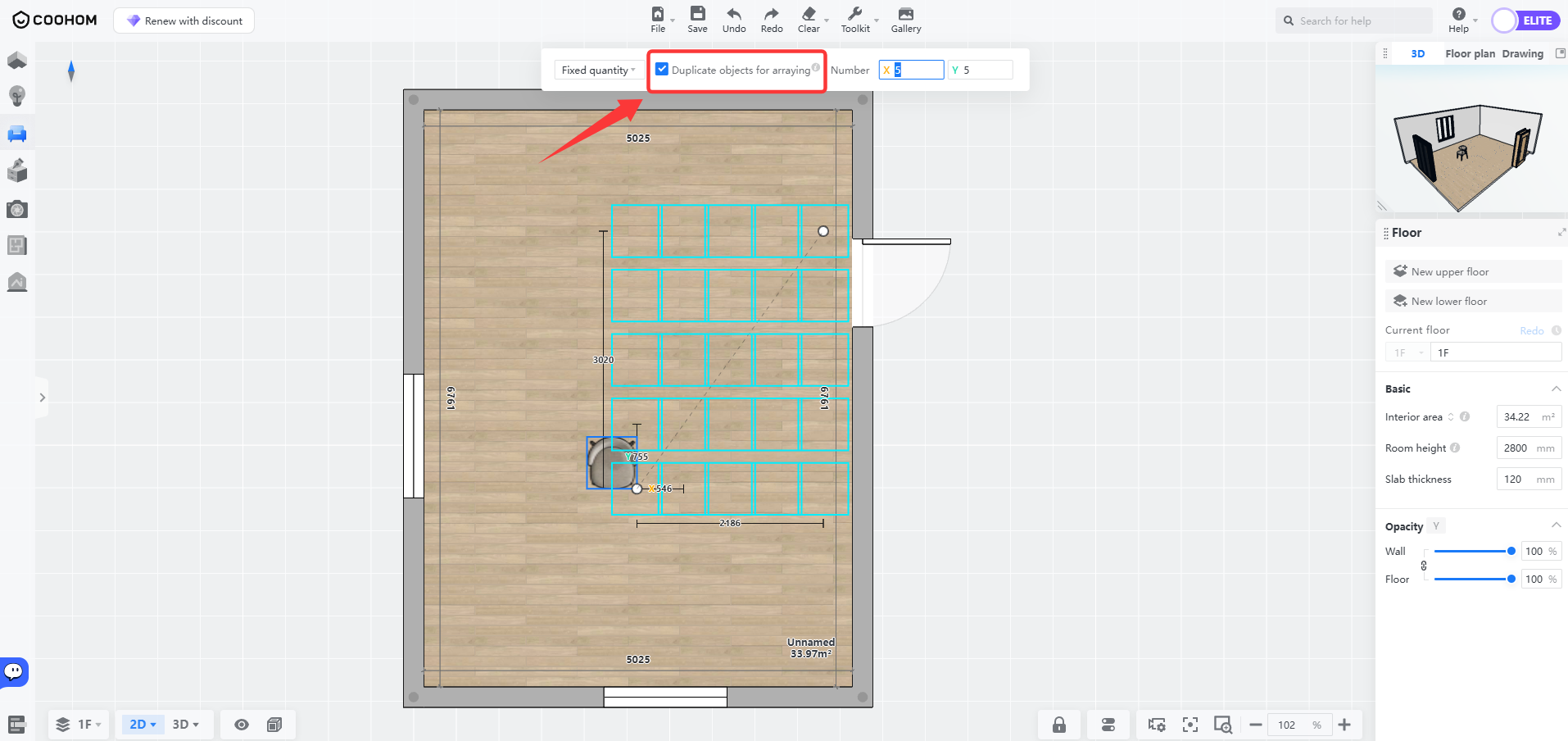
3. When using **Rectangular Array** , If you check **Duplicate Objects for Arraying** at the top, the array will always begin from the starting point, and the original object will only be used as a template.